

This guide walks through the inputs of SmartBid EA MT5 with the values recommended for live trading. The set files that come with the EA already contain these settings, so you can load them in one click and adjust only what your broker or account needs.
SmartBid EA MT5 Settings Guide
SmartBid EA is an automated trading Expert Advisor designed with a broad set of controls for trade execution, risk management, recovery trading, Stop Loss and Take Profit management, trailing protection, news filtering, trading schedules, and account-level restrictions. The displayed configuration provides detailed control over position sizing, recovery trades, maximum drawdown, profit targets, trading direction, trade timing, and on-chart monitoring.
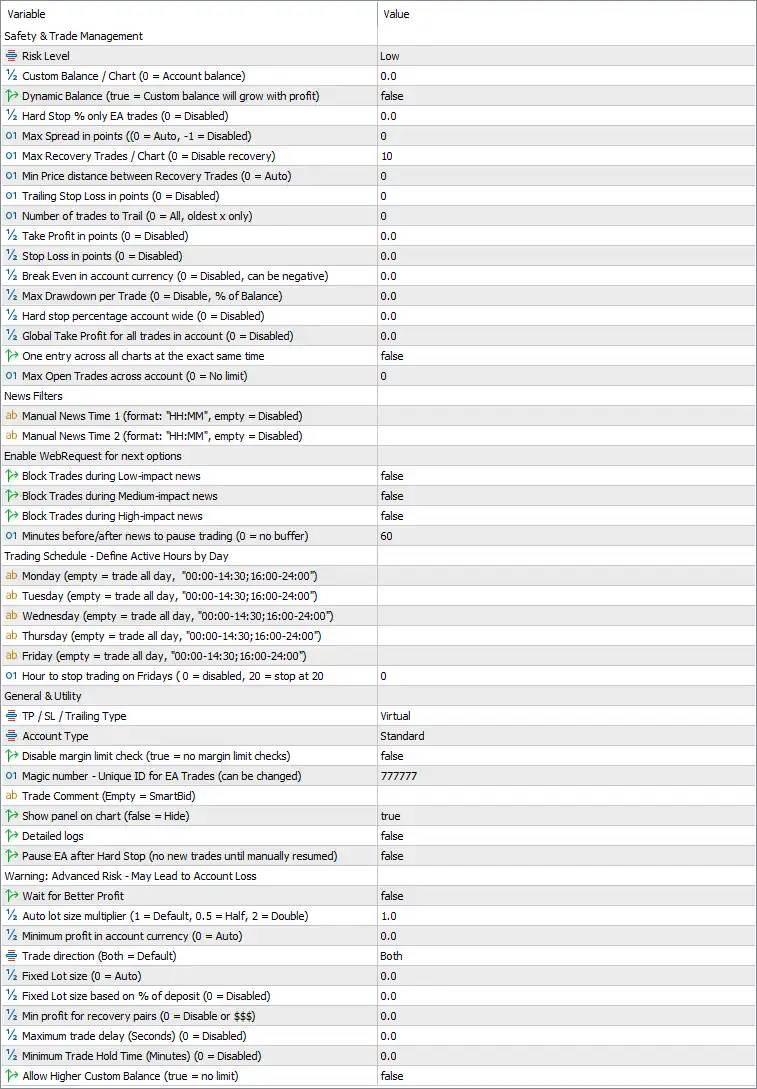
Safety & Trade Management
🔹 Risk Level = Low — Selects the Low risk profile for the EA's overall trading and risk-management configuration.
🔹 Custom Balance / Chart (0 = Account balance) = 0.0 — Uses 0.0, meaning the EA uses the actual account balance rather than a manually specified custom balance.
🔹 Dynamic Balance (true = Custom balance will grow with profit) = false — Disables Dynamic Balance, so the custom balance does not automatically increase based on trading profits.
🔹 Hard Stop % only EA trades (0 = Disabled) = 0.0 — Disables the EA-trade-only Hard Stop percentage because the value is 0.0.
🔹 Max Spread in points (0 = Auto, -1 = Disabled) = 0 — Sets the maximum spread parameter to 0, which means the EA uses its automatic spread setting according to the parameter description.
🔹 Max Recovery Trades / Chart (0 = Disable recovery) = 10 — Allows up to 10 recovery trades per chart under the configured recovery-trading system.
🔹 Min Price distance between Recovery Trades (0 = Auto) = 0 — Sets the minimum price distance between recovery trades to 0, allowing the EA to use its automatic distance calculation.
🔹 Trailing Stop Loss in points (0 = Disabled) = 0 — Disables the fixed trailing Stop Loss because the value is 0.
🔹 Number of trades to Trail (0 = All, oldest x only) = 0 — Uses 0, meaning the trailing-trade selection is configured to apply to all trades when trailing is enabled.
🔹 Take Profit in points (0 = Disabled) = 0.0 — Disables the fixed Take Profit in points because the value is 0.0.
🔹 Stop Loss in points (0 = Disabled) = 0.0 — Disables the fixed Stop Loss in points because the value is 0.0.
🔹 Break Even in account currency (0 = Disabled, can be negative) = 0.0 — Disables the account-currency Break Even function because the value is 0.0.
🔹 Max Drawdown per Trade (0 = Disable, % of Balance) = 0.0 — Disables the per-trade maximum drawdown percentage because the value is 0.0.
🔹 Hard stop percentage account wide (0 = Disabled) = 0.0 — Disables the account-wide percentage Hard Stop because the value is 0.0.
🔹 Global Take Profit for all trades in account (0 = Disabled) = 0.0 — Disables the global account-level Take Profit because the value is 0.0.
🔹 One entry across all charts at the exact same time = false — Disables the restriction that would allow only one simultaneous entry across all charts.
🔹 Max Open Trades across account (0 = No limit) = 0 — Sets the maximum open-trade limit to 0, which means there is no account-wide maximum limit according to the parameter description.
News Filters
🔹 Manual News Time 1 (format: "HH", empty = Disabled) = [Blank] — No first manual news time is specified, so this manual news event is disabled.
🔹 Manual News Time 2 (format: "HH", empty = Disabled) = [Blank] — No second manual news time is specified, so this manual news event is disabled.
🔹 Block Trades during Low-impact news = false — Allows trading during low-impact economic news because the low-impact news block is disabled.
🔹 Block Trades during Medium-impact news = false — Allows trading during medium-impact economic news because the medium-impact news block is disabled.
🔹 Block Trades during High-impact news = false — Allows trading during high-impact economic news because the high-impact news block is disabled.
🔹 Minutes before/after news to pause trading (0 = no buffer) = 60 — Sets the news protection buffer to 60 minutes before and after a qualifying news event when the corresponding news filter is enabled.
Trading Schedule – Define Active Hours by Day
🔹 Monday = [Blank] — No specific Monday trading schedule is entered; the parameter description indicates that an empty value means trading all day.
🔹 Tuesday = [Blank] — No specific Tuesday trading schedule is entered; an empty value means trading all day according to the displayed parameter description.
🔹 Wednesday = [Blank] — No specific Wednesday trading schedule is entered; an empty value means trading all day according to the displayed parameter description.
🔹 Thursday = [Blank] — No specific Thursday trading schedule is entered; an empty value means trading all day according to the displayed parameter description.
🔹 Friday = [Blank] — No specific Friday trading schedule is entered; an empty value means trading all day according to the displayed parameter description.
🔹 Hour to stop trading on Fridays (0 = disabled, 20 = stop at 20) = 0 — Sets the Friday trading-stop hour to 0, meaning the Friday stop-hour feature is disabled.
General & Utility Settings
🔹 TP / SL / Trailing Type = Virtual — Selects Virtual management for the EA's Take Profit, Stop Loss, and trailing functionality.
🔹 Account Type = Standard — Sets the account type to Standard.
🔹 Disable margin limit check (true = no margin limit checks) = false — Keeps the margin-limit check enabled because the setting is false.
🔹 Magic number - Unique ID for EA Trades (can be changed) = 777777 — Assigns 777777 as the unique Magic Number used to identify trades generated by the EA.
🔹 Trade Comment (Empty = SmartBid) = [Blank] — Leaves the trade-comment field empty, so the EA uses SmartBid as the default trade comment according to the parameter description.
🔹 Show panel on chart (false = Hide) = true — Displays the SmartBid EA information panel directly on the trading chart.
🔹 Detailed logs = false — Disables detailed logging, reducing the amount of diagnostic information generated by the EA.
🔹 Pause EA after Hard Stop (no new trades until manually resumed) = false — Disables automatic pausing after a Hard Stop, so the EA is not configured to require manual resumption following such an event.
Advanced Risk & Position Management
🔹 Wait for Better Profit = false — Disables the option for the EA to wait for a better profit level before completing its relevant trade-management action.
🔹 Warning: Advanced Risk - May Lead to Account Loss — This section indicates that the following advanced risk controls can potentially increase account risk depending on how they are configured.
🔹 Auto lot size multiplier (1 = Default, 0.5 = Half, 2 = Double) = 1.0 — Uses the default 1.0 lot-size multiplier, meaning no increase or reduction is applied to the calculated lot size.
🔹 Minimum profit in account currency (0 = Auto) = 0.0 — Sets the minimum account-currency profit requirement to 0.0, allowing the EA to use its automatic calculation.
🔹 Trade direction (Both) = Both — Allows the EA to trade in Both directions, meaning Buy and Sell trades are permitted.
🔹 Fixed Lot size (0 = Auto) = 0.0 — Sets the fixed lot size to 0.0, meaning the EA uses automatic lot calculation rather than a manually fixed lot size.
🔹 Fixed Lot size based on % of deposit (0 = Disabled) = 0.0 — Disables fixed lot sizing based on a percentage of the deposit because the value is 0.0.
🔹 Min profit for recovery pairs (0 = Disable or $$$) = 0.0 — Sets the minimum profit required for recovery pairs to 0.0, effectively disabling a specific minimum-profit threshold for this function.
🔹 Maximum trade delay (Seconds) (0 = Disabled) = 0.0 — Disables the maximum trade-delay restriction because the value is 0.0 seconds.
🔹 Minimum Trade Hold Time (Minutes) (0 = Disabled) = 0.0 — Disables the minimum trade-holding-time requirement because the value is 0.0 minutes.
🔹 Allow Higher Account Balance (true = no limit) = false — Does not enable unlimited higher-account-balance handling; the setting remains false.
Key Features of This SmartBid EA MT5 Configuration
🔹 Low Risk Profile — The EA is configured with Risk Level = Low.
🔹 Recovery Trading — Up to 10 recovery trades per chart are permitted under the current configuration.
🔹 Virtual Trade Management — TP / SL / Trailing Type = Virtual selects virtual management instead of the standard fixed-point method.
🔹 Both-Way Trading — Trade Direction = Both allows the EA to operate with both Buy and Sell trades.
🔹 Automatic Lot Calculation — Fixed Lot size = 0.0 and Auto lot size multiplier = 1.0 leave the configuration centered on automatic sizing.
🔹 News Protection Available — The news buffer is configured at 60 minutes, although all three Low-, Medium-, and High-impact blocking switches are currently false.
🔹 Flexible Trading Schedule — Monday through Friday schedule fields are blank, which according to the displayed descriptions means trading all day.
🔹 Chart Information Panel — Show panel on chart = true keeps the SmartBid status panel visible.
🔹 Unique Trade Identification — Magic number = 777777 identifies the EA's trades.
Conclusion
The displayed SmartBid EA MT5 configuration provides a comprehensive framework for automated trading with controls covering recovery trades, virtual SL/TP management, news filtering, trading schedules, account-level protection, position sizing, and trade identification.
The current profile uses Risk Level = Low, Max Recovery Trades = 10, Trade Direction = Both, TP / SL / Trailing Type = Virtual, and Magic Number = 777777. Most fixed-point risk controls are currently disabled with values of 0 or 0.0, including Take Profit, Stop Loss, Break Even, maximum drawdown per trade, and the account-wide Hard Stop.
The news section is configured with a 60-minute before/after buffer, but Low-, Medium-, and High-impact news blocking are all set to false. The Monday-Friday trading schedule fields are blank, while the Friday stop hour is 0, indicating that the dedicated Friday stop feature is disabled.
For position sizing, the Auto lot size multiplier = 1.0, Fixed Lot size = 0.0, and Fixed Lot size based on % of deposit = 0.0 indicate that the configuration does not specify a fixed lot value. The EA also uses Standard account type and keeps the margin-limit check active.
Because the settings include recovery trading and advanced risk-management controls, traders should carefully test the configuration under their intended broker, symbol, spread, leverage, and account conditions before using it on a live account.
Get SmartBid EA MT5
Download SmartBid EA MT5 with its set files, read the full product details and requirements here: SmartBid EA MT5 →