


🔢 Nexus EA Forex MT5 Settings Guide
Nexus EA Forex MT5 is an advanced automated trading Expert Advisor designed with a multi-layer trading and position-management framework. Its Inputs combine multiple technical indicators, trend and reversal conditions, Martingale-based lot sizing, grid management, Point of Control analysis, recovery controls, risk filters, trading schedules, Take Profit management, trailing Stop Loss and news filtering.
The EA also provides independent Buy and Sell controls, hedging configuration, pending-order management, trade-cycle controls and an on-chart information display. With a wide range of configurable parameters, Nexus EA Forex MT5 allows traders to customize its trading logic and risk-management behavior according to their preferred setup.
🔢 Nexus EA Forex MT5 Input Settings
⚙️ General Trade Settings
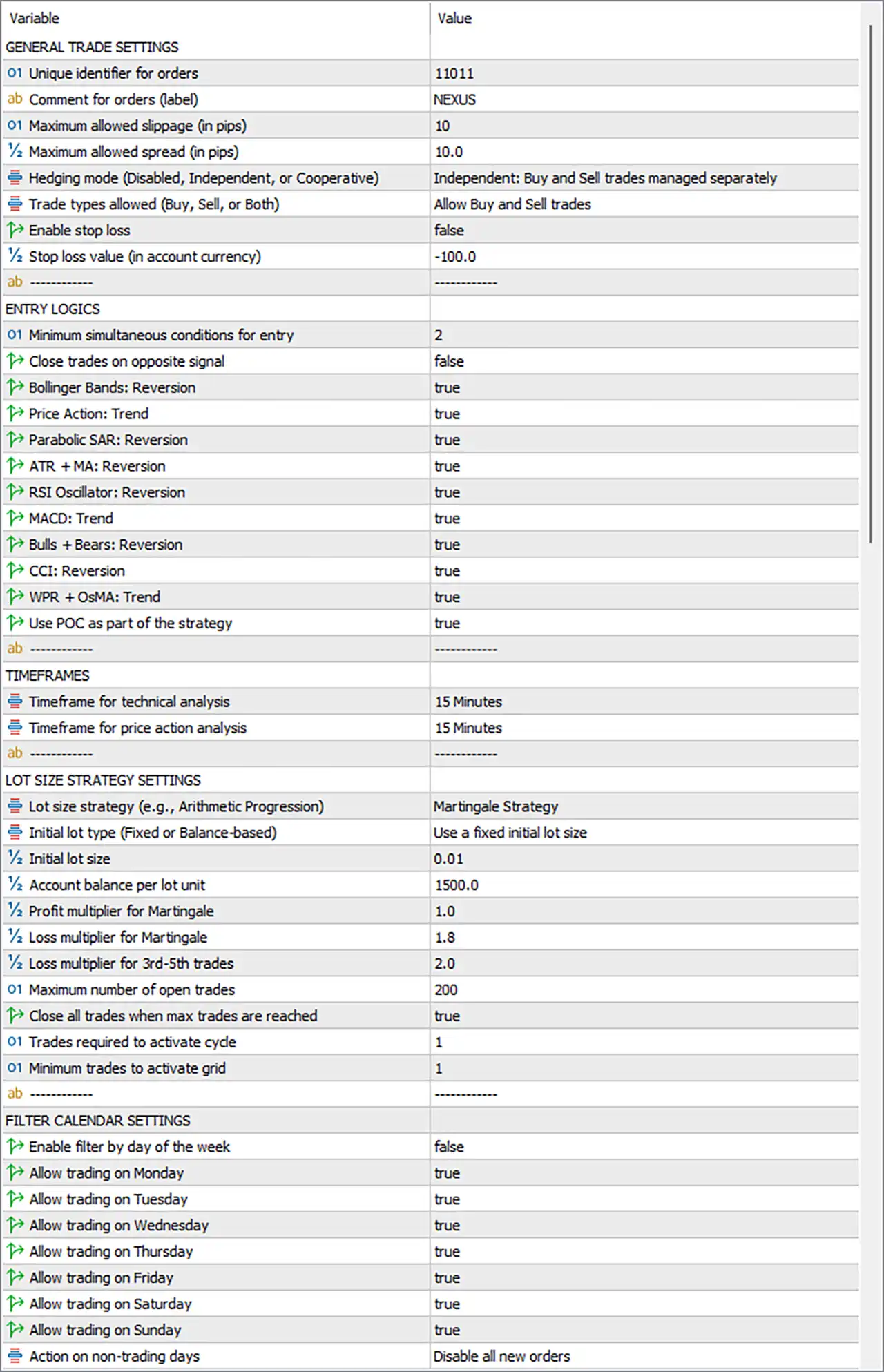
🔹 Unique identifier for orders = 11011 — Sets the unique order identifier to 11011, allowing the EA to distinguish its positions from other trading systems.
🔹 Comment for orders (label) = NEXUS — Sets NEXUS as the comment or label attached to orders generated by the EA.
🔹 Maximum allowed slippage (in pips) = 10 — Sets the maximum permitted execution slippage to 10 pips.
🔹 ½ Maximum allowed spread (in pips) = 10.0 — Sets the maximum allowed spread parameter to 10.0 pips.
🔹 Hedging mode (Disabled, Independent, or Cooperative) = Independent: Buy and Sell trades managed separately — Selects Independent hedging mode, meaning Buy and Sell trades are managed separately.
🔹 Trade types allowed (Buy, Sell, or Both) = Allow Buy and Sell trades — Enables both Buy and Sell trading directions.
🔹 Enable stop loss = false — Disables the Stop Loss function in the displayed configuration.
🔹 Stop loss value (in account currency) = -100.0 — Sets the Stop Loss value to -100.0 in account-currency terms.
⚙️ Entry Logics
🔹 Minimum simultaneous conditions for entry = 2 — Requires at least 2 simultaneous conditions to be satisfied before an entry can be triggered.
🔹 Close trades on opposite signal = false — Disables automatic closing of existing trades when an opposite trading signal appears.
🔹 Bollinger Bands: Reversion = true — Enables the Bollinger Bands mean-reversion condition.
🔹 Price Action: Trend = true — Enables Price Action trend analysis as part of the entry logic.
🔹 Parabolic SAR: Reversion = true — Enables Parabolic SAR reversal conditions.
🔹 ATR + MA: Reversion = true — Enables the ATR and Moving Average reversal condition.
🔹 RSI Oscillator: Reversion = true — Enables RSI-based reversal analysis.
🔹 MACD: Trend = true — Enables MACD trend confirmation.
🔹 Bulls + Bears: Reversion = true — Enables the Bulls + Bears reversal condition.
🔹 CCI: Reversion = true — Enables CCI-based reversal analysis.
🔹 WPR + OsMA: Trend = true — Enables WPR and OsMA trend analysis.
🔹 Use POC as part of the strategy = true — Enables Point of Control (POC) analysis as part of the trading strategy.
⚙️ Timeframe Settings
🔹 Timeframe for technical analysis = 15 Minutes — Sets the technical-analysis timeframe to 15 Minutes (M15).
🔹 Timeframe for price action analysis = 15 Minutes — Sets the Price Action analysis timeframe to 15 Minutes (M15).
⚙️ Lot Size Strategy Settings
🔹 Lot size strategy (e.g., Arithmetic Progression) = Martingale Strategy — Selects Martingale Strategy as the active lot-size progression method.
🔹 Initial lot type (Fixed or Balance-based) = Use a fixed initial lot size — Configures the EA to use a fixed initial lot size rather than a balance-based initial lot.
🔹 Initial lot size = 0.01 — Sets the initial trading volume to 0.01 lots.
🔹 Account balance per lot unit = 1500.0 — Sets the account-balance reference to 1500.0 per lot unit.
🔹 Profit multiplier for Martingale = 1.0 — Sets the profit multiplier used by the Martingale system to 1.0.
🔹 Loss multiplier for Martingale = 1.8 — Sets the loss multiplier to 1.8, controlling the lot-size progression after losing trades.
🔹 Loss multiplier for 3rd–5th trades = 2.0 — Sets the loss multiplier for the 3rd–5th trades to 2.0.
🔹 Maximum number of open trades = 200 — Sets the maximum number of simultaneously open trades to 200.
🔹 Close all trades when max trades are reached = true — Enables automatic closure of all trades when the maximum configured trade count is reached.
🔹 # Trades required to activate cycle = 1 — Requires 1 trade to activate the trading cycle.
🔹 Minimum trades to activate grid = 1 — Requires at least 1 trade before the grid function becomes active.
⚙️ Filter Calendar Settings
🔹 Enable filter by day of the week = false — Disables the day-of-week trading filter.
🔹 Allow trading on Monday = true — Allows trading on Monday.
🔹 Allow trading on Tuesday = true — Allows trading on Tuesday.
🔹 Allow trading on Wednesday = true — Allows trading on Wednesday.
🔹 Allow trading on Thursday = true — Allows trading on Thursday.
🔹 Allow trading on Friday = true — Allows trading on Friday.
🔹 Allow trading on Saturday = true — Allows trading on Saturday.
🔹 Allow trading on Sunday = true — Allows trading on Sunday.
🔹 Action on non-trading days = Disable all new orders — Configures the EA to disable all new orders when a day is designated as non-trading.
⚙️ Recovery Mode Settings
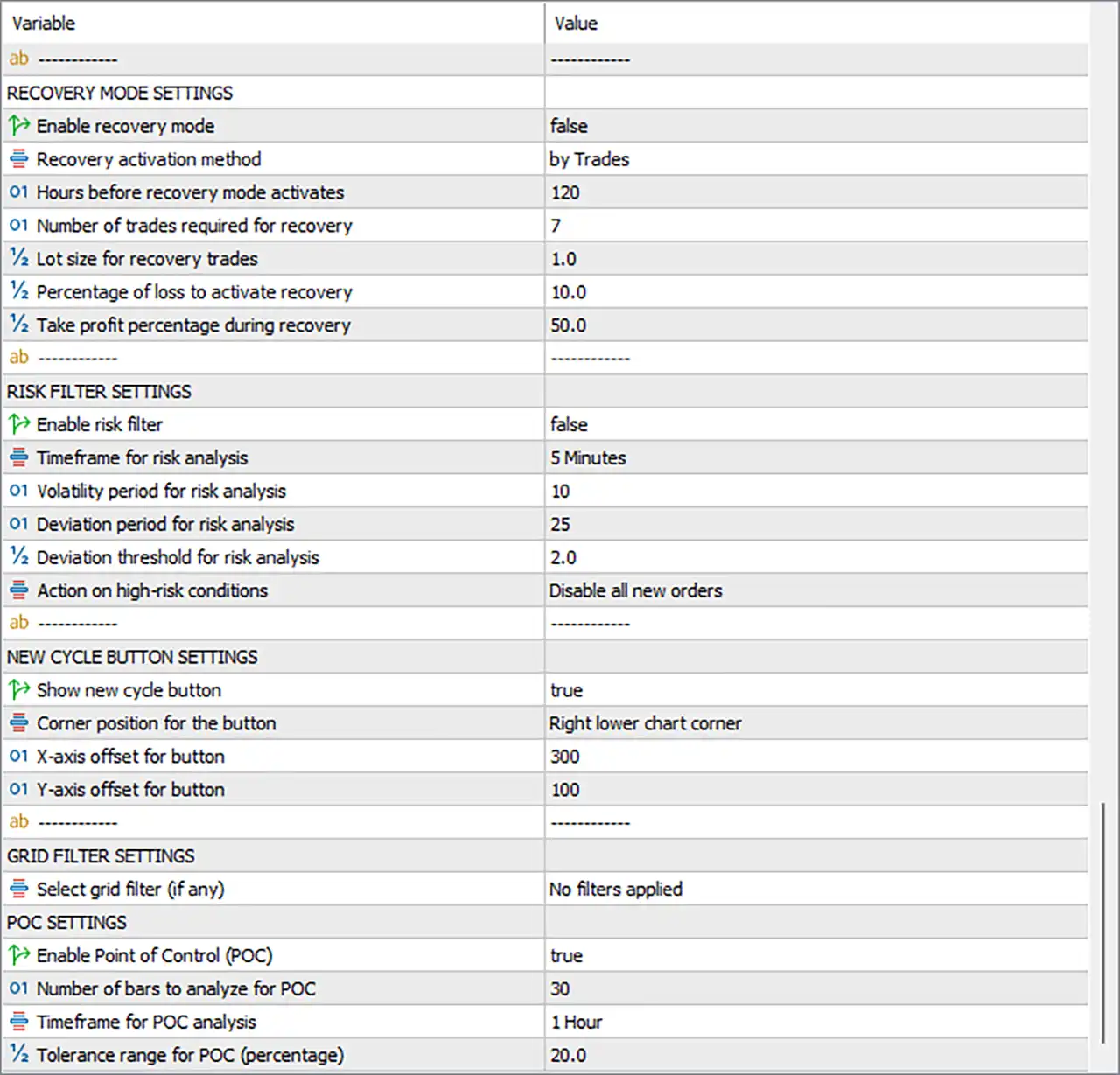
🔹 Enable recovery mode = false — Disables the recovery mode in the displayed configuration.
🔹 Recovery activation method = by Trades — Selects by Trades as the recovery activation method.
🔹 Hours before recovery mode activates = 120 — Sets the recovery activation period to 120 hours.
🔹 Number of trades required for recovery = 7 — Requires 7 trades for recovery mode activation according to the configured trade-count condition.
🔹 Lot size for recovery trades = 1.0 — Sets the lot size for recovery trades to 1.0.
🔹 Percentage of loss to activate recovery = 10.0 — Sets the loss threshold for activating recovery to 10.0%.
🔹 Take profit percentage during recovery = 50.0 — Sets the Take Profit percentage during recovery mode to 50.0%.
⚙️ Risk Filter Settings
🔹 Enable risk filter = false — Disables the risk filter in the displayed configuration.
🔹 Timeframe for risk analysis = 5 Minutes — Sets the risk-analysis timeframe to 5 Minutes (M5).
🔹 Volatility period for risk analysis = 10 — Sets the volatility-analysis period to 10.
🔹 Deviation period for risk analysis = 25 — Sets the deviation-analysis period to 25.
🔹 Deviation threshold for risk analysis = 2.0 — Sets the deviation threshold to 2.0.
🔹 Action on high-risk conditions = Disable all new orders — Configures the EA to disable all new orders when high-risk conditions are detected.
⚙️ New Cycle Button Settings
🔹 Show new cycle button = true — Displays the New Cycle button on the MT5 chart.
🔹 Corner position for the button = Right lower chart corner — Places the New Cycle button in the right lower chart corner.
🔹 X-axis offset for button = 300 — Sets the horizontal X-axis offset to 300.
🔹 Y-axis offset for button = 100 — Sets the vertical Y-axis offset to 100.
⚙️ Grid Filter Settings
🔹 Select grid filter (if any) = No filters applied — Indicates that No filters are applied to the grid system in the displayed configuration.
⚙️ POC Settings
🔹 Enable Point of Control (POC) = true — Enables Point of Control analysis.
🔹 Number of bars to analyze for POC = 30 — Sets the POC analysis range to 30 bars.
🔹 Timeframe for POC analysis = 1 Hour — Sets the POC analysis timeframe to 1 Hour (H1).
🔹 Tolerance range for POC (percentage) = 20.0 — Sets the POC tolerance range to 20.0%.
⚙️ Filter Schedule Settings
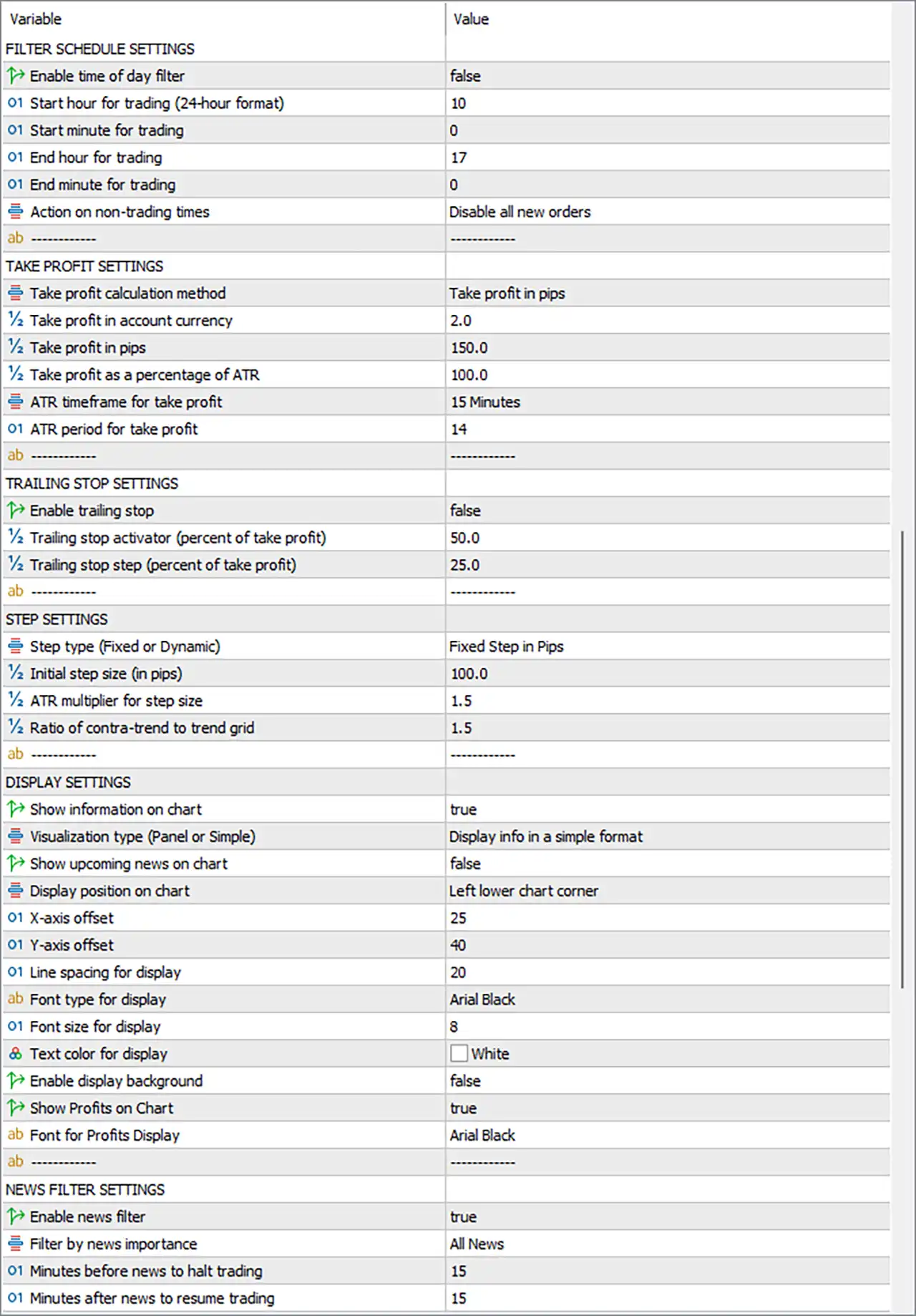
🔹 Enable time of day filter = false — Disables the time-of-day trading filter.
🔹 Start hour for trading (24-hour format) = 10 — Sets the configured trading start hour to 10.
🔹 Start minute for trading = 0 — Sets the configured trading start minute to 0.
🔹 End hour for trading = 17 — Sets the configured trading end hour to 17.
🔹 End minute for trading = 0 — Sets the configured trading end minute to 0.
🔹 Action on non-trading times = Disable all new orders — Configures the EA to disable all new orders during periods defined as non-trading times.
⚙️ Take Profit Settings
🔹 Take profit calculation method = Take profit in pips — Selects Take profit in pips as the active Take Profit calculation method.
🔹 Take profit in account currency = 2.0 — Sets the account-currency Take Profit value to 2.0.
🔹 Take profit in pips = 150.0 — Sets the Take Profit target to 150.0 pips.
🔹 Take profit as a percentage of ATR = 100.0 — Sets the ATR-based Take Profit percentage to 100.0.
🔹 ATR timeframe for take profit = 15 Minutes — Sets the ATR Take Profit timeframe to 15 Minutes (M15).
🔹 ATR period for take profit = 14 — Sets the ATR period used for Take Profit calculation to 14.
⚙️ Trailing Stop Settings
🔹 Enable trailing stop = false — Disables the trailing Stop Loss function in the displayed configuration.
🔹 Trailing stop activator (percent of take profit) = 50.0 — Sets the trailing-stop activation threshold to 50.0% of Take Profit.
🔹 Trailing stop step (percent of take profit) = 25.0 — Sets the trailing-stop adjustment step to 25.0% of Take Profit.
⚙️ Step Settings
🔹 Step type (Fixed or Dynamic) = Fixed Step in Pips — Selects Fixed Step in Pips as the active step calculation method.
🔹 Initial step size (in pips) = 100.0 — Sets the initial grid/trade step distance to 100.0 pips.
🔹 ATR multiplier for step size = 1.5 — Sets the ATR multiplier for calculating step size to 1.5.
🔹 Ratio of contra-trend to trend grid = 1.5 — Sets the ratio between contra-trend and trend grid positioning to 1.5.
⚙️ Display Settings
🔹 Show information on chart = true — Enables the display of EA information directly on the MT5 chart.
🔹 Visualization type (Panel or Simple) = Display info in a simple format — Selects the simple format for displaying EA information.
🔹 Show upcoming news on chart = false — Disables the display of upcoming news events on the chart.
🔹 Display position on chart = Left lower chart corner — Positions the information display in the left lower chart corner.
🔹 X-axis offset = 25 — Sets the horizontal display offset to 25.
🔹 Y-axis offset = 40 — Sets the vertical display offset to 40.
🔹 Line spacing for display = 20 — Sets the line spacing of the chart information display to 20.
🔹 Font type for display = Arial Black — Uses Arial Black as the display font.
🔹 Font size for display = 8 — Sets the display font size to 8.
🔹 Text color for display = White — Sets the information-display text color to White.
🔹 Enable display background = false — Disables the background behind the information display.
🔹 Show Profits on Chart = true — Enables the display of profit information on the MT5 chart.
🔹 Font for Profits Display = Arial Black — Uses Arial Black for profit information displayed on the chart.
⚙️ News Filter Settings
🔹 Enable news filter = true — Enables the EA's economic-news filtering system.
🔹 Filter by news importance = All News — Configures the news filter to consider All News.
🔹 Minutes before news to halt trading = 15 — Configures the EA to halt trading 15 minutes before a relevant news event.
🔹 Minutes after news to resume trading = 15 — Configures the EA to resume trading 15 minutes after the relevant news event.
🔢 Conclusion
Nexus EA Forex MT5 provides an extensive automated trading configuration covering technical entry logic, trend and reversal analysis, Martingale position sizing, grid management, recovery controls, risk filtering, POC analysis, Take Profit calculation, news protection, and chart visualization.
The displayed setup uses a 15 Minutes timeframe for technical and Price Action analysis, requires 2 simultaneous entry conditions, and enables a broad range of technical signals. Its lot-size system uses a 0.01 initial lot, 1.8 loss multiplier, 2.0 multiplier for 3rd–5th trades, and a maximum of 200 open trades.
For trade management, the EA uses a 150.0-pip Take Profit, 100.0-pip fixed grid step, and 1.5 ATR multiplier. Recovery Mode and the Risk Filter are disabled in the displayed setup, while the News Filter is enabled for All News, with a 15-minute pause before and after news events.
Because the configuration includes a Martingale Strategy, grid management, and a maximum of 200 open trades, traders should carefully test the EA under their broker's execution, spread, margin, and market conditions before applying the configuration to a live account.


