


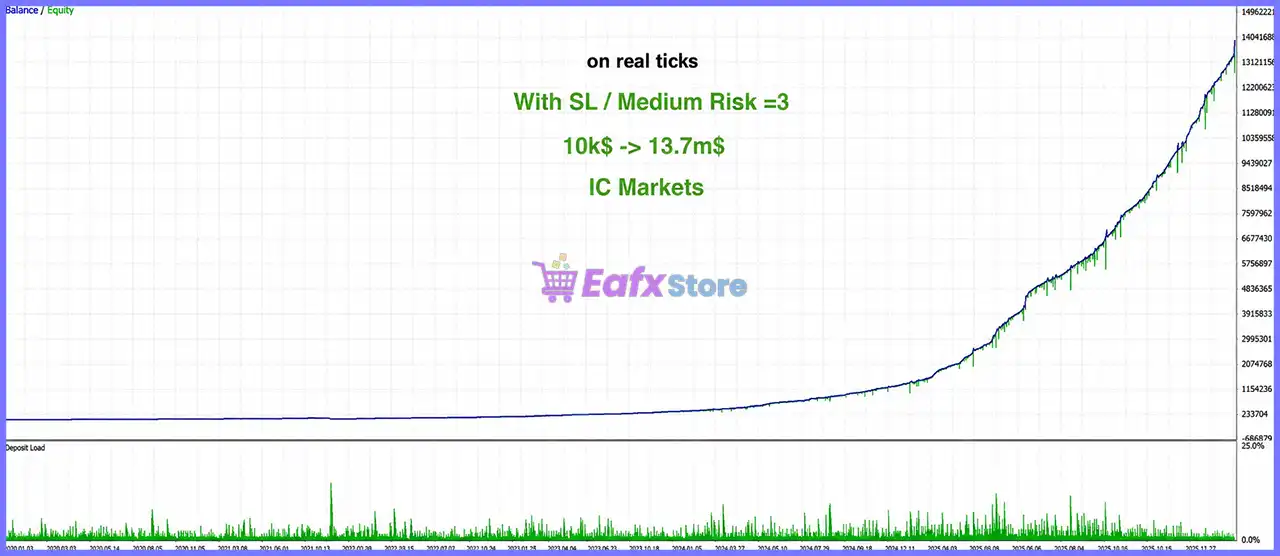
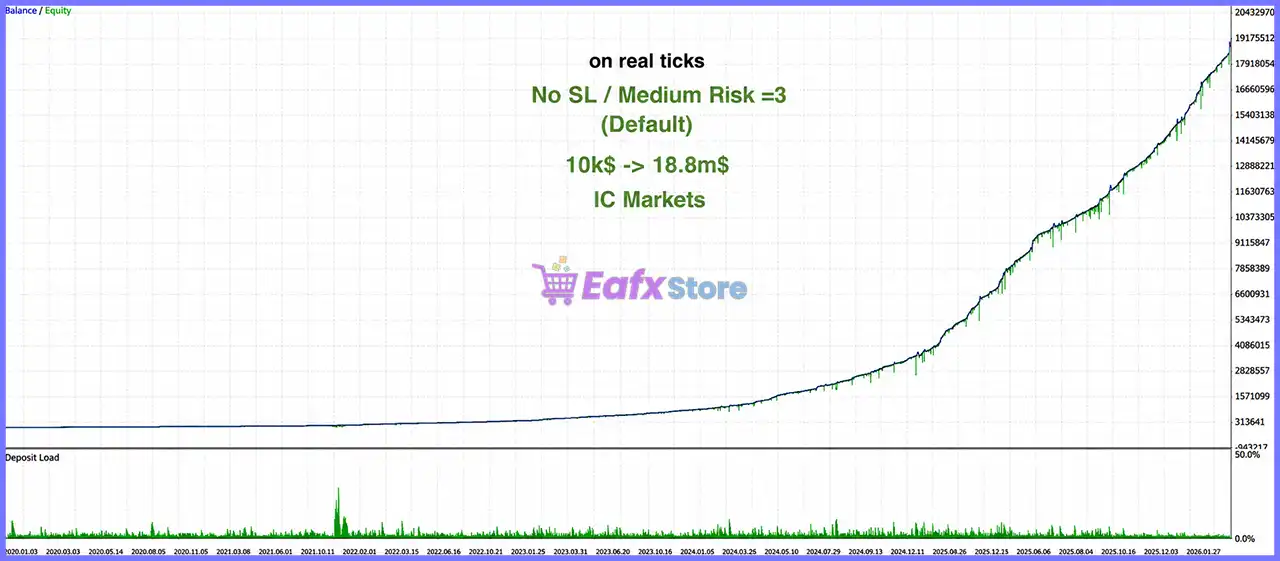

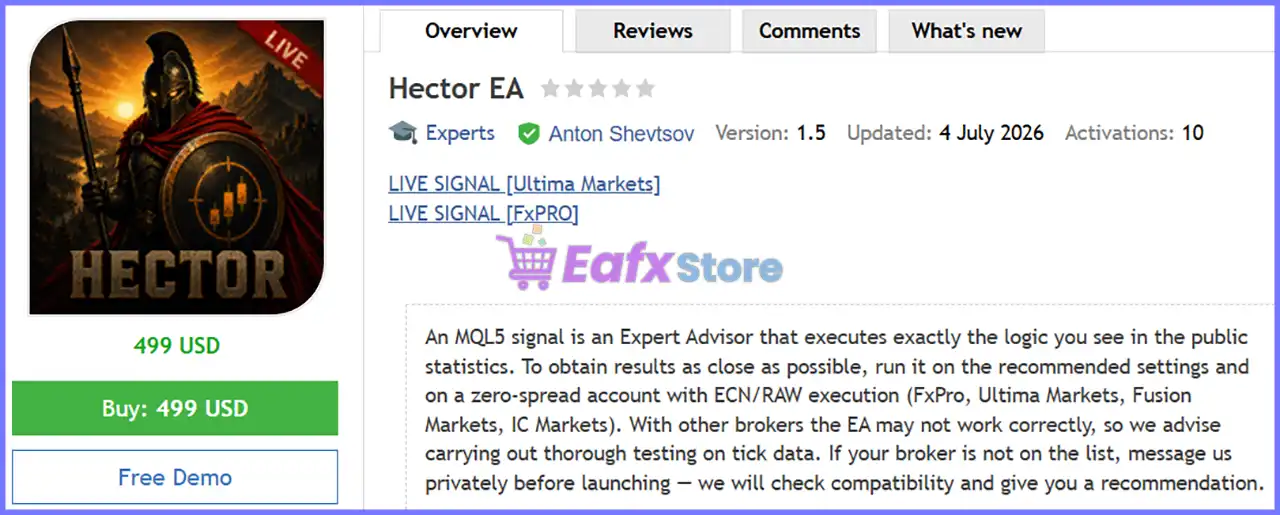





Hector EA MT5 (Latest version) – GroupBuy
Select a variant to see availability.
 Vendor Website:
  Setting (If Any).docx
 Reviewed by
 Hector EA MT5 Settings Explained – Complete Configuration Guide
Hector EA MT5 is an automated Expert Advisor for MetaTrader 5 featuring automatic lot calculation, configurable risk levels, smart money management, broker optimization and optional extra order modules.
The EA is designed to adapt position sizing according to account balance while providing multiple safety controls such as Smart Stop Loss, Friday Close protection, and customizable recovery settings.
Understanding every input parameter allows traders to optimize the EA for different account sizes and trading objectives.
Hector EA MT5 Settings
Hector EA MT5 Settings
Below are the details of the parameters in the advisor’s trading system settings table:
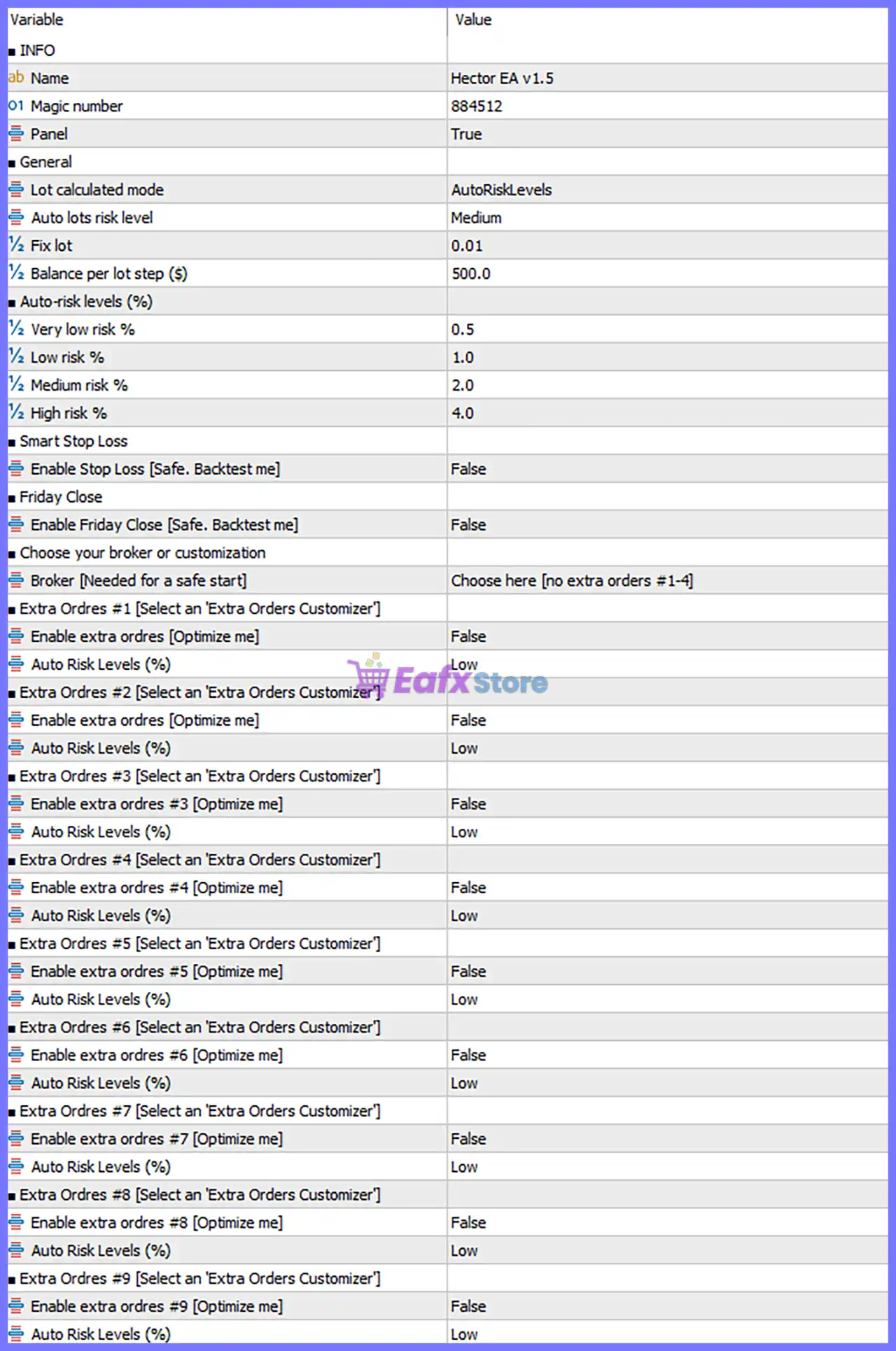
Hector EA MT5 Settings Panel
Information
🔹 Name = Hector EA v1.5 – Displays the Expert Advisor version currently loaded on the chart.
🔹 Magic number = 884512 – Assigns the unique identifier 884512 so the EA manages only its own trades.
🔹 Panel = True – Enables the on-chart information panel for monitoring EA activity and statistics.
General Settings
🔹 Lot calculated mode = AutoRiskLevels – Uses the automatic risk-based lot sizing system instead of a fixed lot calculation.
🔹 Auto lots risk level = Medium – Selects the predefined Medium automatic risk profile for position sizing.
🔹 Fix lot = 0.01 – Defines the default fixed lot size as 0.01 lots when fixed-lot trading is used.
🔹 Balance per lot step ($) = 500.0 – Increases the calculated lot size for every $500.0 of account balance.
Auto-Risk Levels (%)
🔹 Very low risk % = 0.5 – Uses 0.5% account risk when the Very Low profile is selected.
🔹 Low risk % = 1.0 – Uses 1.0% account risk for the Low risk profile.
🔹 Medium risk % = 2.0 – Uses 2.0% account risk for the Medium risk profile.
🔹 High risk % = 4.0 – Uses 4.0% account risk for the High risk profile.
Smart Stop Loss
🔹 Enable Stop Loss [Safe. Backtest me] = False – Disables the Smart Stop Loss module by default. Enable it after proper optimization and backtesting.
Friday Close
🔹 Enable Friday Close [Safe. Backtest me] = False – Disables automatic position closing before the weekend. When enabled, the EA can exit trades ahead of market close.
Broker Configuration
🔹 Broker [Needed for a safe start] = Choose here [no extra orders #1–4] – Selects the broker configuration profile for optimal execution and compatibility.
Extra Orders Customizer
🔹 Extra Orders #1 – Enable extra orders [Optimize me] = False – Disables the first additional order module.
🔹 Extra Orders #1 – Auto Risk Levels (%) = Low – Uses the Low risk profile for Extra Orders module #1.
🔹 Extra Orders #2 – Enable extra orders [Optimize me] = False – Disables the second additional order module.
🔹 Extra Orders #2 – Auto Risk Levels (%) = Low – Uses the Low risk profile for Extra Orders module #2.
🔹 Extra Orders #3 – Enable extra orders [Optimize me] = False – Disables the third additional order module.
🔹 Extra Orders #3 – Auto Risk Levels (%) = Low – Uses the Low risk profile for Extra Orders module #3.
🔹 Extra Orders #4 – Enable extra orders [Optimize me] = False – Disables the fourth additional order module.
🔹 Extra Orders #4 – Auto Risk Levels (%) = Low – Uses the Low risk profile for Extra Orders module #4.
🔹 Extra Orders #5 – Enable extra orders [Optimize me] = False – Disables the fifth additional order module.
🔹 Extra Orders #5 – Auto Risk Levels (%) = Low – Uses the Low risk profile for Extra Orders module #5.
🔹 Extra Orders #6 – Enable extra orders [Optimize me] = False – Disables the sixth additional order module.
🔹 Extra Orders #6 – Auto Risk Levels (%) = Low – Uses the Low risk profile for Extra Orders module #6.
🔹 Extra Orders #7 – Enable extra orders [Optimize me] = False – Disables the seventh additional order module.
🔹 Extra Orders #7 – Auto Risk Levels (%) = Low – Uses the Low risk profile for Extra Orders module #7.
🔹 Extra Orders #8 – Enable extra orders [Optimize me] = False – Disables the eighth additional order module.
🔹 Extra Orders #8 – Auto Risk Levels (%) = Low – Uses the Low risk profile for Extra Orders module #8.
🔹 Extra Orders #9 – Enable extra orders [Optimize me] = False – Disables the ninth additional order module.
🔹 Extra Orders #9 – Auto Risk Levels (%) = Low – Uses the Low risk profile for Extra Orders module #9.
Conclusion
Hector EA MT5 provides a comprehensive money management framework centered around automatic risk-based lot sizing, flexible broker configuration, and expandable Extra Orders modules.
With predefined risk profiles ranging from 0.5% to 4.0%, optional Smart Stop Loss and Friday protection, and configurable fixed-lot trading, the EA offers enough flexibility for both conservative and aggressive traders. Proper optimization and backtesting are recommended before enabling advanced features such as Smart Stop Loss and Extra Orders.
FAQs
❓ What is the AutoRiskLevels mode in Hector EA MT5?
AutoRiskLevels automatically calculates the trading lot size based on your selected risk profile and current account balance.
❓ Can I trade with a fixed lot instead of automatic risk management?
Yes. You can use the Fix lot = 0.01 setting instead of automatic lot sizing if you prefer consistent position sizes.
❓ What is the purpose of the Magic Number?
The Magic Number (884512) uniquely identifies the EA’s trades so it only manages positions opened by Hector EA MT5.
❓ Should I enable Smart Stop Loss immediately?
The default recommendation is to leave it disabled until you have optimized and backtested the feature under your broker’s trading conditions.
❓ What are the Extra Orders modules used for?
The Extra Orders modules allow additional trading logic to be enabled individually, each with its own risk profile, providing greater flexibility for advanced trading strategies.
User Reviews
Only logged in customers who have purchased this product may leave a review.
❓ What trading strategy does Hector EA MT5 use?
Hector EA MT5 uses an anti-martingale grid strategy that gradually reduces position sizes while adapting to market volatility for more controlled risk exposure.
❓ Does Hector EA MT5 use Martingale?
No. Hector EA MT5 follows an anti-martingale approach by reducing lot sizes on deeper grid levels instead of increasing exposure after losses.
❓ Which trading instrument is recommended for Hector EA MT5?
Hector EA MT5 is developed specifically for XAUUSD with 2 decimal pricing, providing optimized performance for Gold trading environments.
❓ What account type is recommended for Hector EA MT5?
Hector EA MT5 is designed for hedging accounts and performs best with ECN or RAW brokers offering low spreads and fast execution speeds.
❓ Does Hector EA MT5 include Stop Loss protection?
Yes. Hector EA MT5 offers an optional adaptive Stop Loss that evaluates market conditions dynamically to help protect capital during extreme volatility.
❓ Can Hector EA MT5 be customized for different brokers?
Yes. Hector EA MT5 includes broker-specific presets and an advanced customization mode with nine optional modules for experienced traders.
❓ What leverage and deposit are recommended for Hector EA MT5?
Hector EA MT5 is recommended for leverage around 1:500 with a minimum deposit of $500–$1,000, depending on your preferred risk settings.
❓ Should I use a VPS with Hector EA MT5?
Yes. Hector EA MT5 benefits from a VPS because continuous connectivity helps maintain stable execution and reliable automated trading performance.
❓ How does Hector EA MT5 manage market volatility?
Hector EA MT5 adjusts grid spacing according to volatility, avoids trading against strong momentum, and uses adaptive risk management for better stability.
❓ Should I test Hector EA MT5 before live trading?
Yes. Hector EA MT5 should be tested on a demo account using real tick data to evaluate its performance with your broker and chosen risk configuration.
-
 Original price was: $299.00.$89.00Current price is: $89.00.
 -
 Original price was: $1,200.00.$69.00Current price is: $69.00.
 -
 Original price was: $500.00.$89.00Current price is: $89.00.
 -
 Original price was: $1,499.00.$199.00Current price is: $199.00.
-
 4
4 -
 0
0 -
 2
2 -
 3Price range: $89.00 through $599.00
There are no reviews yet.