
This guide walks through the inputs of Mean Machine EA MT5 with the values recommended for live trading. The set files that come with the EA already contain these settings, so you can load them in one click and adjust only what your broker or account needs.
🔢 Mean Machine EA MT5 – Complete Settings & Parameters Guide
Mean Machine EA MT5 is an advanced AI-powered MetaTrader 5 Expert Advisor designed for automated forex trading with integrated GPT models, AI prediction systems, volatility filters, news filtering, adaptive lot scaling and multi-strategy trade management.
The EA combines artificial intelligence, machine learning, and recovery systems to optimize trading performance while maintaining strict risk management for prop firm and live trading environments.
🔢 Installation Panel Parameters
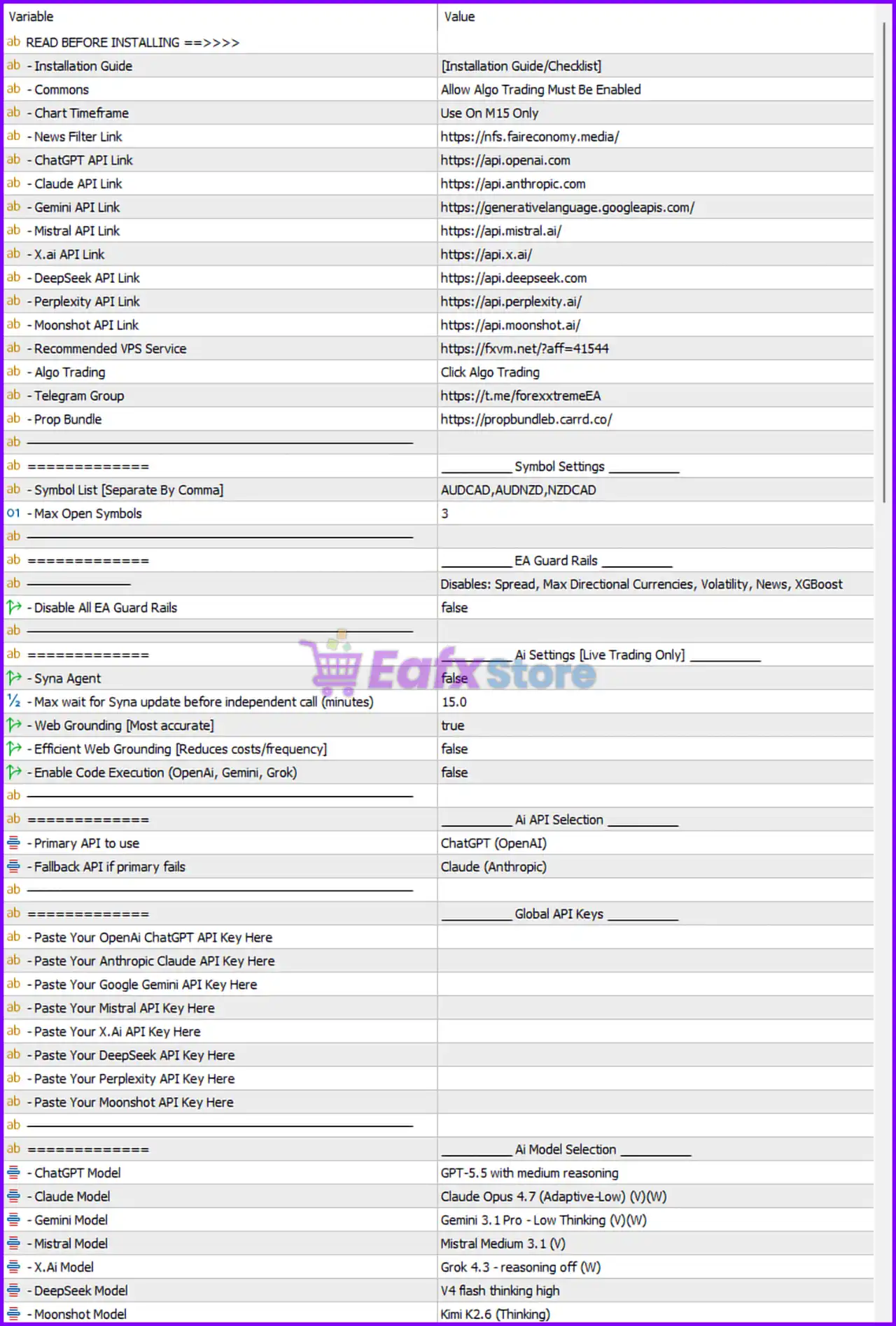
Below are the details of the parameters in the advisor’s trading system settings table:
🔶 Mean Machine EA MT5 Installation & Basic Settings
🔹 Installation Guide = [Installation Guide/Checklist] — Provides setup instructions and checklist before running the EA.
🔹 Commons = Allow Algo Trading Must Be Enabled — Requires MetaTrader 5 algorithmic trading permission to be enabled.
🔹 Chart Timeframe = Use On M15 Only — The EA is optimized specifically for the M15 timeframe.
🔹 News Filter Link = https://nfs.faireconomy.media/ — External source used for economic news filtering.
🔹 ChatGPT API Link = https://api.openai.com — API endpoint for OpenAI ChatGPT integration.
🔹 Claude API Link = https://api.anthropic.com — API endpoint for Anthropic Claude integration.
🔹 Gemini API Link = https://generativelanguage.googleapis.com/ — API endpoint for Google Gemini integration.
🔹 Mistral API Link = https://api.mistral.ai/ — API endpoint for Mistral AI services.
🔹 X.Ai API Link = https://api.x.ai/ — API endpoint for X.AI model integration.
🔹 DeepSeek API Link = https://api.deepseek.com — API endpoint for DeepSeek AI model access.
🔹 Perplexity API Link = https://api.perplexity.ai/ — API endpoint for Perplexity AI services.
🔹 Moonshot API Link = https://api.moonshot.ai/ — API endpoint for Moonshot AI integration.
🔹 Recommended VPS Service = https://fxvm.net/?aff=41544 — Recommended VPS provider for stable EA hosting.
🔹 Algo Trading = Click Algo Trading — Reminder to activate MetaTrader automated trading.
🔹 Telegram Group = https://t.me/forextremeEA — Official Telegram support/community group.
🔹 Prop Bundle = https://propbundleb.carrd.co/ — External prop trading resource link.
🔶 Symbol Settings
🔹 Symbol List [Separate By Comma] = AUDCAD,AUDNZD,NZDCAD — Currency pairs monitored and traded by the EA.
🔹 Max Open Symbols = 3 — Limits the maximum simultaneously traded symbols to 3.
🔶 EA Guard Rails
🔹 Disable All EA Guard Rails = false — Safety protection systems remain active.
🔹 EA Guard Rails = Disables: Spread, Max Directional Currencies, Volatility, News, XGBoost — Defines active protection filters.
🔶 AI Settings [Live Trading Only]
🔹 Syna Agent = false — AI synchronization agent is disabled.
🔹 Max wait for Syna update before independent call (minutes) = 15.0 — Wait time before fallback AI execution.
🔹 Web Grounding [Most accurate] = true — Enables internet-based contextual grounding for AI decisions.
🔹 Efficient Web Grounding [Reduces costs/frequency] = false — Cost-saving grounding optimization is disabled.
🔹 Enable Code Execution (OpenAI, Gemini, Grok) = false — AI code execution functionality is disabled.
🔶 AI API Selection
🔹 Primary API to use = ChatGPT (OpenAI) — Main AI provider selected for analysis.
🔹 Fallback API if primary fails = Claude (Anthropic) — Backup AI provider if primary service fails.
🔶 Global API Keys
🔹 Paste Your OpenAi ChatGPT API Key Here — Field for entering OpenAI API credentials.
🔹 Paste Your Anthropic Claude API Key Here — Field for entering Claude API credentials.
🔹 Paste Your Google Gemini API Key Here — Field for entering Gemini API credentials.
🔹 Paste Your Mistral API Key Here — Field for entering Mistral API credentials.
🔹 Paste Your X.Ai API Key Here — Field for entering X.AI API credentials.
🔹 Paste Your DeepSeek API Key Here — Field for entering DeepSeek API credentials.
🔹 Paste Your Perplexity API Key Here — Field for entering Perplexity API credentials.
🔹 Paste Your Moonshot API Key Here — Field for entering Moonshot API credentials.
🔶 AI Model Selection
🔹 ChatGPT Model = GPT-5.5 with medium reasoning — Selected OpenAI model configuration.
🔹 Claude Model = Claude Opus 4.7 (Adaptive-Low) (V)(W) — Selected Anthropic AI model.
🔹 Gemini Model = Gemini 3.1 Pro - Low Thinking (V)(W) — Selected Google Gemini model.
🔹 Mistral Model = Mistral Medium 3.1 (V) — Selected Mistral AI model.
🔹 X.Ai Model = Grok 4.3 - reasoning off (W) — Selected X.AI Grok model.
🔹 DeepSeek Model = V4 flash thinking high — Selected DeepSeek model configuration.
🔹 Moonshot Model = Kimi K2.6 (Thinking) — Selected Moonshot AI model.
🔶 AI Options
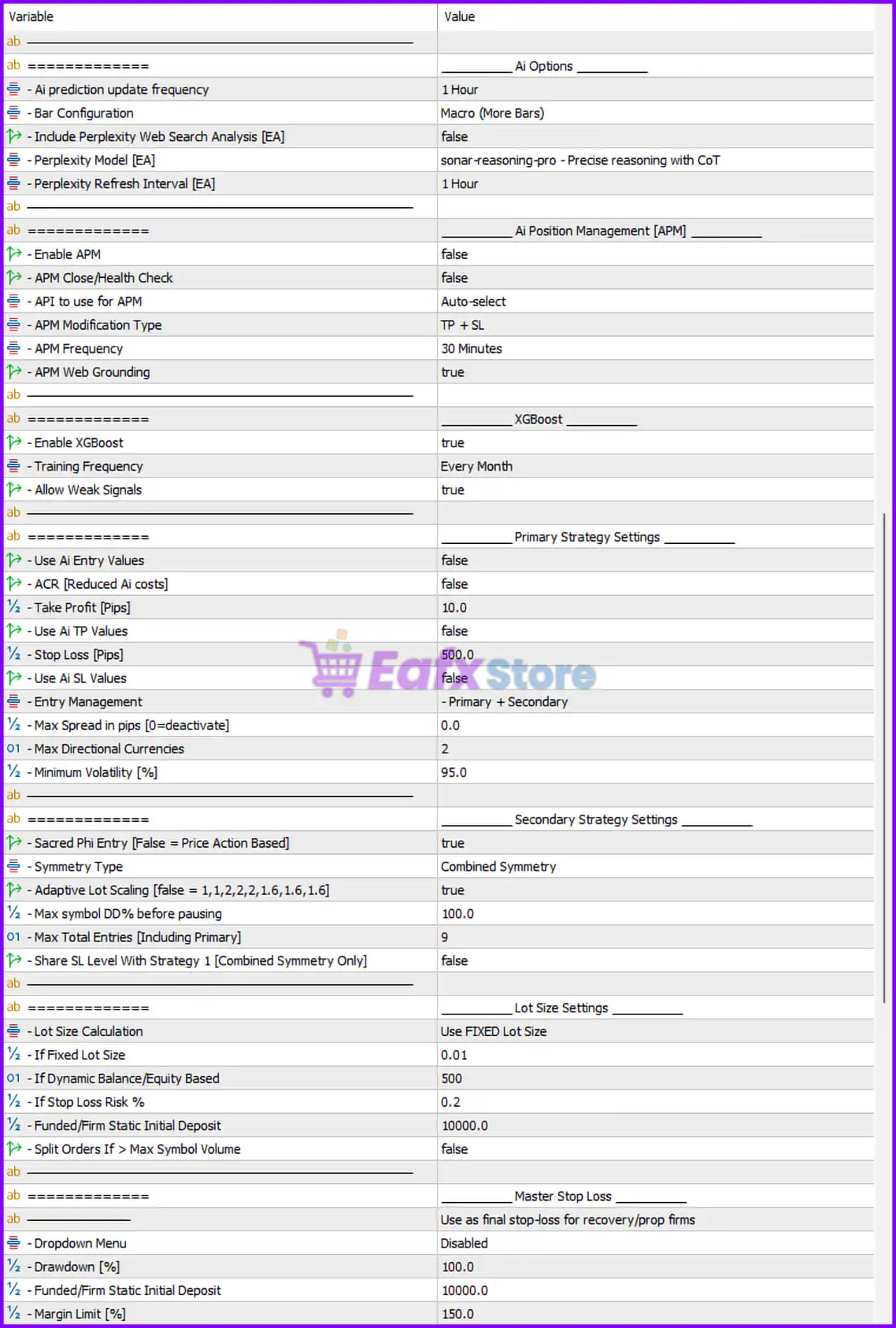
🔹 AI prediction update frequency = 1 Hour — AI prediction refresh interval.
🔹 Bar Configuration = Macro (More Bars) — Uses broader candle/bar analysis.
🔹 Include Perplexity Web Search Analysis [EA] = false — Perplexity web analysis disabled.
🔹 Perplexity Model [EA] = sonar-reasoning-pro - Precise reasoning with CoT — Selected Perplexity reasoning model.
🔹 Perplexity Refresh Interval [EA] = 1 Hour — Web analysis refresh rate.
🔶 AI Position Management [APM]
🔹 Enable APM = false — AI position management system disabled.
🔹 APM Close/Health Check = false — Position health monitoring disabled.
🔹 API to use for APM = Auto-select — Automatic API selection for position management.
🔹 APM Modification Type = TP + SL — AI can modify Take Profit and Stop Loss.
🔹 APM Frequency = 30 Minutes — Position management refresh interval.
🔹 APM Web Grounding = true — Web-assisted AI management enabled.
🔶 XGBoost Settings
🔹 Enable XGBoost = true — Machine learning XGBoost model enabled.
🔹 Training Frequency = Every Month — Monthly AI retraining schedule.
🔹 Allow Weak Signals = true — Allows weaker trading signals to be executed.
🔶 Primary Strategy Settings
🔹 Use Ai Entry Values = false — AI-based entry values disabled.
🔹 ACR [Reduced Ai costs] = false — AI cost-reduction mode disabled.
🔹 Take Profit [Pips] = 10.0 — Profit target set to 10.0 pips.
🔹 Use Ai TP Values = false — AI-generated TP disabled.
🔹 Stop Loss [Pips] = 500.0 — Stop Loss distance configured at 500.0 pips.
🔹 Use Ai SL Values = false — AI-generated SL disabled.
🔹 Entry Management = Primary + Secondary — Uses combined entry management strategies.
🔹 Max Spread in pips [0=deactivate] = 0.0 — Spread filtering disabled.
🔹 Max Directional Currencies = 2 — Limits exposure to 2 correlated directional currencies.
🔹 Minimum Volatility [%] = 95.0 — Minimum market volatility requirement.
🔶 Secondary Strategy Settings
🔹 Sacred Phi Entry [False = Price Action Based] = true — Uses Phi-based market entry logic.
🔹 Symmetry Type = Combined Symmetry — Trading symmetry mode configuration.
🔹 Adaptive Lot Scaling [false = 1,1,2,2,2,1.6,1.6,1.6] = true — Dynamic lot scaling enabled.
🔹 Max symbol DD% before pausing = 100.0 — Drawdown threshold before symbol trading pause.
🔹 Max Total Entries [Including Primary] = 9 — Maximum simultaneous entries allowed.
🔹 Share SL Level With Strategy 1 [Combined Symmetry Only] = false — Separate SL management between strategies.
🔶 Lot Size Settings
🔹 Lot Size Calculation = Use FIXED Lot Size — Uses fixed trading volume calculation.
🔹 If Fixed Lot Size = 0.01 — Fixed trade lot size set to 0.01.
🔹 If Dynamic Balance/Equity Based = 500 — Balance scaling threshold value.
🔹 If Stop Loss Risk % = 0.2 — Risk percentage tied to stop loss exposure.
🔹 Funded/Firm Static Initial Deposit = 10000.0 — Base account balance reference for funded accounts.
🔹 Split Orders If > Max Symbol Volume = false — Large order splitting disabled.
🔶 Master Stop Loss
🔹 Master Stop Loss = Use as final stop-loss for recovery/prop firms — Global emergency stop-loss system.
🔹 Dropdown Menu = Disabled — Master stop-loss dropdown disabled.
🔹 Drawdown [%] = 100.0 — Maximum overall account drawdown limit.
🔹 Funded/Firm Static Initial Deposit = 10000.0 — Static funded account baseline.
🔹 Margin Limit [%] = 150.0 — Minimum margin percentage requirement.
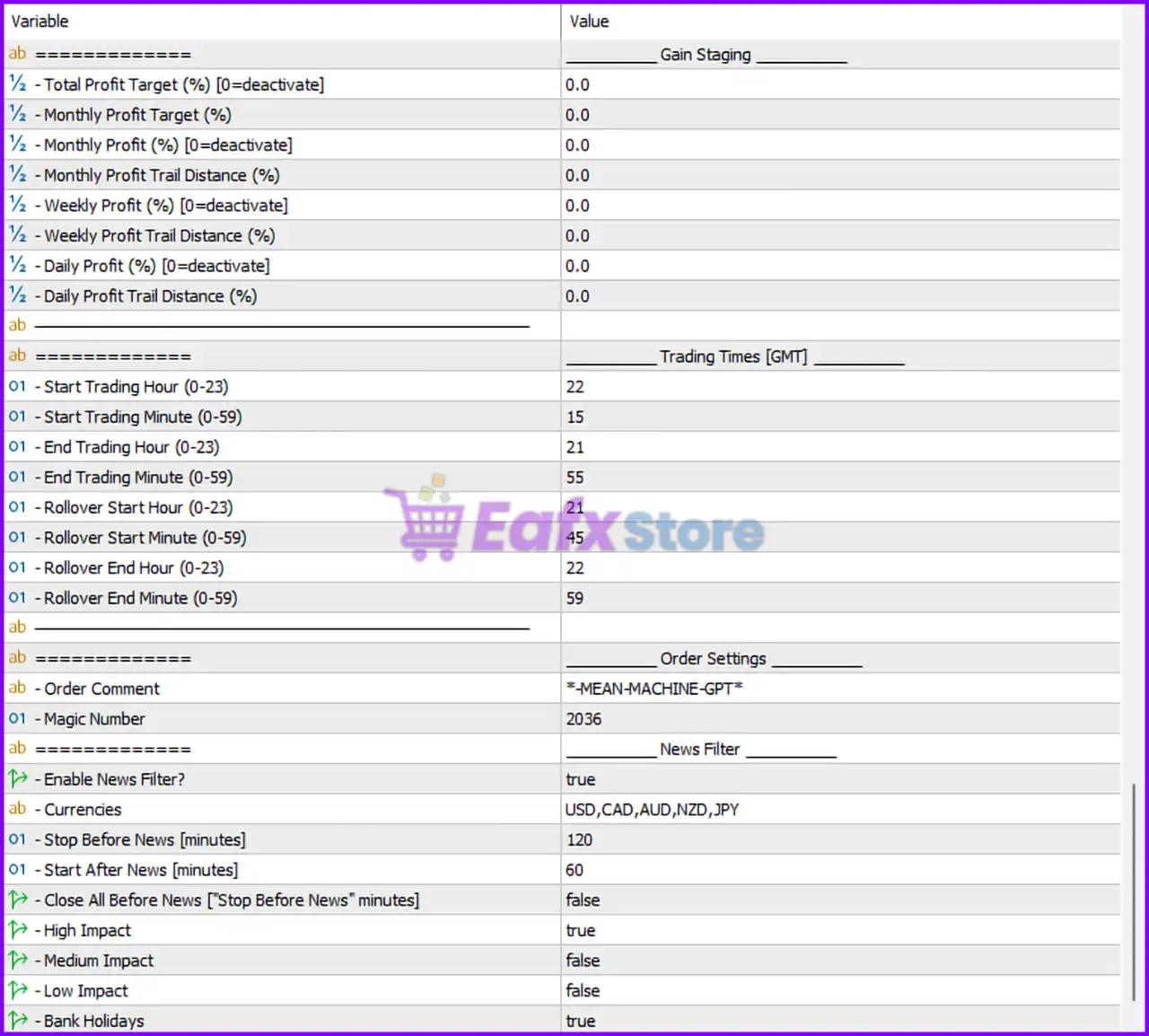
🔶 Gain Staging Settings
🔹 Total Profit Target (%) [0=deactivate] = 0.0 — Global profit target disabled.
🔹 Monthly Profit Target (%) = 0.0 — Monthly profit target disabled.
🔹 Monthly Profit (%) [0=deactivate] = 0.0 — Monthly profit limiter disabled.
🔹 Monthly Profit Trail Distance (%) = 0.0 — Monthly trailing profit disabled.
🔹 Weekly Profit (%) [0=deactivate] = 0.0 — Weekly profit target disabled.
🔹 Weekly Profit Trail Distance (%) = 0.0 — Weekly trailing protection disabled.
🔹 Daily Profit (%) [0=deactivate] = 0.0 — Daily profit target disabled.
🔹 Daily Profit Trail Distance (%) = 0.0 — Daily trailing profit disabled.
🔶 Trading Times [GMT]
🔹 Start Trading Hour (0-23) = 22 — Trading begins at GMT hour 22.
🔹 Start Trading Minute (0-59) = 15 — Trading starts at minute 15.
🔹 End Trading Hour (0-23) = 21 — Trading stops at GMT hour 21.
🔹 End Trading Minute (0-59) = 55 — Trading stops at minute 55.
🔹 Rollover Start Hour (0-23) = 21 — Rollover protection begins at hour 21.
🔹 Rollover Start Minute (0-59) = 45 — Rollover protection begins at minute 45.
🔹 Rollover End Hour (0-23) = 22 — Rollover protection ends at hour 22.
🔹 Rollover End Minute (0-59) = 59 — Rollover protection ends at minute 59.
🔶 Order Settings
🔹 Order Comment = MEAN-MACHINE-GPT — Custom comment label for all EA trades.
🔹 Magic Number = 2036 — Unique identifier assigned to EA trades.
🔶 News Filter
🔹 Enable News Filter? = true — Economic news filtering enabled.
🔹 Currencies = USD,CAD,AUD,NZD,JPY — News filtering applies to these currencies.
🔹 Stop Before News [minutes] = 120 — Stops trading 120 minutes before news releases.
🔹 Start After News [minutes] = 60 — Resumes trading 60 minutes after news events.
🔹 Close All Before News ["Stop Before News" minutes] = false — Existing trades remain open before news.
🔹 High Impact = true — Filters high-impact economic news.
🔹 Medium Impact = false — Medium-impact news ignored.
🔹 Low Impact = false — Low-impact news ignored.
🔹 Bank Holidays = true — Trading restrictions apply during bank holidays.
🔢 Conclusion
Mean Machine EA MT5 is a highly sophisticated AI-integrated Expert Advisor designed for advanced automated trading on MetaTrader 5. By combining GPT-powered market analysis, XGBoost machine learning, adaptive lot scaling, multi-layer strategy systems, and professional-grade risk management, the EA offers a powerful solution for traders seeking intelligent automation and prop-firm compatible trading performance.
🔢 FAQs
❓ What is Mean Machine EA MT5?
Mean Machine EA MT5 is an AI-powered automated forex trading robot for MetaTrader 5 using GPT models and machine learning systems.
❓ Does Mean Machine EA MT5 support AI APIs?
Yes, the EA supports OpenAI, Claude, Gemini, Mistral, DeepSeek, Perplexity, Moonshot, and X.AI integrations.
❓ Can Mean Machine EA MT5 trade multiple currency pairs?
Yes, the EA supports multi-symbol trading with configurable symbol lists and maximum open symbols.
❓ Does Mean Machine EA MT5 include news filtering?
Yes, the EA includes advanced economic news filtering with configurable impact levels and timing restrictions.
❓ Is Mean Machine EA MT5 suitable for prop firm trading?
Yes, the EA includes prop-firm risk controls, drawdown limits, and funded account management settings.
Get Mean Machine EA MT5
Download Mean Machine EA MT5 with its set files, read the full product details and requirements here: Mean Machine EA MT5 →