

Introduction to Kraken 8X
Kraken 8X EA is an automated trading Expert Advisor (EA) designed for MetaTrader 4, featuring advanced risk management, multi-pair trading controls, drawdown protection, weekend recovery, daily recovery, and automated news filtering.
The EA provides several account protection mechanisms, including maximum daily drawdown limits, automatic trade-closing conditions, margin safety controls, and daily profit targets. It also includes specialized recovery functions designed to manage losing positions around weekend closures and daily market transitions.
Another important feature is its FTMO News Filter, which allows traders to restrict new entries, manage existing trades, and temporarily remove Take Profit (TP) and Stop Loss (SL) levels around scheduled economic news events.
Below is a complete explanation of the available Kraken 8X EA MT4 inputs, including their default values and configuration purposes.
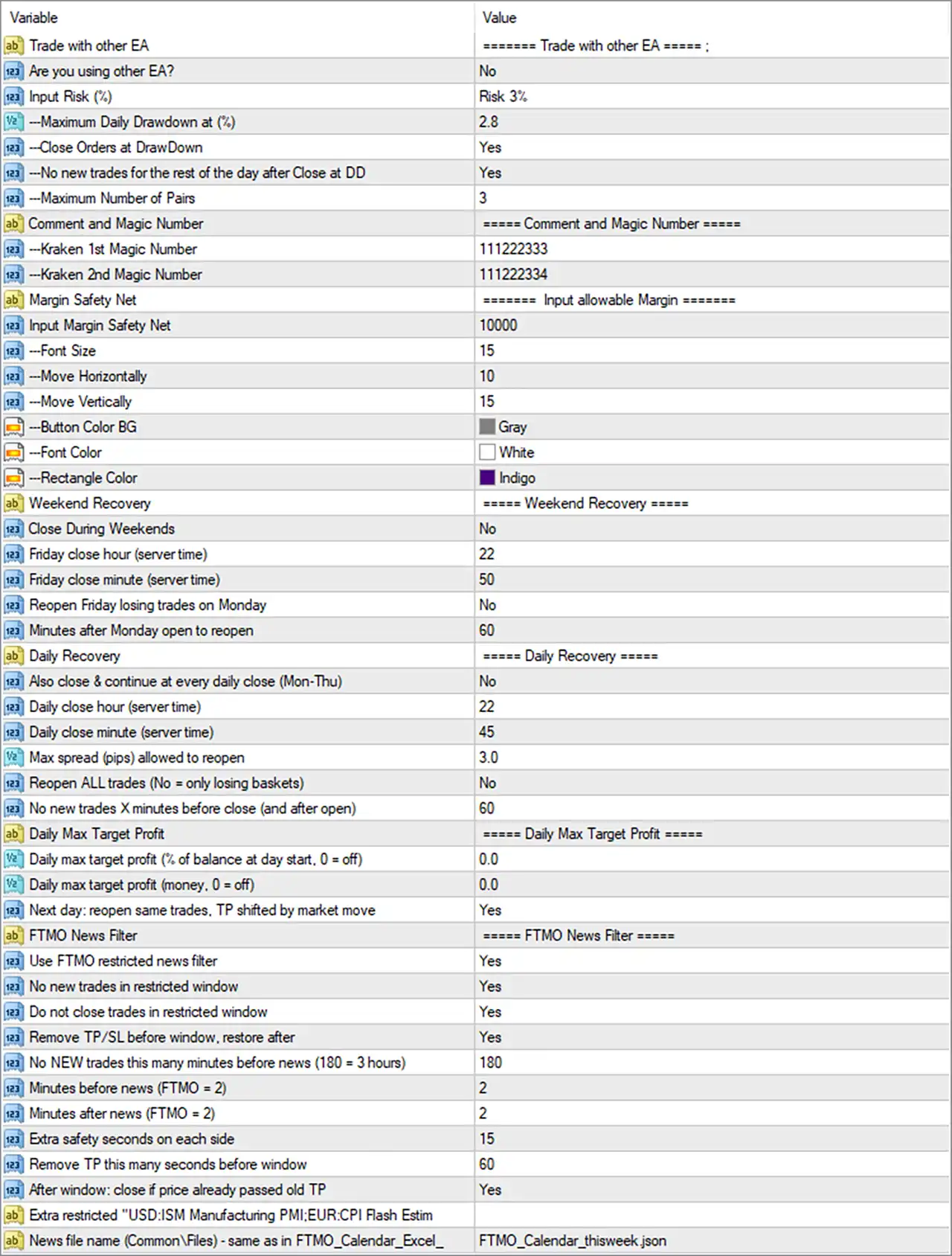
Trade with Other EA – Trading Compatibility
This section controls whether Kraken 8X EA MT4 is configured to operate alongside other Expert Advisors on the same trading account.
🔹 Trade with other EA = Trade with other EA – An informational section heading introducing the settings for running Kraken 8X EA MT4 alongside other automated trading systems.
🔹 Are you using other EA? = No – Indicates that the account is not currently configured as a shared environment with other Expert Advisors. Change this setting to Yes if you intend to operate Kraken 8X alongside other EAs, according to its supported compatibility rules.
🔹 Input Risk (%) = Risk 3% – Sets the displayed trading risk configuration to Risk 3%. This parameter determines the configured risk level used by the EA for its trading operations, according to its internal risk calculation.
🔹 Maximum Daily Drawdown at (%) = 2.8 – Sets the maximum daily drawdown threshold to 2.8%. This parameter defines the daily loss limit monitored by the EA to help prevent excessive account losses.
🔹 Close Orders at DrawDown = Yes – Enables automatic order closing when the configured drawdown condition is reached. This function helps protect the account by closing applicable trading positions after the daily drawdown limit is triggered.
🔹 No new trades for the rest of the day after Close at DD = Yes – Prevents the EA from opening new trades for the remainder of the trading day after the drawdown closing condition has been triggered.
🔹 Maximum Number of Pairs = 3 – Limits the EA’s configured trading activity to a maximum of 3 currency pairs. This setting helps control the number of instruments managed by the trading system.
Comment and Magic Number – Trade Identification
This section contains unique identifiers used to distinguish Kraken 8X EA MT4 orders from other trading activities.
🔹 Comment and Magic Number = Comment and Magic Number – An informational section heading introducing the EA’s order identification settings.
🔹 Kraken 1st Magic Number = 111222333 – Assigns Magic Number 111222333 to the first Kraken trading module. This identifier helps MT4 distinguish positions belonging to the first configured Kraken trading instance.
🔹 Kraken 2nd Magic Number = 111222334 – Assigns Magic Number 111222334 to the second Kraken trading module. Using a separate identifier helps distinguish its positions from those associated with the first module and other trading systems.
Margin Safety Net – Account Protection and Display Settings
This section provides a configurable margin safety threshold and visual interface customization options.
🔹 Margin Safety Net = Input allowable Margin – An informational heading introducing the allowable margin configuration and related display settings.
🔹 Input Margin Safety Net = 10000 – Sets the allowable margin safety parameter to 10000. This value defines the configured margin threshold used by the EA’s margin protection mechanism to help control trading exposure.
🔹 Font Size = 15 – Sets the display font size to 15. This parameter controls the text size of the EA’s on-chart interface, making trading information easier to read.
🔹 Move Horizontally = 10 – Sets the horizontal positioning offset to 10. This parameter adjusts the EA’s on-chart interface position along the horizontal axis.
🔹 Move Vertically = 15 – Sets the vertical positioning offset to 15. This parameter adjusts the EA’s on-chart interface position along the vertical axis.
🔹 Button Color BG = Gray – Sets the background color of the EA’s interface buttons to Gray, customizing the appearance of its on-chart control panel.
🔹 Font Color = White – Sets the interface text color to White, helping maintain clear text visibility against the selected panel background.
🔹 Rectangle Color = Indigo – Sets the rectangle or panel color to Indigo, allowing traders to customize the visual appearance of the EA’s chart interface.
Weekend Recovery – Friday Closing and Monday Reopening
This section manages trading positions around the weekend market closure. It includes options for closing trades on Friday and reopening losing positions after the market opens on Monday.
🔹 Weekend Recovery = Weekend Recovery – An informational section heading introducing the weekend trade management configuration.
🔹 Close During Weekends = No – Disables the automatic weekend trade-closing function. When enabled, the EA can close applicable positions before the weekend market shutdown according to the configured closing schedule.
🔹 Friday close hour (server time) = 22 – Sets the scheduled Friday closing hour to 22:00 broker server time. This parameter defines the hour at which the weekend closing mechanism is configured to operate.
🔹 Friday close minute (server time) = 50 – Sets the scheduled Friday closing minute to 50. Combined with the closing hour of 22, the configured Friday closing time is 22:50 server time.
🔹 Reopen Friday losing trades on Monday = No – Disables the automatic reopening of losing positions that were closed on Friday. When enabled, the EA can reopen eligible losing trades after the market resumes on Monday.
🔹 Minutes after Monday open to reopen = 60 – Sets the waiting period to 60 minutes after Monday’s market opening before the EA can execute its configured weekend recovery reopening process.
Daily Recovery – Daily Closing and Reopening Management
This section controls the EA’s daily recovery mechanism, including scheduled trade closing, reopening conditions, spread restrictions, and trading pauses around daily market transitions.
🔹 Daily Recovery = Daily Recovery – An informational section heading introducing the daily trade recovery configuration.
🔹 Also close & continue at every daily close (Mon-Thu) = No – Disables the additional daily closing and continuation function from Monday through Thursday. When enabled, the EA can apply its daily recovery procedure at each configured daily market closing period.
🔹 Daily close hour (server time) = 22 – Sets the scheduled daily closing hour to 22:00 broker server time. This parameter defines the hour used by the EA’s daily recovery and closing mechanism.
🔹 Daily close minute (server time) = 45 – Sets the daily closing minute to 45. Combined with the configured hour of 22, the daily closing time is 22:45 server time.
🔹 Max spread (pips) allowed to reopen = 3.0 – Sets the maximum permitted spread to 3.0 pips for reopening trades. This restriction helps prevent the EA from reopening positions when market spreads exceed the configured trading-cost threshold.
🔹 Reopen ALL trades (No = only losing baskets) = No – Restricts the reopening process to losing baskets rather than reopening all previously closed trades. Setting this parameter to Yes allows the EA to reopen all eligible trades under its recovery logic.
🔹 No new trades X minutes before close (and after open) = 60 – Sets a 60-minute trading restriction around the daily closing and reopening periods. This parameter prevents new entries during the configured period before closing and after the market reopens.
Daily Max Target Profit – Profit Target Management
This section allows traders to configure daily profit targets based on account balance percentages or fixed monetary amounts.
🔹 Daily Max Target Profit = Daily Max Target Profit – An informational section heading introducing the daily profit target configuration.
🔹 Daily max target profit (% of balance at day start, 0 = off) = 0.0 – Disables the percentage-based daily profit target. A value of 0.0 means the EA does not apply a daily maximum profit threshold based on the account balance at the beginning of the trading day.
🔹 Daily max target profit (money, 0 = off) = 0.0 – Disables the fixed monetary daily profit target. Setting this parameter to a value greater than 0 allows traders to configure a daily profit limit based on a monetary amount.
🔹 Next day: reopen same trades, TP shifted by market move = Yes – Enables the option to reopen the same eligible trades on the following day, with their Take Profit levels adjusted according to market price movements.
FTMO News Filter – Economic Event Protection
This section provides news-based trading restrictions designed to help traders manage exposure around important economic announcements. It includes entry restrictions, trade management rules, and configurable time windows before and after scheduled news events.
🔹 FTMO News Filter = FTMO News Filter – An informational section heading introducing the economic news filtering configuration.
🔹 Use FTMO restricted news filter = Yes – Enables the FTMO restricted news filter. This allows Kraken 8X EA MT4 to use the configured news schedule to manage trading activity around restricted economic events.
🔹 No new trades in restricted window = Yes – Prevents the EA from opening new positions during the configured restricted news window. This helps reduce exposure to sudden price movements and potentially wider spreads around major economic announcements.
🔹 Do not close trades in restricted window = Yes – Prevents the EA from closing existing trades through its corresponding news-window management function during restricted periods. This setting is intended to avoid unnecessary trade closures around scheduled news events.
🔹 Remove TP/SL before window, restore after = Yes – Enables the temporary removal of Take Profit and Stop Loss levels before the restricted news window, with restoration after the window ends according to the EA’s programmed logic.
🔹 No NEW trades this many minutes before news (180 = 3 hours) = 180 – Prevents new trading entries beginning 180 minutes before scheduled news events. The configured value represents a 3-hour advance restriction period.
🔹 Minutes before news (FTMO = 2) = 2 – Sets the immediate pre-news restriction period to 2 minutes. This parameter defines the additional time before a scheduled event used by the FTMO news-filtering mechanism.
🔹 Minutes after news (FTMO = 2) = 2 – Sets the post-news restriction period to 2 minutes. This allows the EA to maintain its configured news protection for a short period after the scheduled economic announcement.
🔹 Extra safety seconds on each side = 15 – Adds an additional safety buffer of 15 seconds on each side of the restricted news window. This provides extra timing protection around the beginning and ending of the configured restriction period.
🔹 Remove TP this many seconds before window = 60 – Sets the Take Profit removal timing to 60 seconds before the restricted news window. This allows the EA to adjust applicable TP levels in advance of the scheduled event.
🔹 After window: close if price already passed old TP = Yes – Enables the option to close an applicable position after the news window if the market price has already moved beyond its previous Take Profit level. This helps manage positions whose original profit targets may have been crossed while TP was temporarily removed.
Extra Restricted News Events and News File
This section allows traders to configure additional restricted economic events and specify the external news calendar file used by the EA.
🔹 Extra restricted “USD:ISM Manufacturing PMI;EUR:CPI Flash Estim” = USD:ISM Manufacturing PMI;EUR:CPI Flash Estim – Defines additional restricted economic events, specifically USD ISM Manufacturing PMI and EUR CPI Flash Estimate. These events can be included in the EA’s news restriction logic alongside the standard FTMO calendar events.
🔹 News file name (Common\Files) = FTMO_Calendar_thisweek.json – Specifies the external news calendar filename as FTMO_Calendar_thisweek.json. The EA is configured to reference this JSON file from the MetaTrader Common\Files directory to obtain scheduled economic event information.