


Lycan MT5 is an automated trading Expert Advisor (EA) designed for the MetaTrader 5 platform. Its configuration panel includes multi-currency trading, risk-based position sizing, additional trade management, profit and drawdown limits, stop-loss adjustments, rollover protection, and time-based trading restrictions.
The supplied settings indicate that Lycan MT5 can manage multiple currency pairs from a single chart, use additional trades, and apply trading hours based on New York time. It also includes options for a rewards program, backtesting information, and mobile trade notifications.
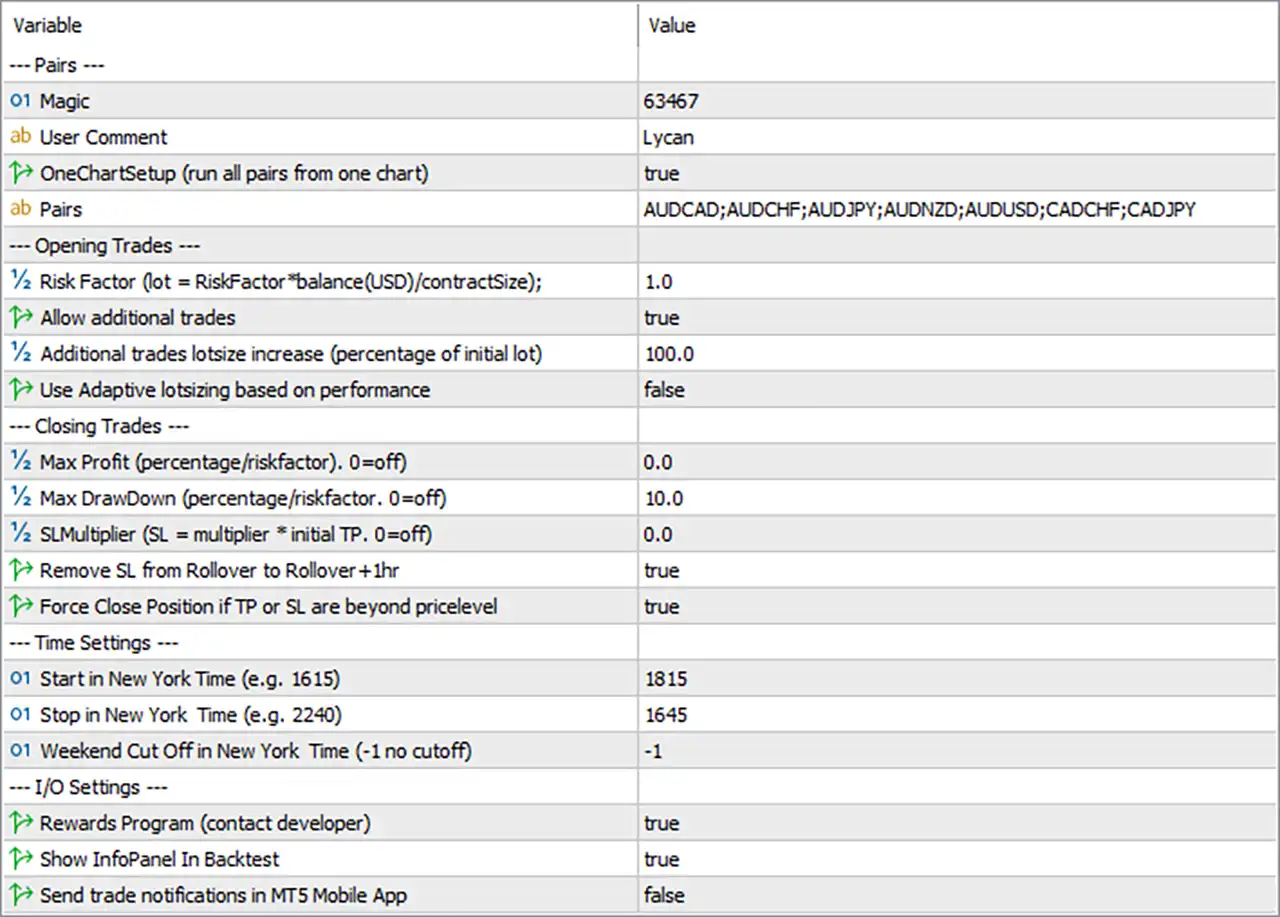
Pairs and General Settings
🔹 — Pairs — = Section Header: Introduces the general settings for trade identification, multi-pair operation, and the list of currency pairs available to the EA.
🔹 Magic = 63467: Assigns the trade identifier 63467 to positions managed by Lycan MT5. This helps the EA distinguish its own trades from manual positions and orders opened by other Expert Advisors using different magic numbers.
🔹 User Comment = Lycan: Sets the comment associated with the EA’s trades to “Lycan”. This label helps traders identify positions in the MetaTrader 5 terminal and account history.
🔹 OneChartSetup (run all pairs from one chart) = true: Enables the option to run the EA’s multi-pair setup from a single chart. If supported by the EA’s implementation, one chart can manage trading logic for multiple currency pairs instead of requiring a separate chart for every pair.
🔹 Pairs = AUDCAD; AUDCHF; AUDJPY; AUDNZD; AUDUSD; CADCHF; CADJPY; CHF…: Specifies the currency pairs included in the EA’s multi-pair configuration. The visible list begins with AUDCAD, AUDCHF, AUDJPY, AUDNZD, AUDUSD, CADCHF, and CADJPY, followed by CHF-related entries and additional pairs that are truncated in the screenshot. The complete list cannot be recovered from the displayed image alone.
Opening Trades Settings
🔹 — Opening Trades — = Section Header: Introduces the parameters controlling initial position sizing, additional entries, and adaptive lot-size behavior.
🔹 Risk Factor (lot = (RiskFactor*balance(USD)/contractSize);) = 1.0: Sets the risk factor to 1.0. The displayed formula indicates that the lot calculation uses RiskFactor multiplied by the USD account balance, divided by contractSize. The resulting lot size depends on the account balance, contract specifications, and any additional rules in the EA.
🔹 Allow additional trades = true: Enables the EA to open additional trades when its programmed entry conditions are satisfied. This can increase the number of simultaneous positions and total market exposure, depending on the strategy.
🔹 Additional trades lotsize increase (percentage of initial lot) = 100.0: Sets the additional-trade lot-size increase parameter to 100.0%. This may determine the volume added to subsequent trades relative to the initial lot size. The exact calculation, including whether each additional order increases linearly or follows another progression, depends on the EA’s implementation.
🔹 Use Adaptive lotsizing based on performance = false: Disables adaptive lot sizing based on trading performance. The EA will not use this particular feature to adjust lot sizes according to its performance while the setting remains false.
Closing Trades and Risk Management
🔹 — Closing Trades — = Section Header: Introduces the parameters for profit targets, drawdown limits, stop-loss adjustments, rollover handling, and forced position closure.
🔹 Max Profit (percentage/riskfactor, 0=off) = 0.0: Disables the maximum-profit threshold because the value is 0.0. According to the parameter description, zero means this particular profit limit is switched off.
🔹 Max DrawDown (percentage/riskfactor, 0=off) = 10.0: Sets the maximum drawdown threshold to 10.0 in the EA’s configured percentage or risk-factor units. The exact calculation depends on the implementation, so confirm the reference balance, equity, and measurement method before relying on it as a loss limit.
🔹 SLMultiplier (SL = multiplier * initial TP, 0=off) = 0.0: Disables the SLMultiplier-based stop-loss calculation because the value is 0.0. The parameter description indicates that the stop-loss would otherwise be calculated as the multiplier multiplied by the initial take-profit value.
🔹 Remove SL from Rollover to Rollover+1hr = true: Enables the option to remove stop-loss levels during the rollover period and for the following 1 hour. This behavior may leave positions temporarily without their usual stop-loss protection, potentially increasing exposure to adverse price movements. Verify the EA’s exact rollover schedule and execution logic before using this setting.
🔹 Force Close Position if TP or SL are beyond pricelevel = true: Enables forced position closure when a take-profit or stop-loss level is beyond the applicable price level, according to the EA’s internal rules. This may help handle price-level conditions that prevent normal exit management, but the exact trigger and execution behavior depend on the implementation.
Time Settings
🔹 — Time Settings — = Section Header: Introduces the time-based trading restrictions configured using New York time.
🔹 Start in New York Time (e.g. 1615) = 1815: Sets the configured trading start time to 1815, meaning 18:15 in 24-hour time. The EA uses New York time according to the parameter description, so daylight-saving adjustments and the EA’s time-conversion rules should be verified.
🔹 Stop in New York Time (e.g. 2240) = 1645: Sets the configured trading stop time to 1645, meaning 16:45 in 24-hour time. Because this is earlier than the configured start time of 18:15, confirm how the EA interprets this combination; it may represent an overnight trading window or require a different configuration to achieve the intended schedule.
🔹 Weekend Cut Off in New York Time (-1=no cutoff) = -1: Disables the configured weekend cutoff because -1 is explicitly defined as no cutoff. The EA therefore does not apply a weekend closing cutoff through this parameter, although other broker or strategy rules may still affect trading.
I/O Settings and Notifications
🔹 — I/O Settings — = Section Header: Introduces the settings for rewards-program integration, backtesting information, and mobile trade notifications.
🔹 Rewards Program (contact developer) = true: Enables the rewards-program option. The parameter description instructs users to contact the developer for details, so the eligibility requirements and exact functionality should be confirmed directly with the developer.
🔹 Show InfoPanel in Backtest = true: Enables the information panel during backtesting. This may display relevant EA status or strategy information in the Strategy Tester, depending on the supported interface.
🔹 Send trade notifications in MT5 Mobile App = false: Disables the EA’s mobile trade-notification option. The EA will not use this particular setting to send trade notifications to the MetaTrader 5 mobile app while the value remains false.
Conclusion
The Lycan MT5 settings provide a range of controls for multi-currency trading, risk-based position sizing, additional entries, drawdown management, rollover handling, New York trading hours, and mobile notifications.
The supplied configuration uses Magic = 63467, Risk Factor = 1.0, Allow additional trades = true, Additional trades lotsize increase = 100.0, Max DrawDown = 10.0, and SLMultiplier = 0.0. Multi-pair operation is enabled, adaptive lot sizing is disabled, and the maximum-profit threshold is switched off.
Pay particular attention to the rollover setting and trading schedule. Remove SL from Rollover to Rollover+1hr = true may temporarily remove stop-loss protection, while Start in New York Time = 1815 and Stop in New York Time = 1645 require confirmation because the stop time precedes the start time.
Before using Lycan MT5 on a live account, verify the complete currency-pair list, lot-sizing formula, drawdown calculation, rollover behavior, and New York time conversion. Backtesting and demo forward testing can help assess position accumulation, margin usage, and the effects of additional trades. No configuration guarantees profits or eliminates trading risk.