
PolyGold Scalper EA is an automated trading Expert Advisor (EA) designed for the MetaTrader 5 platform. Its configuration panel includes settings for Polymarket connectivity, automated lot sizing, spread control, drawdown parameters, stop-loss management, trading schedules, Friday trade closure, and chart visualization.
The supplied Inputs panel references a Polymarket market concerning whether gold will reach a specified price level by the end of December. It also includes an API URL, a market slug, and configurable trading parameters. The exact relationship between the Polymarket market and the EA’s order-execution logic depends on the robot’s implementation.
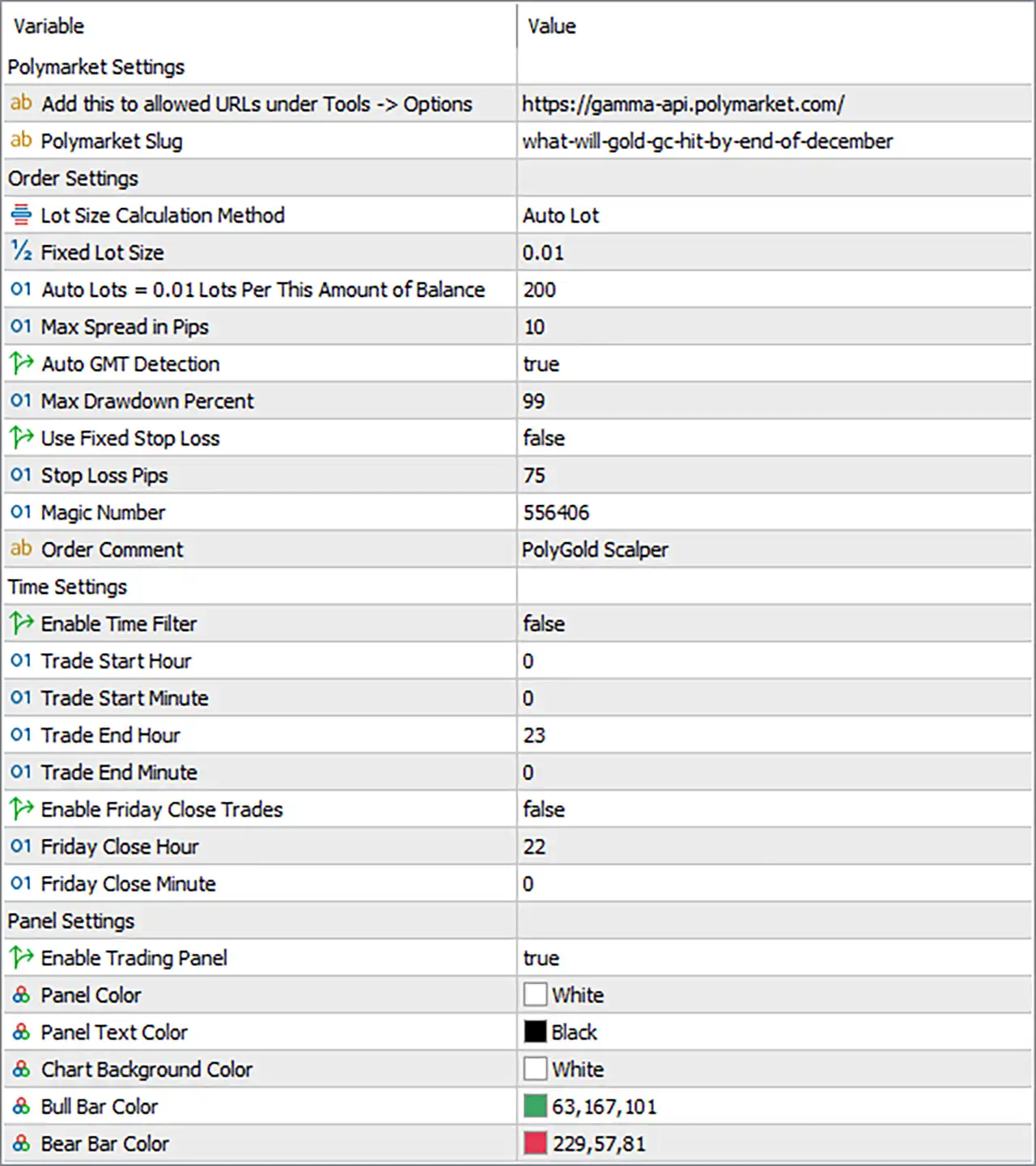
Understanding these settings helps traders configure the EA’s market connection, position sizing, trading restrictions, and visual interface. This guide explains all the settings shown in the image, preserving their original names and numerical values.
1. Polymarket Settings
🔹 Polymarket Settings = Section Header: Identifies the configuration section for Polymarket connectivity and market selection. It groups the API endpoint and market slug used to identify the configured market.
🔹 Add this to allowed URLs under Tools -> Options = https://gamma-api.polymarket.com/: Specifies the API URL that should be added to the allowed URLs list in the relevant MetaTrader settings. If the EA uses this endpoint to retrieve market information, permitting the URL may be necessary for its web requests to work.
🔹 Polymarket Slug = what-will-gold-gc-hit-by-end-of-december: Identifies the configured Polymarket market using the slug what-will-gold-gc-hit-by-end-of-december. The slug is used to identify the relevant market, but its current availability and exact market details should be verified on Polymarket.
2. Order Settings
🔹 Order Settings = Section Header: Introduces the parameters controlling lot-size calculation, spread restrictions, GMT detection, drawdown configuration, stop-loss behavior, and order identification.
🔹 Lot Size Calculation Method = Auto Lot: Selects automatic lot sizing as the active position-sizing method. The EA calculates order volume according to its programmed rules rather than relying exclusively on a manually specified fixed lot.
🔹 Fixed Lot Size = 0.01: Sets the fixed-lot volume to 0.01 lots. This value is available as a configurable volume, but its practical effect may depend on whether the EA is switched to Fixed Lot mode instead of Auto Lot.
🔹 Auto Lots = 0.01 Lots Per This Amount of Balance = 200: Sets the automatic lot-sizing reference to 0.01 lots per 200 units of account balance. The currency and exact calculation method depend on the EA’s implementation. If interpreted literally, an account balance of 200 units corresponds to a reference volume of 0.01 lots.
🔹 Max Spread in Pips = 10: Sets the maximum permitted spread threshold to 10 pips. If implemented as a conventional spread filter, the EA may block new entries when the spread exceeds this limit. Verify the spread calculation for the relevant instrument and broker.
🔹 Auto GMT Detection = true: Enables automatic GMT detection. This allows the EA to determine or adjust its time reference automatically if supported by its implementation, potentially helping align time-based trading rules with broker server time.
🔹 Max Drawdown Percent = 99: Sets the configured maximum drawdown threshold to 99%. The exact calculation may be based on account balance, equity, or another reference. A threshold this high should not be considered a conservative loss-protection setting, and its actual enforcement must be verified.
🔹 Use Fixed Stop Loss = false: Disables the fixed stop-loss feature. Although a stop-loss distance is configured below, this option indicates that the EA’s dedicated fixed-stop-loss function is not enabled in the supplied configuration.
🔹 Stop Loss Pips = 75: Sets the stop-loss distance to 75 pips. Because Use Fixed Stop Loss = false, this value may not be applied by the dedicated fixed-stop-loss function unless another internal rule uses it. Confirm the intended behavior before live trading.
🔹 Magic Number = 556406: Assigns the trade identifier 556406 to orders managed by the EA. This helps MetaTrader 5 distinguish the robot’s trades from manual positions and trades opened by other Expert Advisors using different identifiers.
🔹 Order Comment = PolyGold Scalper: Sets the comment attached to the EA’s orders to “PolyGold Scalper”. This label helps traders identify relevant positions in the trade terminal and account history.
3. Time Settings
🔹 Time Settings = Section Header: Introduces the trading schedule parameters and the optional Friday trade-closing feature.
🔹 Enable Time Filter = false: Disables the time-based entry restriction. The configured trading start and end times may therefore not limit new trades through this filter while it remains disabled.
🔹 Trade Start Hour = 0: Sets the configured trading start hour to 0, corresponding to 00:00 when interpreted as a conventional clock time.
🔹 Trade Start Minute = 0: Sets the configured trading start minute to 0. Combined with Trade Start Hour = 0, this specifies a start time of 00:00 if the EA uses these parameters as a standard hour-and-minute pair.
🔹 Trade End Hour = 23: Sets the configured trading end hour to 23, corresponding to 23:00 in a conventional 24-hour clock.
🔹 Trade End Minute = 0: Sets the configured trading end minute to 0. Combined with Trade End Hour = 23, this specifies an end time of 23:00 if the EA interprets these inputs as a standard time range.
🔹 Enable Friday Close Trades = false: Disables the automatic Friday trade-closing feature. Existing trades will not be closed by this particular feature while the setting remains false, although other exit conditions may still close positions.
🔹 Friday Close Hour = 22: Sets the configured Friday closing hour to 22, corresponding to 22:00. This value is relevant when the Friday trade-closing feature is enabled.
🔹 Friday Close Minute = 0: Sets the configured Friday closing minute to 0. Combined with Friday Close Hour = 22, it specifies a Friday closing time of 22:00 when the feature is active.
4. Trading Panel Settings
🔹 Panel Settings = Section Header: Introduces the visual interface configuration, including panel visibility, text color, chart background color, and bullish and bearish candle colors.
🔹 Enable Trading Panel = true: Enables the EA’s trading panel on the chart. The panel may provide access to trading information or controls, depending on the features supported by PolyGold Scalper EA MT5.
🔹 Panel Color = White: Sets the trading panel background color to White. This creates a light interface background for the EA’s on-chart panel.
🔹 Panel Text Color = Black: Sets the trading panel text color to Black, providing contrast against the white panel background and helping maintain text readability.
🔹 Chart Background Color = White: Sets the chart background color to White. This changes the chart’s visual appearance when the EA applies its configured chart colors.
🔹 Bull Bar Color = 63,167,101: Sets the bullish candlestick or bar color using RGB values 63, 167, and 101. This produces a green shade for bullish price bars when the EA applies the configured chart colors.
🔹 Bear Bar Color = 229,57,81: Sets the bearish candlestick or bar color using RGB values 229, 57, and 81. This produces a red-pink shade for bearish price bars when the EA applies the configured chart colors.
Conclusion
The PolyGold Scalper EA settings provide controls for Polymarket market identification, automatic lot sizing, spread limits, GMT detection, drawdown configuration, fixed stop-loss behavior, trading hours, Friday trade closure, and chart customization.
The supplied configuration uses Lot Size Calculation Method = Auto Lot, Fixed Lot Size = 0.01, Auto Lots = 0.01 lots per 200 units of balance, Max Spread in Pips = 10, Max Drawdown Percent = 99, and Stop Loss Pips = 75. The fixed stop-loss feature, time filter, and Friday closing feature are all disabled, while automatic GMT detection and the trading panel are enabled.