
Introduction
Ouro Hedge Scalping EA is an automated trading robot designed to execute scalping strategies with integrated hedging and trade management functionality. Its configuration includes adjustable lot sizing, take profit targets, spread limitations, trade distance parameters, and minimum profit requirements.
One of its main features is the dedicated hedge control system, which supports automatic hedging, percentage-based hedge lot sizing, drawdown activation thresholds, and separate hedge take profit settings. These options allow traders to configure how the EA manages opposing positions and responds to account drawdown.
Ouro Hedge Scalping EA also incorporates an economic news filter that can avoid trading around scheduled financial announcements. With configurable news impact levels, currency filters, GMT settings, and chart notifications, the EA provides additional control over trading conditions and market exposure.
Main Trading Settings
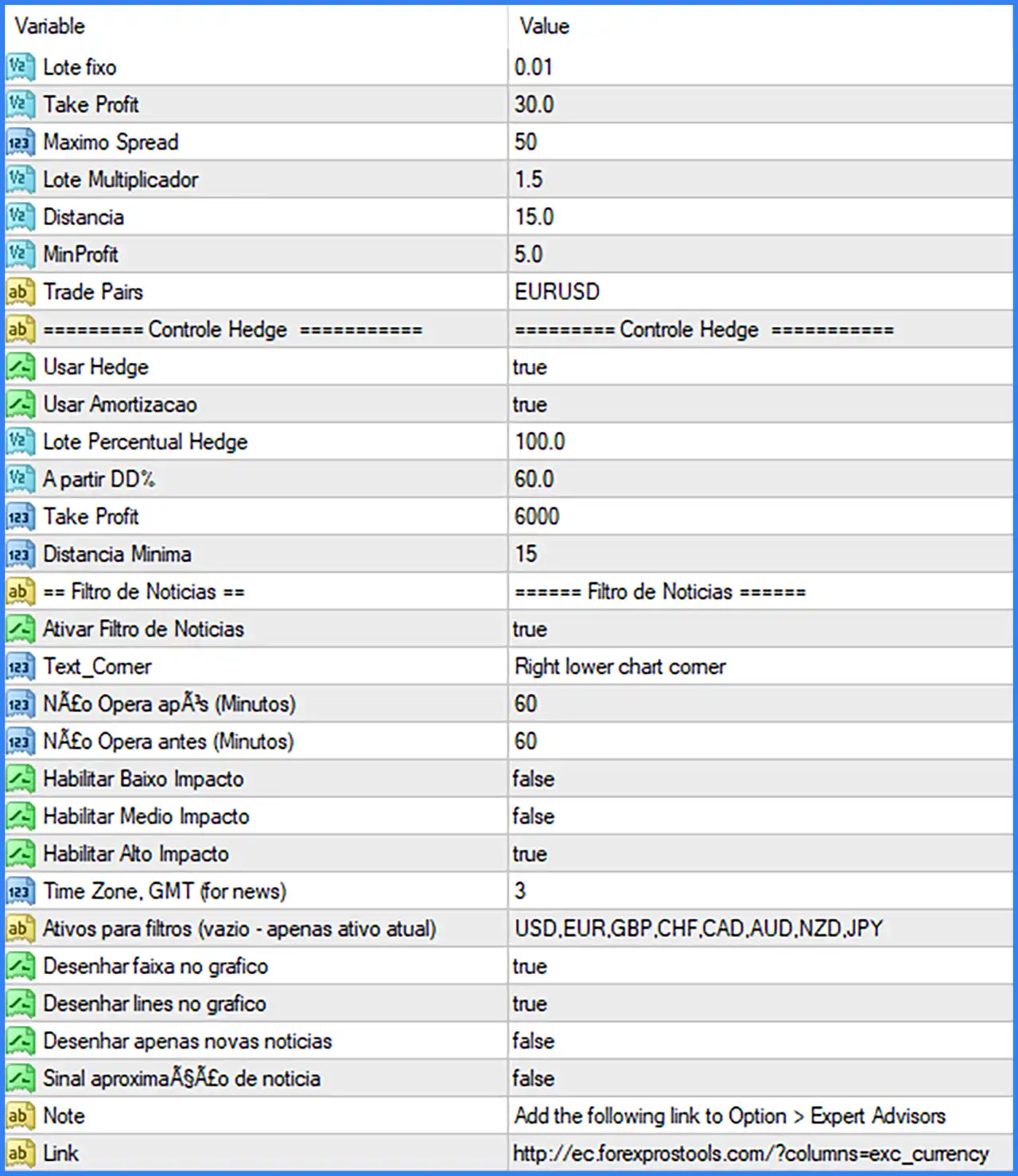
🔹 Lote fixo (Fixed Lot): 0.01 – Sets the fixed trading volume to 0.01 lots for each initial position, allowing traders to start with a relatively small trade size.
🔹 Take Profit: 30.0 – Sets the main take profit parameter to 30.0, defining the configured profit target for the EA's regular trading positions.
🔹 Maximo Spread (Maximum Spread): 50 – Defines the maximum spread threshold permitted for trading. This setting helps prevent the EA from entering positions when spread conditions exceed the configured limit.
🔹 Lote Multiplicador (Lot Multiplier): 1.5 – Sets the lot multiplication factor to 1.5, allowing the EA to increase subsequent trading volume according to its internal position-sizing and trading logic.
🔹 Distancia (Distance): 15.0 – Defines the distance parameter at 15.0, which may be used to determine the spacing between trading positions or entry levels.
🔹 MinProfit (Minimum Profit): 5.0 – Sets the minimum profit threshold to 5.0, providing a configured profit requirement for the EA's trade management logic.
🔹 Trade Pairs: EURUSD – Specifies EURUSD as the trading currency pair for the EA, indicating that the displayed configuration is intended for trading the Euro against the US Dollar.
Hedge Control Settings
🔹 Controle Hedge (Hedge Control): Controle Hedge – Identifies the dedicated hedge management section, which contains parameters for enabling hedging and configuring hedge position sizing and exit conditions.
🔹 Usar Hedge (Use Hedge): true – Enables the hedging function, allowing the EA to activate its hedge management logic when the configured trading conditions are met.
🔹 Usar Amortizacao (Use Amortization): true – Enables the amortization function, which is associated with the EA's hedge or position recovery management system. Its exact calculation method depends on the internal algorithm.
🔹 Lote Percentual Hedge (Hedge Lot Percentage): 100.0 – Sets the hedge lot percentage to 100.0%, defining the configured percentage used to calculate hedge position volume relative to the EA's reference trading volume.
🔹 A partir DD% (Starting from Drawdown %): 60.0 – Sets the drawdown activation threshold to 60.0%, defining the configured account drawdown level at which the hedge management function may become active.
🔹 Take Profit (Hedge Take Profit): 6000 – Sets the separate hedge take profit parameter to 6000, defining the configured profit target or exit threshold for hedge management.
🔹 Distancia Minima (Minimum Distance): 15 – Defines the minimum distance between relevant hedge positions or trading levels, helping control the spacing used by the hedge management system.
Economic News Filter Settings
🔹 Filtro de Noticias (News Filter): Filtro de Noticias – Identifies the economic news filtering section, which contains settings for avoiding trading around scheduled financial announcements.
🔹 Ativar Filtro de Noticias (Enable News Filter): true – Enables the economic news filter, allowing the EA to apply restrictions around scheduled news events to reduce exposure to potentially volatile market conditions.
🔹 Text_Comer: Right lower chart comer – Specifies the chart display position for the news filter text or comment, with the intended location being the lower-right corner of the trading chart.
🔹 Não Opera após (Minutos) (Do Not Trade After): 60 – Configures a 60-minute trading restriction after scheduled news releases, allowing the market time to react and potentially stabilize following important announcements.
🔹 Não Opera antes (Minutos) (Do Not Trade Before): 60 – Configures a 60-minute trading restriction before scheduled news releases, helping the EA avoid opening trades immediately before important economic announcements.
🔹 Habilitar Baixo Impacto (Enable Low Impact): false – Disables filtering for low-impact economic news events, meaning these announcements are not specifically excluded by this setting.
🔹 Habilitar Medio Impacto (Enable Medium Impact): false – Disables filtering for medium-impact economic news events, allowing the EA to operate without applying this additional news restriction.
🔹 Habilitar Alto Impacto (Enable High Impact): true – Enables filtering for high-impact economic news events, helping the EA avoid trading during announcements that may cause significant market volatility.
🔹 Time Zone, GMT (for news): 3 – Sets the economic news filter's GMT offset to +3, helping synchronize scheduled news events with the EA's configured time reference.
🔹 Ativos para filtros (Assets for Filters): USD, EUR, GBP, CHF, CAD, AUD, NZD, JPY – Defines the currencies monitored by the economic news filter. The EA can use these currency selections to identify relevant announcements affecting the configured trading instruments.
News Filter Chart Display Settings
🔹 Desenhar faixa no grafico (Draw Range on Chart): true – Enables the drawing of news-related time ranges on the trading chart, helping traders visually identify periods affected by economic announcements.
🔹 Desenhar lines no grafico (Draw Lines on Chart): true – Enables the display of news-related vertical or reference lines on the chart, making scheduled economic events easier to identify.
🔹 Desenhar apenas novas noticias (Draw Only New News): false – Disables the option to display only newly announced news events, allowing the chart display function to show previously available news information as well.
🔹 Sinal aproximação de noticia (News Approaching Signal): false – Disables the approaching-news signal, so the EA will not activate this specific visual or notification function when an economic announcement is approaching.
Additional Configuration and News Calendar Integration
🔹 Note: Add the following link to Option > Expert Advisors – Provides an installation instruction for configuring the external economic news calendar connection within MetaTrader.
🔹 Link: http://ec.forexprostools.com/?columns=exc_currency – Specifies the external Forex news calendar URL that should be added under MetaTrader's Options > Expert Advisors settings to support the economic news filtering functionality.
Conclusion
Ouro Hedge Scalping EA combines automated scalping functionality with a dedicated hedging system and economic news filtering capabilities. Its configuration provides control over fixed lot sizing, take profit targets, maximum spread, lot multiplication, trade distance, and minimum profit requirements.
The hedge management system is a notable part of this EA, with Use Hedge enabled, Use Amortization enabled, a 100.0% hedge lot percentage, and a 60.0% drawdown activation threshold. These parameters should be carefully evaluated because hedging and position recovery can increase overall account exposure.
The news filter is also enabled, with a 60-minute restriction before and after high-impact economic announcements. Traders should verify the GMT offset, currency selections, and external news calendar connection to ensure the filter operates correctly.
Before running Ouro Hedge Scalping EA on a live account, traders should test its settings using historical data and a demo account. Particular attention should be given to the lot multiplier of 1.5, the hedge take profit value of 6000, and the drawdown threshold of 60.0%.