

Introduction
Panda Hedging MT4 is an automated Forex Expert Advisor (EA) designed with hedging capabilities and configurable trade management options. It provides multiple currency-pair settings, adjustable lot sizing, risk profiles, smart Stop Loss controls, and maximum order restrictions.

Panda Hedging MT4 also includes missing-deal recovery functionality, individual spread limits, separate Magic Numbers, and customizable order comments. Its equity-based protection settings allow traders to configure account-level exit conditions according to their risk management preferences.
With its flexible configuration, Panda Hedging MT4 offers traders the ability to customize trading parameters across multiple currency pairs while managing order execution and account exposure.
Panda Hedging MT4 Settings Explained
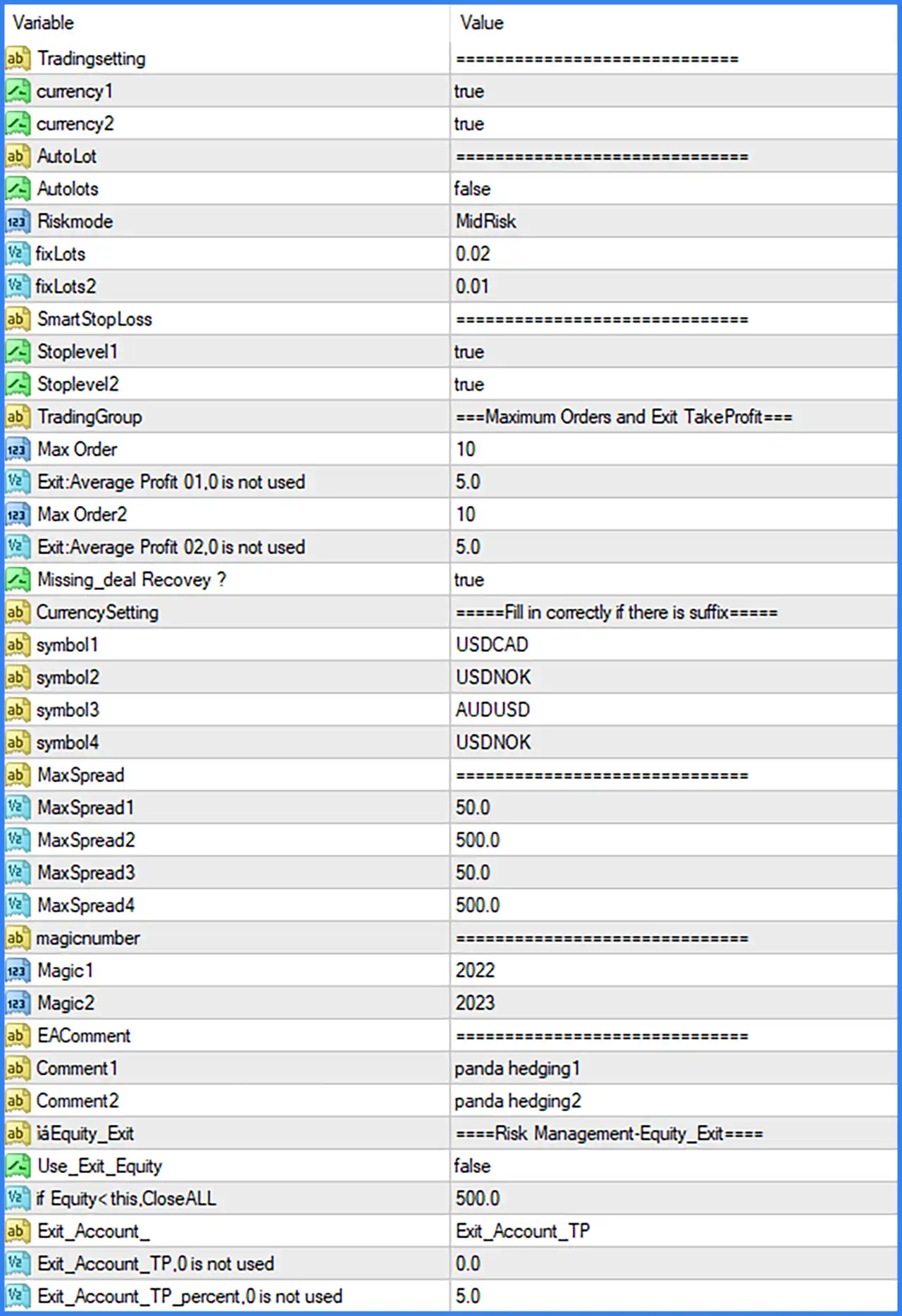
1. Trading Settings
🔹 currency1 = true – Enables the first currency trading configuration, allowing the EA to use the corresponding currency-pair settings.
🔹 currency2 = true – Enables the second currency trading configuration, allowing the EA to use the additional currency-pair settings.
2. Auto Lot Settings
🔹 Autolots = false – Disables automatic lot sizing, meaning the EA uses its configured fixed lot values instead of automatically calculating position sizes.
🔹 Riskmode = MidRisk – Selects the MidRisk configuration, representing the medium-risk trading profile available in the EA.
🔹 fixLots = 0.02 – Sets the fixed lot size to 0.02 lots for the first configured trading group.
🔹 fixLots2 = 0.01 – Sets the fixed lot size to 0.01 lots for the second configured trading group.
3. Smart Stop Loss Settings
🔹 Stoplevel1 = true – Enables the first Smart Stop Loss level, allowing the EA to apply its corresponding stop-loss management logic.
🔹 Stoplevel2 = true – Enables the second Smart Stop Loss level, providing an additional stop-loss management configuration.
4. Trading Group and Maximum Orders Settings
🔹 Max Order = 10 – Sets the maximum number of orders for the first trading group to 10.
🔹 Exit:Average Profit 01.0 is not used = 5.0 – Displays an average-profit exit parameter with a configured value of 5.0; the input label explicitly indicates that this parameter is not used.
🔹 Max Order2 = 10 – Sets the maximum number of orders for the second trading group to 10.
🔹 Exit:Average Profit 02.0 is not used = 5.0 – Displays the second average-profit exit parameter with a value of 5.0; this parameter is also explicitly marked as not used.
🔹 Missing_deal Recovery ? = true – Enables the Missing Deal Recovery option, allowing the EA to activate its recovery functionality for missing or uncompleted trading deals.
5. Currency Pair Settings
🔹 symbol1 = USDCAD – Specifies USDCAD as the first currency pair used by the EA.
🔹 symbol2 = USDNOK – Specifies USDNOK as the second currency pair used by the EA.
🔹 symbol3 = AUDUSD – Specifies AUDUSD as the third currency pair used by the EA.
🔹 symbol4 = USDNOK – Specifies USDNOK as the fourth currency pair used by the EA.
Note: The input section indicates that currency symbols must be filled in correctly if the broker uses a symbol suffix. Make sure the configured names match your broker's actual trading symbols.
6. Maximum Spread Settings
🔹 MaxSpread1 = 50.0 – Sets the maximum permitted spread for the first currency-pair configuration to 50.0 points.
🔹 MaxSpread2 = 500.0 – Sets the maximum permitted spread for the second currency-pair configuration to 500.0 points.
🔹 MaxSpread3 = 50.0 – Sets the maximum permitted spread for the third currency-pair configuration to 50.0 points.
🔹 MaxSpread4 = 500.0 – Sets the maximum permitted spread for the fourth currency-pair configuration to 500.0 points.
7. Magic Number Settings
🔹 Magic1 = 2022 – Assigns Magic Number 2022 to the first trading group, allowing the EA to identify and distinguish its corresponding orders.
🔹 Magic2 = 2023 – Assigns Magic Number 2023 to the second trading group, helping separate its trades from those belonging to the first group.
8. EA Comment Settings
🔹 Comment1 = panda hedging1 – Sets the order comment for the first trading group to panda hedging1, making its trades easier to identify in the trading terminal.
🔹 Comment2 = panda hedging2 – Sets the order comment for the second trading group to panda hedging2, helping distinguish its orders from the first group.
9. Risk Management – Equity Exit Settings
🔹 Use_Exit_Equity = false – Disables the equity-based exit function, meaning the EA will not activate this particular account equity protection mechanism.
🔹 if Equity< this,CloseALL = 500.0 – Defines an equity threshold of 500.0. When the equity exit function is enabled, this parameter specifies the threshold associated with closing all positions.
🔹 Exit_Account_ = Exit_Account_TP – Selects Exit_Account_TP as the account-level exit configuration.
🔹 Exit_Account_TP,0 is not used = 0.0 – Displays the account Take Profit parameter with a value of 0.0; the input label indicates that this parameter is not used.
🔹 Exit_Account_TP_percent,0 is not used = 5.0 – Displays the percentage-based account Take Profit parameter with a value of 5.0; the input label also explicitly indicates that this parameter is not used.
Conclusion
Panda Hedging MT4 provides a configurable automated trading environment with multiple currency-pair settings, separate trading groups, fixed lot sizing, Smart Stop Loss options, and missing-deal recovery functionality.
The supplied configuration enables both currency settings, selects the MidRisk profile, and uses fixed lot sizes of 0.02 and 0.01. Both trading groups have a maximum order setting of 10, while their Magic Numbers are configured as 2022 and 2023.
The EA also provides four individual spread limits and an optional equity-based exit mechanism, which is currently disabled.
Before using Panda Hedging MT4 on a live account, traders should verify broker symbol names, spread limits, lot sizes, and the behavior of its hedging and recovery mechanisms. Demo testing and careful risk assessment are recommended before deploying the EA with real capital.