


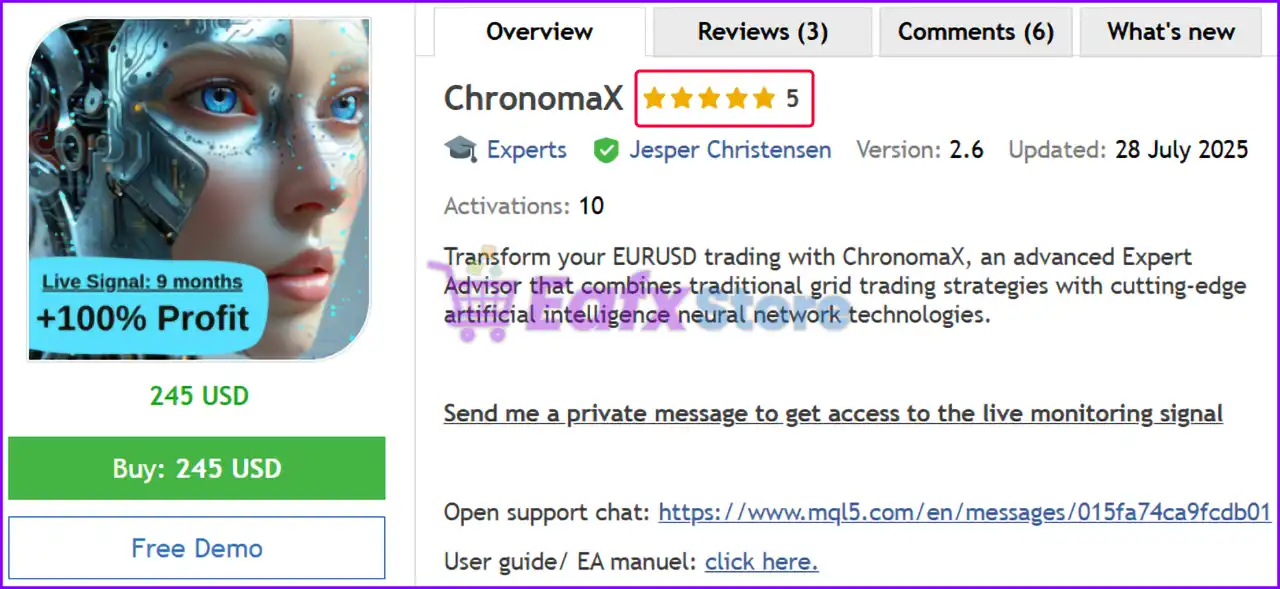
ChronomaX EA MT5 Settings Guide
ChronomaX EA is an advanced fully automated Expert Advisor for MetaTrader 5 that combines intelligent money management, adaptive lot scaling, ATR-based position sizing, grid trading, economic news filtering, time scheduling, drawdown protection and prop firm compatibility.
With extensive risk controls and highly configurable trading parameters, ChronomaX EA MT5 allows traders to optimize performance while maintaining disciplined capital management.
ChronomaX EA MT5 Settings Explained
General Inputs
🔹 Enable spread filter? = false – Disables the spread filter, allowing trading regardless of current spread.
🔹 Max spread in points for entry = 40.0 – Maximum allowed spread is 40.0 points when the spread filter is enabled.
🔹 EA comment = ChronomaX – Adds the comment "ChronomaX" to every trade opened by the EA.
🔹 Hide Entry Model Comments = false – Displays entry model comments on trades.
🔹 EA magic number = 24857545 – Unique Magic Number used to identify all positions opened by this EA.
🔹 Allow buy positions = true – Allows the EA to open Buy orders.
🔹 Allow sell positions = true – Allows the EA to open Sell orders.
🔹 Allow Hedging (set to false to comply with FIFO requirements) = true – Enables hedging by allowing simultaneous Buy and Sell positions.
🔹 Set file used = ChronomaX Default – Loads the default parameter configuration.
Debug Print Settings
🔹 Time frame for printing debug = 1 Hour – Debug information is generated using the H1 timeframe.
🔹 Show array debug prints = false – Disables array debugging output.
🔹 Show ATR calculation debug prints = false – Disables ATR calculation logs.
🔹 Show lot multiplier ATR debug prints = false – Disables ATR-based lot multiplier logs.
🔹 Show TP calculation debug prints = false – Disables Take Profit calculation logs.
🔹 Show grid debug prints in journal = false – Disables Grid journal logging.
🔹 Show Stop Loss Debug Prints = false – Disables Stop Loss debugging.
🔹 Show Price Action debug prints = false – Disables price action debug messages.
🔹 Show emergency stop out debug prints in journal = false – Disables emergency stop-out logs.
🔹 Print currency checks in journal? = false – Disables currency validation logs.
🔹 Print new entry attempts in journal? = false – Disables entry attempt logging.
Money Management
🔹 Maximum positions per currency in same direction across account = 1 – Limits exposure to one position per currency pair and direction.
🔹 Close grid on opposite signal? = false – Keeps existing grids active even after an opposite signal appears.
AutoLot Recommendations
🔹 Auto lot 0.25 = Low Risk (7–15% p.a.) – minimum balance 5k – Suggested setting for conservative trading.
🔹 Auto lot 0.5 = Moderate Risk (10–25% p.a.) – minimum balance 2.5k – Balanced risk profile.
🔹 Auto lot 1 = High Risk (50–100% p.a.) – minimum balance 1k – Aggressive growth configuration.
🔹 Auto lot 1.5 = Aggressive Risk (80–120% p.a.) – minimum balance 750 – Higher risk trading mode.
🔹 Auto lot 2 = Degen Risk (200–300% p.a.) – minimum balance 500 – Extremely aggressive setting.
🔹 Auto lot 3 = YOLO (200–400% p.a.) – minimum balance 300 – Maximum risk configuration.
🔹 Recommended leverage = 1:500 or higher – Suggested leverage for optimal operation.
🔹 Cent account recommendation – A cent account is recommended when account capital is below the suggested minimum.
Starting Lot Settings
🔹 Risk Model = AutoLot – Automatically calculates lot size.
🔹 Starting lot (if autolot is not used) = 0.01 – Uses 0.01 lot when AutoLot is disabled.
🔹 AutoLot level (1 = 0.01 lots per 1000 account balance) = 1.0 – Every 1,000 account balance increases position size by 0.01 lot.
Lot Multiplier Settings
Linear Lot Multiplier
🔹 Only increase lot at full distance intervals = false – Allows progressive lot increases without waiting for full intervals.
🔹 Use ATR-based distance instead of static pips = true – Uses ATR instead of fixed pip distance.
🔹 Pips distance for lot increase (if not using ATR) = 5.0 – Static increment distance is 5.0 pips.
🔹 Lot amount to increase per distance = 0.01 – Increases lot size by 0.01 each step.
ATR Settings
🔹 ATR timeframe for lot multiplier = 1 Day – Uses Daily ATR.
🔹 ATR period for lot multiplier = 5 – ATR calculation period is 5.
🔹 ATR multiplier (0.1 = 10% of ATR for each increase) = 0.1 – Uses 10% of ATR for lot scaling.
Rolling Volatility
🔹 Rolling Volatility Window (hours) = 48 – Measures volatility over 48 hours.
🔹 Rolling Vol Weight % (0=pure ATR, 100=pure Rolling Vol) = 50 – Uses an equal 50/50 weighting.
Position Count Modifier
🔹 Enable position count modifier = true – Enables dynamic lot adjustments based on open positions.
🔹 Positions per modifier step = 3 – Applies scaling every 3 positions.
🔹 Change per step (0.10 = +10%, -0.10 = -10%) = 0.3 – Adjusts lots by 30% each step.
🔹 Floor multiplier = 0.5 – Minimum multiplier is 50%.
🔹 Ceiling multiplier = 5.0 – Maximum multiplier is 500%.
Maximum Lot Size
🔹 Max Lot per 1K balance = 1.0 – Maximum lot size per 1,000 balance is 1.0 lot.
🔹 FixedLot final size | AutoLot base size = MaxLot – Final lot size is capped by MaxLot.
Take Profit Settings
🔹 Money Target per 0.01 starting lot = 3.0 – Targets 3.0 account currency units per 0.01 lot.
🔹 Commission per lot (round-trip) = 7.0 – Uses 7.0 commission per lot.
🔹 Auto-detect commission from deal history = true – Automatically calculates commission.
Commission Settings
🔹 Include commission costs in TP calculation? = true – Includes commission when calculating Take Profit.
Swap Cost Settings
🔹 Include swap costs in TP calculation? = true – Includes overnight swap costs.
🔹 Broker swap charging method = Full swap on open position at rollover – Uses full rollover swap.
Grid Settings
🔹 Enable Grid? = true – Enables Grid trading.
🔹 Minimum minutes between grid positions = 240 – Waits 240 minutes between grid entries.
🔹 Apply timer between initial entry and first grid? = true – Delays the first grid order.
🔹 SL in pips (only used if grid is disabled) = 20.0 – Stop Loss of 20.0 pips when Grid is disabled.
🔹 Max number of positions in a grid = 100 – Allows up to 100 positions.
🔹 Use max available margin when insufficient for calculated lot? = true – Uses available margin when calculated lots exceed free margin.
News Filter Settings
🔹 Allow trading on NFP days? = false – Blocks trading during NFP days.
🔹 Enable news filter (for initial positions)? = false – Initial position news filter is disabled.
🔹 Filter only selected news? = true – Filters only specified economic events.
🔹 Disable grid positions during news events? = false – Grid continues operating during news.
🔹 Number of days (past and future to load onInit) = 5 – Loads five days of news history and forecasts.
🔹 Print news info in journal? = false – Disables news logging.
News Timing
🔹 Minutes before un-selected news to stop trading = 240 – Stops trading 240 minutes before non-selected events.
🔹 Minutes after un-selected news to start trading = 120 – Resumes trading 120 minutes after.
🔹 Minutes before selected news to stop trading = 600 – Stops trading 600 minutes before selected events.
🔹 Minutes after selected news to start trading = 5 – Resumes 5 minutes afterward.
🔹 Minutes before to stop grid = 60 – Stops Grid 60 minutes before.
🔹 Minutes after to start grid = 60 – Restarts Grid 60 minutes later.
Selected Economic Events
🔹 Select NFP (Non-Farm Payrolls) = true – Monitors NFP.
🔹 Select CPI (Consumer Price Index) = true – Monitors CPI.
🔹 Select FOMC Meetings/Statements = true – Monitors FOMC announcements.
🔹 Select PPI (Producer Price Index) = true – Monitors PPI.
🔹 Select Retail Sales = true – Monitors Retail Sales.
🔹 Select GDP = true – Monitors GDP releases.
🔹 Select Fed Interest Rate Decision = true – Monitors Federal Reserve rate decisions.
🔹 Select Unemployment Rate = true – Monitors unemployment data.
🔹 Select Initial Jobless Claims = true – Monitors Jobless Claims.
🔹 Select Average Hourly Earnings = true – Monitors wage reports.
🔹 Select PMI = true – Monitors PMI releases.
🔹 Select JOLTS Job Openings = true – Monitors JOLTS data.
🔹 Select Fed Chair Speaks = true – Monitors Fed Chair speeches.
🔹 Select ECB President Speaks = true – Monitors ECB President speeches.
🔹 Select ECB Press Conference = true – Monitors ECB press conferences.
🔹 Select ECB Interest Rate Decision = true – Monitors ECB rate decisions.
Time Settings
🔹 Trade on Monday = true – Trades on Monday.
🔹 Trade on Tuesday = true – Trades on Tuesday.
🔹 Trade on Wednesday = true – Trades on Wednesday.
🔹 Trade on Thursday = true – Trades on Thursday.
🔹 Trade on Friday = true – Trades on Friday.
🔹 Using Trade Hour = true – Enables trading hour restrictions.
🔹 Start Hour (Tuesday to Friday) = 3 – Starts trading at 03:00.
🔹 Last Hour (Monday to Thursday) = 20 – Stops at 20:00.
🔹 Start Hour (Monday) = 3 – Monday trading starts at 03:00.
🔹 Last Hour (Friday) = 12 – Friday trading ends at 12:00.
Close End of Day
🔹 Close positions at hour? = false – End-of-day closing is disabled.
🔹 Hour to close all positions = 23 – Would close trades at 23:00 if enabled.
Christmas Holiday Filter
🔹 Enable Christmas Holiday Filter = true – Disables trading during the Christmas period.
🔹 First Trading Day (DD.MM) = 02.01 – Trading resumes on 02 January.
🔹 Last Trading Day (DD.MM) = 23.12 – Trading stops after 23 December.
Safety Settings
Stop Loss
🔹 Enable stop loss? = false – Global Stop Loss is disabled.
🔹 Stop loss at percentage or money drawdown? = PercentageDD – Uses percentage drawdown if enabled.
🔹 Drawdown money for stop loss = 100.0 – Money-based drawdown threshold.
🔹 Drawdown percentage for stop loss = 50.0 – Percentage drawdown threshold.
Emergency Stop Out Protection
🔹 Enable emergency stop out protection = true – Protects the account from broker stop-outs.
🔹 Margin cushion above broker stop out (%) = 10.0 – Maintains a 10% margin buffer.
🔹 Check interval in seconds = 60 – Checks margin every 60 seconds.
🔹 Set to 0 to disable, or 1–2 for aggressive = 5 – Uses protection sensitivity level 5.
Drawdown Alerts
🔹 Enable drawdown alerts = true – Enables drawdown notifications.
🔹 Maximum allowed drawdown percentage = 15.0 – Alerts after 15% drawdown.
🔹 Alert interval in minutes = 15 – Sends alerts every 15 minutes.
Prop Firm Settings
Prop Firm Compliance
🔹 Enable random time delay for entries = false – No randomized execution delay.
🔹 Maximum delay in milliseconds (0–1000) = 30 – Maximum delay is 30 ms.
Prop Firm – Stop EA at Win
🔹 Enable prop firm challenge win = false – Does not stop after reaching the profit target.
🔹 Close positions and stop trading at this equity = 110025 – Equity target to stop trading.
Info Panel Settings
🔹 Show info panel? = false – Chart information panel is hidden.
🔹 Number of days to calculate trading statistics = 600 – Uses 600 days of trading history.
🔹 Panel X position = 110 – Horizontal panel position.
🔹 Panel Y position = 20 – Vertical panel position.
🔹 Space between header and first text line = 50 – Header spacing.
🔹 Space between labels and values = 320 – Distance between labels and values.
🔹 Width of the black background = 450 – Panel width.
🔹 Height of the black background = 560 – Panel height.
Conclusion
ChronomaX EA MT5 is a highly configurable automated trading system that integrates intelligent AutoLot management, ATR-based position scaling, Grid trading, comprehensive economic news filtering, advanced drawdown protection, holiday scheduling, and Prop Firm-friendly controls. Its extensive customization options make it suitable for both conservative and aggressive traders seeking a professional-grade MetaTrader 5 Expert Advisor.
FAQs
❓ What is the AutoLot feature in ChronomaX EA MT5?
AutoLot automatically adjusts trade volume according to your account balance and selected risk level.
❓ Does ChronomaX EA MT5 support Grid trading?
Yes. The EA includes a fully configurable Grid system with customizable spacing, timing, and maximum positions.
❓ Can I filter important economic news?
Yes. ChronomaX EA MT5 supports filtering major events such as NFP, CPI, FOMC, GDP, ECB, and many others.
❓ Does the EA provide drawdown protection?
Yes. It includes emergency stop-out protection, drawdown alerts, percentage-based safety controls, and Prop Firm compliance features.
❓ Can I customize the trading schedule?
Yes. You can define trading days, trading hours, holiday periods, end-of-day behavior, and Friday session limits for complete scheduling flexibility.


