

Introduction
BTC Master Pro EA is an automated trading Expert Advisor (EA) designed for the MetaTrader 5 platform, featuring configurable money management, trade direction controls, trailing stop functionality, and multiple trading strategy modules.
The EA provides balance-scaled lot sizing, adjustable risk settings, spread and drawdown protection parameters, and customizable Take Profit and Stop Loss configurations. It also includes optional trading time restrictions, economic news filtering, and AI integration settings.
With five configurable strategy modules (StrategyA–StrategyE), BTC Master Pro offers flexible trading configuration and automated trade management. Its interface settings, Magic Number identification, and strategy testing options allow traders to customize the EA according to their trading preferences.

BTC Master Pro EA MT5 Settings Explained
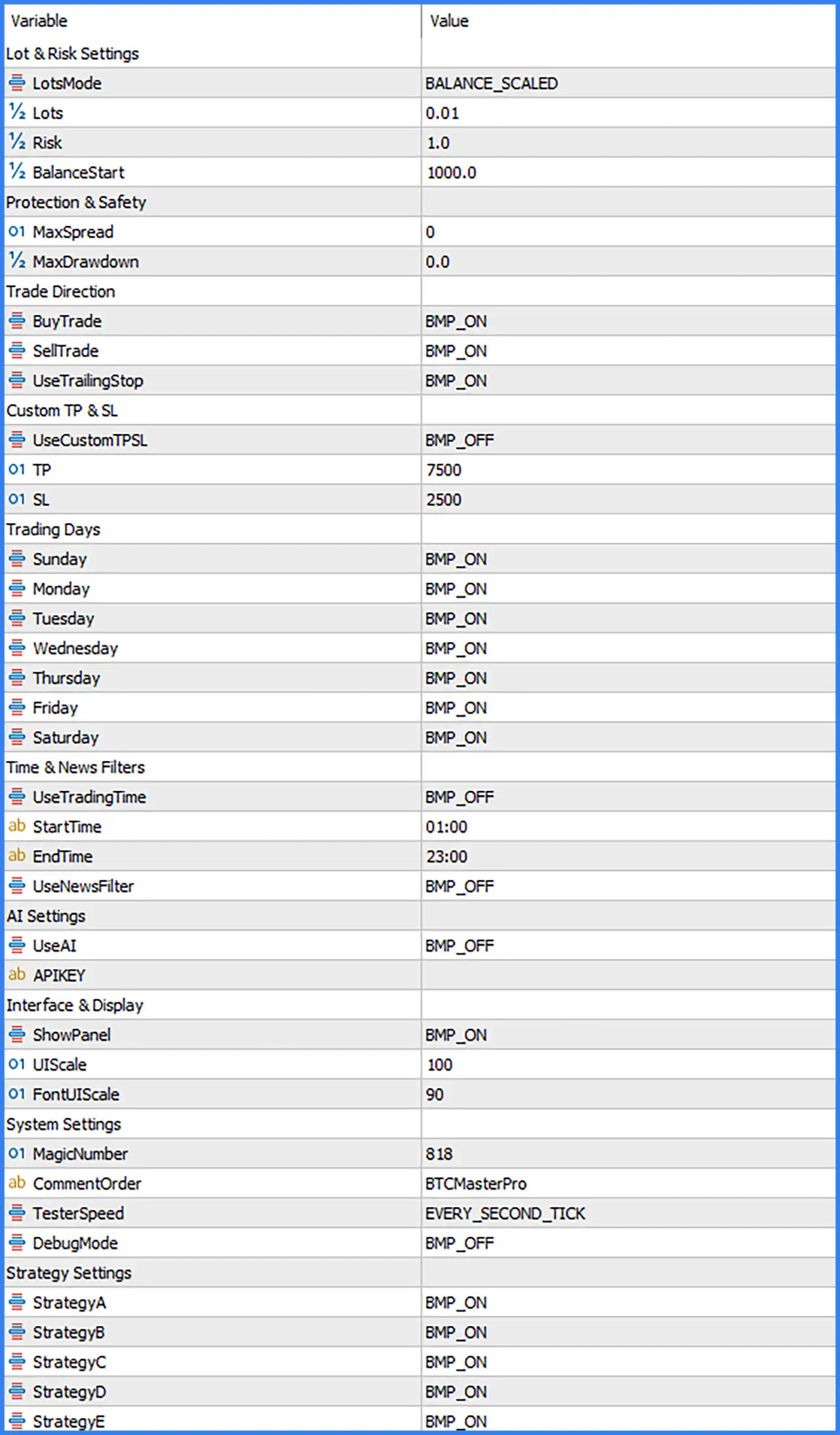
Lot & Risk Settings
🔹 LotsMode = BALANCE_SCALED – Selects the balance-scaled lot-sizing method, allowing the EA to calculate trading volume based on the account balance and its internal position-sizing rules.
🔹 Lots = 0.01 – Sets the base trading volume to 0.01 lots. This value serves as the configured lot-size reference for the EA's money management system.
🔹 Risk = 1.0 – Defines the risk parameter as 1.0 for the EA's position-sizing configuration. The exact risk calculation depends on the internal implementation of the balance-scaled money management system.
🔹 BalanceStart = 1000.0 – Sets the starting balance reference to 1000.0 for balance-scaled lot calculations. This parameter provides the capital reference used by the EA's lot-sizing configuration.
Protection & Safety
🔹 MaxSpread = 0 – Defines the maximum permitted spread parameter. The default value of 0 indicates that no positive spread threshold is specified; check the EA's documentation to confirm whether this disables spread filtering.
🔹 MaxDrawdown = 0.0 – Sets the maximum drawdown protection parameter to 0.0. The screenshot does not specify whether zero disables this protection or activates a default internal behavior.
Trade Direction
🔹 BuyTrade = BMP_ON – Enables Buy trading operations, allowing the EA to open long positions when its trading strategy generates valid buying conditions.
🔹 SellTrade = BMP_ON – Enables Sell trading operations, allowing the EA to open short positions when its trading strategy generates valid selling conditions.
🔹 UseTrailingStop = BMP_ON – Activates the trailing stop functionality, allowing the EA to manage Stop Loss levels dynamically as positions move into profit according to its internal trailing logic.
Custom Take Profit & Stop Loss
🔹 UseCustomTPSL = BMP_OFF – Controls the use of custom Take Profit and Stop Loss settings. The default BMP_OFF value disables this custom TP/SL option.
🔹 TP = 7500 – Sets the configured Take Profit reference to 7500 points. This value is available for use when the custom TP/SL functionality is activated.
🔹 SL = 2500 – Sets the configured Stop Loss reference to 2500 points. This parameter defines the available Stop Loss distance when custom TP/SL functionality is enabled.
Trading Days
🔹 Sunday = BMP_ON – Enables Sunday trading, allowing the EA to operate on Sunday when the broker's market conditions and other trading restrictions permit.
🔹 Monday = BMP_ON – Enables automated trading on Monday, allowing the EA to execute Buy or Sell operations according to its strategy conditions.
🔹 Tuesday = BMP_ON – Allows the EA to trade on Tuesday when valid market signals are generated and the trading environment meets its requirements.
🔹 Wednesday = BMP_ON – Enables Wednesday trading, allowing the EA to manage and execute positions during the Wednesday trading session.
🔹 Thursday = BMP_ON – Activates Thursday trading, permitting the EA to execute trading opportunities according to its configured strategy modules.
🔹 Friday = BMP_ON – Enables Friday trading, allowing the EA to continue opening positions when its trading conditions are satisfied.
🔹 Saturday = BMP_ON – Enables Saturday trading in the EA's weekday configuration. Actual trading availability depends on the broker's instrument trading schedule.
Time & News Filters
🔹 UseTradingTime = BMP_OFF – Controls the trading time restriction feature. The default BMP_OFF setting disables this filter, meaning the configured StartTime and EndTime are not necessarily enforced.
🔹 StartTime = 01:00 – Defines the starting time for the permitted trading session as 01:00. This setting is available when the trading time filter is enabled.
🔹 EndTime = 23:00 – Sets the ending time for the permitted trading session to 23:00. This parameter works together with StartTime when time restrictions are activated.
🔹 UseNewsFilter = BMP_OFF – Enables or disables the economic news filter. The default BMP_OFF setting means the news filtering functionality is disabled.
AI Settings
🔹 UseAI = BMP_OFF – Controls the AI functionality of BTC Master Pro EA MT5. The default BMP_OFF value means the optional AI feature is currently disabled.
🔹 APIKEY = Blank – Provides the field for entering an API key associated with the AI functionality. The supplied configuration shows this field as empty, and no API key is displayed.
Interface & Display
🔹 ShowPanel = BMP_ON – Enables the EA's on-chart information panel, allowing traders to view the available interface and trading information directly on the MetaTrader 5 chart.
🔹 UIScale = 100 – Sets the user interface scaling level to 100. This parameter controls the overall display scale of the EA's interface.
🔹 FontUIScale = 90 – Sets the interface font scaling level to 90, controlling the relative text size displayed within the EA's graphical interface.
System Settings
🔹 MagicNumber = 818 – Assigns Magic Number 818 to trades managed by BTC Master Pro EA MT5. This identifier helps distinguish the EA's positions from manually opened trades and positions managed by other Expert Advisors.
🔹 CommentOrder = BTCMasterPro – Defines the trade comment attached to orders opened by the EA. The default BTCMasterPro comment makes it easier to identify positions associated with this trading system.
🔹 TesterSpeed = EVERY_SECOND_TICK – Selects the EVERY_SECOND_TICK testing speed mode. This setting determines the configured tick-processing mode used by the EA during strategy testing.
🔹 DebugMode = BMP_OFF – Controls the debugging functionality. The default BMP_OFF setting disables debug mode and its optional diagnostic output.
Strategy Settings
🔹 StrategyA = BMP_ON – Enables Strategy A, allowing this strategy module to participate in the EA's automated trading operations.
🔹 StrategyB = BMP_ON – Activates Strategy B, permitting the second strategy module to generate and manage trading opportunities according to its internal conditions.
🔹 StrategyC = BMP_ON – Enables Strategy C, allowing the third strategy module to participate in the configured automated trading system.
🔹 StrategyD = BMP_ON – Activates Strategy D, enabling the fourth strategy module to operate alongside the other selected strategies.
🔹 StrategyE = BMP_ON – Enables Strategy E, allowing the fifth strategy module to participate in the EA's trading operations.
Conclusion
BTC Master Pro EA MT5 provides a configurable automated trading system with balance-scaled money management, Buy and Sell trading capabilities, trailing stop functionality, and five enabled strategy modules.
The supplied configuration uses BALANCE_SCALED lot sizing, a base lot reference of 0.01, Risk = 1.0, and BalanceStart = 1000.0. Both BuyTrade and SellTrade are enabled, while UseTrailingStop is also activated.
The EA provides additional customization through its optional custom Stop Loss (SL) and Take Profit (TP) settings, with TP = 7500 and SL = 2500. However, UseCustomTPSL is currently disabled. All seven trading day options are enabled, while trading time restrictions and economic news filtering are disabled.
The AI functionality is also disabled by default, with the APIKEY field left empty. Meanwhile, the graphical dashboard is enabled, using UIScale = 100 and FontUIScale = 90.
Before running BTC Master Pro on a live account, traders should verify the balance-scaled lot calculation, actual drawdown protection behavior, spread filtering, and trailing stop execution. It is also important to understand how the five strategy modules interact and whether the configured risk level is appropriate for the available account capital.