

Introduction
Evening Scalper Pro MT5 is an automated trading Expert Advisor (EA) designed for the MetaTrader 5 platform, featuring configurable risk management, time-based trading restrictions, currency-pair selection, and advanced market filters. Its configuration includes fixed and dynamic lot sizing, maximum risk controls, floating drawdown protection, and daily drawdown limits based on FTMO-style rules.
The EA also incorporates an advanced news filter, volatility filtering, swap management, and rollover protection. Traders can customize trading sessions, select supported currency pairs, manage Stop Loss (SL) and Take Profit (TP) conditions, and configure backtesting parameters to adapt the EA to different trading environments.

Evening Scalper Pro MT5 Settings Explained
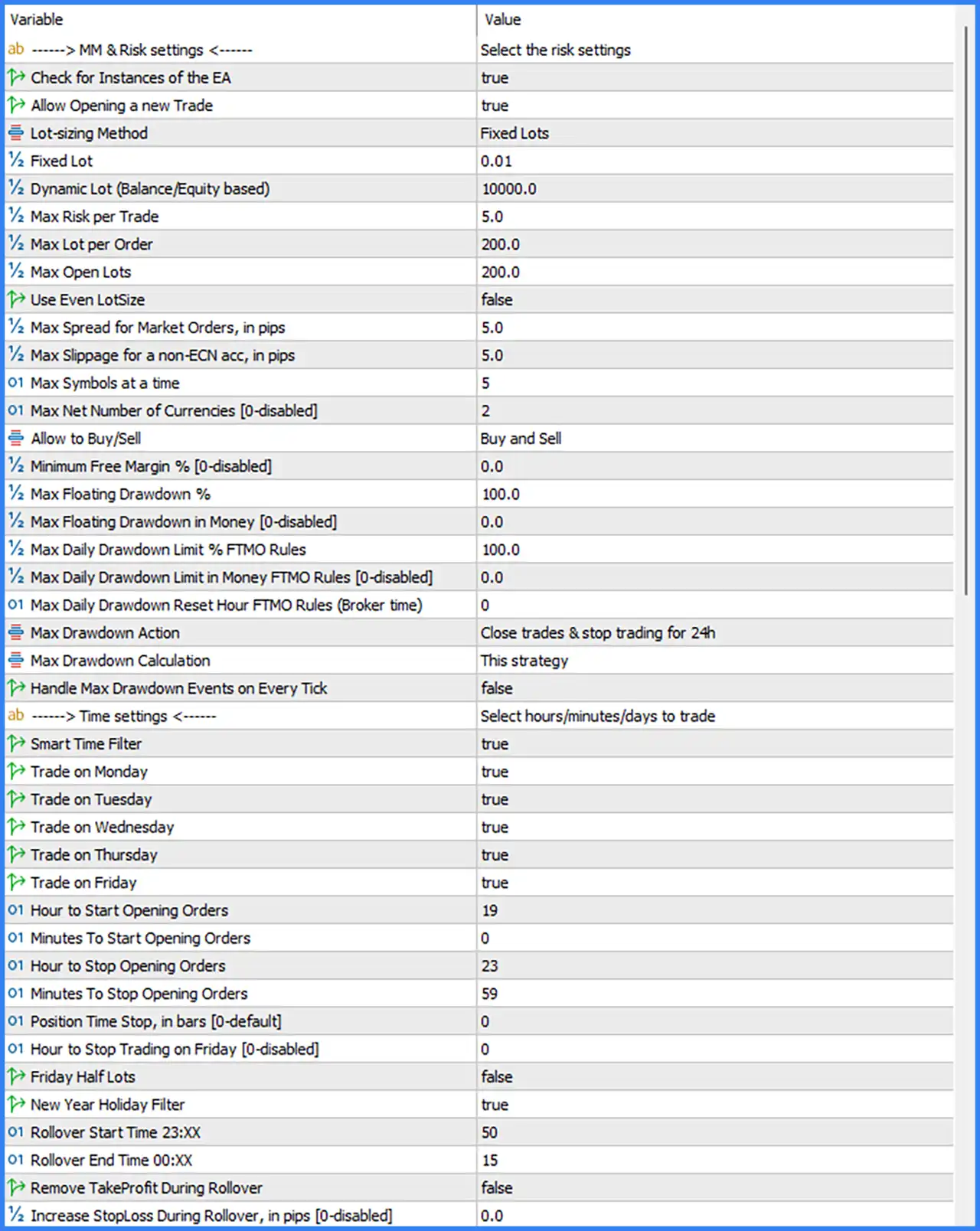
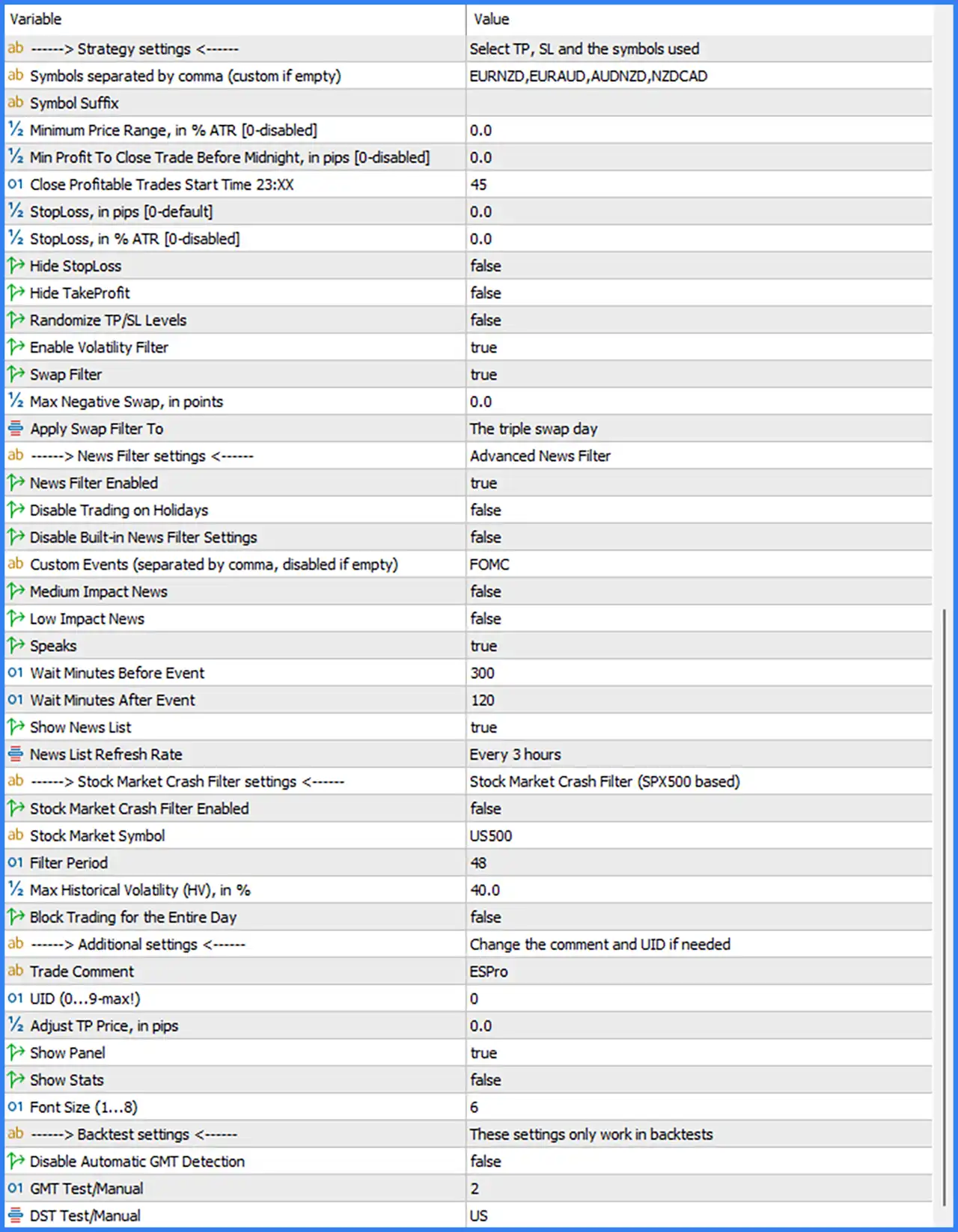
1. Money Management and Risk Settings
🔹 MM & Risk Settings – Main configuration section containing the EA's position-sizing, account protection, and trading risk management parameters.
🔹 Check for Instances of the EA = true – Enables the EA to check for other running instances of the same Expert Advisor. This option helps manage multiple EA instances and avoid unwanted duplicate operations.
🔹 Allow Opening a new Trade = true – Controls whether the EA is permitted to open new trading positions. When set to true, new trades can be opened whenever the strategy's entry conditions are satisfied.
🔹 Lot-sizing Method = Fixed Lots – Selects the position-sizing method. Fixed Lots means the EA uses a predefined lot size instead of calculating every position dynamically based on account balance or equity.
🔹 Fixed Lot = 0.01 – Sets the fixed trading volume to 0.01 lots. This is the default position size used when the Fixed Lots method is selected.
🔹 Dynamic Lot (Balance/Equity based) = 10000.0 – Defines the reference value for dynamic lot calculation based on account balance or equity. The default value is 10000.0, and its exact calculation formula depends on the EA's money management implementation.
🔹 Max Risk per Trade = 5.0 – Defines the maximum risk parameter for an individual trade. The configured value is 5.0, establishing the risk limit used by the EA's position-sizing logic.
🔹 Max Lot per Order = 200.0 – Sets the maximum permitted lot size for an individual order to 200.0. This parameter establishes an upper volume restriction for each trading position.
🔹 Max Open Lots = 200.0 – Defines the maximum combined open lot exposure allowed by the EA. The default value of 200.0 establishes the configured aggregate volume limit.
🔹 Use Even LotSize = false – Enables or disables even lot-size adjustments. When set to false, the EA does not apply the optional even-lot sizing feature.
🔹 Max Spread for Market Orders, in pips = 5.0 – Sets the maximum permitted spread for market orders to 5.0 pips. The EA uses this threshold to avoid opening positions when trading costs exceed the configured spread limit.
🔹 Max Slippage for a non-ECN acc, in pips = 5.0 – Defines the maximum permitted slippage for non-ECN accounts at 5.0 pips. This parameter controls the allowed execution price deviation when placing orders through non-ECN brokers.
🔹 Max Symbols at a time = 5 – Limits the number of different trading symbols the EA can trade simultaneously to 5. This setting helps control the number of currency pairs being managed at the same time.
🔹 Max Net Number of Currencies [0-disabled] = 2 – Sets the maximum net number of currencies involved in the EA's trading exposure to 2. This parameter helps limit overlapping currency exposure across different currency pairs.
🔹 Allow to Buy/Sell = Buy and Sell – Determines the permitted trading direction. The default Buy and Sell setting allows the EA to execute both long and short positions.
🔹 Minimum Free Margin % [0-disabled] = 0.0 – Defines the minimum free margin percentage required before opening new trades. The value of 0.0 disables this restriction.
🔹 Max Floating Drawdown % = 100.0 – Sets the maximum floating drawdown threshold to 100.0%. This parameter controls the percentage-based floating loss protection applied to the trading strategy.
🔹 Max Floating Drawdown in Money [0-disabled] = 0.0 – Defines the maximum floating drawdown in monetary terms. The default value of 0.0 disables this monetary drawdown restriction.
🔹 Max Daily Drawdown Limit % FTMO Rules = 100.0 – Sets the maximum daily drawdown percentage according to the EA's FTMO-style risk management configuration. The default threshold is 100.0%.
🔹 Max Daily Drawdown Limit in Money FTMO Rules [0-disabled] = 0.0 – Defines the maximum daily drawdown in monetary terms under the FTMO-style protection system. The value of 0.0 disables this monetary limit.
🔹 Max Daily Drawdown Reset Hour FTMO Rules (Broker time) = 0 – Specifies the broker-time hour when the daily drawdown calculation is reset. The default value of 0 represents 00:00 broker time.
🔹 Max Drawdown Action = Close trades & stop trading for 24h – Determines the action taken when the configured maximum drawdown is reached. The EA is configured to close existing trades and stop trading for 24 hours.
🔹 Max Drawdown Calculation = This strategy – Selects the scope used to calculate maximum drawdown. The default This strategy setting means the drawdown calculation is based on the current trading strategy.
🔹 Handle Max Drawdown Events on Every Tick = false – Controls whether maximum drawdown events are evaluated on every incoming market tick. The default value of false disables this additional every-tick handling option.
2. Time Settings
🔹 Time Settings – Configuration section controlling the EA's permitted trading days, operating hours, rollover schedule, and time-based restrictions.
🔹 Smart Time Filter = true – Enables the Smart Time Filter, allowing the EA to apply configured trading schedules and time restrictions when managing trading operations.
🔹 Trade on Monday = true – Allows the EA to open trades on Monday when the trading conditions are satisfied.
🔹 Trade on Tuesday = true – Enables automated trading on Tuesday, allowing the EA to execute valid signals during the configured trading session.
🔹 Trade on Wednesday = true – Allows the EA to open trading positions on Wednesday according to its strategy conditions.
🔹 Trade on Thursday = true – Enables trading activity on Thursday when the EA's entry conditions are met.
🔹 Trade on Friday = true – Allows the EA to execute trades on Friday, subject to the configured trading schedule and other restrictions.
🔹 Hour to Start Opening Orders = 19 – Sets the starting hour for opening new trading orders to 19:00.
🔹 Minutes To Start Opening Orders = 0 – Defines the starting minute for opening orders as 00. Combined with the starting hour of 19, the EA begins its configured trading window at 19:00.
🔹 Hour to Stop Opening Orders = 23 – Sets the hour when the EA stops opening new orders to 23:00.
🔹 Minutes To Stop Opening Orders = 59 – Defines the ending minute for opening new orders as 59. Combined with the ending hour of 23, the configured trading window ends at 23:59.
🔹 Position Time Stop, in bars [0-default] = 0 – Defines the maximum position holding duration in chart bars. The default value of 0 uses the EA's default behavior and does not specify an additional bar-based time stop.
🔹 Hour to Stop Trading on Friday [0-disabled] = 0 – Sets the hour when Friday trading should stop. The default value of 0 disables this additional Friday stopping-time restriction.
🔹 Friday Half Lots = false – Enables or disables reduced lot sizing on Fridays. When set to false, the EA does not apply the optional Friday half-lot adjustment.
🔹 New Year Holiday Filter = true – Enables the New Year holiday filter. This setting allows the EA to apply its holiday-related trading restrictions around the New Year period.
🔹 Rollover Start Time 23:XX = 50 – Sets the rollover protection starting minute to 50 past 23:00, establishing a start time of 23:50.
🔹 Rollover End Time 00:XX = 15 – Defines the rollover protection ending minute as 15 past midnight, establishing an end time of 00:15.
🔹 Remove TakeProfit During Rollover = false – Controls whether Take Profit levels are removed during the rollover period. The default value of false means the EA does not activate this optional removal function.
🔹 Increase StopLoss During Rollover, in pips [0-disabled] = 0.0 – Defines the additional Stop Loss adjustment during rollover in pips. The default value of 0.0 disables this feature.
3. Strategy Settings
🔹 Strategy Settings – Main section containing currency-pair selection, Stop Loss, Take Profit, volatility, and swap-related trading parameters.
🔹 Symbols separated by comma (custom if empty) = EURNZD,EURAUD,AUDNZD,NZDCAD – Specifies the currency pairs used by the EA. The default configuration includes four symbols: EURNZD, EURAUD, AUDNZD, and NZDCAD.
🔹 Symbol Suffix = blank – Defines an optional broker-specific symbol suffix. The field is empty in the supplied configuration, meaning no additional suffix is specified.
🔹 Minimum Price Range, in % ATR [0-disabled] = 0.0 – Sets the minimum price movement range as a percentage of Average True Range (ATR). The default value of 0.0 disables this additional minimum-range filter.
🔹 Min Profit To Close Trade Before Midnight, in pips [0-disabled] = 0.0 – Defines the minimum profit required before the EA closes a profitable trade ahead of midnight. The value of 0.0 disables this additional minimum-profit requirement.
🔹 Close Profitable Trades Start Time 23:XX = 45 – Sets the minute when the EA starts closing profitable trades before midnight. The default value of 45 establishes a starting time of 23:45.
🔹 StopLoss, in pips [0-default] = 0.0 – Defines the fixed Stop Loss distance in pips. The value of 0.0 selects the EA's default Stop Loss behavior rather than specifying a custom fixed distance.
🔹 StopLoss, in % ATR [0-disabled] = 0.0 – Defines the Stop Loss distance as a percentage of ATR. The default value of 0.0 disables this ATR-based Stop Loss configuration.
🔹 Hide StopLoss = false – Controls whether the Stop Loss level is hidden from the broker-side order display. The default value of false disables the hiding option.
🔹 Hide TakeProfit = false – Controls whether the Take Profit level is hidden from the broker-side order display. The default value of false disables this feature.
🔹 Randomize TP/SL Levels = false – Enables or disables randomization of Take Profit and Stop Loss levels. When set to false, the EA does not apply this optional randomization feature.
🔹 Enable Volatility Filter = true – Activates the volatility filter to evaluate market volatility before allowing trading operations. This helps the EA apply its configured volatility-based trading conditions.
🔹 Swap Filter = true – Enables the swap filter, allowing the EA to consider overnight financing costs when managing trading opportunities.
🔹 Max Negative Swap, in points = 0.0 – Defines the maximum negative swap threshold in points. The default value of 0.0 means no specific negative swap limit is configured through this parameter.
🔹 Apply Swap Filter To = The triple swap day – Specifies when the swap filter is applied. The default setting targets the triple swap day, helping the EA manage positions during the day when brokers typically apply three days of swap charges.
4. Advanced News Filter Settings
🔹 News Filter Settings = Advanced News Filter – Identifies the advanced economic news filtering configuration used to control trading around scheduled economic events.
🔹 News Filter Enabled = true – Enables the news filter. When set to true, the EA applies its configured economic calendar restrictions to avoid selected news-related trading periods.
🔹 Disable Trading on Holidays = false – Enables or disables automatic trading restrictions during holidays. The default value of false means this specific holiday trading restriction is disabled.
🔹 Disable Built-in News Filter Settings = false – Controls whether the EA's built-in news filter configuration is disabled. The default value of false means the built-in news filtering settings remain active.
🔹 Custom Events (separated by comma, disabled if empty) = FOMC – Specifies custom economic events that should be considered by the news filter. The default configuration includes FOMC, referring to Federal Open Market Committee events.
🔹 Medium Impact News = false – Enables or disables filtering of medium-impact economic news. The default value of false means medium-impact events are not selected through this option.
🔹 Low Impact News = false – Enables or disables filtering of low-impact economic news. The default value of false means low-impact events are excluded from this specific filtering selection.
🔹 Speaks = true – Enables filtering for scheduled speeches and speaking events. When set to true, the EA can apply news restrictions around relevant speaker-related events.
🔹 Wait Minutes Before Event = 300 – Sets the waiting period before a selected economic event to 300 minutes, equivalent to 5 hours. This parameter determines how early the EA begins applying its event-related trading restriction.
🔹 Wait Minutes After Event = 120 – Defines the waiting period after a selected economic event as 120 minutes, equivalent to 2 hours. This helps prevent trading immediately after important scheduled announcements.
🔹 Show News List = true – Enables the display of the economic news list. When set to true, the EA can show relevant upcoming news events through its interface.
🔹 News List Refresh Rate = Every 3 hours – Defines how frequently the news list is refreshed. The default setting updates the news information every 3 hours.
5. Stock Market Crash Filter Settings
🔹 Stock Market Crash Filter settings = Stock Market Crash Filter (SPX500 based) – Identifies the stock market crash protection module, which uses the selected stock market index as its reference.
🔹 Stock Market Crash Filter Enabled = false – Enables or disables the stock market crash filter. The default value of false means this additional market crash protection feature is inactive.
🔹 Stock Market Symbol = US500 – Specifies US500 as the reference symbol for the stock market crash filter. This symbol represents the S&P 500 index in the supplied configuration.
🔹 Filter Period = 48 – Defines the historical calculation period used by the stock market crash filter. The default value of 48 determines the number of periods considered by its internal volatility analysis.
🔹 Max Historical Volatility (HV), in % = 40.0 – Sets the maximum historical volatility threshold to 40.0%. This parameter establishes the volatility boundary used by the crash detection mechanism.
🔹 Block Trading for the Entire Day = false – Determines whether trading should be blocked for the entire day when the stock market crash filter detects its specified conditions. The default value of false disables this full-day blocking option.
6. Additional Settings
🔹 Additional Settings – General configuration section containing trade comments, unique identification, Take Profit adjustment, and chart display options.
🔹 Trade Comment = ESPro – Sets the comment attached to trades opened by the EA. The default comment is ESPro, helping users identify positions associated with Evening Scalper Pro MT5.
🔹 UID (0...9=max!) = 0 – Defines the unique identification parameter for the EA. The default value of 0 represents the configured identifier, while the parameter description indicates a range from 0 to 9, with 9 being the maximum.
🔹 Adjust TP Price, in pips = 0.0 – Defines an additional Take Profit price adjustment in pips. The default value of 0.0 means no extra Take Profit adjustment is applied.
🔹 Show Panel = true – Enables the EA's on-chart control panel. When set to true, the control panel is displayed on the MetaTrader 5 chart.
🔹 Show Stats = false – Enables or disables the display of additional trading statistics. The default value of false means the statistics display is hidden.
🔹 Font Size (1...8) = 6 – Sets the font size used by the EA's graphical interface. The default value of 6 selects the sixth size level within the available range of 1 to 8.
7. Backtest Settings
🔹 Backtest Settings – Section containing parameters specifically intended for historical strategy testing. These settings are described as working only during backtests.
🔹 Disable Automatic GMT Detection = false – Controls whether automatic GMT offset detection is disabled. The default value of false means automatic GMT detection remains enabled.
🔹 GMT Test/Manual = 2 – Sets the GMT offset reference to 2 for backtesting or manual time configuration. This parameter helps align historical trading sessions with the intended GMT time zone.
🔹 DST Test/Manual = US – Defines the daylight saving time configuration used during backtesting. The default value of US selects the United States daylight saving time rules.
Conclusion
Evening Scalper Pro MT5 provides a comprehensive automated trading configuration combining time-based scalping, currency-pair selection, risk management, economic news filtering, and volatility controls.
The default configuration uses Fixed Lots with a position size of 0.01, a maximum risk parameter of 5.0, a maximum spread of 5.0 pips, and a maximum of 5 trading symbols simultaneously. Its trading schedule runs from 19:00 to 23:59, Monday through Friday, while the selected currency pairs are EURNZD, EURAUD, AUDNZD, and NZDCAD.
The EA also includes an advanced news filter with a 300-minute pre-event restriction and a 120-minute post-event restriction. Additional features include swap filtering on triple swap day, rollover protection, volatility filtering, and a drawdown action configured to close trades and stop trading for 24 hours.
Before deploying Evening Scalper Pro MT5 on a live account, traders should carefully review the maximum lot limits, risk parameters, daily drawdown settings, and broker-time configuration. The default drawdown thresholds of 100.0% are particularly important to review because they may provide insufficient practical account protection. Demo testing and careful adjustment of risk limits are recommended, especially when trading multiple currency pairs simultaneously.