

Introduction
FTMO 10K EA is an automated trading Expert Advisor (EA) designed for MetaTrader 4, featuring configurable risk management, dynamic lot sizing, grid trading, and economic news filtering. Its settings provide traders with control over position sizing, maximum trading exposure, floating drawdown, trading schedules, and automated order execution.
The EA includes a multi-level grid system with adjustable trade distances and lot multipliers, allowing it to manage multiple positions according to predefined trading rules. It also supports Buy and Sell trading, optional hedging, configurable Stop Loss (SL) and Take Profit (TP) parameters, and an integrated economic news filter.
Designed with account protection and trading flexibility in mind, FTMO 10K EA offers several customizable parameters for traders who want to configure automated strategies while monitoring risk limits on a funded or evaluation account.
MONEY MANAGEMENT AND RISK SETTINGS
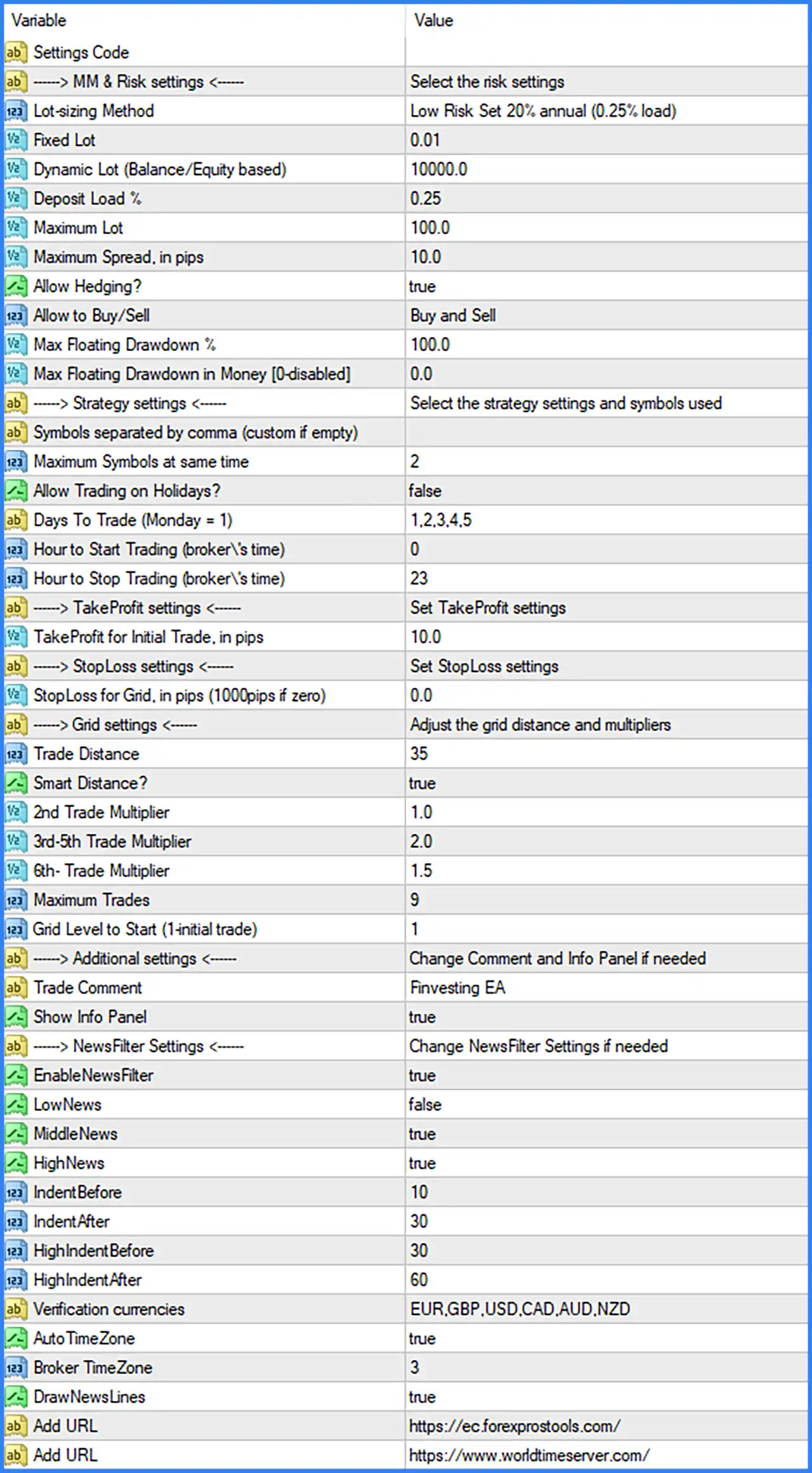
This section controls the EA's lot-sizing method, position volume, maximum spread, hedging permissions, and floating drawdown protection.
🔹 Settings Code: This is the main settings identification heading. It introduces the configuration parameters for money management and risk control.
🔹 Lot-sizing Method: Set to Low Risk Set 20% annual (0.25% load). Selects the predefined Low Risk configuration, described as targeting 20% annual performance with a 0.25% load parameter.
🔹 Fixed Lot: Set to 0.01. Defines the fixed trading volume at 0.01 lots when fixed-lot position sizing is selected.
🔹 Dynamic Lot (Balance/Equity Based): Set to 10000.0. Defines the balance or equity reference value used by the dynamic lot-sizing calculation.
🔹 Deposit Load %: Set to 0.25. Defines the deposit load parameter at 0.25%, providing a configurable input for the EA's position-sizing and account exposure calculations.
🔹 Maximum Lot: Set to 100.0. Establishes the maximum permitted trading volume at 100.0 lots, preventing the calculated position size from exceeding the configured cap.
🔹 Maximum Spread, in Pips: Set to 10.0. Establishes a maximum spread threshold of 10.0 pips, helping the EA avoid opening trades when trading costs exceed the configured limit.
🔹 Allow Hedging?: Set to true. Enables hedging functionality, allowing the EA to maintain opposing trading positions when its strategy and execution rules require them.
🔹 Allow to Buy/Sell: Set to Buy and Sell. Permits the EA to execute both Buy and Sell orders, allowing trading in either market direction.
🔹 Max Floating Drawdown %: Set to 100.0. Defines the maximum floating drawdown threshold at 100.0% according to the EA's configured drawdown calculation.
🔹 Max Floating Drawdown in Money [0 = Disabled]: Set to 0.0. Defines the maximum floating drawdown limit in account currency. A value of 0.0 disables this monetary drawdown restriction.
STRATEGY SETTINGS
The Strategy Settings section controls the trading instruments, maximum number of simultaneously traded symbols, permitted trading days, and daily trading schedule.
🔹 Strategy Settings: Introduces the strategy configuration section, where traders select the trading symbols and customize the EA's operating schedule.
🔹 Symbols Separated by Comma (Custom if Empty): No value specified. Allows traders to enter multiple trading symbols separated by commas. The screenshot does not show a specific custom symbol list.
🔹 Maximum Symbols at Same Time: Set to 2. Limits the EA to trading a maximum of 2 different symbols simultaneously, helping control overall market exposure.
🔹 Allow Trading on Holidays?: Set to false. Disables trading on designated holidays, preventing the EA from opening trades during holiday periods when this condition is recognized by its internal logic.
🔹 Days to Trade (Monday = 1): Set to 1,2,3,4,5. Allows trading from Monday through Friday, with Monday represented by 1 and Friday represented by 5.
🔹 Hour to Start Trading (Broker's Time): Set to 0. Defines the daily trading start time at 00:00 according to the broker's server time.
🔹 Hour to Stop Trading (Broker's Time): Set to 23. Defines the daily trading stop hour at 23:00 according to the broker's server time.
TAKE PROFIT SETTINGS
This section defines the Take Profit target for the initial trading position.
🔹 TakeProfit for Initial Trade, in Pips: Set to 10.0. Establishes a Take Profit target of 10.0 pips for the initial trade, allowing the EA to close the position when the configured profit distance is reached.
STOP LOSS SETTINGS
The Stop Loss section controls the loss-protection distance applied to grid positions.
🔹 StopLoss for Grid, in Pips (10000 Pips if Zero): Set to 0.0. Defines the Stop Loss distance for grid positions. According to the parameter description, a value of 0.0 corresponds to a 10,000-pip Stop Loss setting rather than disabling the Stop Loss.
GRID SETTINGS
The Grid Settings section controls the spacing between trading positions, dynamic distance calculations, lot multipliers, and the maximum number of trades allowed within the grid strategy.
🔹 Trade Distance: Set to 35. Defines the grid entry distance at 35 units according to the EA's internal distance calculation, controlling the spacing between successive trading positions.
🔹 Smart Distance?: Set to true. Enables smart grid distance management, allowing the EA to adjust entry spacing according to its internal smart-distance calculation rather than relying exclusively on a fixed distance.
🔹 2nd Trade Multiplier: Set to 1.0. Defines the lot multiplier for the second trade in the grid, maintaining the same volume multiplier as the preceding position.
🔹 3rd–5th Trade Multiplier: Set to 2.0. Applies a lot multiplier of 2.0 to the third, fourth, and fifth trades, increasing position volume according to the grid progression rules.
🔹 6th– Trade Multiplier: Set to 1.5. Applies a lot multiplier of 1.5 from the sixth trade onward, determining the position-sizing progression for subsequent grid entries.
🔹 Maximum Trades: Set to 9. Limits the total number of trades in the configured grid strategy to a maximum of 9 positions.
🔹 Grid Level to Start (1 = Initial Trade): Set to 1. Specifies level 1 as the starting point of the grid sequence, meaning the grid management begins with the initial trade.
ADDITIONAL SETTINGS
This section provides customization options for order identification and the EA's information panel.
🔹 Additional Settings: Introduces the configuration section for changing the order comment and information panel display.
🔹 Trade Comment: Set to Finvesting EA. Defines the comment attached to orders opened by the Expert Advisor, allowing traders to identify its positions in the MT4 terminal.
🔹 Show Info Panel: Set to true. Enables the EA's information panel on the chart, allowing traders to monitor relevant trading and account information.
NEWS FILTER SETTINGS
The NewsFilter section provides automated trading restrictions around economic announcements. It allows traders to select news impact levels, configure suspension periods, and monitor specific currencies.
🔹 NewsFilter Settings: Introduces the economic news filtering configuration section.
🔹 EnableNewsFilter: Set to true. Activates the news filter, allowing the EA to apply configured trading restrictions around economic announcements.
🔹 LowNews: Set to false. Disables trading suspension for low-impact economic news events.
🔹 MiddleNews: Set to true. Enables trading restrictions around medium-impact economic announcements.
🔹 HighNews: Set to true. Enables trading restrictions around high-impact economic announcements.
🔹 IndentBefore: Set to 10. Defines the number of minutes before a standard selected news event during which the EA applies its configured trading restriction.
🔹 IndentAfter: Set to 30. Defines the number of minutes after a standard selected news event during which the EA continues applying its trading restriction.
🔹 HighIndentBefore: Set to 30. Configures a 30-minute trading restriction before high-impact economic announcements.
🔹 HighIndentAfter: Set to 60. Configures a 60-minute trading restriction after high-impact economic announcements.
🔹 Verification Currencies: Set to EUR,GBP,USD,CAD,AUD,NZD. Specifies the currencies monitored by the news filter, including Euro, British Pound, US Dollar, Canadian Dollar, Australian Dollar, and New Zealand Dollar.
🔹 AutoTimeZone: Set to true. Enables automatic timezone adjustment for synchronizing economic news schedules with the relevant trading time reference.
🔹 Broker TimeZone: Set to 3. Defines the broker's timezone offset as GMT+3 for news and time-related calculations when the manual timezone setting is applicable.
🔹 DrawNewsLines: Set to true. Enables the display of economic news event lines on the trading chart, helping traders visualize upcoming or relevant announcements.
🔹 Add URL: Set to https://ec.forexprostools. com/. Provides the Forex economic calendar resource used for checking economic announcements and related news information.
🔹 Add URL: Set to https://www.worldtimeserver. com/. Provides a world time reference for checking time differences and broker timezone information.