

Introduction
GARRYS AI EA is an automated trading Expert Advisor (EA) designed with an advanced grid trading system, configurable lot progression, multiple technical indicator filters, and integrated account risk management.
The EA combines automated order execution with recovery mechanisms, allowing traders to customize grid entries, position sizing, profit targets, and trading protection according to their preferred strategy.

GARRYS AI EA includes several trading progression methods, including Fixed, Sum, Martingale, and Fibonacci. Its indicator framework supports Bollinger Bands, Stochastic Oscillator, RSI, CCI, and up to three custom indicators. Additional features include dynamic ATR-based grid management, profit locking, equity monitoring, partial closing, cycle hedging, and customizable chart displays.
1. GENERAL SETTINGS
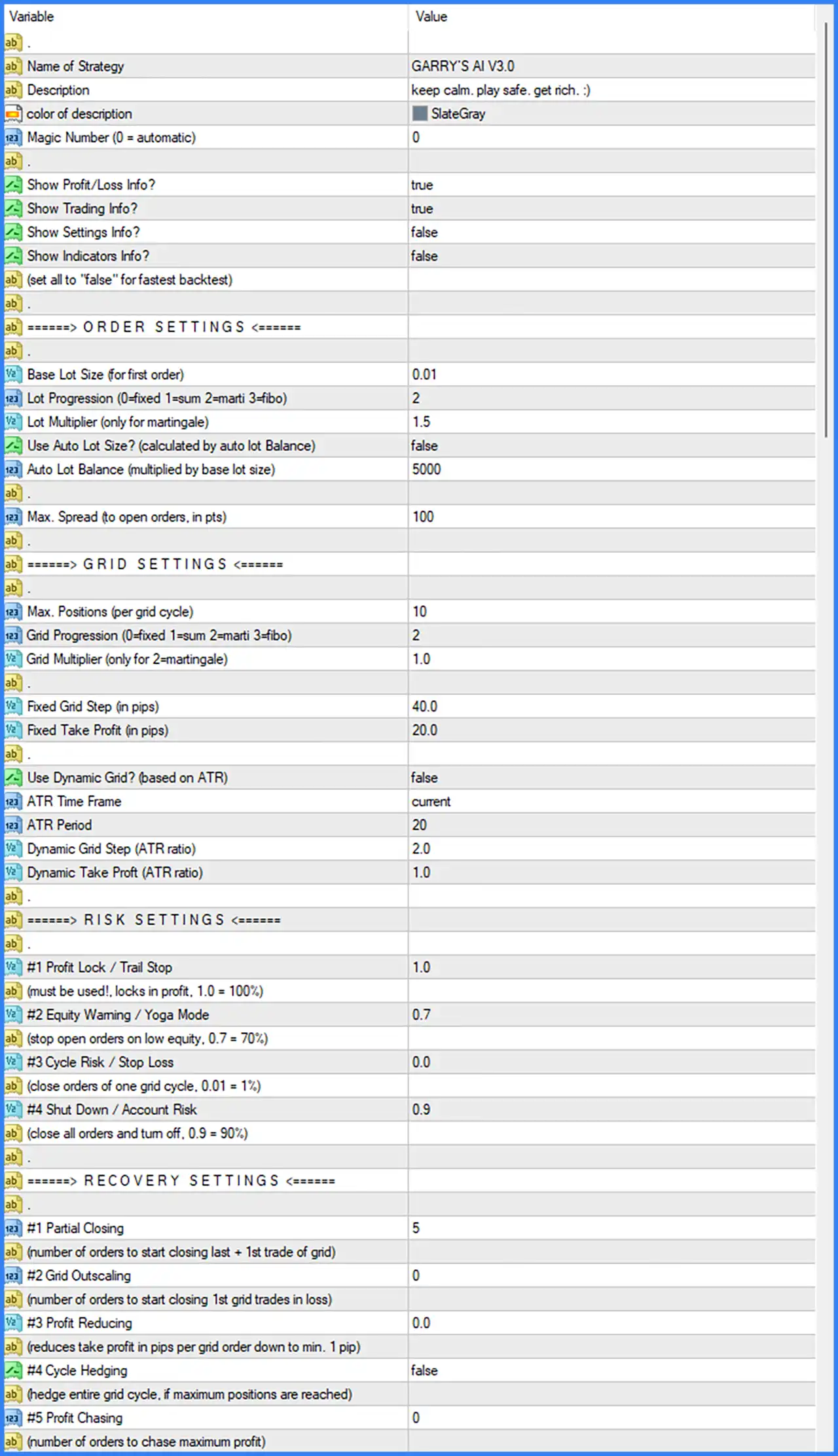
This section contains the EA's identification, description, chart information, and basic operating configuration.
🔹 Name of Strategy: Set to GARRY'S AI V3.0. Defines the strategy name displayed by the EA, identifying the current version as GARRYS AI V3.0.
🔹 Description: Set to keep calm. play safe. get rich. :). Defines the custom description displayed by the EA, providing its configured strategy tagline.
🔹 Color of Description: Set to SlateGray. Specifies the SlateGray color used to display the strategy description on the chart.
🔹 Magic Number (0 = Automatic): Set to 0. Allows the EA to automatically generate or assign its Magic Number rather than using a manually specified identification number.
🔹 Show Profit/Loss Info?: Set to true. Enables the display of profit and loss information on the trading chart.
🔹 Show Trading Info?: Set to true. Enables the display of trading-related information, allowing users to monitor the EA's trading activity.
🔹 Show Settings Info?: Set to false. Disables the display of the EA's configuration information on the chart.
🔹 Show Indicators Info?: Set to false. Disables the display of technical indicator information on the chart.
🔹 Set All to False for Fastest Backtest: This is an explanatory instruction rather than a separate numerical parameter. It recommends disabling the four information display options above to achieve faster backtesting performance.
2. ORDER SETTINGS
The Order Settings section controls the initial trading volume, lot progression method, automatic lot calculation, and spread restrictions for new orders.
🔹 Base Lot Size (for First Order): Set to 0.01. Defines the initial trading volume for the first order in a trading cycle, with the EA starting at 0.01 lots.
🔹 Lot Progression (0 = Fixed, 1 = Sum, 2 = Martingale, 3 = Fibonacci): Set to 2. Selects the Martingale progression method for calculating lot sizes as additional orders are opened within a trading sequence.
🔹 Lot Multiplier (Only for Martingale): Set to 1.5. Defines the lot multiplication factor for Martingale progression, increasing the calculated trading volume by a factor of 1.5 according to the EA's progression logic.
🔹 Use Auto Lot Size? (Calculated by Auto Lot Balance): Set to false. Disables automatic lot sizing based on the configured account balance reference, meaning the EA uses the base lot configuration and selected progression method.
🔹 Auto Lot Balance (Multiplied by Base Lot Size): Set to 5000. Defines the account balance reference used when automatic lot sizing is enabled. This value is used together with the base lot size to calculate trading volume.
🔹 Max. Spread (to Open Orders, in Points): Set to 100. Establishes a maximum spread threshold of 100 points for opening new orders, helping the EA avoid entries when trading costs exceed the configured limit.
3. GRID SETTINGS
The Grid Settings section determines how the EA manages multiple positions within a trading cycle. It includes maximum position limits, grid progression methods, fixed entry spacing, and ATR-based dynamic grid calculations.
🔹 Max. Positions (per Grid Cycle): Set to 10. Limits each grid trading cycle to a maximum of 10 positions, controlling the number of orders that can accumulate within an individual cycle.
🔹 Grid Progression (0 = Fixed, 1 = Sum, 2 = Martingale, 3 = Fibonacci): Set to 2. Selects Martingale progression for grid management, allowing the EA to calculate grid position sizing according to the selected multiplier method.
🔹 Grid Multiplier (Only for 2 = Martingale): Set to 1.0. Defines the grid lot multiplier at 1.0. This setting does not increase the calculated position size through an additional multiplication factor.
🔹 Fixed Grid Step (in Pips): Set to 40.0. Defines a fixed distance of 40.0 pips between grid entries when fixed grid spacing is used.
🔹 Fixed Take Profit (in Pips): Set to 20.0. Establishes a fixed Take Profit target of 20.0 pips for the grid trading strategy.
🔹 Use Dynamic Grid? (Based on ATR): Set to false. Disables dynamic ATR-based grid spacing, meaning the EA uses its fixed grid configuration rather than adjusting grid distances according to market volatility.
🔹 ATR Time Frame: Set to current. Uses the current chart timeframe for ATR calculations when dynamic grid functionality is enabled.
🔹 ATR Period: Set to 20. Defines the Average True Range calculation period using 20 candles to measure market volatility.
🔹 Dynamic Grid Step (ATR Ratio): Set to 2.0. Defines the ATR multiplier used to calculate dynamic grid spacing, with a ratio of 2.0 when dynamic grid mode is enabled.
🔹 Dynamic Take Profit (ATR Ratio): Set to 1.0. Defines the ATR multiplier used to calculate dynamic Take Profit distances, with a ratio of 1.0 when dynamic grid mode is enabled.
4. RISK MANAGEMENT SETTINGS
The Risk Settings section provides four major protection mechanisms designed to manage accumulated profit, monitor account equity, control grid-cycle losses, and protect the overall account.
🔹 #1 Profit Lock / Trail Stop: Set to 1.0. Defines the Profit Lock or Trailing Stop protection parameter. According to the EA's description, a value of 1.0 represents 100%, and this function must be used to lock in accumulated trading profits.
🔹 #2 Equity Warning / Yoga Mode: Set to 0.7. Defines the equity protection threshold at 0.7, representing 70% according to the EA's description. This mechanism is designed to stop opening new orders when account equity reaches the configured low-equity condition.
🔹 #3 Cycle Risk / Stop Loss: Set to 0.0. Defines the risk threshold for closing orders belonging to an individual grid cycle. The EA's description indicates that 0.01 represents 1%, while the current value of 0.0 means no numerical cycle-risk threshold is configured.
🔹 #4 Shut Down / Account Risk: Set to 0.9. Defines the overall account-risk protection threshold at 0.9, representing 90% according to the EA's description. This mechanism is designed to close all orders and turn off the EA when the configured account-risk condition is reached.
5. RECOVERY SETTINGS
The Recovery Settings section provides additional mechanisms for managing grid positions, reducing exposure, recovering floating losses, and pursuing accumulated trading profits.
🔹 #1 Partial Closing: Set to 5. Specifies the number of orders required to activate the partial closing mechanism. According to the EA's description, this parameter controls when the EA starts closing the last order together with the first trade of the grid.
🔹 #2 Grid Outscaling: Set to 0. Defines the number of orders required to start closing the first grid trades that are currently in a loss. A value of 0 means no positive activation threshold is configured.
🔹 #3 Profit Reducing: Set to 0.0. Defines the amount by which the Take Profit distance is reduced in pips for each additional grid order. The EA's description states that the reduction can continue down to a minimum Take Profit distance of 1 pip.
🔹 #4 Cycle Hedging: Set to false. Disables the cycle hedging mechanism, which is designed to hedge an entire grid cycle when the maximum number of positions is reached.
🔹 #5 Profit Chasing: Set to 0. Defines the number of orders used to activate the maximum-profit chasing mechanism. The current value of 0 means no positive order-count threshold is configured for this feature.
6. BASIC INDICATOR SETTINGS
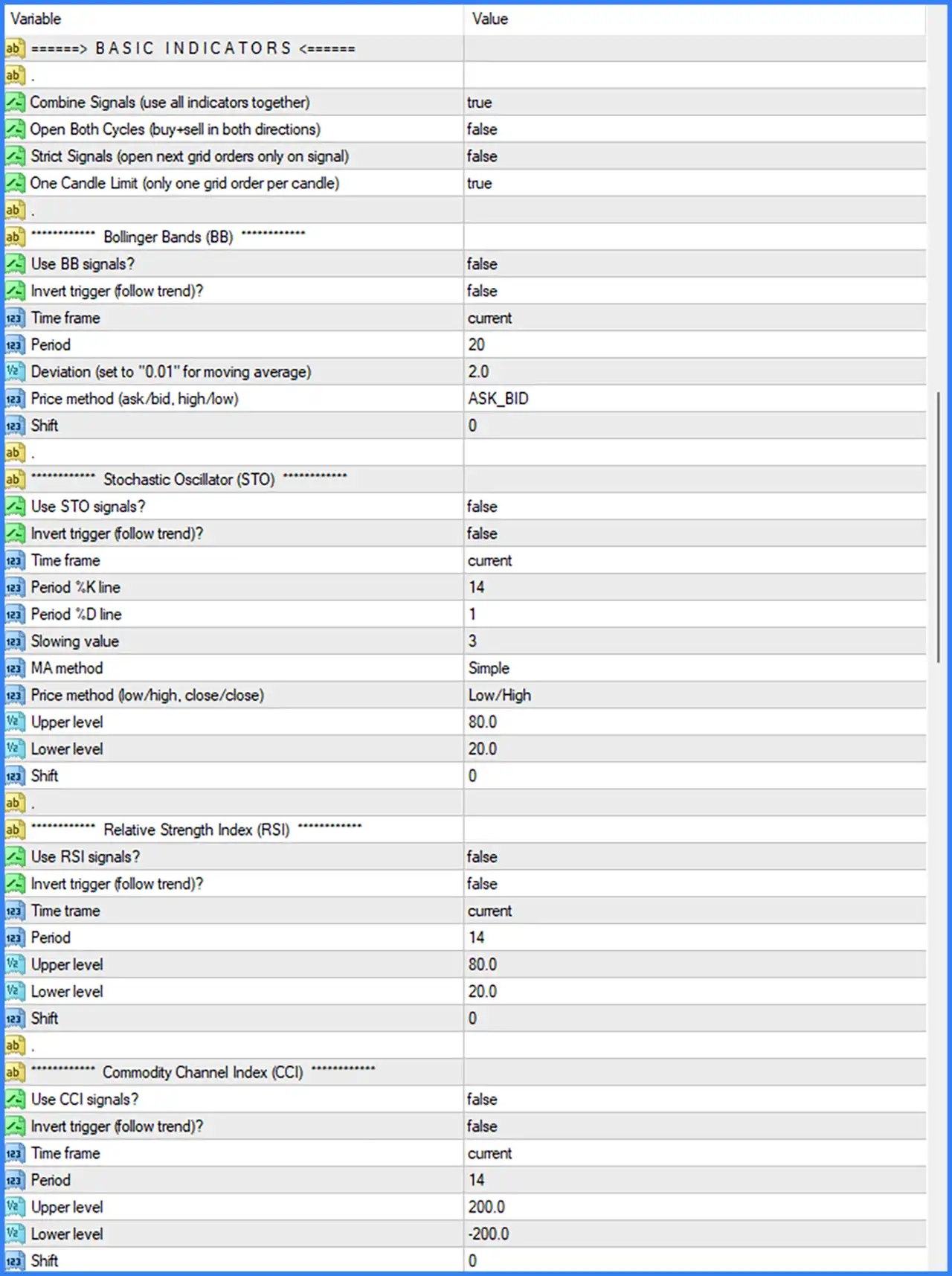
The Basic Indicators section controls how the EA combines technical indicator signals to identify potential trading entries. It also determines whether Buy and Sell cycles can operate simultaneously and whether additional grid orders require new signals.
🔹 Combine Signals (Use All Indicators Together): Set to true. Enables combined signal evaluation, allowing the EA to use the enabled indicator conditions together when determining trading signals.
🔹 Open Both Cycles (Buy + Sell in Both Directions): Set to false. Disables simultaneous Buy and Sell grid cycles, preventing the EA from intentionally running both directional cycles at the same time through this option.
🔹 Strict Signals (Open Next Grid Orders Only on Signal): Set to false. Disables the strict signal requirement for additional grid entries, allowing grid order placement without requiring a fresh indicator signal for every additional order.
🔹 One Candle Limit (Only One Grid Order per Candle): Set to true. Restricts the EA to opening a maximum of one grid order per candle, helping prevent multiple grid entries from being opened within the same candle.
7. BOLLINGER BANDS (BB) SETTINGS
The Bollinger Bands section provides optional volatility-based trading signals. It includes timeframe, calculation period, standard deviation, price method, and indicator shift parameters.
🔹 Use BB Signals?: Set to false. Disables Bollinger Bands signals as an active entry filter in the current configuration.
🔹 Invert Trigger (Follow Trend)?: Set to false. Disables the inverted Bollinger Bands signal interpretation, leaving the indicator's standard trigger logic unchanged if enabled.
🔹 Time Frame: Set to current. Uses the current chart timeframe for Bollinger Bands calculations.
🔹 Period: Set to 20. Defines the Bollinger Bands calculation period using 20 candles.
🔹 Deviation (Set to "0.01" for Moving Average): Set to 2.0. Defines the Bollinger Bands standard deviation at 2.0. The parameter description also indicates that a value of 0.01 can be used for a Moving Average configuration.
🔹 Price Method (Ask/Bid, High/Low): Set to ASK_BID. Specifies the ASK/BID price method used by the indicator calculation.
🔹 Shift: Set to 0. Defines the horizontal shift of the Bollinger Bands indicator, keeping its calculation aligned with the current candle position.
8. STOCHASTIC OSCILLATOR (STO) SETTINGS
The Stochastic Oscillator section provides momentum-based entry conditions using %K, %D, smoothing, and overbought and oversold thresholds.
🔹 Use STO Signals?: Set to false. Disables Stochastic Oscillator signals as an active trading entry filter.
🔹 Invert Trigger (Follow Trend)?: Set to false. Disables inverted Stochastic signal interpretation, retaining the indicator's standard trigger direction if enabled.
🔹 Time Frame: Set to current. Uses the current chart timeframe for Stochastic calculations.
🔹 Period %K Line: Set to 14. Defines the Stochastic %K calculation period using 14 candles.
🔹 Period %D Line: Set to 1. Defines the Stochastic %D smoothing period using 1 candle.
🔹 Slowing Value: Set to 3. Specifies a Stochastic slowing value of 3 for smoothing the %K calculation.
🔹 MA Method: Set to Simple. Selects the Simple Moving Average method for Stochastic smoothing.
🔹 Price Method (Low/High, Close/Close): Set to Low/High. Uses the Low and High price range for Stochastic calculations.
🔹 Upper Level: Set to 80.0. Defines the upper Stochastic threshold at 80.0, commonly used to identify overbought market conditions.
🔹 Lower Level: Set to 20.0. Defines the lower Stochastic threshold at 20.0, commonly used to identify oversold market conditions.
🔹 Shift: Set to 0. Sets the Stochastic indicator shift to 0, keeping the calculation aligned with the current chart position.
9. RELATIVE STRENGTH INDEX (RSI) SETTINGS
The RSI section provides optional momentum confirmation based on the Relative Strength Index. Traders can configure the calculation timeframe, period, and overbought and oversold levels.
🔹 Use RSI Signals?: Set to false. Disables RSI signals as an active entry filter in the current configuration.
🔹 Invert Trigger (Follow Trend)?: Set to false. Disables inverted RSI trigger interpretation, keeping the standard RSI signal logic when the filter is enabled.
🔹 Time Frame: Set to current. Uses the current chart timeframe for RSI calculations.
🔹 Period: Set to 14. Defines the RSI calculation period using 14 candles.
🔹 Upper Level: Set to 80.0. Establishes the upper RSI threshold at 80.0 for identifying overbought market conditions.
🔹 Lower Level: Set to 20.0. Establishes the lower RSI threshold at 20.0 for identifying oversold market conditions.
🔹 Shift: Set to 0. Defines the RSI indicator shift at 0, aligning its calculation with the current chart position.
10. COMMODITY CHANNEL INDEX (CCI) SETTINGS
The CCI section provides an optional momentum filter that evaluates price deviation from its statistical average. Its upper and lower thresholds can be customized for trading signal identification.
🔹 Use CCI Signals?: Set to false. Disables CCI signals as an active trading entry filter.
🔹 Invert Trigger (Follow Trend)?: Set to false. Disables inverted CCI trigger interpretation, retaining the standard signal direction when the filter is enabled.
🔹 Time Frame: Set to current. Uses the current chart timeframe for CCI calculations.
🔹 Period: Set to 14. Defines the CCI calculation period using 14 candles.
🔹 Upper Level: Set to 200.0. Establishes the upper CCI threshold at 200.0 for identifying strong positive price deviations.
🔹 Lower Level: Set to -200.0. Establishes the lower CCI threshold at -200.0 for identifying strong negative price deviations.
🔹 Shift: Set to 0. Sets the CCI indicator shift to 0, keeping its calculation aligned with the current chart position.
11. CUSTOM INDICATOR SETTINGS
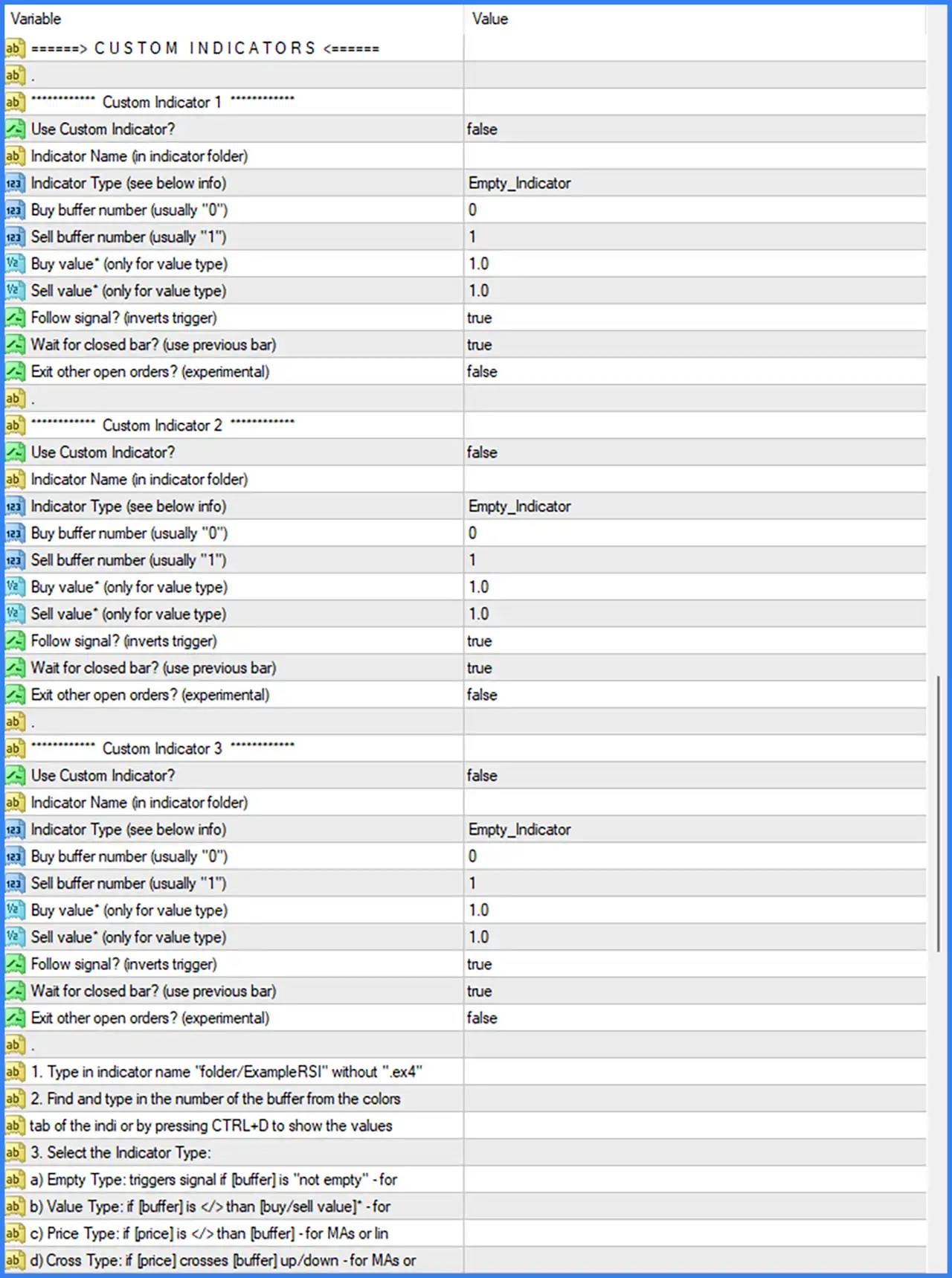
GARRYS AI EA MT4 supports up to three custom indicators, allowing traders to integrate external MT4 indicators into its trading signal system. Each custom indicator has independent configuration parameters for indicator names, buffer numbers, signal values, and execution conditions.
Custom Indicator 1
🔹 Use Custom Indicator?: Set to false. Disables Custom Indicator 1 as an active trading signal source.
🔹 Indicator Name (in Indicator Folder): No value specified. Defines the name and folder path of the external indicator when custom indicator functionality is enabled.
🔹 Indicator Type: Set to Empty_Indicator. Selects the Empty Indicator signal detection method, which identifies signals based on whether the specified indicator buffer is populated.
🔹 Buy Buffer Number (Usually "0"): Set to 0. Specifies indicator buffer number 0 as the source for Buy signal detection.
🔹 Sell Buffer Number (Usually "1"): Set to 1. Specifies indicator buffer number 1 as the source for Sell signal detection.
🔹 Buy Value (Only for Value Type): Set to 1.0. Defines the reference value of 1.0 used when the Value Type signal detection method is selected for Buy conditions.
🔹 Sell Value (Only for Value Type): Set to 1.0. Defines the reference value of 1.0 used when the Value Type signal detection method is selected for Sell conditions.
🔹 Follow Signal? (Inverts Trigger): Set to true. Enables the Follow Signal option, which inverts the indicator trigger according to the EA's signal interpretation logic.
🔹 Wait for Closed Bar? (Use Previous Bar): Set to true. Requires the EA to evaluate the signal using a completed candle rather than relying on an unfinished current candle.
🔹 Exit Other Open Orders? (Experimental): Set to false. Disables the experimental option for closing other open orders when a custom indicator signal is detected.
Custom Indicator 2
🔹 Use Custom Indicator?: Set to false. Disables Custom Indicator 2 as an active trading signal source.
🔹 Indicator Name (in Indicator Folder): No value specified. Defines the external indicator name and folder path when this custom indicator is activated.
🔹 Indicator Type: Set to Empty_Indicator. Selects the Empty Indicator signal detection method for identifying signals from the specified indicator buffer.
🔹 Buy Buffer Number (Usually "0"): Set to 0. Specifies buffer number 0 for Buy signal detection.
🔹 Sell Buffer Number (Usually "1"): Set to 1. Specifies buffer number 1 for Sell signal detection.
🔹 Buy Value (Only for Value Type): Set to 1.0. Defines the Buy reference value of 1.0 when Value Type detection is used.
🔹 Sell Value (Only for Value Type): Set to 1.0. Defines the Sell reference value of 1.0 when Value Type detection is used.
🔹 Follow Signal? (Inverts Trigger): Set to true. Enables inverted trigger interpretation for Custom Indicator 2.
🔹 Wait for Closed Bar? (Use Previous Bar): Set to true. Requires the EA to use the previous completed candle when evaluating custom indicator signals.
🔹 Exit Other Open Orders? (Experimental): Set to false. Disables the experimental function for closing other open positions when Custom Indicator 2 generates a signal.
Custom Indicator 3
🔹 Use Custom Indicator?: Set to false. Disables Custom Indicator 3 as an active trading signal source.
🔹 Indicator Name (in Indicator Folder): No value specified. Specifies where the external indicator is located and identifies its name when this feature is activated.
🔹 Indicator Type: Set to Empty_Indicator. Selects the Empty Indicator detection method for identifying signals from the specified indicator buffer.
🔹 Buy Buffer Number (Usually "0"): Set to 0. Specifies buffer number 0 as the Buy signal source.
🔹 Sell Buffer Number (Usually "1"): Set to 1. Specifies buffer number 1 as the Sell signal source.
🔹 Buy Value (Only for Value Type): Set to 1.0. Defines the Buy reference value of 1.0 for Value Type signal detection.
🔹 Sell Value (Only for Value Type): Set to 1.0. Defines the Sell reference value of 1.0 for Value Type signal detection.
🔹 Follow Signal? (Inverts Trigger): Set to true. Enables inverted signal interpretation for Custom Indicator 3.
🔹 Wait for Closed Bar? (Use Previous Bar): Set to true. Configures the EA to wait for a completed candle before evaluating the custom indicator signal.
🔹 Exit Other Open Orders? (Experimental): Set to false. Disables the experimental option for closing other open orders when Custom Indicator 3 generates a signal.
Custom Indicator Configuration Instructions
The Inputs panel also provides additional instructions for connecting external indicators to GARRYS AI EA MT4.
🔹 Indicator Name Format: Enter the indicator name using its folder path, for example folder/ExampleRSI, without including the .ex4 file extension.
🔹 Buffer Number Identification: Find the required buffer number in the indicator's Colors tab or press CTRL+D to display indicator values and identify the appropriate buffer.
🔹 Empty Type: Triggers a signal when the specified indicator buffer is not empty.
🔹 Value Type: Triggers a signal when the specified buffer value is different from the configured Buy or Sell reference value.
🔹 Price Type: Compares the current price with the specified indicator buffer value, using the price-to-buffer relationship for indicators such as Moving Averages or lines.
🔹 Cross Type: Detects when the price crosses the specified indicator buffer upward or downward, providing crossover-based trading signals.
Note: The final explanatory lines in the supplied screenshot are partially cut off, so the complete original descriptions of the Price Type and Cross Type are not visible.
12. WORKING TIMES SETTINGS
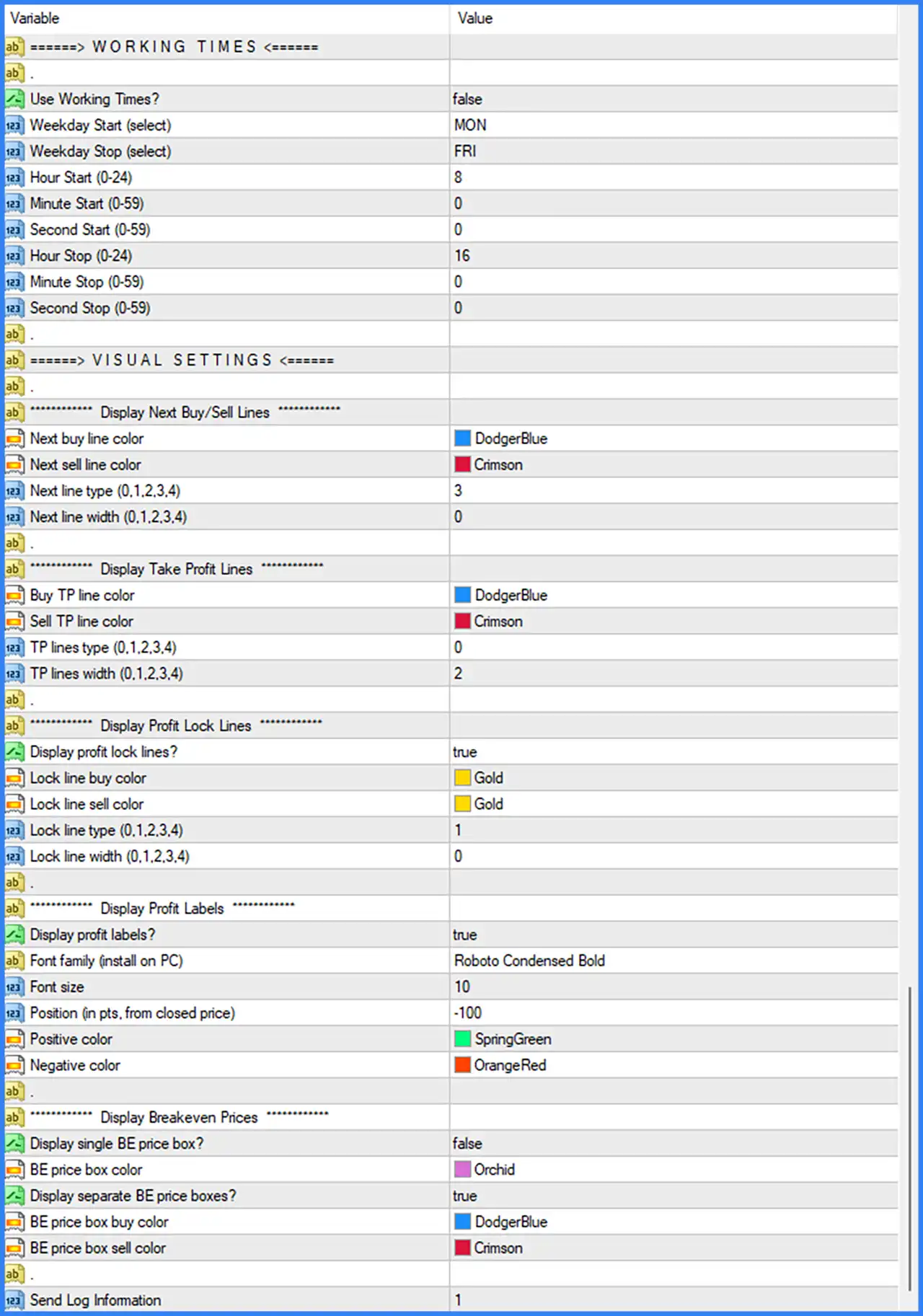
The Working Times section controls the days and hours during which GARRYS AI EA MT4 is permitted to operate. It allows traders to configure a specific weekly trading window.
🔹 Use Working Times?: Set to false. Disables the Working Times restriction, meaning the configured weekday and time boundaries are not actively applied through this option.
🔹 Weekday Start (Select): Set to MON. Defines Monday as the starting day of the configured weekly trading schedule.
🔹 Weekday Stop (Select): Set to FRI. Defines Friday as the ending day of the configured weekly trading schedule.
🔹 Hour Start (0–24): Set to 8. Specifies the starting hour at 08:00 when the Working Times filter is enabled.
🔹 Minute Start (0–59): Set to 0. Defines the starting minute as 00.
🔹 Second Start (0–59): Set to 0. Defines the starting second as 00, resulting in a configured start time of 08:00:00.
🔹 Hour Stop (0–24): Set to 16. Specifies the ending hour at 16:00 when the Working Times filter is enabled.
🔹 Minute Stop (0–59): Set to 0. Defines the ending minute as 00.
🔹 Second Stop (0–59): Set to 0. Defines the ending second as 00, resulting in a configured stop time of 16:00:00.
13. VISUAL SETTINGS
The Visual Settings section controls how GARRYS AI EA MT4 displays trading information, pending Buy and Sell levels, Take Profit targets, profit-lock levels, profit labels, and breakeven prices on the chart.
13.1. Display Next Buy/Sell Lines
🔹 Next Buy Line Color: Set to DodgerBlue. Defines the color of the next potential Buy entry line displayed on the chart.
🔹 Next Sell Line Color: Set to Crimson. Defines the color of the next potential Sell entry line.
🔹 Next Line Type (0,1,2,3,4): Set to 3. Selects line style number 3 for displaying the next Buy and Sell trading levels.
🔹 Next Line Width (0,1,2,3,4): Set to 0. Defines the configured line width as 0 for the next Buy and Sell entry lines.
13.2. Display Take Profit Lines
🔹 Buy TP Line Color: Set to DodgerBlue. Defines the color of Take Profit lines associated with Buy positions.
🔹 Sell TP Line Color: Set to Crimson. Defines the color of Take Profit lines associated with Sell positions.
🔹 TP Lines Type (0,1,2,3,4): Set to 0. Selects line style number 0 for displaying Take Profit levels.
🔹 TP Lines Width (0,1,2,3,4): Set to 2. Sets the Take Profit line width to 2 for improved visibility on the chart.
13.3. Display Profit Lock Lines
🔹 Display Profit Lock Lines?: Set to true. Enables the display of profit-lock levels on the trading chart, helping traders visualize the EA's profit protection positions.
🔹 Lock Line Buy Color: Set to Gold. Defines the Gold color for profit-lock lines associated with Buy positions.
🔹 Lock Line Sell Color: Set to Gold. Defines the Gold color for profit-lock lines associated with Sell positions.
🔹 Lock Line Type (0,1,2,3,4): Set to 1. Selects line style number 1 for displaying profit-lock levels.
🔹 Lock Line Width (0,1,2,3,4): Set to 0. Defines the configured line width as 0 for profit-lock lines.
13.4. Display Profit Labels
🔹 Display Profit Labels?: Set to true. Enables profit and loss labels on the chart, allowing traders to monitor trading results visually.
🔹 Font Family (Install on PC): Set to Roboto Condensed Bold. Specifies the Roboto Condensed Bold font for displaying profit labels. The font should be installed on the computer for the intended appearance.
🔹 Font Size: Set to 10. Defines the profit label text size as 10.
🔹 Position (in Points, from Closed Price): Set to -100. Specifies the profit label position at -100 points relative to the closed price.
🔹 Positive Color: Set to SpringGreen. Defines the color used for displaying positive profit values.
🔹 Negative Color: Set to OrangeRed. Defines the color used for displaying negative profit or loss values.
13.5. Display Breakeven Prices
🔹 Display Single BE Price Box?: Set to false. Disables the display of a single combined breakeven price box on the chart.
🔹 BE Price Box Color: Set to Orchid. Defines the Orchid color for the single breakeven price box when that display option is enabled.
🔹 Display Separate BE Price Boxes?: Set to true. Enables separate breakeven price boxes, allowing Buy and Sell breakeven levels to be displayed independently.
🔹 BE Price Box Buy Color: Set to DodgerBlue. Defines the color of the breakeven price box associated with Buy positions.
🔹 BE Price Box Sell Color: Set to Crimson. Defines the color of the breakeven price box associated with Sell positions.
14. LOG INFORMATION SETTINGS
🔹 Send Log Information: Set to 1. Defines the logging information parameter at level 1, controlling the EA's configured log information output.