

This guide walks through the inputs of Gann Made Easy Pro MT5 Unlimited with the values recommended for live trading. The set files that come with the EA already contain these settings, so you can load them in one click and adjust only what your broker or account needs.
🔢 Gann Made Easy Pro MT5 – Easy-to-Read Inputs Guide
🔢 Installation
⚙️ Install the Indicator
🔹 Step 1 — Open MetaTrader 5 and go to File → Open Data Folder.
🔹 Step 2 — Open MQL5 → Indicators and copy Gann Made Easy Pro MT5.mq5 or the compiled .ex5 file into this folder.
🔹 Step 3 — If using the .mq5 file, open it in MetaEditor with F4 and press F7 to compile. The log should show 0 errors.
🔹 Step 4 — Return to MetaTrader 5, right-click Indicators in Navigator (Ctrl+N) and select Refresh.
🔹 Step 5 — Drag Gann Made Easy Pro MT5 onto a chart and configure the Inputs.
🔹 DLL Import — Not required. The indicator does not use DLL files.
🔹 Email / Push Alerts — Configure MetaTrader 5 email or notification settings first under Tools → Options → Email / Notifications.
🔹 Control Panel — Many display options can later be changed directly from the Control Panel without reopening Inputs.
⚙️ Strategy Tester
🔹 Step 1 — Open Strategy Tester with Ctrl+R.
🔹 Step 2 — Select Indicator as the program type and choose Gann Made Easy Pro MT5.
🔹 Step 3 — Select the symbol, timeframe and testing period.
🔹 Step 4 — Use 1 minute OHLC or Every tick as the testing model.
🔹 Step 5 — Enable Tick Visualization, configure the Inputs and click Start.
🔹 Important — Panel buttons cannot be clicked inside Strategy Tester, so settings must be changed from the Inputs tab.
🔢 Main Settings
Core Engine
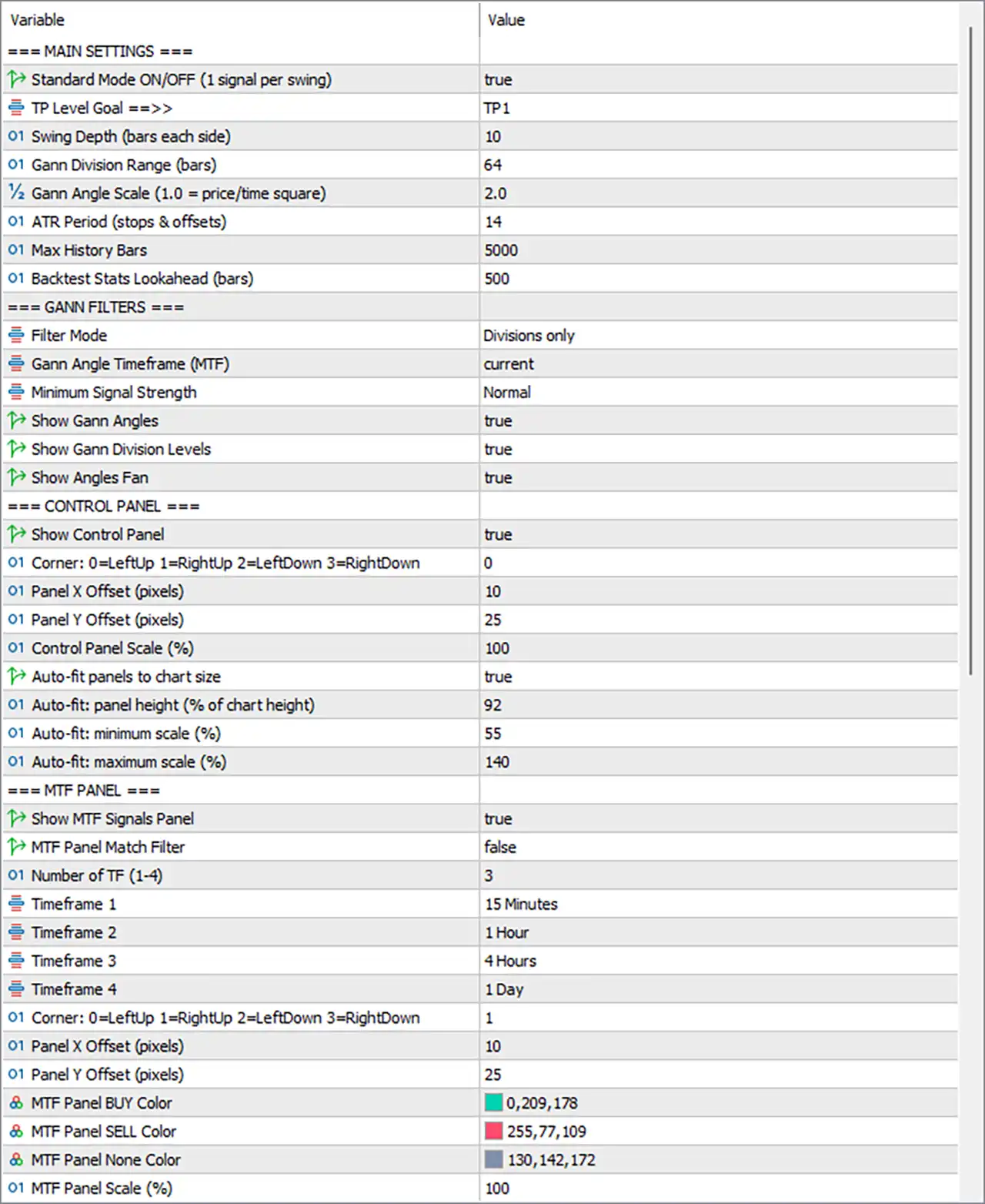
🔹 Standard Mode ON/OFF (1 signal per swing) — Default: true — Allows only one signal per swing. After a signal, a new swing high or low is required. Recommended: true for cleaner signals.
🔹 TP Level Goal — Default: TP1 — Selects the target used for backtest statistics, win rate, net R and alert messages. TP1 = 1R, TP2 = 2R, TP3 = 3R. Recommended: TP1 for higher win-rate statistics; TP2/TP3 for larger reward targets.
🔹 Swing Depth (bars each side) — Default: 10 — Determines how many bars on each side are required to confirm a swing high or low. Higher values create fewer but more important swings. Typical range: 6–15.
🔹 Gann Division Range (bars) — Default: 64 — Number of bars used to create the Gann 0/8 to 8/8 range and define the angle time unit. Recommended: 64; use 48 for faster markets or 96+ for wider ranges.
🔹 Gann Angle Scale (1.0 = price/time square) — Default: 2.0 — Controls the slope of Gann angles. Higher values make angles steeper; lower values make them flatter.
🔹 ATR Period (stops & offsets) — Default: 14 — ATR period used for pivot buffers, minimum risk and arrow offsets. Recommended: 10–21; 14 is the standard setting.
🔹 Max History Bars — Default: 5000 — Number of historical bars calculated when the indicator loads. More bars provide longer statistics but can increase loading time. Recommended: 2000–5000.
🔹 Backtest Stats Lookahead (bars) — Default: 500 — Maximum number of bars used to determine whether a historical signal reaches the selected TP or stop. Increase this on low timeframes when using distant targets.
🔢 Gann Filters
Signal Conditions
🔹 Filter Mode — Default: Divisions only — Controls which Gann events can create signals.
🔹 Filters OFF (all signals) — Allows a cross of any Gann division or the 1x1 angle.
🔹 Angles only — Requires price to be inside the fan beyond the 1x2 line plus the required event.
🔹 Divisions only — Requires a cross of a Gann division level.
🔹 Angles + Divisions (strict) — Requires both a division cross and price inside the fan. This produces fewer signals with stricter confirmation.
🔹 Gann Angle Timeframe (MTF) — Default: current — Defines the timeframe used for the Gann Angle filter and fan. A higher timeframe can be used to follow a broader trend.
🔹 MTF Calculation — Only closed bars of the selected timeframe are used, so the Angle filter does not repaint from unfinished higher-timeframe candles.
🔹 Minimum Signal Strength — Default: Normal — Sets the minimum strength score required for a signal.
🔹 Signal Strength Levels — Any = 0+, Normal = 1+, Strong = 2+, Very strong = 3+.
🔹 Strength Score Factors — Points come from the close beyond Gann 4/8, price inside the fan, close beyond the 1x1 angle and agreement from at least half of the MTF timeframes.
🔹 Show Gann Angles — Default: true — Shows or hides the main 1x1 Gann angle line.
🔹 Show Gann Division Levels — Default: true — Shows or hides the nine Gann 1/8 division levels.
🔹 Show Angles Fan — Default: true — Shows or hides the 2x1 and 1x2 dashed angle lines.
🔹 Important — Display settings only control what is visible. Hiding a line does not change how signals are calculated.
🔢 Control Panel
🔹 Show Control Panel — Default: true — Shows or hides the main Control Panel.
🔹 Corner: 0=LeftUp 1=RightUp 2=LeftDown 3=RightDown — Default: 0 — Selects the chart corner where the Control Panel appears.
🔹 Corner Options — 0 = top-left, 1 = top-right, 2 = bottom-left, 3 = bottom-right.
🔹 Panel X Offset (pixels) — Default: 10 — Controls the horizontal distance from the selected chart corner.
🔹 Panel Y Offset (pixels) — Default: 25 — Controls the vertical distance from the selected chart corner.
🔹 Control Panel Scale (%) — Default: 100 — Controls the basic panel size. 80 = smaller, 100 = normal, 120 = larger.
🔹 Auto-fit panels to chart size — Default: true — Automatically resizes both panels when the chart window changes size.
🔹 Auto-fit: panel height (% of chart height) — Default: 92 — Controls the target panel height relative to the chart. Lower values such as 70 leave more space for price.
🔹 Auto-fit: minimum scale (%) — Default: 55 — Prevents the panel from becoming too small on small charts.
🔹 Auto-fit: maximum scale (%) — Default: 140 — Prevents the panel from becoming too large on large monitors. Panel width is also limited to 45% of the chart.
🔹 A- / A+ Buttons — Zoom the panels out or in by 10% steps, from 50% to 250%.
🔹 _ Button — Minimizes the panel to its header. Click + to restore it.
🔢 MTF Panel
🔹 Show MTF Signals Panel — Default: true — Shows or hides the Multi-Timeframe Signals panel.
🔹 MTF Engine — Continues working for signal-strength scoring even when the MTF panel is hidden.
🔹 MTF Panel Match Filter — Default: false — Requires all selected MTF timeframes to point in the same direction before a chart signal is printed.
🔹 Number of TF (1-4) — Default: 3 — Selects how many of the four available MTF timeframes are used.
🔹 Timeframe 1 — Default: 15 Minutes — First timeframe used for trend confirmation. Recommended: equal to or higher than the chart timeframe.
🔹 Timeframe 2 — Default: 1 Hour — Second MTF confirmation timeframe.
🔹 Timeframe 3 — Default: 4 Hours — Third MTF confirmation timeframe.
🔹 Timeframe 4 — Default: 1 Day — Fourth MTF confirmation timeframe. Used only when Number of TF = 4.
🔹 Corner: 0=LeftUp 1=RightUp 2=LeftDown 3=RightDown — Default: 1 — Selects the MTF panel position. Default is top-right.
🔹 Panel X Offset (pixels) — Default: 10 — Controls the horizontal distance from the selected corner.
🔹 Panel Y Offset (pixels) — Default: 25 — Controls the vertical distance from the selected corner.
🔹 MTF Panel BUY Color — Default: Teal #00D1B2 — Colour used for bullish MTF states.
🔹 MTF Panel SELL Color — Default: Coral #FF4D6D — Colour used for bearish MTF states.
🔹 MTF Panel None Color — Default: Slate #828EAC — Colour used when a timeframe has no signal or is still loading.
🔹 MTF Panel Scale (%) — Default: 100 — Controls the base MTF panel size and follows the Auto-fit and A-/A+ settings.
🔢 Colors
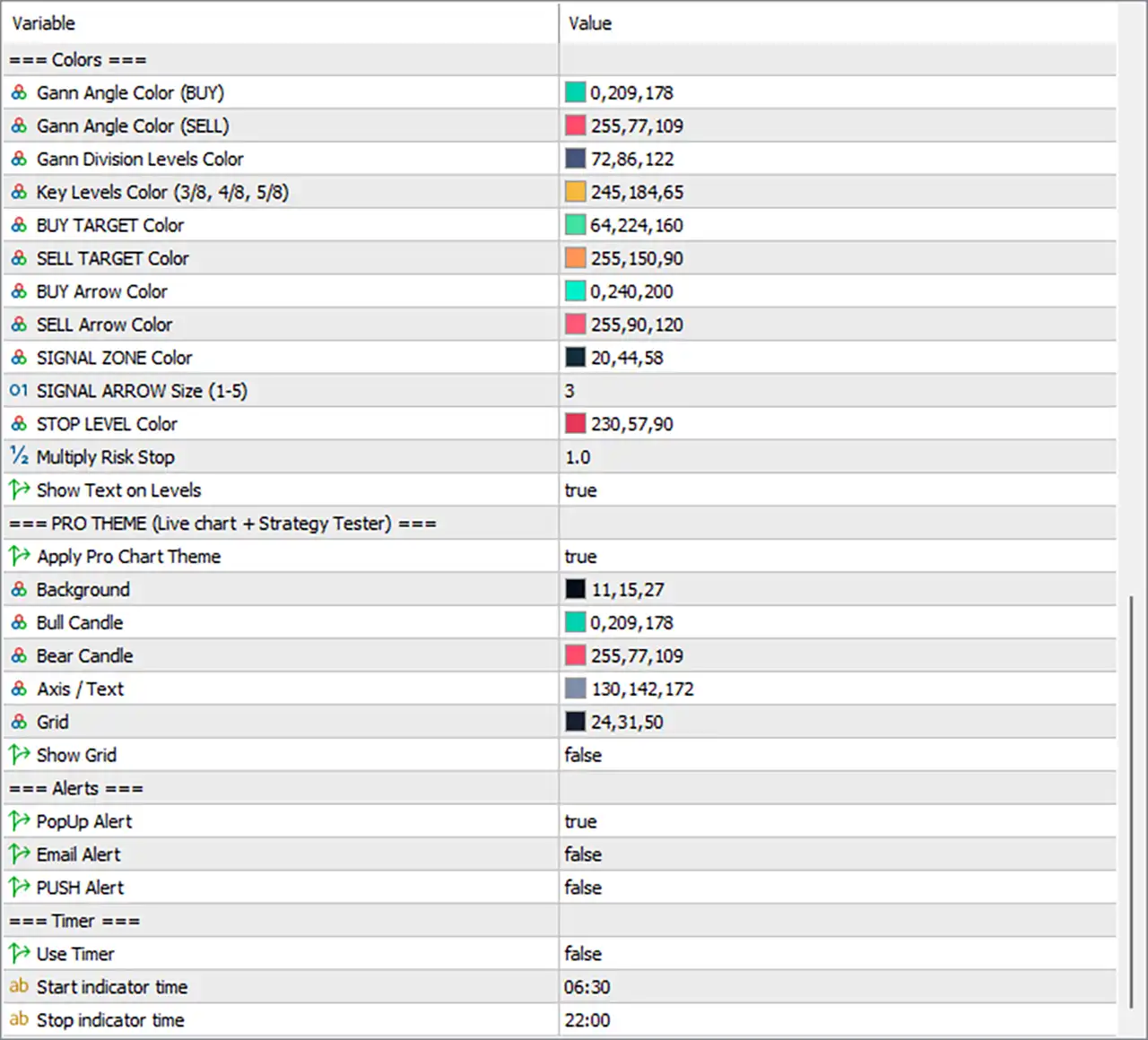
🔹 Gann Angle Color (BUY) — Default: Teal #00D1B2 — Colour of the Gann fan when it starts from a swing low.
🔹 Gann Angle Color (SELL) — Default: Coral #FF4D6D — Colour of the Gann fan when it starts from a swing high.
🔹 Gann Division Levels Color — Default: Slate #48567A — Colour of ordinary Gann levels 0/8, 1/8, 2/8, 6/8, 7/8 and 8/8.
🔹 Key Levels Color (3/8, 4/8, 5/8) — Default: Gold #F5B841 — Colour of the key Gann levels. 4/8 is solid while 3/8 and 5/8 are dashed.
🔹 BUY TARGET Color — Default: Mint #40E0A0 — Colour of TP1, TP2 and TP3 lines and labels for BUY signals.
🔹 SELL TARGET Color — Default: Orange #FF965A — Colour of TP1, TP2 and TP3 lines and labels for SELL signals.
🔹 BUY Arrow Color — Default: Aqua #00F0C8 — Colour of BUY arrows.
🔹 SELL Arrow Color — Default: Rose #FF5A78 — Colour of SELL arrows.
🔹 SIGNAL ZONE Color — Default: Deep teal #142C3A — Colour of the shaded entry-to-stop zone. A dark colour helps keep candles visible.
🔹 SIGNAL ARROW Size (1-5) — Default: 3 — Controls signal arrow size. 1 = small and 5 = large.
🔹 STOP LEVEL Color — Default: Red #E6395A — Colour of the stop line and STOP LEVEL label.
🔹 Multiply Risk Stop — Default: 1.0 — Multiplies the standard stop distance. 1.0 = standard risk. 1.2–1.5 creates a wider stop for more volatile symbols.
🔹 Risk Stop Effect — TP1, TP2 and TP3 also move farther away because they are calculated from the same risk distance.
🔹 Show Text on Levels — Default: true — Shows or hides price labels for Gann levels, angles, ENTRY, STOP LEVEL and Gann TP levels.
🔢 Pro Theme
Live Chart + Strategy Tester
🔹 Apply Pro Chart Theme — Default: true — Applies the indicator's colour theme to the chart and Strategy Tester.
🔹 Chart Type — The Pro Theme switches the chart to candlesticks with a right-side shift.
🔹 Restore Original Theme — Original chart colours are restored when the indicator is removed.
🔹 Set to false — Keeps the existing chart template and colours.
🔹 Background — Default: Navy #0B0F1B — Chart background colour.
🔹 Bull Candle — Default: Teal #00D1B2 — Body and outline colour of bullish candles.
🔹 Bear Candle — Default: Coral #FF4D6D — Body and outline colour of bearish candles.
🔹 Axis / Text — Default: Slate #828EAC — Colour of price scales, time scales and chart text.
🔹 Grid — Default: Dark navy #181F32 — Colour of the chart grid.
🔹 Show Grid — Default: false — Shows or hides the chart grid.
🔢 Alerts
🔹 PopUp Alert — Default: true — Displays a MetaTrader alert window with sound when a new signal appears on a closed bar.
🔹 Email Alert — Default: false — Sends an email for each new signal. MetaTrader email settings must be configured first.
🔹 PUSH Alert — Default: false — Sends a notification to the MetaTrader mobile application. A MetaQuotes ID is required.
🔹 Alert Timing — Alerts are generated for new signals on closed bars.
🔹 Strategy Tester — Email and push notifications are not sent during Strategy Tester runs.
🔹 ALERTS Button — All alerts can be muted at once from the Control Panel.
🔢 Timer
🔹 Use Timer — Default: false — Restricts signals to the selected daily trading window.
🔹 Start indicator time — Default: 06:30 — Start of the allowed signal window in broker server time.
🔹 Stop indicator time — Default: 22:00 — End of the allowed signal window in broker server time.
🔹 Overnight Session — If Stop is earlier than Start, the timer window continues through midnight. Example: 22:00 → 06:00.
🔢 Recommended Starting Settings
⚙️ Standard Setup
🔹 Standard Mode — true
🔹 TP Level Goal — TP1
🔹 Swing Depth — 10
🔹 Gann Division Range — 64
🔹 Gann Angle Scale — 2.0
🔹 ATR Period — 14
🔹 Max History Bars — 5000
🔹 Filter Mode — Divisions only
🔹 Minimum Signal Strength — Normal
🔹 MTF Panel — true
🔹 Number of TF — 3
🔹 MTF Timeframes — 15 Minutes / 1 Hour / 4 Hours
This keeps the original default structure and provides a practical starting point for testing.
⚙️ More Conservative Confirmation
🔹 Filter Mode — Angles + Divisions (strict) — Requires both Gann division and fan confirmation.
🔹 Minimum Signal Strength — Strong or Very strong — Requires a higher signal score.
🔹 MTF Panel Match Filter — true — Requires selected MTF timeframes to agree.
🔹 Gann Angle Timeframe (MTF) — Use a higher timeframe when broader trend confirmation is required.
⚙️ Faster / More Active Setup
🔹 Standard Mode — false — Allows additional signals on the same swing.
🔹 Swing Depth — Use a lower value such as 6–8 for faster swing detection.
🔹 Gann Division Range — 48 can be used for faster market movement.
🔹 Filter Mode — Divisions only or less restrictive settings.
These settings can increase signal frequency but may also create more market noise.
🔢 Simple Gann Made Easy Pro MT5 Logic
🔹 Step 1 — Swing Detection — The indicator identifies swing highs and swing lows using Swing Depth.
🔹 Step 2 — Gann Range — A Gann range is created around the latest pivot using Gann Division Range.
🔹 Step 3 — Gann Levels — The range is divided into nine levels from 0/8 to 8/8.
🔹 Step 4 — Gann Angles — The indicator calculates the 1x1, 2x1 and 1x2 angles from the latest pivot.
🔹 Step 5 — Signal Filters — Signals are checked against the selected Filter Mode and Minimum Signal Strength.
🔹 Step 6 — MTF Confirmation — Higher-timeframe signals can contribute to signal strength and can optionally be required to agree.
🔹 Step 7 — Risk Calculation — ATR and the latest pivot are used to calculate the stop distance.
🔹 Step 8 — Targets — TP1, TP2 and TP3 represent 1R, 2R and 3R.
🔹 Step 9 — Backtest Statistics — Historical signals are followed for the selected Backtest Stats Lookahead period to calculate win/loss and net R statistics.
🔢 Quick Setup Checklist
🔹 1. Load Defaults — Attach Gann Made Easy Pro MT5 using the default settings and allow the historical data to load.
🔹 2. Check Backtest Stats — Review win rate and net R for the selected TP Level Goal.
🔹 3. Adjust Signal Behaviour — Tune Swing Depth, Filter Mode and Minimum Signal Strength according to the required signal frequency.
🔹 4. Configure MTF — Select MTF timeframes equal to or higher than the chart timeframe.
🔹 5. Test Before Live Trading — Run the indicator in Strategy Tester over several months before using it on a live account.
🔹 6. Save the Preset — Use the Save function in the Inputs tab to store the configuration for other charts.
🔢 Troubleshooting
🔹 No Indicator on the Chart — Refresh the Navigator after copying the file and make sure the .mq5 file compiled with 0 errors.
🔹 No Signals — Check Standard Mode, Filter Mode, Minimum Signal Strength and MTF Panel Match Filter. Strict combinations can significantly reduce signals.
🔹 Too Many Signals — Increase Swing Depth, increase Minimum Signal Strength or use a stricter Filter Mode.
🔹 Panels Too Large or Small — Adjust Control Panel Scale, MTF Panel Scale or the Auto-fit minimum/maximum scale.
🔹 Panel in the Wrong Location — Change the relevant Corner and X/Y Offset settings.
🔹 Chart Colours Changed — Set Apply Pro Chart Theme = false to keep the existing chart template.
🔹 Email Alerts Not Working — Configure MetaTrader 5 email settings under Tools → Options → Email.
🔹 Push Alerts Not Working — Configure the MetaQuotes ID under Tools → Options → Notifications.
🔹 No Signals During Certain Hours — Check Use Timer, Start indicator time and Stop indicator time.
🔢 Important Notes
🔹 Gann Division Range is automatically raised when necessary to at least 2 × Swing Depth + 2.
🔹 Show Gann Angles / Show Gann Division Levels / Show Angles Fan only control visibility. Hiding them does not disable the underlying signal calculations.
🔹 MTF Panel can be hidden while the MTF engine continues contributing to signal-strength scoring.
🔹 Timer Times use broker server time.
🔹 Strategy Tester does not send email or push notifications.
🔹 Panel buttons cannot be clicked during Strategy Tester visualization, so Inputs must be used instead.
🔹 Always test settings on the required symbol, timeframe and broker data before live use.
Get Gann Made Easy Pro MT5 Unlimited
Download Gann Made Easy Pro MT5 Unlimited with its set files, read the full product details and requirements here: Gann Made Easy Pro MT5 Unlimited →