

🔢 Gann Made Easy Pro MT5 – Easy-to-Read Inputs Guide
🔢 Installation
⚙️ Install the Indicator
🔹 Step 1 — Open MetaTrader 5 and go to File → Open Data Folder.
🔹 Step 2 — Open MQL5 → Indicators and copy Gann Made Easy Pro MT5.mq5 or the compiled .ex5 file into this folder.
🔹 Step 3 — If using the .mq5 file, open it in MetaEditor with F4 and press F7 to compile. The log should show 0 errors.
🔹 Step 4 — Return to MetaTrader 5, right-click Indicators in Navigator (Ctrl+N) and select Refresh.
🔹 Step 5 — Drag Gann Made Easy Pro MT5 onto a chart and configure the Inputs.
🔹 DLL Import — Not required. The indicator does not use DLL files.
🔹 Email / Push Alerts — Configure MetaTrader 5 email or notification settings first under Tools → Options → Email / Notifications.
🔹 Control Panel — Many display options can later be changed directly from the Control Panel without reopening Inputs.
⚙️ Strategy Tester
🔹 Step 1 — Open Strategy Tester with Ctrl+R.
🔹 Step 2 — Select Indicator as the program type and choose Gann Made Easy Pro MT5.
🔹 Step 3 — Select the symbol, timeframe and testing period.
🔹 Step 4 — Use 1 minute OHLC or Every tick as the testing model.
🔹 Step 5 — Enable Tick Visualization, configure the Inputs and click Start.
🔹 Important — Panel buttons cannot be clicked inside Strategy Tester, so settings must be changed from the Inputs tab.
🔢 Main Settings
Core Engine
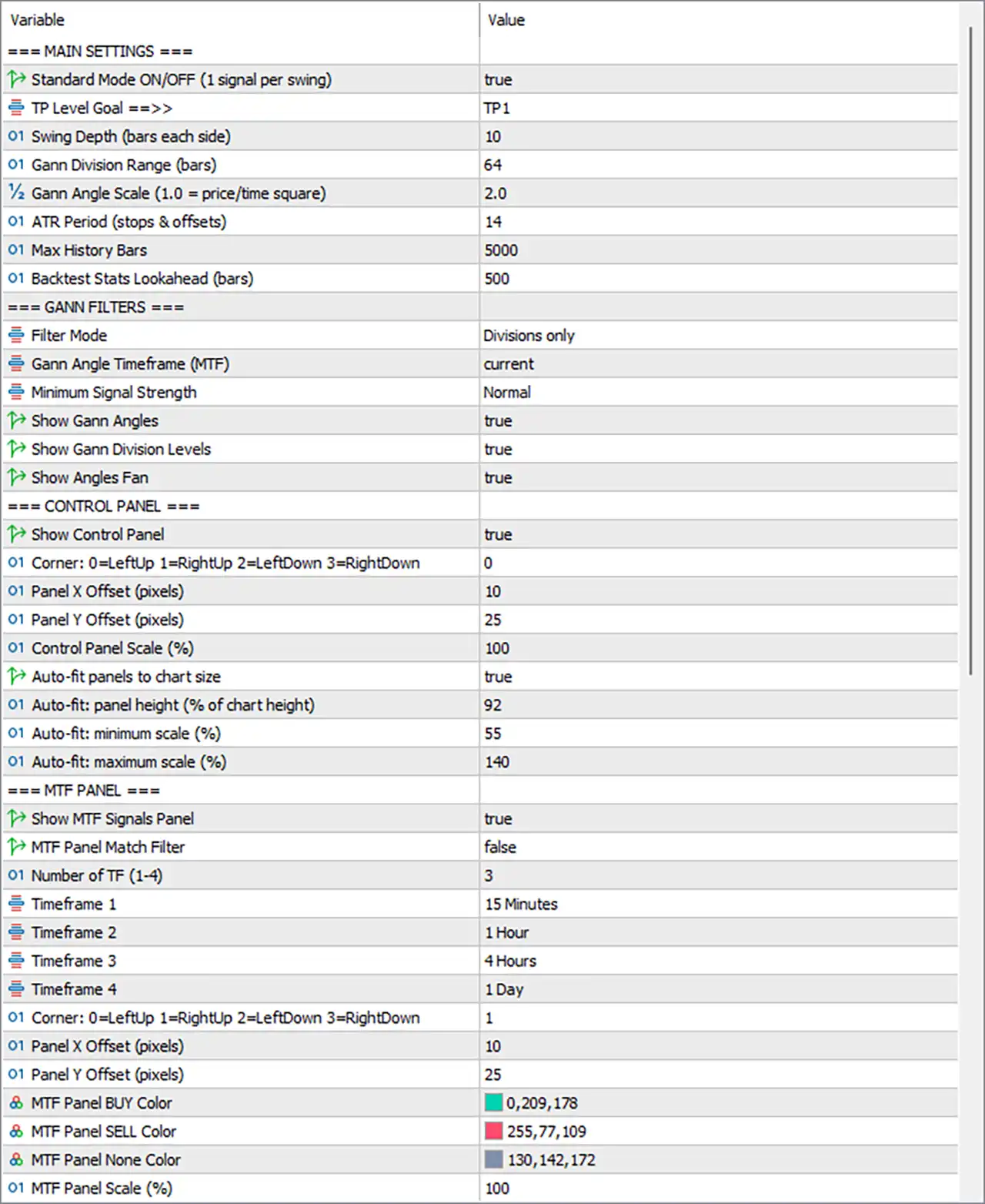
🔹 Standard Mode ON/OFF (1 signal per swing) — Default: true — Allows only one signal per swing. After a signal, a new swing high or low is required. Recommended: true for cleaner signals.
🔹 TP Level Goal — Default: TP1 — Selects the target used for backtest statistics, win rate, net R and alert messages. TP1 = 1R, TP2 = 2R, TP3 = 3R. Recommended: TP1 for higher win-rate statistics; TP2/TP3 for larger reward targets.
🔹 Swing Depth (bars each side) — Default: 10 — Determines how many bars on each side are required to confirm a swing high or low. Higher values create fewer but more important swings. Typical range: 6–15.
🔹 Gann Division Range (bars) — Default: 64 — Number of bars used to create the Gann 0/8 to 8/8 range and define the angle time unit. Recommended: 64; use 48 for faster markets or 96+ for wider ranges.
🔹 Gann Angle Scale (1.0 = price/time square) — Default: 2.0 — Controls the slope of Gann angles. Higher values make angles steeper; lower values make them flatter.
🔹 ATR Period (stops & offsets) — Default: 14 — ATR period used for pivot buffers, minimum risk and arrow offsets. Recommended: 10–21; 14 is the standard setting.
🔹 Max History Bars — Default: 5000 — Number of historical bars calculated when the indicator loads. More bars provide longer statistics but can increase loading time. Recommended: 2000–5000.
🔹 Backtest Stats Lookahead (bars) — Default: 500 — Maximum number of bars used to determine whether a historical signal reaches the selected TP or stop. Increase this on low timeframes when using distant targets.
🔢 Gann Filters
Signal Conditions
🔹 Filter Mode — Default: Divisions only — Controls which Gann events can create signals.
🔹 Filters OFF (all signals) — Allows a cross of any Gann division or the 1x1 angle.
🔹 Angles only — Requires price to be inside the fan beyond the 1x2 line plus the required event.
🔹 Divisions only — Requires a cross of a Gann division level.
🔹 Angles + Divisions (strict) — Requires both a division cross and price inside the fan. This produces fewer signals with stricter confirmation.
🔹 Gann Angle Timeframe (MTF) — Default: current — Defines the timeframe used for the Gann Angle filter and fan. A higher timeframe can be used to follow a broader trend.
🔹 MTF Calculation — Only closed bars of the selected timeframe are used, so the Angle filter does not repaint from unfinished higher-timeframe candles.
🔹 Minimum Signal Strength — Default: Normal — Sets the minimum strength score required for a signal.
🔹 Signal Strength Levels — Any = 0+, Normal = 1+, Strong = 2+, Very strong = 3+.
🔹 Strength Score Factors — Points come from the close beyond Gann 4/8, price inside the fan, close beyond the 1x1 angle and agreement from at least half of the MTF timeframes.
🔹 Show Gann Angles — Default: true — Shows or hides the main 1x1 Gann angle line.
🔹 Show Gann Division Levels — Default: true — Shows or hides the nine Gann 1/8 division levels.
🔹 Show Angles Fan — Default: true — Shows or hides the 2x1 and 1x2 dashed angle lines.
🔹 Important — Display settings only control what is visible. Hiding a line does not change how signals are calculated.
🔢 Control Panel
🔹 Show Control Panel — Default: true — Shows or hides the main Control Panel.
🔹 Corner: 0=LeftUp 1=RightUp 2=LeftDown 3=RightDown — Default: 0 — Selects the chart corner where the Control Panel appears.
🔹 Corner Options — 0 = top-left, 1 = top-right, 2 = bottom-left, 3 = bottom-right.
🔹 Panel X Offset (pixels) — Default: 10 — Controls the horizontal distance from the selected chart corner.
🔹 Panel Y Offset (pixels) — Default: 25 — Controls the vertical distance from the selected chart corner.
🔹 Control Panel Scale (%) — Default: 100 — Controls the basic panel size. 80 = smaller, 100 = normal, 120 = larger.
🔹 Auto-fit panels to chart size — Default: true — Automatically resizes both panels when the chart window changes size.
🔹 Auto-fit: panel height (% of chart height) — Default: 92 — Controls the target panel height relative to the chart. Lower values such as 70 leave more space for price.
🔹 Auto-fit: minimum scale (%) — Default: 55 — Prevents the panel from becoming too small on small charts.
🔹 Auto-fit: maximum scale (%) — Default: 140 — Prevents the panel from becoming too large on large monitors. Panel width is also limited to 45% of the chart.
🔹 A- / A+ Buttons — Zoom the panels out or in by 10% steps, from 50% to 250%.
🔹 _ Button — Minimizes the panel to its header. Click + to restore it.
🔢 MTF Panel
🔹 Show MTF Signals Panel — Default: true — Shows or hides the Multi-Timeframe Signals panel.
🔹 MTF Engine — Continues working for signal-strength scoring even when the MTF panel is hidden.
🔹 MTF Panel Match Filter — Default: false — Requires all selected MTF timeframes to point in the same direction before a chart signal is printed.
🔹 Number of TF (1-4) — Default: 3 — Selects how many of the four available MTF timeframes are used.
🔹 Timeframe 1 — Default: 15 Minutes — First timeframe used for trend confirmation. Recommended: equal to or higher than the chart timeframe.
🔹 Timeframe 2 — Default: 1 Hour — Second MTF confirmation timeframe.
🔹 Timeframe 3 — Default: 4 Hours — Third MTF confirmation timeframe.
🔹 Timeframe 4 — Default: 1 Day — Fourth MTF confirmation timeframe. Used only when Number of TF = 4.
🔹 Corner: 0=LeftUp 1=RightUp 2=LeftDown 3=RightDown — Default: 1 — Selects the MTF panel position. Default is top-right.
🔹 Panel X Offset (pixels) — Default: 10 — Controls the horizontal distance from the selected corner.
🔹 Panel Y Offset (pixels) — Default: 25 — Controls the vertical distance from the selected corner.
🔹 MTF Panel BUY Color — Default: Teal #00D1B2 — Colour used for bullish MTF states.
🔹 MTF Panel SELL Color — Default: Coral #FF4D6D — Colour used for bearish MTF states.
🔹 MTF Panel None Color — Default: Slate #828EAC — Colour used when a timeframe has no signal or is still loading.
🔹 MTF Panel Scale (%) — Default: 100 — Controls the base MTF panel size and follows the Auto-fit and A-/A+ settings.
🔢 Colors
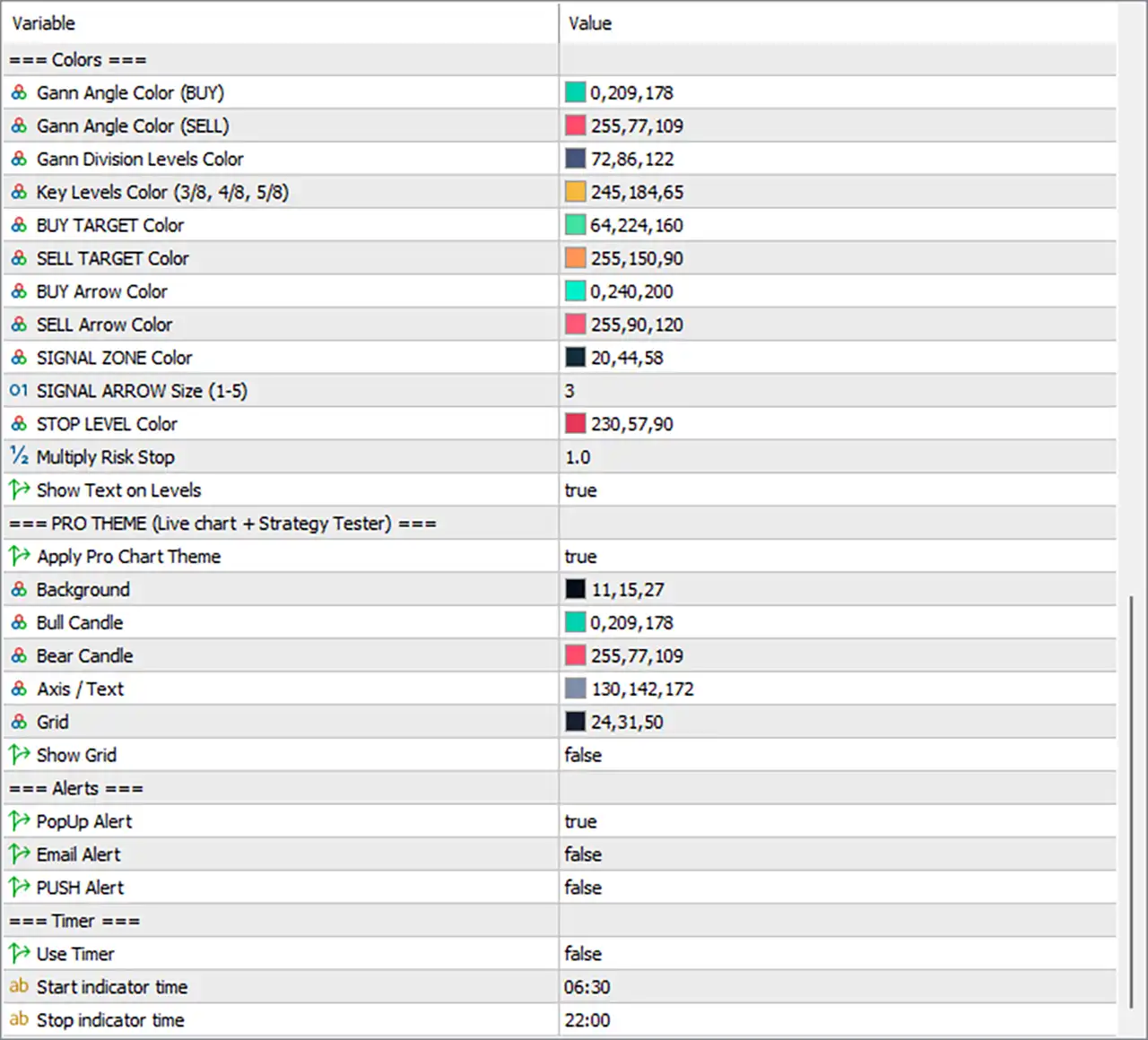
🔹 Gann Angle Color (BUY) — Default: Teal #00D1B2 — Colour of the Gann fan when it starts from a swing low.
🔹 Gann Angle Color (SELL) — Default: Coral #FF4D6D — Colour of the Gann fan when it starts from a swing high.
🔹 Gann Division Levels Color — Default: Slate #48567A — Colour of ordinary Gann levels 0/8, 1/8, 2/8, 6/8, 7/8 and 8/8.
🔹 Key Levels Color (3/8, 4/8, 5/8) — Default: Gold #F5B841 — Colour of the key Gann levels. 4/8 is solid while 3/8 and 5/8 are dashed.
🔹 BUY TARGET Color — Default: Mint #40E0A0 — Colour of TP1, TP2 and TP3 lines and labels for BUY signals.
🔹 SELL TARGET Color — Default: Orange #FF965A — Colour of TP1, TP2 and TP3 lines and labels for SELL signals.
🔹 BUY Arrow Color — Default: Aqua #00F0C8 — Colour of BUY arrows.
🔹 SELL Arrow Color — Default: Rose #FF5A78 — Colour of SELL arrows.
🔹 SIGNAL ZONE Color — Default: Deep teal #142C3A — Colour of the shaded entry-to-stop zone. A dark colour helps keep candles visible.
🔹 SIGNAL ARROW Size (1-5) — Default: 3 — Controls signal arrow size. 1 = small and 5 = large.
🔹 STOP LEVEL Color — Default: Red #E6395A — Colour of the stop line and STOP LEVEL label.
🔹 Multiply Risk Stop — Default: 1.0 — Multiplies the standard stop distance. 1.0 = standard risk. 1.2–1.5 creates a wider stop for more volatile symbols.
🔹 Risk Stop Effect — TP1, TP2 and TP3 also move farther away because they are calculated from the same risk distance.
🔹 Show Text on Levels — Default: true — Shows or hides price labels for Gann levels, angles, ENTRY, STOP LEVEL and Gann TP levels.
🔢 Pro Theme
Live Chart + Strategy Tester
🔹 Apply Pro Chart Theme — Default: true — Applies the indicator's colour theme to the chart and Strategy Tester.
🔹 Chart Type — The Pro Theme switches the chart to candlesticks with a right-side shift.
🔹 Restore Original Theme — Original chart colours are restored when the indicator is removed.
🔹 Set to false — Keeps the existing chart template and colours.
🔹 Background — Default: Navy #0B0F1B — Chart background colour.
🔹 Bull Candle — Default: Teal #00D1B2 — Body and outline colour of bullish candles.
🔹 Bear Candle — Default: Coral #FF4D6D — Body and outline colour of bearish candles.
🔹 Axis / Text — Default: Slate #828EAC — Colour of price scales, time scales and chart text.
🔹 Grid — Default: Dark navy #181F32 — Colour of the chart grid.
🔹 Show Grid — Default: false — Shows or hides the chart grid.
🔢 Alerts
🔹 PopUp Alert — Default: true — Displays a MetaTrader alert window with sound when a new signal appears on a closed bar.
🔹 Email Alert — Default: false — Sends an email for each new signal. MetaTrader email settings must be configured first.
🔹 PUSH Alert — Default: false — Sends a notification to the MetaTrader mobile application. A MetaQuotes ID is required.
🔹 Alert Timing — Alerts are generated for new signals on closed bars.
🔹 Strategy Tester — Email and push notifications are not sent during Strategy Tester runs.
🔹 ALERTS Button — All alerts can be muted at once from the Control Panel.
🔢 Timer
🔹 Use Timer — Default: false — Restricts signals to the selected daily trading window.
🔹 Start indicator time — Default: 06:30 — Start of the allowed signal window in broker server time.
🔹 Stop indicator time — Default: 22:00 — End of the allowed signal window in broker server time.
🔹 Overnight Session — If Stop is earlier than Start, the timer window continues through midnight. Example: 22:00 → 06:00.
🔢 Recommended Starting Settings
⚙️ Standard Setup
🔹 Standard Mode — true
🔹 TP Level Goal — TP1
🔹 Swing Depth — 10
🔹 Gann Division Range — 64
🔹 Gann Angle Scale — 2.0
🔹 ATR Period — 14
🔹 Max History Bars — 5000
🔹 Filter Mode — Divisions only
🔹 Minimum Signal Strength — Normal
🔹 MTF Panel — true
🔹 Number of TF — 3
🔹 MTF Timeframes — 15 Minutes / 1 Hour / 4 Hours
This keeps the original default structure and provides a practical starting point for testing.
⚙️ More Conservative Confirmation
🔹 Filter Mode — Angles + Divisions (strict) — Requires both Gann division and fan confirmation.
🔹 Minimum Signal Strength — Strong or Very strong — Requires a higher signal score.
🔹 MTF Panel Match Filter — true — Requires selected MTF timeframes to agree.
🔹 Gann Angle Timeframe (MTF) — Use a higher timeframe when broader trend confirmation is required.
⚙️ Faster / More Active Setup
🔹 Standard Mode — false — Allows additional signals on the same swing.
🔹 Swing Depth — Use a lower value such as 6–8 for faster swing detection.
🔹 Gann Division Range — 48 can be used for faster market movement.
🔹 Filter Mode — Divisions only or less restrictive settings.
These settings can increase signal frequency but may also create more market noise.
🔢 Simple Gann Made Easy Pro MT5 Logic
🔹 Step 1 — Swing Detection — The indicator identifies swing highs and swing lows using Swing Depth.
🔹 Step 2 — Gann Range — A Gann range is created around the latest pivot using Gann Division Range.
🔹 Step 3 — Gann Levels — The range is divided into nine levels from 0/8 to 8/8.
🔹 Step 4 — Gann Angles — The indicator calculates the 1x1, 2x1 and 1x2 angles from the latest pivot.
🔹 Step 5 — Signal Filters — Signals are checked against the selected Filter Mode and Minimum Signal Strength.
🔹 Step 6 — MTF Confirmation — Higher-timeframe signals can contribute to signal strength and can optionally be required to agree.
🔹 Step 7 — Risk Calculation — ATR and the latest pivot are used to calculate the stop distance.
🔹 Step 8 — Targets — TP1, TP2 and TP3 represent 1R, 2R and 3R.
🔹 Step 9 — Backtest Statistics — Historical signals are followed for the selected Backtest Stats Lookahead period to calculate win/loss and net R statistics.
🔢 Quick Setup Checklist
🔹 1. Load Defaults — Attach Gann Made Easy Pro MT5 using the default settings and allow the historical data to load.
🔹 2. Check Backtest Stats — Review win rate and net R for the selected TP Level Goal.
🔹 3. Adjust Signal Behaviour — Tune Swing Depth, Filter Mode and Minimum Signal Strength according to the required signal frequency.
🔹 4. Configure MTF — Select MTF timeframes equal to or higher than the chart timeframe.
🔹 5. Test Before Live Trading — Run the indicator in Strategy Tester over several months before using it on a live account.
🔹 6. Save the Preset — Use the Save function in the Inputs tab to store the configuration for other charts.
🔢 Troubleshooting
🔹 No Indicator on the Chart — Refresh the Navigator after copying the file and make sure the .mq5 file compiled with 0 errors.
🔹 No Signals — Check Standard Mode, Filter Mode, Minimum Signal Strength and MTF Panel Match Filter. Strict combinations can significantly reduce signals.
🔹 Too Many Signals — Increase Swing Depth, increase Minimum Signal Strength or use a stricter Filter Mode.
🔹 Panels Too Large or Small — Adjust Control Panel Scale, MTF Panel Scale or the Auto-fit minimum/maximum scale.
🔹 Panel in the Wrong Location — Change the relevant Corner and X/Y Offset settings.
🔹 Chart Colours Changed — Set Apply Pro Chart Theme = false to keep the existing chart template.
🔹 Email Alerts Not Working — Configure MetaTrader 5 email settings under Tools → Options → Email.
🔹 Push Alerts Not Working — Configure the MetaQuotes ID under Tools → Options → Notifications.
🔹 No Signals During Certain Hours — Check Use Timer, Start indicator time and Stop indicator time.
🔢 Important Notes
🔹 Gann Division Range is automatically raised when necessary to at least 2 × Swing Depth + 2.
🔹 Show Gann Angles / Show Gann Division Levels / Show Angles Fan only control visibility. Hiding them does not disable the underlying signal calculations.
🔹 MTF Panel can be hidden while the MTF engine continues contributing to signal-strength scoring.
🔹 Timer Times use broker server time.
🔹 Strategy Tester does not send email or push notifications.
🔹 Panel buttons cannot be clicked during Strategy Tester visualization, so Inputs must be used instead.
🔹 Always test settings on the required symbol, timeframe and broker data before live use.