

This guide walks through the inputs of Get Funded FX EA MT4 with the values recommended for live trading. The set files that come with the EA already contain these settings, so you can load them in one click and adjust only what your broker or account needs.
🔢 Get Funded System EA MT4 Settings Guide
Get Funded System EA is a professional automated trading Expert Advisor designed for prop firm challenges and disciplined risk management. The EA combines flexible money management, martingale recovery options, correlation filtering, trading session controls, news protection, and multiple technical filters such as Price Action and EMA Cross. Its extensive configuration allows traders to optimize performance while maintaining strict drawdown control and adapting to different market conditions.
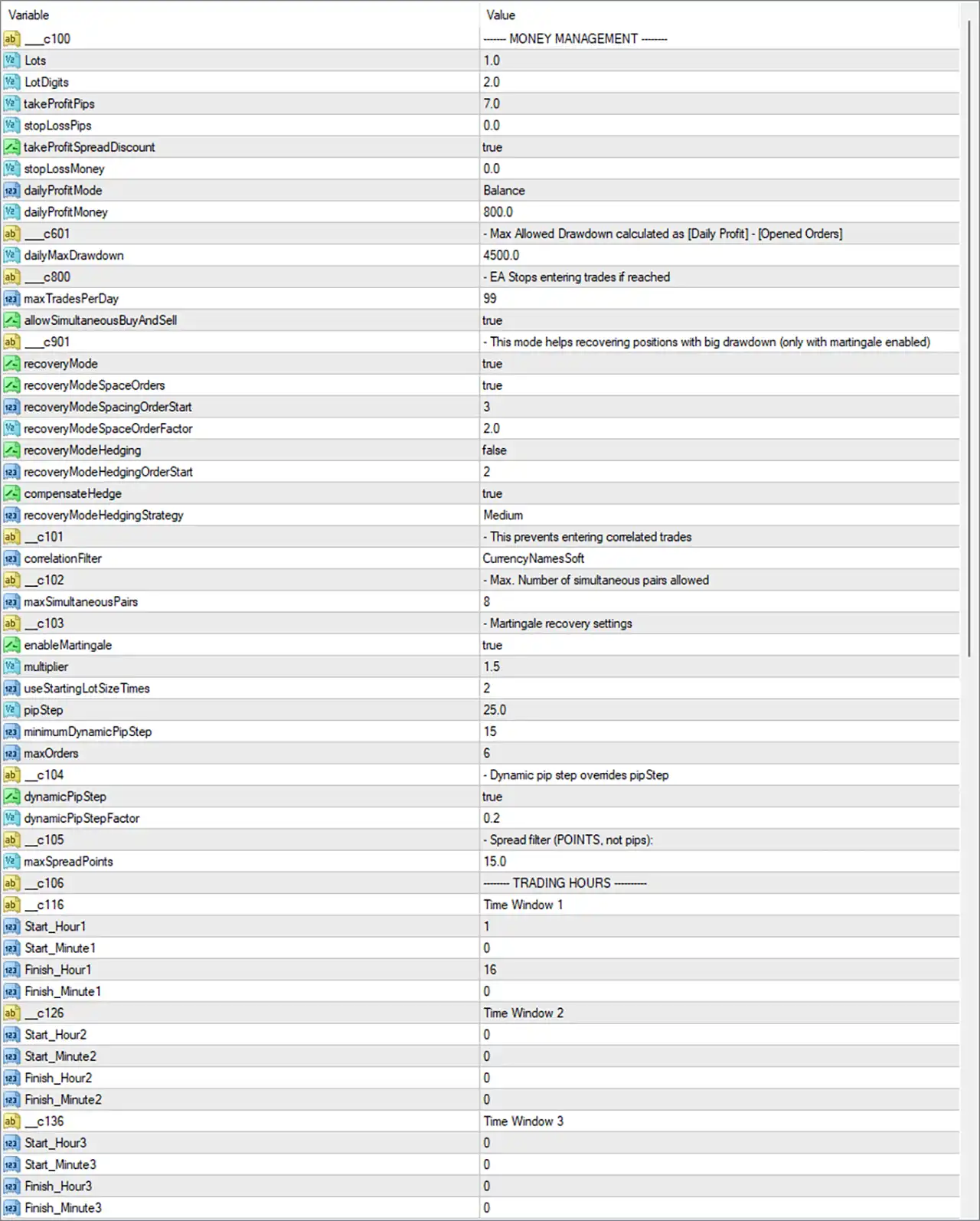
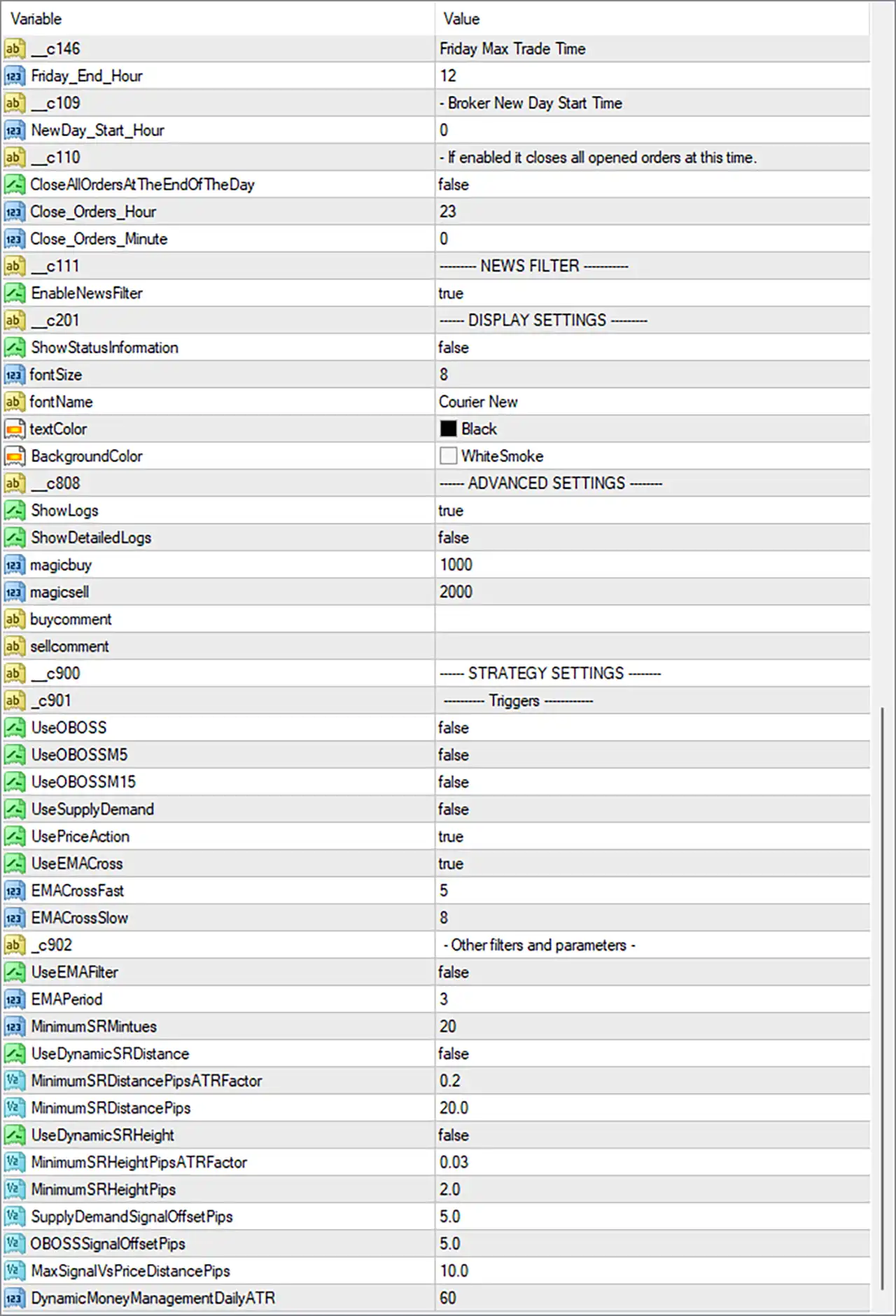
🔢 Get Funded System EA MT4 Settings Explained
🔶 Money Management
🔹 Lots = 1.0 – Sets the initial trading lot size to 1.0 lots.
🔹 LotDigits = 2.0 – Defines lot precision with 2 decimal places.
🔹 takeProfitPips = 7.0 – Sets the Take Profit target to 7.0 pips.
🔹 stopLossPips = 0.0 – Sets Stop Loss to 0.0 pips, meaning no fixed Stop Loss is applied.
🔹 takeProfitSpreadDiscount = true – Adjusts the Take Profit target by considering the current spread.
🔹 stopLossMoney = 0.0 – Disables money-based Stop Loss protection.
🔹 dailyProfitMode = Balance – Calculates daily profit based on the account balance.
🔹 dailyProfitMoney = 800.0 – Sets the daily profit target to 800.0 account currency units.
🔶 Drawdown Protection
🔹 dailyMaxDrawdown = 4500.0 – Stops opening new trades when the daily drawdown reaches 4500.0.
🔶 Trading Limits
🔹 maxTradesPerDay = 99 – Allows up to 99 trades per day.
🔹 allowSimultaneousBuyAndSell = true – Permits Buy and Sell positions simultaneously.
🔶 Recovery Mode
🔹 recoveryMode = true – Enables the recovery system for positions experiencing significant drawdown.
🔹 recoveryModeSpaceOrders = true – Activates spacing between recovery orders.
🔹 recoveryModeSpacingOrderStart = 3 – Starts spacing logic from the 3rd recovery order.
🔹 recoveryModeSpaceOrderFactor = 2.0 – Multiplies spacing distance by 2.0 for successive recovery trades.
🔹 recoveryModeHedging = false – Disables hedging within recovery mode.
🔹 recoveryModeHedgingOrderStart = 2 – Hedging would begin from order 2 if enabled.
🔹 compensateHedge = true – Enables hedge compensation calculations.
🔹 recoveryModeHedgingStrategy = Medium – Uses the Medium hedging recovery profile.
🔶 Correlation Filter
🔹 correlationFilter = CurrencyNamesSoft – Prevents trades on highly correlated currency pairs using the CurrencyNamesSoft filter.
🔹 maxSimultaneousPairs = 8 – Allows a maximum of 8 simultaneous trading pairs.
🔶 Martingale Recovery
🔹 enableMartingale = true – Enables the Martingale recovery algorithm.
🔹 multiplier = 1.5 – Multiplies lot size by 1.5 after qualifying losing trades.
🔹 useStartingLotSizeTimes = 2 – Uses 2× the starting lot size for Martingale calculations.
🔹 pipStep = 25.0 – Places additional Martingale trades every 25.0 pips.
🔹 minimumDynamicPipStep = 15 – Sets the minimum adaptive pip step to 15.
🔹 maxOrders = 6 – Limits the Martingale basket to 6 maximum orders.
🔶 Dynamic Pip Step
🔹 dynamicPipStep = true – Enables adaptive pip spacing.
🔹 dynamicPipStepFactor = 0.2 – Uses a scaling factor of 0.2 for dynamic pip calculations.
🔶 Spread Filter
🔹 maxSpreadPoints = 15.0 – Blocks new trades when spread exceeds 15.0 points.
🔶 Trading Hours
Time Window 1
🔹 Start_Hour1 = 1 – Trading begins at 01:00.
🔹 Start_Minute1 = 0 – Trading starts at minute 00.
🔹 Finish_Hour1 = 16 – Trading ends at 16:00.
🔹 Finish_Minute1 = 0 – Trading ends at minute 00.
Time Window 2
🔹 Start_Hour2 = 0 – Second session starts at 00:00.
🔹 Start_Minute2 = 0 – Second session starts at minute 00.
🔹 Finish_Hour2 = 0 – Second session ends at 00:00.
🔹 Finish_Minute2 = 0 – Second session ends at minute 00.
Time Window 3
🔹 Start_Hour3 = 0 – Third session starts at 00:00.
🔹 Start_Minute3 = 0 – Third session starts at minute 00.
🔹 Finish_Hour3 = 0 – Third session ends at 00:00.
🔹 Finish_Minute3 = 0 – Third session ends at minute 00.
🔶 Friday & Daily Controls
🔹 Friday_End_Hour = 12 – Stops Friday trading after 12:00.
🔹 NewDay_Start_Hour = 0 – Defines the broker's trading day reset at 00:00.
🔹 CloseAllOrdersAtTheEndOfTheDay = false – Keeps trades open at the end of the day.
🔹 Close_Orders_Hour = 23 – Scheduled close hour is 23:00 when enabled.
🔹 Close_Orders_Minute = 0 – Scheduled close minute is 00.
🔶 News Filter
🔹 EnableNewsFilter = true – Activates the built-in economic news filter.
🔶 Display Settings
🔹 ShowStatusInformation = false – Disables the on-chart status panel.
🔹 fontSize = 8 – Sets the display font size to 8.
🔹 fontName = Courier New – Uses Courier New as the display font.
🔹 textColor = Black – Displays text in Black.
🔹 BackgroundColor = WhiteSmoke – Uses WhiteSmoke as the panel background.
🔶 Advanced Settings
🔹 ShowLogs = true – Enables EA activity logging.
🔹 ShowDetailedLogs = false – Disables detailed diagnostic logging.
🔹 magicbuy = 1000 – Assigns Magic Number 1000 for Buy trades.
🔹 magicsell = 2000 – Assigns Magic Number 2000 for Sell trades.
🔹 buycomment – Custom Buy order comment field.
🔹 sellcomment – Custom Sell order comment field.
🔶 Strategy Settings
Trigger Modules
🔹 UseOBOSS = false – Disables the Overbought/Oversold trigger.
🔹 UseOBOSSM5 = false – Disables OB/OS detection on M5.
🔹 UseOBOSSM15 = false – Disables OB/OS detection on M15.
🔹 UseSupplyDemand = false – Disables Supply & Demand zone filtering.
🔹 UsePriceAction = true – Enables Price Action confirmation.
🔹 UseEMACross = true – Enables EMA crossover signals.
🔹 EMACrossFast = 5 – Sets the fast EMA period to 5.
🔹 EMACrossSlow = 8 – Sets the slow EMA period to 8.
Additional Filters
🔹 UseEMAFilter = false – Disables the trend EMA filter.
🔹 EMAPeriod = 3 – Sets EMA filter period to 3.
🔹 MinimumSRMinutes = 20 – Requires Support/Resistance zones to exist for at least 20 minutes.
🔹 UseDynamicSRDistance = false – Disables ATR-based Support/Resistance distance.
🔹 MinimumSRDistancePipsATRFactor = 0.2 – Uses 0.2 ATR as the minimum SR distance factor.
🔹 MinimumSRDistancePips = 20.0 – Requires at least 20.0 pips between SR zones.
🔹 UseDynamicSRHeight = false – Disables adaptive SR height calculations.
🔹 MinimumSRHeightPipsATRFactor = 0.03 – Sets the minimum SR height to 0.03 ATR.
🔹 MinimumSRHeightPips = 2.0 – Requires a minimum SR height of 2.0 pips.
🔹 SupplyDemandSignalOffsetPips = 5.0 – Offsets Supply & Demand entries by 5.0 pips.
🔹 OBOSSSignalOffsetPips = 5.0 – Offsets OB/OS signals by 5.0 pips.
🔹 MaxSignalVsPriceDistancePips = 10.0 – Limits the maximum distance between signal and market price to 10.0 pips.
🔹 DynamicMoneyManagementDailyATR = 60 – Uses a 60-period Daily ATR for adaptive money management calculations.
🔢 Conclusion
Get Funded System EA MT4 is a comprehensive Expert Advisor built with prop firm compliance and advanced risk control in mind. Its combination of dynamic money management, Martingale recovery, correlation protection, news filtering, trading session management, and Price Action with EMA Cross confirmation offers traders a highly configurable automated trading solution. Whether used for challenge accounts or live trading, the extensive parameter set allows precise optimization while maintaining strict control over drawdown and execution quality.
🔢 FAQs
❓ Does Get Funded System EA MT4 include a built-in news filter?
Yes. The EA includes an integrated news filter that can pause trading during important economic events.
❓ Can I disable the Martingale system?
Yes. Simply set enableMartingale = false to trade without Martingale recovery.
❓ Does the EA allow Buy and Sell positions at the same time?
Yes. With allowSimultaneousBuyAndSell = true, both trade directions can remain open simultaneously.
❓ How does the recovery mode work?
Recovery Mode opens additional recovery trades using configurable spacing, optional hedging parameters, and adaptive position management to help reduce drawdown.
❓ Can I customize the trading strategy filters?
Yes. You can independently enable or disable Price Action, EMA Cross, Supply & Demand, Overbought/Oversold filters, Support & Resistance filters, and several adaptive execution parameters to match your preferred trading style.
Get Get Funded FX EA MT4
Download Get Funded FX EA MT4 with its set files, read the full product details and requirements here: Get Funded FX EA MT4 →