

Introduction
Scalper AvtomatFX EA is an automated trading Expert Advisor (EA) designed for MetaTrader 4. Its configuration combines multiple trading algorithms, grid-based order management, trend-following signals, scalping logic, and advanced position management features.

The EA includes several configurable entry systems, such as I-ZZ 2.2.008, I-ZZ 3.0, Sig 4.0, and Stochastic (Stoh). It also provides Smart Turbo and Neuro Grid functionality, allowing traders to configure trading cycles, order spacing, take profit targets, and position limits.
Additional features include dynamic lot sizing, drawdown protection, trading-hour filters, hedge controls, reverse trading algorithms, and customizable chart displays. These settings provide extensive flexibility for adjusting the EA's trading behavior and managing market exposure.
Trading Algorithms and Hedge Settings
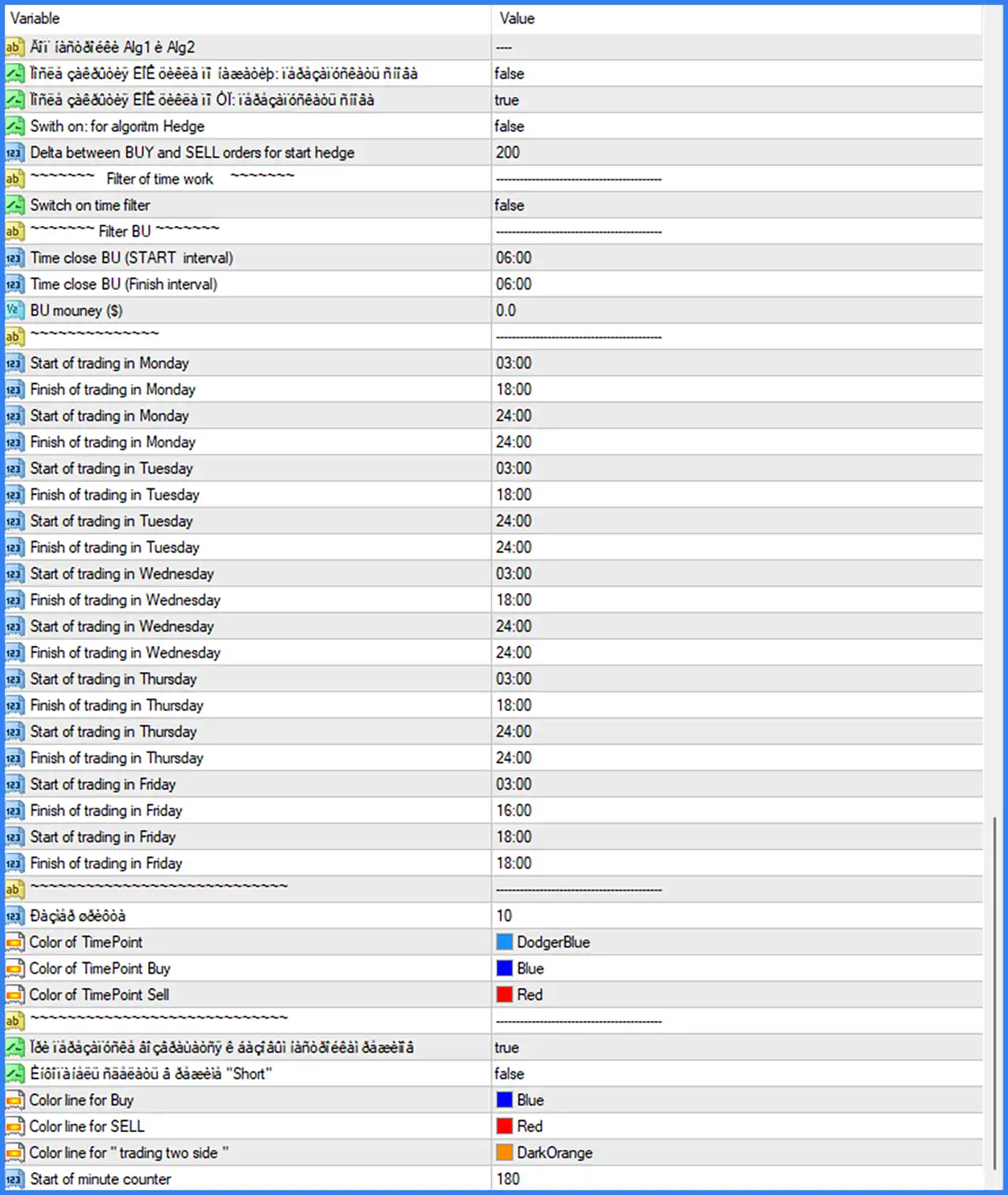
🔹 Alg1 & Alg2: ---- – Section heading for the configuration of the EA's two primary trading algorithms, Alg1 and Alg2.
🔹 [First corrupted algorithm option]: false – A Boolean option in the Alg1 and Alg2 configuration section. Its original label is unreadable in the supplied screenshot, so its exact function cannot be confirmed.
🔹 [Second corrupted algorithm option]: true – Enables the corresponding Boolean option in the Alg1 and Alg2 configuration section. The original label is corrupted and requires the EA documentation for precise identification.
🔹 Switch on: for algorithm Hedge: false – Disables the dedicated hedge algorithm, meaning this separate hedge-based trading mode is not activated in the current configuration.
🔹 Delta between BUY and SELL orders for start hedge: 200 – Sets the required difference between BUY and SELL orders to 200 before the hedge algorithm can start, when the hedge function is enabled.
Trading Time Filter Settings
🔹 Filter of time work: ---------------- – Section heading for the EA's working-time configuration, which controls when automated trading is permitted.
🔹 Switch on time filter: false – Disables the general trading-time filter, meaning the EA does not apply this particular time restriction in the current configuration.
BUY Order Time Filter Settings
🔹 Filter BU: ---------------- – Identifies the BUY order time-filter section, which contains settings for controlling BUY-related trading periods.
🔹 Time close BU (START interval): 06:00 – Sets the beginning of the configured BUY closing interval to 06:00.
🔹 Time close BU (Finish interval): 06:00 – Sets the end of the configured BUY closing interval to 06:00. Since both times are identical, the displayed interval has no duration unless the EA interprets these values using additional internal rules.
🔹 BU money ($): 0.0 – Sets the BUY-related monetary parameter to 0.0. Its precise role in BUY order management depends on the EA's internal calculation logic.
Weekly Trading Schedule
The following parameters define two daily trading intervals. The first interval is configured from 03:00 to 18:00 on Monday through Thursday, while Friday has a shorter first interval. The second interval is set to 24:00–24:00 throughout the displayed schedule.
🔹 Start of trading in Monday (Session 1): 03:00 – Sets the beginning of the first trading session on Monday to 03:00.
🔹 Finish of trading in Monday (Session 1): 18:00 – Sets the end of the first Monday trading session to 18:00.
🔹 Start of trading in Monday (Session 2): 24:00 – Sets the beginning of the second Monday trading interval to 24:00.
🔹 Finish of trading in Monday (Session 2): 24:00 – Sets the end of the second Monday trading interval to 24:00.
🔹 Start of trading in Tuesday (Session 1): 03:00 – Defines the opening time of the first Tuesday trading session.
🔹 Finish of trading in Tuesday (Session 1): 18:00 – Defines the closing time of the first Tuesday trading session.
🔹 Start of trading in Tuesday (Session 2): 24:00 – Sets the beginning of the second Tuesday trading interval to 24:00.
🔹 Finish of trading in Tuesday (Session 2): 24:00 – Sets the end of the second Tuesday trading interval to 24:00.
🔹 Start of trading in Wednesday (Session 1): 03:00 – Sets the starting time for the first Wednesday trading session.
🔹 Finish of trading in Wednesday (Session 1): 18:00 – Sets the finishing time for the first Wednesday trading session.
🔹 Start of trading in Wednesday (Session 2): 24:00 – Sets the beginning of the second Wednesday trading interval.
🔹 Finish of trading in Wednesday (Session 2): 24:00 – Sets the ending time of the second Wednesday trading interval.
🔹 Start of trading in Thursday (Session 1): 03:00 – Sets the beginning of the first Thursday trading session.
🔹 Finish of trading in Thursday (Session 1): 18:00 – Sets the end of the first Thursday trading session.
🔹 Start of trading in Thursday (Session 2): 24:00 – Sets the beginning of the second Thursday trading interval.
🔹 Finish of trading in Thursday (Session 2): 24:00 – Sets the end of the second Thursday trading interval.
🔹 Start of trading in Friday (Session 1): 03:00 – Sets the beginning of the first Friday trading session.
🔹 Finish of trading in Friday (Session 1): 16:00 – Sets the end of the first Friday trading session, allowing the EA to use a shorter trading window before the weekend.
🔹 Start of trading in Friday (Session 2): 18:00 – Sets the beginning of the second Friday trading interval to 18:00.
🔹 Finish of trading in Friday (Session 2): 18:00 – Sets the end of the second Friday trading interval to 18:00.
Chart Display and Signal Visualization Settings
🔹 [Corrupted numerical parameter]: 10 – Sets an additional numerical parameter in the chart visualization section. Its original label is unreadable in the screenshot, so its precise purpose cannot be established.
🔹 Color of TimePoint: DodgerBlue – Sets the general TimePoint marker color to DodgerBlue, making the EA's time-related chart markers easier to distinguish.
🔹 Color of TimePoint Buy: Blue – Assigns blue to BUY TimePoint markers, helping traders visually identify bullish or BUY-related signals.
🔹 Color of TimePoint Sell: Red – Assigns red to SELL TimePoint markers, providing a contrasting visual indication for bearish or SELL-related signals.
🔹 [Corrupted chart display option]: true – Enables a Boolean chart or signal display option. The original parameter name is unreadable in the supplied image.
🔹 [Corrupted Short signal option]: false – Disables the corresponding option associated with Short signals. The exact original label is corrupted.
🔹 Color line for Buy: Blue – Sets the color of BUY-related chart lines to blue, making BUY levels or signals easier to identify.
🔹 Color line for SELL: Red – Sets the color of SELL-related chart lines to red, helping distinguish SELL levels from BUY levels.
🔹 Color line for "trading two side": DarkOrange – Sets the chart line color for two-sided trading activity to DarkOrange, visually distinguishing this trading condition from individual BUY and SELL signals.
🔹 Start of minute counter: 180 – Sets the starting value of the minute counter to 180, which may be used by the EA's time-related chart or signal calculation system.
General Identification and Lot Management
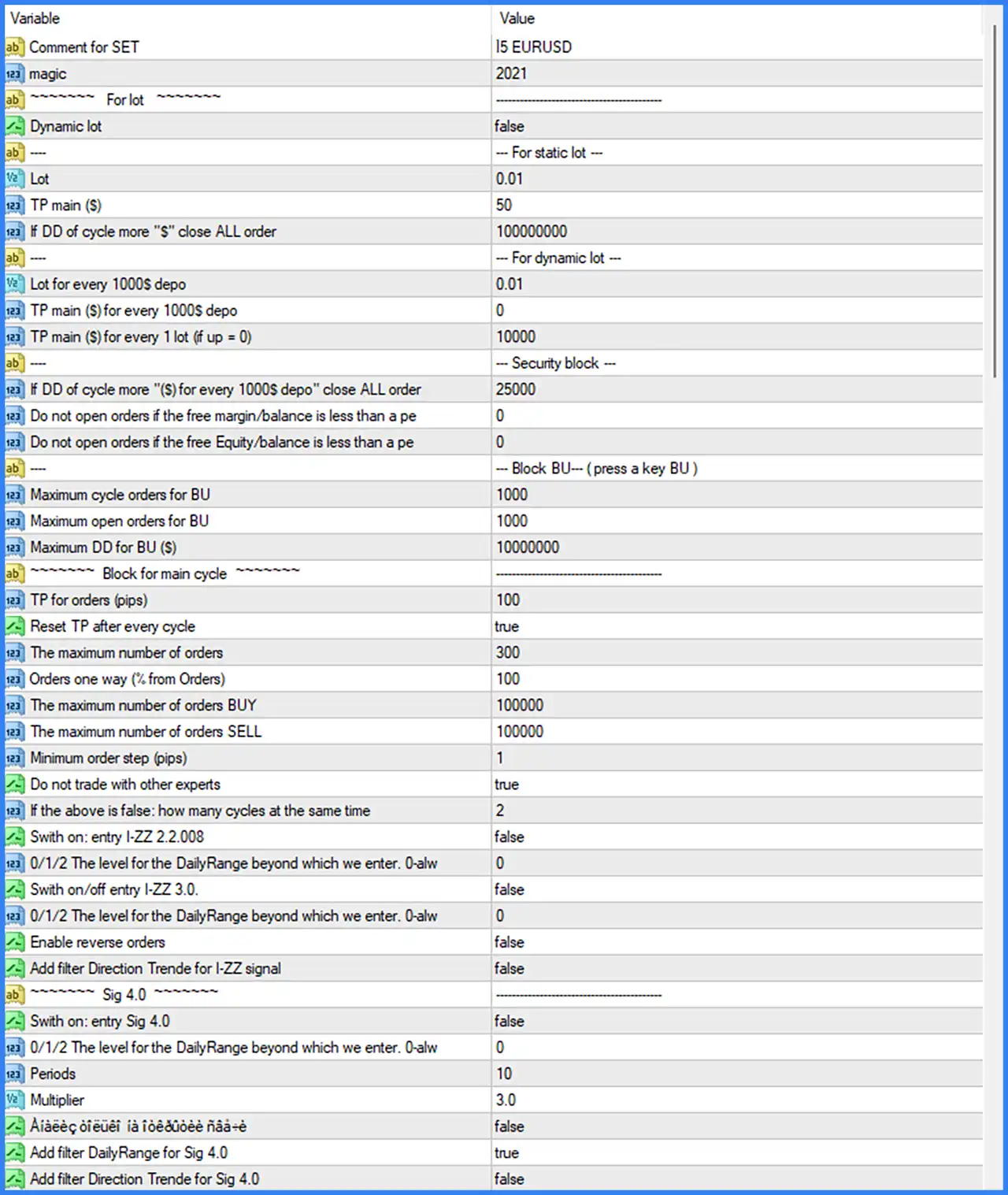
🔹 Comment for SET: 15 EURUSD – Sets the custom identification comment to "15 EURUSD", which can help traders recognize the selected EA configuration in the trading environment.
🔹 magic: 2021 – Assigns Magic Number 2021 to trades opened by the EA, allowing MetaTrader 4 to distinguish its positions from manual trades and other Expert Advisors.
🔹 For lot: ---------------- – Section heading for the EA's position-sizing and lot management configuration.
🔹 Dynamic lot: false – Disables dynamic lot sizing, meaning the EA uses the static lot configuration rather than automatically adjusting position volume through its dynamic lot calculation.
Static Lot Configuration
🔹 Static lot: --- For static lot --- – Identifies the fixed-volume configuration section.
🔹 Lot: 0.01 – Sets the fixed trading volume to 0.01 lots, providing the default position size when dynamic lot sizing is disabled.
🔹 TP main ($): 50 – Sets the main take profit target to 50 monetary units, according to the EA's account-currency-based profit calculation.
🔹 If DD of cycle more "$" close ALL order: 100000000 – Sets the cycle drawdown threshold to 100000000 monetary units. When the configured condition is reached, the EA's logic is designed to close all orders in the cycle.
Dynamic Lot Configuration
🔹 For dynamic lot: --- For dynamic lot --- – Section heading for the alternative position-sizing method based on account deposit.
🔹 Lot for every 1000$ depo: 0.01 – Defines a trading volume of 0.01 lots for every 1000$ of account deposit when dynamic lot sizing is enabled.
🔹 TP main ($) for every 1000$ depo: 0 – Sets the main take profit adjustment to 0 for every 1000$ of deposit, indicating that this particular dynamic profit adjustment is currently set to zero.
🔹 TP main ($) for every 1 lot (if up = 0): 10000 – Sets the alternative take profit parameter to 10000 for every 1 lot when the preceding dynamic take profit value is 0.
Security and Account Protection Settings
🔹 Security block: --- Security block --- – Identifies the account protection section, which contains drawdown and available-margin restrictions.
🔹 If DD of cycle more "$" for every 1000$ depo close ALL order: 25000 – Sets the cycle drawdown threshold to 25000 monetary units for every 1000$ of deposit. This parameter is associated with the EA's automatic all-order closing protection.
🔹 Do not open orders if the free margin/balance is less than a percentage: 0 – Sets the minimum free-margin-to-balance percentage restriction to 0. This effectively leaves this particular threshold inactive under the usual zero-disabled interpretation.
🔹 Do not open orders if the free Equity/balance is less than a percentage: 0 – Sets the minimum free-equity-to-balance percentage restriction to 0, meaning no additional percentage threshold is specified in this input.
BUY Order Blocking Settings
🔹 Block BU (press a key BU): ---------------- – Section heading for the BUY order blocking and protection parameters.
🔹 Maximum cycle orders for BU: 1000 – Sets the maximum number of BUY orders permitted within a trading cycle to 1000.
🔹 Maximum open orders for BU: 1000 – Sets the maximum number of simultaneously open BUY orders to 1000 according to this specific BUY management limit.
🔹 Maximum DD for BU ($): 10000000 – Sets the maximum BUY-related drawdown threshold to 10000000 monetary units, providing a separate loss-control parameter for BUY positions.
Main Trading Cycle Settings
🔹 Block for main cycle: ---------------- – Identifies the main trading cycle configuration section, which controls profit targets, order limits, and trade spacing.
🔹 TP for orders (pips): 100 – Sets the take profit distance for individual orders to 100 pips, defining the configured price movement target for order-level profit taking.
🔹 Reset TP after every cycle: true – Enables the automatic reset of the take profit setting after each completed trading cycle, allowing the next cycle to use a refreshed TP configuration.
🔹 The maximum number of orders: 300 – Sets the maximum order limit for the main trading system to 300, controlling the total number of orders permitted by this parameter.
🔹 Orders one way (% from Orders): 100 – Sets the one-direction order allocation parameter to 100%, defining the configured percentage of orders assigned to one trading direction.
🔹 The maximum number of orders BUY: 100000 – Sets the maximum BUY order limit to 100000, providing a separate upper limit for BUY-side order management.
🔹 The maximum number of orders SELL: 100000 – Sets the maximum SELL order limit to 100000, providing an independent upper limit for SELL-side order management.
🔹 Minimum order step (pips): 1 – Sets the minimum distance between consecutive orders to 1 pip, defining the smallest permitted order spacing in the main cycle.
🔹 Do not trade with other experts: true – Enables the restriction against trading alongside other Expert Advisors, helping prevent potential interference between automated trading systems.
🔹 If the above is false: how many cycles at the same time: 2 – Sets the maximum number of simultaneous trading cycles to 2 when the restriction against trading with other Expert Advisors is disabled.
I-ZZ 2.2.008 Entry Settings
🔹 Switch on: entry I-ZZ 2.2.008: false – Disables the I-ZZ 2.2.008 entry algorithm, meaning this particular signal system is not used for new entries in the displayed configuration.
🔹 0/1/2 The level for the DailyRange beyond which we enter. 0-alw: 0 – Sets the Daily Range entry-level parameter to 0. The description indicates that 0 represents an always-allowed condition for this filter.
I-ZZ 3.0 Entry Settings
🔹 Switch on/off entry I-ZZ 3.0: false – Disables the I-ZZ 3.0 entry algorithm, preventing this signal module from generating entries while the setting remains off.
🔹 0/1/2 The level for the DailyRange beyond which we enter. 0-alw: 0 – Sets the Daily Range threshold parameter to 0, corresponding to the always-allowed configuration described by the input label.
🔹 Enable reverse orders: false – Disables reverse-order execution, so the EA does not activate this specific opposite-direction trading function.
🔹 Add filter Direction Trende for I-ZZ signal: false – Disables the trend-direction filter for I-ZZ signals, meaning this additional directional confirmation is not applied by the current configuration.
Sig 4.0 Trading Settings
🔹 Sig 4.0: ---------------- – Section heading for the Sig 4.0 signal-based entry configuration.
🔹 Switch on: entry Sig 4.0: false – Disables the Sig 4.0 entry module, preventing this signal system from generating new trading entries.
🔹 0/1/2 The level for the DailyRange beyond which we enter. 0-alw: 0 – Sets the Daily Range entry threshold to 0, representing the always-allowed option according to the parameter description.
🔹 Periods: 10 – Sets the calculation period to 10 for the Sig 4.0 indicator or signal system.
🔹 Multiplier: 3.0 – Sets the Sig 4.0 multiplier to 3.0, defining the factor used in its internal signal or indicator calculations.
🔹 [Corrupted Sig 4.0 option]: false – Disables an additional Boolean option in the Sig 4.0 section. Its original name is unreadable in the supplied screenshot.
🔹 Add filter DailyRange for Sig 4.0: true – Enables the Daily Range filter for Sig 4.0, allowing the EA to apply daily price-range conditions when evaluating this signal module.
🔹 Add filter Direction Trende for Sig 4.0: false – Disables the trend-direction filter for Sig 4.0, meaning this additional directional confirmation is not required by the current configuration.
Stochastic (Stoh) Indicator Settings
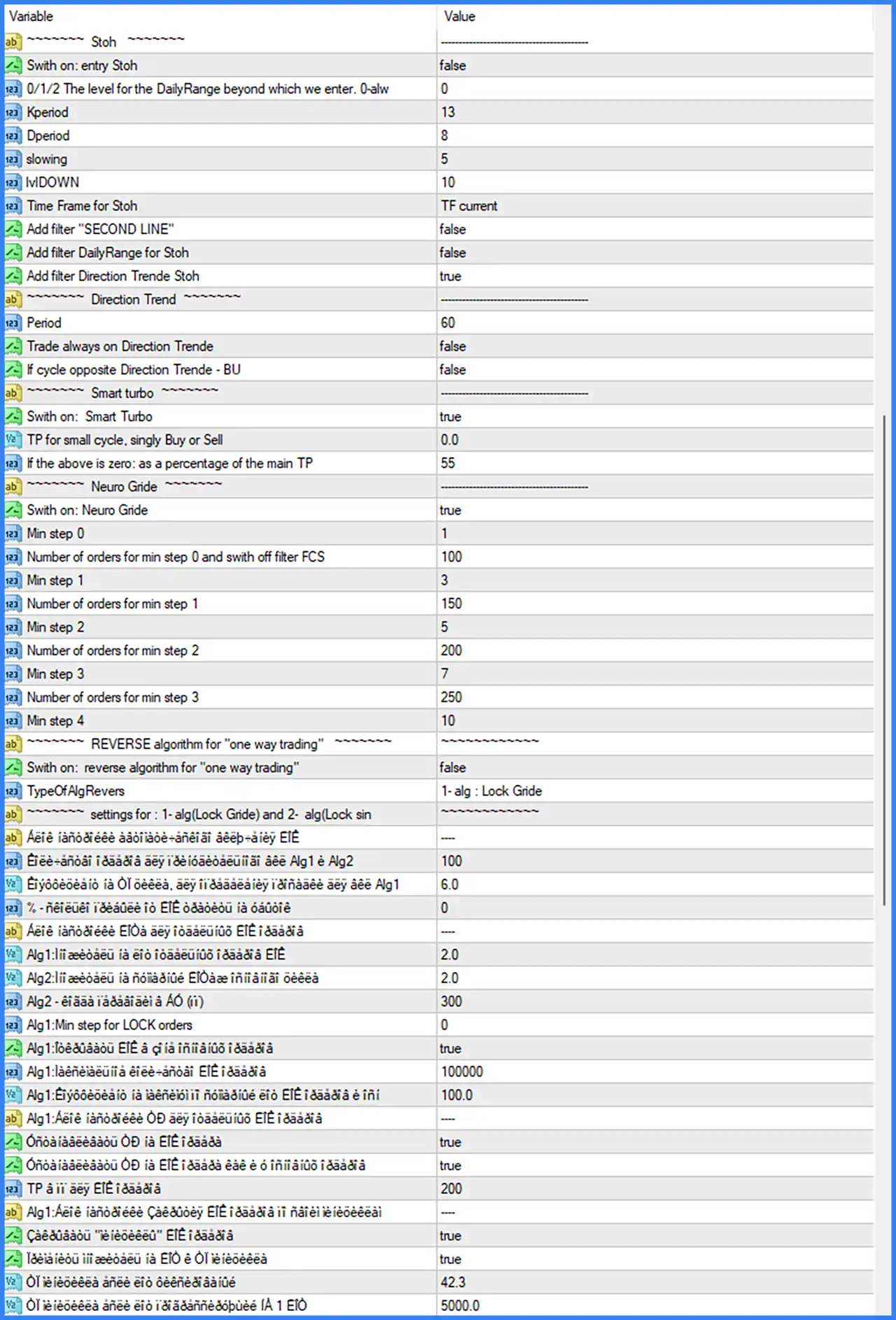
🔹 Stoh: ---------------- – Section heading for the Stochastic indicator configuration used by the EA's signal system.
🔹 Switch on: entry Stoh: false – Disables Stochastic-based entries, so this indicator does not independently generate new trading entries in the current configuration.
🔹 0/1/2 The level for the DailyRange beyond which we enter. 0-alw: 0 – Sets the Daily Range threshold for Stochastic entries to 0, corresponding to the always-allowed setting described in the input label.
🔹 Kperiod: 13 – Sets the Stochastic %K calculation period to 13, determining the number of price bars used in the main Stochastic calculation.
🔹 Dperiod: 8 – Sets the Stochastic %D smoothing period to 8, controlling the calculation period of the signal line.
🔹 slowing: 5 – Sets the Stochastic slowing parameter to 5, defining the smoothing factor applied to the %K calculation.
🔹 lvlDOWN: 10 – Sets the lower Stochastic reference level to 10, which can be used to identify deeply oversold market conditions.
🔹 Time Frame for Stoh: TF current – Uses the current chart timeframe for Stochastic calculations, allowing the indicator to adapt to the timeframe of the active MT4 chart.
🔹 Add filter "SECOND LINE": false – Disables the additional Second Line filter, so this confirmation condition is not applied to Stochastic entries.
🔹 Add filter DailyRange for Stoh: false – Disables the Daily Range filter for the Stochastic module, meaning daily price-range restrictions are not applied through this option.
🔹 Add filter Direction Trende Stoh: true – Enables the trend-direction filter for Stochastic signals, adding directional confirmation to this entry module when it is activated.
Direction Trend Settings
🔹 Direction Trend: ---------------- – Section heading for the directional trend analysis configuration.
🔹 Period: 60 – Sets the Direction Trend calculation period to 60, defining the number of bars or data points used by the trend analysis algorithm.
🔹 Trade always on Direction Trende: false – Disables unconditional trading based on the Direction Trend signal, meaning the EA does not automatically trade every signal from this module.
🔹 If cycle opposite Direction Trende - BU: false – Disables the option associated with handling a BUY cycle when its direction conflicts with the Direction Trend signal.
Smart Turbo Settings
🔹 Smart turbo: ---------------- – Section heading for the Smart Turbo trading functionality.
🔹 Switch on: Smart Turbo: true – Enables Smart Turbo, activating this additional trading management module according to the EA's internal conditions.
🔹 TP for small cycle, singly Buy or Sell: 0.0 – Sets the take profit target for a small cycle containing only BUY or SELL orders to 0.0, indicating that no separate fixed target is specified by this input.
🔹 If the above is zero: as a percentage of the main TP: 55 – Sets the alternative small-cycle take profit to 55% of the main TP when the preceding small-cycle TP parameter is zero.
Neuro Grid Settings
🔹 Neuro Gride: ---------------- – Section heading for the Neuro Grid order management system, which configures minimum order spacing and order quantities at different grid levels.
🔹 Switch on: Neuro Gride: true – Enables Neuro Grid functionality, allowing the EA to apply its configured grid-based order management logic.
🔹 Min step 0: 1 – Sets the minimum grid spacing for level 0 to 1, defining the initial distance parameter used by this grid level.
🔹 Number of orders for min step 0 and switch off filter FCS: 100 – Sets the order quantity associated with minimum step 0 to 100 when the FCS filter is switched off.
🔹 Min step 1: 3 – Sets the minimum grid spacing for level 1 to 3, increasing the configured distance compared with level 0.
🔹 Number of orders for min step 1: 150 – Sets the number of orders associated with minimum step 1 to 150.
🔹 Min step 2: 5 – Sets the minimum grid spacing for level 2 to 5, defining a wider spacing parameter for this grid stage.
🔹 Number of orders for min step 2: 200 – Sets the number of orders associated with minimum step 2 to 200.
🔹 Min step 3: 7 – Sets the minimum grid spacing for level 3 to 7, providing the next spacing level in the Neuro Grid configuration.
🔹 Number of orders for min step 3: 250 – Sets the number of orders associated with minimum step 3 to 250.
🔹 Min step 4: 10 – Sets the minimum grid spacing for level 4 to 10, defining the largest displayed minimum-step parameter in this Neuro Grid section.
Reverse Algorithm for One-Way Trading
🔹 REVERSE algorithm for "one way trading": ---------------- – Section heading for the reverse algorithm, which provides alternative position-management logic for one-direction trading cycles.
🔹 Switch on: reverse algorithm for "one way trading": false – Disables the reverse algorithm for one-way trading, so this alternative trading mechanism is not active in the current configuration.
🔹 TypeOfAlgRevers: 1 - alg : Lock Grid – Selects reverse algorithm type 1, identified as Lock Grid. This mode is associated with locking or managing grid positions through the selected reverse algorithm.
🔹 Settings for: 1 - alg (Lock Grid) and 2 - alg (Lock sin): ---------------- – Section heading for the configuration parameters of the two available reverse algorithm types.
🔹 [Corrupted reverse algorithm parameter]: ---- – A subsection heading or descriptive parameter whose original label is unreadable in the supplied screenshot.
🔹 [Corrupted parameter for Alg1 and Alg2]: 100 – Sets a shared or related numerical parameter for the Alg1 and Alg2 reverse algorithm configuration to 100. Its exact calculation purpose cannot be confirmed from the corrupted label.
🔹 [Corrupted Alg1 parameter]: 6.0 – Sets an Alg1-related numerical parameter to 6.0. The original label is unreadable, so its precise role requires confirmation from the EA documentation.
🔹 [Corrupted percentage parameter]: 0 – Sets an additional percentage-related parameter to 0, leaving this particular calculation value at zero.
🔹 [Corrupted Alg1/Alg2 settings heading]: ---- – Identifies another subsection of the reverse algorithm configuration.
🔹 Alg1: [corrupted parameter] for EIE: 2.0 – Sets an Alg1-related EIE parameter to 2.0. The original technical label is corrupted, so the precise calculation cannot be established.
🔹 Alg2: [corrupted parameter] for EIE: 2.0 – Sets the corresponding Alg2-related EIE parameter to 2.0, matching the displayed Alg1 value.
🔹 Alg2 - [corrupted parameter] (ii): 300 – Sets an additional Alg2 numerical parameter to 300. Its exact purpose is not identifiable from the screenshot.
🔹 Alg1: Min step for LOCK orders: 0 – Sets the minimum step for Alg1 LOCK orders to 0, indicating that no additional positive minimum-step value is specified through this parameter.
🔹 Alg1: [corrupted EIE option]: true – Enables an additional Alg1-related EIE function. The original parameter name is corrupted in the screenshot.
🔹 Alg1: [corrupted numerical parameter]: 100000 – Sets an Alg1-related numerical threshold or limit to 100000. Its exact meaning cannot be verified from the displayed label.
🔹 Alg1: [corrupted EIE parameter]: 100.0 – Sets an additional Alg1 EIE-related parameter to 100.0, defining the displayed numerical value for this algorithm setting.
🔹 [Corrupted Alg1 subsection]: ---- – Marks another subsection of the Alg1 reverse algorithm configuration.
🔹 [Corrupted option – first Boolean]: true – Enables the corresponding reverse algorithm option. The original label is unreadable and cannot be reliably reconstructed.
🔹 [Corrupted option – second Boolean]: true – Enables another Boolean option in the reverse algorithm section, although its exact purpose is not identifiable from the screenshot.
🔹 TP for all orders: 200 – Sets the take profit parameter for all relevant orders in this reverse algorithm configuration to 200.
🔹 [Corrupted Alg1 subsection]: ---- – Introduces another group of Alg1 reverse algorithm parameters.
🔹 [Corrupted Alg1 option – first]: true – Enables the corresponding Alg1 Boolean option in this subsection.
🔹 [Corrupted Alg1 option – second]: true – Enables another Alg1-related Boolean option, according to the displayed configuration.
🔹 [Corrupted Alg1 numerical parameter]: 42.3 – Sets an additional Alg1-related numerical parameter to 42.3. Its original label is unreadable in the supplied image.
🔹 [Corrupted Alg1 numerical parameter]: 5000.0 – Sets the final displayed Alg1-related numerical parameter to 5000.0. The exact function of this value requires the original readable parameter label or EA documentation.