

This guide walks through the inputs of Stability Pro MT4 with the values recommended for live trading. The set files that come with the EA already contain these settings, so you can load them in one click and adjust only what your broker or account needs.
🔢 Stability Pro MT4 Settings Guide
Stability Pro MT4 is an automated trading Expert Advisor designed with a strong focus on configurable trade management, account protection, position sizing and flexible execution settings.
The EA provides controls for Buy and Sell trading, spread filtering, virtual Take Profit, lot-size calculation, maximum drawdown protection, account-balance-based position sizing, and broker lot limitations.
With dedicated risk-management parameters and customizable trading controls, Stability Pro MT4 gives traders the ability to adapt the EA configuration to different account sizes and trading environments.
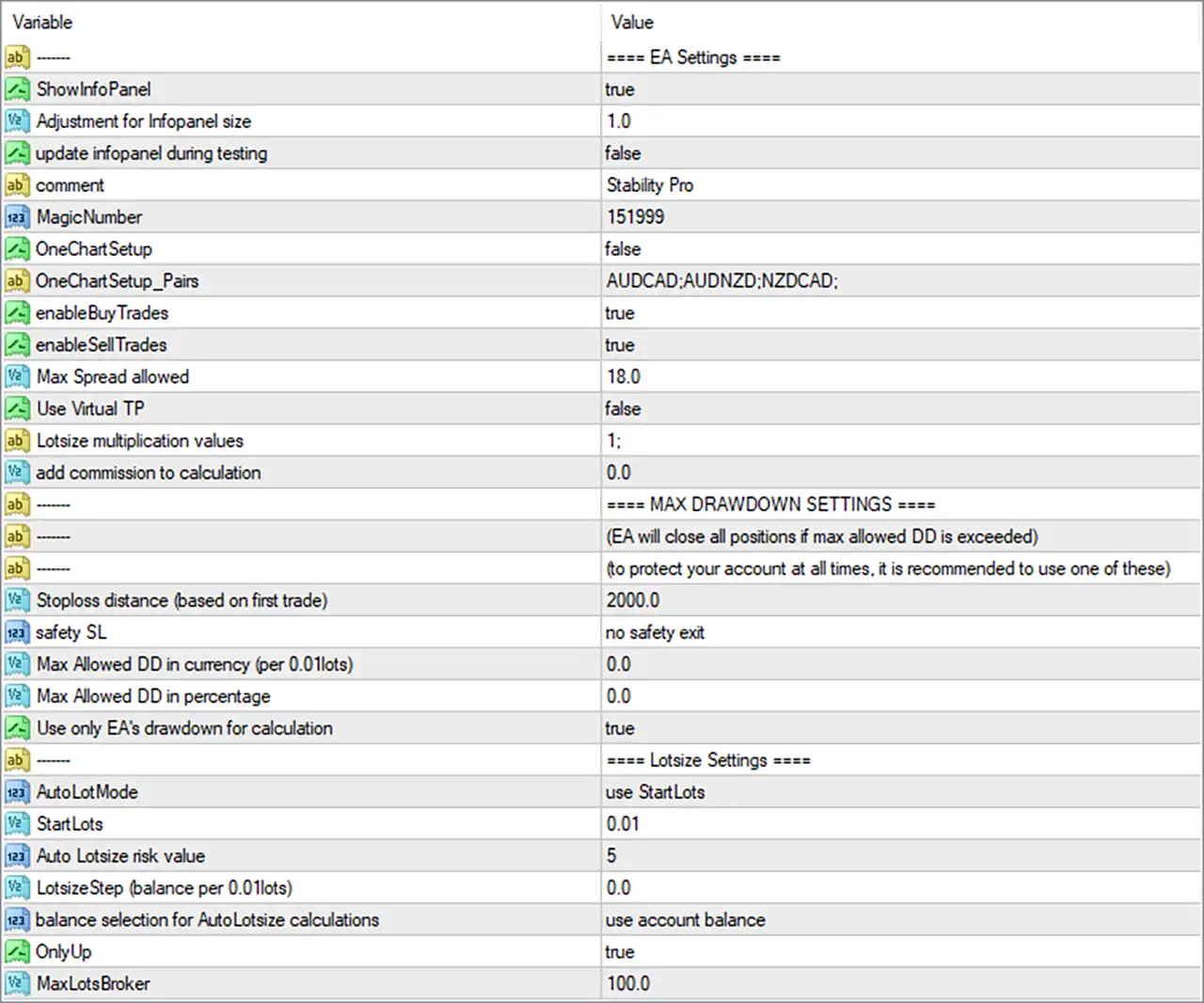
🔢 Stability Pro MT4 Input Settings
⚙️ EA Settings
🔹 ShowInfoPanel = true — Enables the EA information panel on the MT4 chart, allowing important trading information to be displayed.
🔹 Adjustment for Infopanel size = 1.0 — Sets the information-panel size adjustment to 1.0, defining the configured display scale.
🔹 update infopanel during testing = false — Disables information-panel updates while the EA is running during Strategy Tester or backtesting operations.
🔹 comment = Stability Pro — Sets Stability Pro as the trade comment used to identify positions opened by the EA.
🔹 MagicNumber = 151999 — Assigns the unique Magic Number 151999, allowing the EA to identify and manage its own trades.
🔹 OneChartSetup = false — Disables the One Chart Setup mode in the displayed configuration.
🔹 OneChartSetup_Pairs = AUDCAD:AUDNZD:NZDCAD: — Defines the configured One Chart Setup symbols as AUDCAD, AUDNZD, and NZDCAD.
🔹 enableBuyTrades = true — Enables Buy trades, allowing the EA to open long positions when its trading conditions are satisfied.
🔹 enableSellTrades = true — Enables Sell trades, allowing the EA to open short positions when its trading conditions are satisfied.
🔹 Max Spread allowed = 18.0 — Sets the maximum allowed spread parameter to 18.0, providing a spread filter for trade execution.
🔹 Use Virtual TP = false — Disables the use of a virtual Take Profit mechanism in the displayed configuration.
🔹 Lotsize multiplication values = 1: — Sets the displayed lot-size multiplication sequence to 1:.
🔹 add commission to calculation = 0.0 — Sets the commission adjustment used in calculations to 0.0.
⚙️ Maximum Drawdown Settings
The EA's MAX DRAWDOWN SETTINGS section states that the EA can close all positions if the maximum allowed drawdown is exceeded. The displayed panel also recommends using one of the available maximum-drawdown protection methods to help protect the account.
🔹 Stoploss distance (based on first trade) = 2000.0 — Sets the Stop Loss distance based on the first trade to 2000.0.
🔹 safety SL = no safety exit — Sets the safety Stop Loss option to no safety exit, meaning no safety-exit mode is selected in the displayed configuration.
🔹 Max Allowed DD in currency (per 0.01lots) = 0.0 — Sets the maximum allowed drawdown measured in currency per 0.01 lots to 0.0.
🔹 Max Allowed DD in percentage = 0.0 — Sets the maximum allowed drawdown percentage to 0.0.
🔹 Use only EA's drawdown for calculation = true — Enables the option to calculate drawdown using only the drawdown associated with the EA.
⚙️ Lotsize Settings
🔹 AutoLotMode = use StartLots — Selects use StartLots as the active lot-size calculation method.
🔹 StartLots = 0.01 — Sets the starting trading volume to 0.01 lots.
🔹 Auto Lotsize risk value = 5 — Sets the Auto Lotsize risk value to 5 for the EA's automatic position-sizing calculations.
🔹 LotsizeStep (balance per 0.01lots) = 0.0 — Sets the balance step associated with each 0.01 lots to 0.0.
🔹 balance selection for AutoLotsize calculations = use account balance — Configures AutoLotsize calculations to use the account balance as the balance reference.
🔹 OnlyUp = true — Enables the OnlyUp option in the lot-size management system.
🔹 MaxLotsBroker = 100.0 — Sets the maximum broker lot-size limit used by the EA to 100.0 lots.
🔢 Stability Pro MT4 Risk Management Overview
Stability Pro MT4 includes several configurable layers for managing position size and account drawdown. The displayed setup uses StartLots = 0.01 and selects use StartLots as the AutoLotMode. The EA also uses an Auto Lotsize risk value of 5 and selects account balance as the reference for AutoLotsize calculations.
The EA provides dedicated maximum-drawdown controls, including Stoploss distance = 2000.0, Max Allowed DD in currency (per 0.01lots) = 0.0, and Max Allowed DD in percentage = 0.0. The setting Use only EA's drawdown for calculation = true limits the drawdown calculation to the EA's own trading activity according to the parameter description.
For execution conditions, Max Spread allowed = 18.0 provides the configured spread limit, while Use Virtual TP = false means virtual Take Profit is disabled in the displayed setup.
🔢 Trading Direction and Symbol Configuration
Both trading directions are enabled in the displayed configuration:
🔹 Buy Trading = enabled — enableBuyTrades = true, allowing Buy positions.
🔹 Sell Trading = enabled — enableSellTrades = true, allowing Sell positions.
The screenshot also contains a One Chart Setup symbol list:
🔹 AUDCAD — Included in the OneChartSetup_Pairs list.
🔹 AUDNZD — Included in the OneChartSetup_Pairs list.
🔹 NZDCAD — Included in the OneChartSetup_Pairs list.
However, OneChartSetup = false, so the One Chart Setup feature itself is disabled in the displayed configuration.
🔢 Conclusion
Stability Pro MT4 offers a detailed configuration framework for automated trading, combining trade-direction controls, spread filtering, virtual Take Profit management, maximum drawdown protection, and flexible lot-size calculations.
Get Stability Pro MT4
Download Stability Pro MT4 with its set files, read the full product details and requirements here: Stability Pro MT4 →