


🔢 JFX EA MT4 Settings: Complete Inputs Guide
JFX EA MT4 is an automated trading Expert Advisor featuring adjustable lot sizing, order management, trailing stop controls, and averaging functionality. Its configurable parameters allow traders to define trade volume, execution limits, profit targets, and the way additional positions are managed.
Understanding each input is important because the combination of averaging and lot multiplication can significantly affect overall account risk.
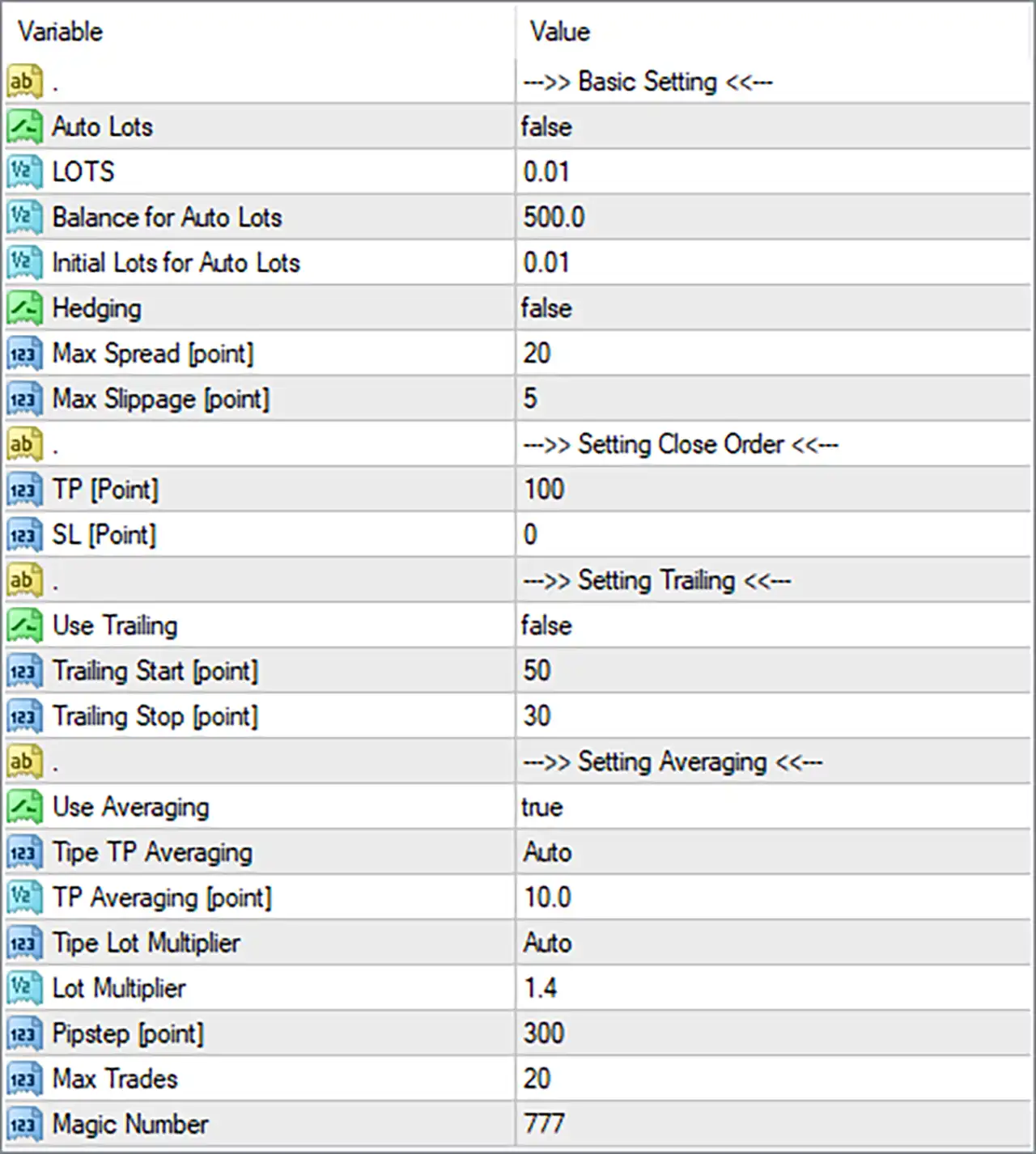
⚙️ Basic Settings
🔹 Auto Lots = false: Disables automatic lot sizing, so the EA uses the fixed lot value specified in the LOTS parameter.
🔹 LOTS = 0.01: Sets the fixed trading volume to 0.01 lots when automatic lot sizing is disabled.
🔹 Balance for Auto Lots = 500.0: Sets the balance reference value to 500.0 for the EA's automatic lot-sizing calculation.
🔹 Initial Lots for Auto Lots = 0.01: Defines the initial lot size as 0.01 when the automatic lot-sizing function is used.
🔹 Hedging = false: Disables the hedging option, although the precise behavior depends on how the EA implements this function.
🔹 Max Spread [point] = 20: Sets the maximum permitted spread to 20 points. This filter is intended to restrict trading when the spread exceeds the configured threshold.
🔹 Max Slippage [point] = 5: Sets the maximum permitted execution slippage to 5 points, helping control the difference between the requested and executed price.
⚙️ Close Order Settings
🔹 TP [Point] = 100: Sets the Take Profit distance to 100 points for orders managed by this setting.
🔹 SL [Point] = 0: Sets the Stop Loss value to 0, which commonly disables the fixed Stop Loss. Confirm the EA's implementation before assuming that other protective exits are also disabled.
⚙️ Trailing Settings
🔹 Use Trailing = false: Disables the trailing stop function, so the EA does not use this feature to move stop-loss levels as trades become profitable.
🔹 Trailing Start [point] = 50: Sets the trailing activation threshold to 50 points. This value becomes relevant when trailing is enabled.
🔹 Trailing Stop [point] = 30: Sets the trailing stop distance to 30 points. This value becomes relevant when the trailing function is active.
⚙️ Averaging Settings
🔹 Use Averaging = true: Enables the averaging function, allowing the EA to manage a sequence of positions according to its programmed averaging rules.
🔹 Tipe TP Averaging = Auto: Selects the Auto mode for the averaging Take Profit calculation. The exact calculation method depends on the EA's internal logic.
🔹 TP Averaging [point] = 10.0: Sets the averaging Take Profit parameter to 10.0 points for the selected averaging mode.
🔹 Tipe Lot Multiplier = Auto: Selects the automatic mode for determining the lot multiplier behavior. The precise calculation is defined by the EA.
🔹 Lot Multiplier = 1.4: Sets the lot multiplier value to 1.4. If applied multiplicatively to successive positions, the lot size may increase by a factor of 1.4 at each step.
🔹 Pipstep [point] = 300: Sets the pip step distance to 300 points, which determines the configured spacing used by the averaging sequence.
🔹 Max Trades = 20: Sets the maximum trade count to 20 for the EA's applicable trade sequence or management logic. Confirm whether the EA counts all positions or only positions within a specific sequence.
🔹 Magic Number = 777: Assigns the identifier 777 to help MT4 distinguish trades managed by this EA from trades associated with other systems.
🔢 Conclusion
JFX EA MT4 combines fixed or automatic lot sizing with configurable Take Profit, spread and slippage filters, trailing stop options, and an averaging system. The displayed defaults use 0.01 lots, a 100-point Take Profit, disabled fixed Stop Loss and trailing stop settings, and enabled averaging with a 1.4 lot multiplier and a maximum of 20 trades.
The averaging configuration deserves particular attention: if additional positions increase in volume, total exposure can grow quickly when the market moves against the initial trade. Testing the settings on a demo account and evaluating maximum drawdown, margin usage, and total basket exposure are sensible steps before live deployment.


