

Introduction
Aselole Po Stop Limit Multi Signal Hedge EA is an automated trading Expert Advisor (EA) designed with multiple signal configurations, pending order management, hedging functionality, and averaging capabilities for MetaTrader 4.

The EA provides flexible trading controls, including Buy and Sell order management, time filtering, spread restrictions, automatic lot sizing, fixed lot settings, and incremental lot progression. It also incorporates dynamic trade management through Take Profit, Stop Loss, trailing protection, and profit-based order closing.
Another important component is its multi-signal configuration, which includes Bollinger Bands, Stochastic, and Multi-Timeframe Stochastic indicators. The additional DDR System and moving average/RSI parameters provide further configurable trade management and signal-related options.
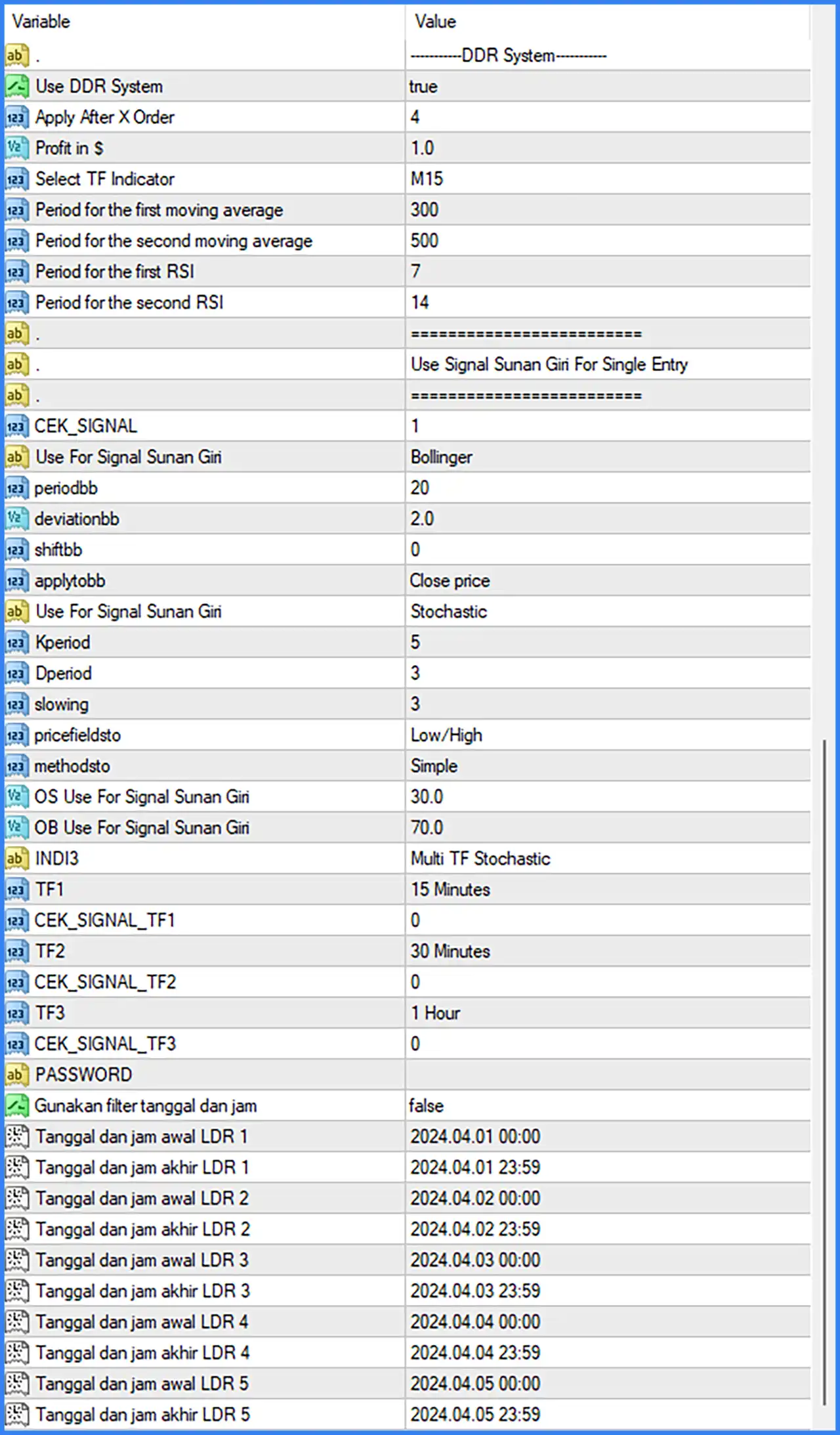
Below is a complete explanation of the Aselole Po Stop Limit Multi Signal Hedge EA settings, including all parameters and their default values from the supplied Inputs screenshots.
General Trading Settings
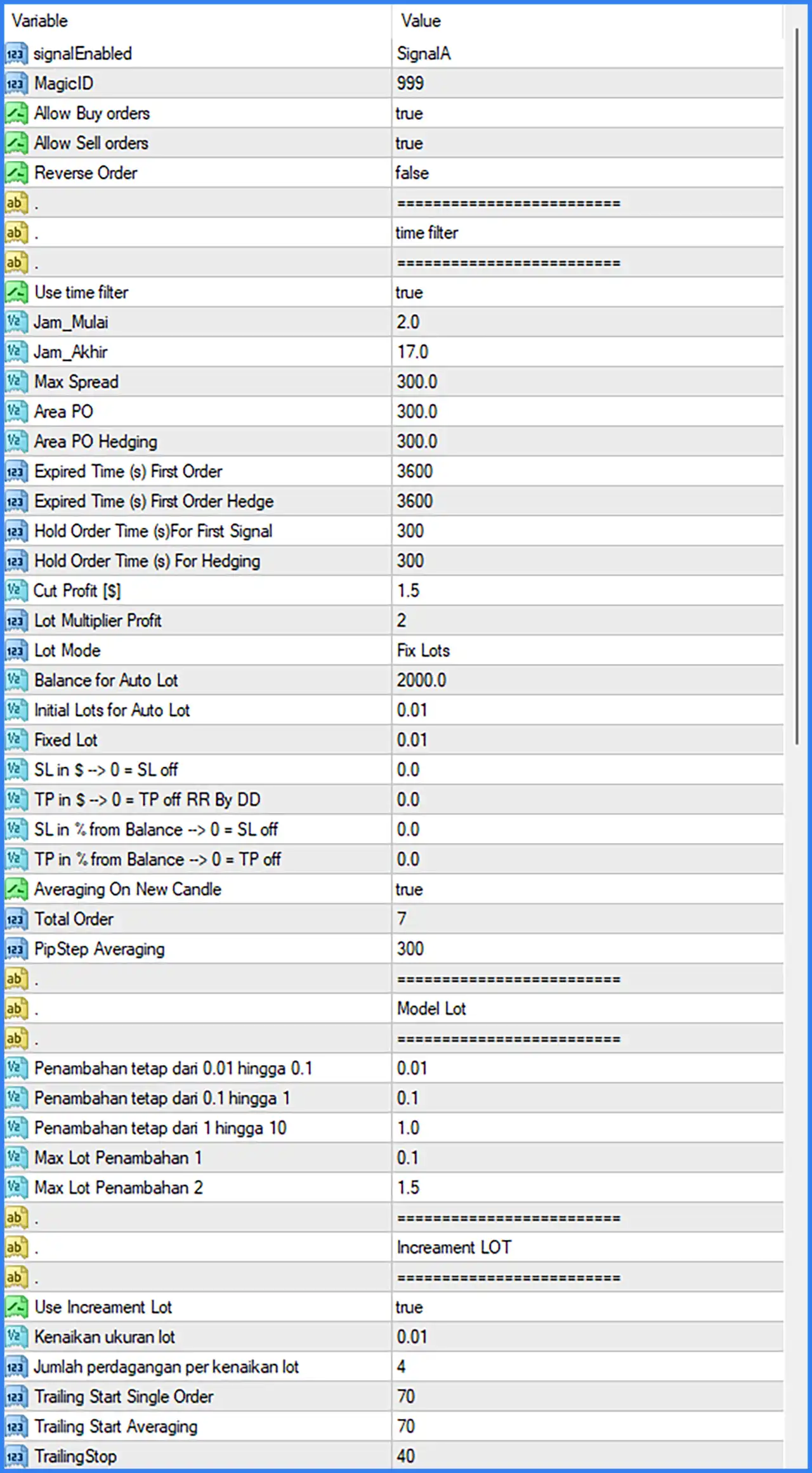
🔹 signalEnabled = SignalA – Selects SignalA as the active signal configuration used by the EA to determine its trading entry conditions.
🔹 MagicID = 999 – Sets the EA's Magic Number to 999, allowing MT4 to identify and distinguish its trading orders from other Expert Advisors or manual trades.
🔹 Allow Buy orders = true – Enables Buy order execution, allowing the EA to open long positions when its configured trading conditions are satisfied.
🔹 Allow Sell orders = true – Enables Sell order execution, allowing the EA to open short positions when its configured trading conditions are satisfied.
🔹 Reverse Order = false – Disables reverse-order execution, meaning the EA does not activate its reverse trading direction option.
Time Filter and Trading Conditions
🔹 Use time filter = true – Enables the trading time filter, allowing the EA to restrict its trading operations according to the configured starting and ending hours.
🔹 Jam_Mulai = 2.0 – Sets the trading start hour to 2.0, defining the beginning of the permitted trading session.
🔹 Jam_Akhir = 17.0 – Sets the trading end hour to 17.0, defining the end of the permitted trading session.
🔹 Max Spread = 300.0 – Sets the maximum permitted spread to 300.0 points, helping prevent new trades from being opened when trading costs exceed the configured threshold.
🔹 Area PO = 300.0 – Sets the PO (Pending Order) area parameter to 300.0, defining the configured price-distance or placement range used by the EA's pending-order logic.
🔹 Area PO Hedging = 300.0 – Sets the hedging pending-order area to 300.0, controlling the configured distance or range for pending orders associated with the hedging mechanism.
🔹 Expired Time (s) First Order = 3600 – Sets the expiration time for the first order to 3,600 seconds, equivalent to 60 minutes.
🔹 Expired Time (s) First Order Hedge = 3600 – Sets the expiration time for the first hedging order to 3,600 seconds, equivalent to 60 minutes.
🔹 Hold Order Time (s) For First Signal = 300 – Sets the holding or waiting time for the first signal order to 300 seconds, equivalent to 5 minutes.
🔹 Hold Order Time (s) For Hedging = 300 – Sets the holding or waiting time for hedging orders to 300 seconds, equivalent to 5 minutes.
Profit Management and Lot Settings
🔹 Cut Profit [$] = 1.5 – Sets the profit-closing threshold to $1.5, allowing the EA to use this monetary target in its configured profit management logic.
🔹 Lot Multiplier Profit = 2 – Sets the profit-related lot multiplier to 2, defining the configured multiplication factor used by the EA's lot and profit management mechanism.
🔹 Lot Mode = Fix Lots – Selects fixed-lot trading mode, allowing the EA to use a predetermined trading volume instead of relying exclusively on automatic lot calculation.
🔹 Balance for Auto Lot = 2000.0 – Sets the account balance reference to 2,000.0 for the EA's automatic lot calculation mechanism.
🔹 Initial Lots for Auto Lot = 0.01 – Sets the initial lot size for automatic lot calculation to 0.01 lots.
🔹 Fixed Lot = 0.01 – Sets the fixed trading volume to 0.01 lots whenever fixed-lot mode is selected.
Stop Loss and Take Profit Settings
🔹 SL in $ -> 0 = SL off = 0.0 – Sets the monetary Stop Loss parameter to 0.0, disabling the monetary Stop Loss function according to the input description.
🔹 TP in $ -> 0 = TP off RR By DD = 0.0 – Sets the monetary Take Profit parameter to 0.0, disabling this monetary Take Profit option according to the input description.
🔹 SL in % from Balance -> 0 = SL off = 0.0 – Sets the balance-based percentage Stop Loss parameter to 0.0, disabling this percentage-based Stop Loss option.
🔹 TP in % from Balance -> 0 = TP off = 0.0 – Sets the balance-based percentage Take Profit parameter to 0.0, disabling this percentage-based Take Profit option.
Averaging and Order Management
🔹 Averaging On New Candle = true – Enables averaging entries on a new candle, allowing the EA to manage additional positions according to its configured averaging conditions.
🔹 Total Order = 7 – Sets the total order parameter to 7, defining the configured order limit for the EA's trading or averaging mechanism.
🔹 PipStep Averaging = 300 – Sets the averaging distance to 300 pips or platform-defined points, depending on the EA's internal calculation and broker specifications.
Model Lot Settings
This section configures the fixed lot additions used by the EA's model lot progression mechanism.
🔹 Penambahan tetap dari 0.01 hingga 0.1 = 0.01 – Sets the fixed lot addition to 0.01 for the lot-size range from 0.01 to 0.1.
🔹 Penambahan tetap dari 0.1 hingga 1 = 0.1 – Sets the fixed lot addition to 0.1 for the lot-size range from 0.1 to 1.0.
🔹 Penambahan tetap dari 1 hingga 10 = 1.0 – Sets the fixed lot addition to 1.0 for the lot-size range from 1.0 to 10.0.
🔹 Max Lot Penambahan 1 = 0.1 – Sets the first maximum lot addition parameter to 0.1, defining the configured upper addition value for the corresponding lot progression range.
🔹 Max Lot Penambahan 2 = 1.5 – Sets the second maximum lot addition parameter to 1.5, controlling another upper lot-addition threshold in the model lot configuration.
Increment Lot Settings
🔹 Use Increment Lot = true – Enables incremental lot sizing, allowing the EA to increase trading volume according to the configured lot increment and trade-count conditions.
🔹 Kenaikan ukuran lot = 0.01 – Sets the lot-size increment to 0.01 lots, defining how much the trading volume increases when the increment condition is reached.
🔹 Jumlah perdagangan per kenaikan lot = 4 – Sets the required number of trades per lot increase to 4, determining how frequently the EA applies the next lot-size increment.
Trailing Stop Settings
🔹 Trailing Start Single Order = 70 – Sets the trailing activation threshold for a single order to 70 points or pips according to the EA's internal distance calculation.
🔹 Trailing Start Averaging = 70 – Sets the trailing activation threshold for averaging positions to 70 points or pips according to the EA's internal calculation.
🔹 TrailingStop = 40 – Sets the trailing stop distance or adjustment parameter to 40, controlling the configured trailing protection level.
DDR System Settings
🔹 Use DDR System = true – Enables the DDR System, activating this additional trading management component within the EA.
🔹 Apply After X Order = 4 – Sets the DDR System activation threshold to 4 orders, defining when the system begins applying its configured conditions.
🔹 Profit in $ = 1.0 – Sets the DDR-related monetary profit parameter to $1.0 for its configured profit management logic.
🔹 Select TF Indicator = M15 – Selects the 15-minute timeframe (M15) for the indicator calculations used by the DDR System.
🔹 Period for the first moving average = 300 – Sets the first Moving Average calculation period to 300, determining the number of price periods used in its calculation.
🔹 Period for the second moving average = 500 – Sets the second Moving Average calculation period to 500, providing another trend or market-direction reference.
🔹 Period for the first RSI = 7 – Sets the first Relative Strength Index (RSI) calculation period to 7, allowing the EA to evaluate short-term market momentum.
🔹 Period for the second RSI = 14 – Sets the second RSI calculation period to 14, providing an additional momentum reference using a longer calculation period.
Single Entry Signal Settings
This section contains the signal configuration identified in the Inputs panel as "Use Signal Sunan Gin For Single Entry."
🔹 CEK_SIGNAL = 1 – Sets the single-entry signal control parameter to 1, defining the configured signal selection or checking value.
Bollinger Bands Indicator
🔹 Use For Signal Sunan Gin = Bollinger – Selects Bollinger Bands as one of the available indicators for the single-entry signal configuration.
🔹 periodbb = 20 – Sets the Bollinger Bands calculation period to 20 candles, defining the length of the moving average used by the indicator.
🔹 deviationbb = 2.0 – Sets the Bollinger Bands standard deviation multiplier to 2.0, controlling the distance between the upper and lower bands.
🔹 shiftbb = 0 – Sets the Bollinger Bands horizontal shift to 0, meaning the indicator is not shifted forward or backward.
🔹 applytobb = Close price – Uses closing prices as the input price for Bollinger Bands calculations.
Stochastic Indicator
🔹 Use For Signal Sunan Gin = Stochastic – Selects the Stochastic indicator as another available signal configuration for evaluating market momentum and potential trading conditions.
🔹 Kperiod = 5 – Sets the Stochastic %K calculation period to 5, determining the number of candles used for the main Stochastic line.
🔹 Dperiod = 3 – Sets the Stochastic %D smoothing period to 3, controlling the calculation of the signal line.
🔹 slowing = 3 – Sets the Stochastic slowing parameter to 3, smoothing the %K line to reduce short-term fluctuations.
🔹 pricefieldsto = Low/High – Uses Low/High price data for Stochastic calculations.
🔹 methodsto = Simple – Selects the Simple Moving Average method for Stochastic signal smoothing.
🔹 OS Use For Signal Sunan Gin = 30.0 – Sets the Stochastic oversold threshold to 30.0, providing a reference level for identifying potentially oversold market conditions.
🔹 OB Use For Signal Sunan Gin = 70.0 – Sets the Stochastic overbought threshold to 70.0, providing a reference level for identifying potentially overbought market conditions.
Multi-Timeframe Stochastic Settings
🔹 INDI3 = Multi TF Stochastic – Selects Multi-Timeframe Stochastic as the third indicator configuration, allowing the EA to define multiple timeframe references for signal analysis.
🔹 TF1 = 15 Minutes – Sets the first Stochastic timeframe reference to 15 minutes (M15).
🔹 CEK_SIGNAL_TF1 = 0 – Sets the first timeframe signal-checking parameter to 0, representing its configured control value.
🔹 TF2 = 30 Minutes – Sets the second Stochastic timeframe reference to 30 minutes (M30).
🔹 CEK_SIGNAL_TF2 = 0 – Sets the second timeframe signal-checking parameter to 0.
🔹 TF3 = 1 Hour – Sets the third Stochastic timeframe reference to 1 hour (H1).
🔹 CEK_SIGNAL_TF3 = 0 – Sets the third timeframe signal-checking parameter to 0.
Password and Date-Time Filter Settings
🔹 PASSWORD = Blank – The password field is empty in the supplied configuration. No password value is displayed in the Inputs screenshot.
🔹 Gunakan filter tanggal dan jam = false – Disables the date and time filtering function, meaning the configured LDR date-time ranges are not currently active through this filter.
LDR 1 – Date and Time Configuration
🔹 Tanggal dan jam awal LDR 1 = 2024.04.01 00:00 – Sets the first LDR date-time range starting point to April 1, 2024, at 00:00.
🔹 Tanggal dan jam akhir LDR 1 = 2024.04.01 23:59 – Sets the first LDR date-time range ending point to April 1, 2024, at 23:59.
LDR 2 – Date and Time Configuration
🔹 Tanggal dan jam awal LDR 2 = 2024.04.02 00:00 – Sets the second LDR date-time range starting point to April 2, 2024, at 00:00.
🔹 Tanggal dan jam akhir LDR 2 = 2024.04.02 23:59 – Sets the second LDR date-time range ending point to April 2, 2024, at 23:59.
LDR 3 – Date and Time Configuration
🔹 Tanggal dan jam awal LDR 3 = 2024.04.03 00:00 – Sets the third LDR date-time range starting point to April 3, 2024, at 00:00.
🔹 Tanggal dan jam akhir LDR 3 = 2024.04.03 23:59 – Sets the third LDR date-time range ending point to April 3, 2024, at 23:59.
LDR 4 – Date and Time Configuration
🔹 Tanggal dan jam awal LDR 4 = 2024.04.04 00:00 – Sets the fourth LDR date-time range starting point to April 4, 2024, at 00:00.
🔹 Tanggal dan jam akhir LDR 4 = 2024.04.04 23:59 – Sets the fourth LDR date-time range ending point to April 4, 2024, at 23:59.
LDR 5 – Date and Time Configuration
🔹 Tanggal dan jam awal LDR 5 = 2024.04.05 00:00 – Sets the fifth LDR date-time range starting point to April 5, 2024, at 00:00.
🔹 Tanggal dan jam akhir LDR 5 = 2024.04.05 23:59 – Sets the fifth LDR date-time range ending point to April 5, 2024, at 23:59.
Conclusion
Aselole Po Stop Limit Multi Signal Hedge EA offers a comprehensive set of automated trading configurations covering signal selection, pending orders, hedging, averaging, lot progression, and multi-indicator analysis.
Its default configuration enables both Buy and Sell trading, uses a Magic Number of 999, and applies a trading time filter between 02:00 and 17:00. The EA also supports averaging with a maximum order setting of 7 and a PipStep Averaging value of 300.
For money management, the supplied configuration uses Fix Lots with an initial and fixed lot size of 0.01. Incremental lot sizing is enabled with a 0.01 increase after every 4 trades. Additionally, the DDR System is enabled and configured to apply after 4 orders with a $1.0 profit parameter.
The EA's indicator configuration includes Bollinger Bands with period 20 and deviation 2.0, Stochastic with 5/3/3 settings, and Multi-Timeframe Stochastic references at M15, M30, and H1.
Before running Aselole Po Stop Limit Multi Signal Hedge EA on a live account, traders should carefully evaluate its averaging, hedging, lot progression, and order-expiration mechanisms. Proper backtesting and demo testing are recommended to understand its behavior under different market conditions and assess potential drawdown exposure.