

Introduction to Bitcoin Scalper Pro EA MT5
Bitcoin Scalper Pro EA is an automated cryptocurrency trading Expert Advisor (EA) developed for MetaTrader 5, specifically configured to trade BTCUSD (Bitcoin against the US Dollar). The EA features two independent trading strategies, customizable risk management, automated Buy and Sell execution, ATR-based Stop Loss calculations, and dynamic trailing stop functionality.

Its configuration combines two trading engines with separate Magic Numbers, risk levels, position sizing options, entry distances, profit targets, and trading schedules. Strategy 1 is configured for Buy-only trading, while Strategy 2 supports both Buy and Sell positions.
Additionally, Bitcoin Scalper Pro EA includes spread monitoring, configurable execution modes, ADX trend filters, and adjustable price deviation settings. These features allow traders to customize trading behavior and risk exposure according to their preferred BTCUSD trading conditions.
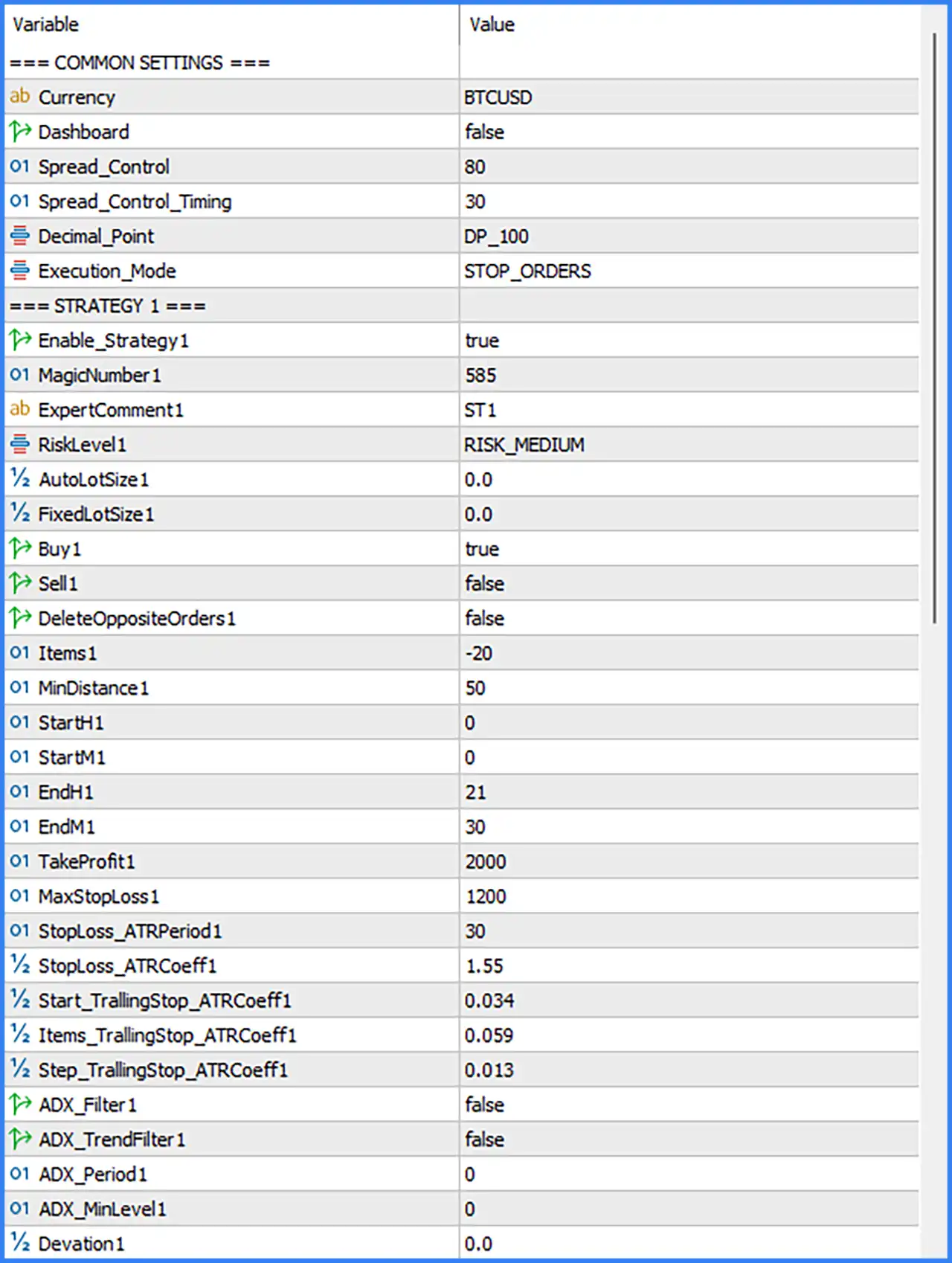
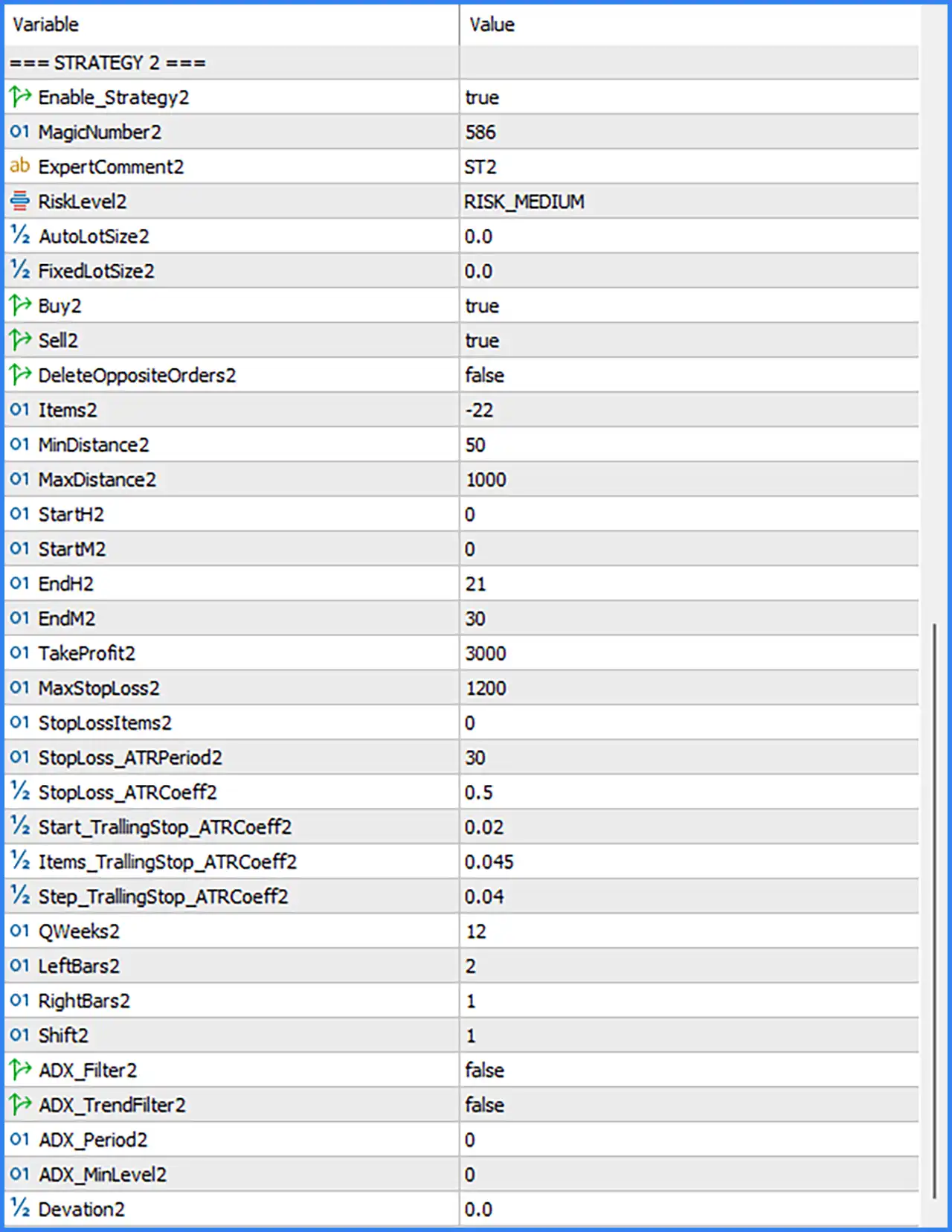
Common Settings
🔹 Currency = BTCUSD – Specifies BTCUSD as the trading instrument, allowing the EA to operate on the Bitcoin versus US Dollar currency pair.
🔹 Dashboard = false – Disables the EA dashboard display on the trading chart by default, keeping the chart interface cleaner.
🔹 Spread_Control = 80 – Sets the maximum spread control threshold to 80, helping the EA monitor trading costs and avoid unfavorable spread conditions.
🔹 Spread_Control_Timing = 30 – Sets the spread control timing parameter to 30, defining the configured time interval used by the EA's spread monitoring mechanism.
🔹 Decimal_Point = DP_100 – Selects the DP_100 decimal-point configuration for interpreting BTCUSD price precision and calculating trading distances.
🔹 Execution_Mode = STOP_ORDERS – Selects Stop Orders as the execution mode, allowing the EA to use pending Stop Orders for its trading strategies.
Strategy 1 Settings
Strategy 1 – General Configuration
🔹 Enable_Strategy1 = true – Enables the first trading strategy, allowing Strategy 1 to operate alongside the EA's other available trading engine.
🔹 MagicNumber1 = 585 – Assigns Magic Number 585 to Strategy 1, helping identify and manage its trading positions separately from other strategies.
🔹 ExpertComment1 = ST1 – Sets the order comment to ST1, making Strategy 1 trades easier to identify in the MT5 trading terminal.
🔹 RiskLevel1 = RISK_MEDIUM – Selects the medium-risk trading profile for Strategy 1, defining its configured risk category.
🔹 AutoLotSize1 = 0.0 – Sets the automatic lot size parameter to 0.0, representing the default value for Strategy 1's automatic position sizing configuration.
🔹 FixedLotSize1 = 0.0 – Sets the fixed lot size parameter to 0.0, indicating that no positive fixed trading volume is specified in this field.
Strategy 1 – Trading Direction and Entry Settings
🔹 Buy1 = true – Enables Buy trading for Strategy 1, allowing the EA to open long positions when its entry conditions are satisfied.
🔹 Sell1 = false – Disables Sell trading for Strategy 1, restricting this strategy to Buy-side trading under the default configuration.
🔹 DeleteOppositeOrders1 = false – Disables automatic deletion of opposite-direction pending orders when Strategy 1 generates new trading signals.
🔹 Items1 = -20 – Sets the Strategy 1 Items parameter to -20, defining the configured numerical entry or strategy-specific control value used by the EA.
🔹 MinDistance1 = 50 – Sets the minimum trading distance to 50 points, controlling the minimum permitted separation used by Strategy 1 when placing its orders.
Strategy 1 – Trading Schedule
🔹 StartH1 = 0 – Sets the Strategy 1 trading start hour to 0, corresponding to midnight.
🔹 StartM1 = 0 – Sets the Strategy 1 trading start minute to 0, establishing a start time of 00:00.
🔹 EndH1 = 21 – Sets the Strategy 1 trading end hour to 21, corresponding to 9:00 PM.
🔹 EndM1 = 30 – Sets the Strategy 1 trading end minute to 30, establishing an ending time of 21:30.
Strategy 1 – Profit Target and Stop Loss
🔹 TakeProfit1 = 2000 – Sets the Strategy 1 Take Profit target to 2000 points, defining the configured favorable price movement required to reach the profit target.
🔹 MaxStopLoss1 = 1200 – Sets the maximum Stop Loss parameter to 1200 points, providing a configured upper limit for Strategy 1's loss protection.
🔹 StopLoss_ATRPeriod1 = 30 – Sets the ATR indicator period to 30, determining the historical price range used for Strategy 1's volatility-based Stop Loss calculations.
🔹 StopLoss_ATRCoeff1 = 1.55 – Sets the ATR Stop Loss coefficient to 1.55, multiplying the calculated ATR value to determine the volatility-adjusted Stop Loss distance.
Strategy 1 – ATR Trailing Stop Settings
🔹 Start_TrailingStop_ATRCoeff1 = 0.034 – Sets the ATR-based trailing stop activation coefficient to 0.034, controlling the configured threshold at which trailing management begins.
🔹 Items_TrailingStop_ATRCoeff1 = 0.059 – Sets the ATR trailing stop Items coefficient to 0.059, providing an adjustment factor used by Strategy 1's trailing stop calculation.
🔹 Step_TrailingStop_ATRCoeff1 = 0.013 – Sets the ATR trailing stop step coefficient to 0.013, controlling the configured incremental adjustment used when updating the trailing stop.
Strategy 1 – ADX Filter Settings
🔹 ADX_Filter1 = false – Disables the ADX indicator filter for Strategy 1, meaning the strategy does not require this filter to validate its trading entries.
🔹 ADX_TrendFilter1 = false – Disables the ADX trend confirmation filter for Strategy 1, allowing its trading logic to operate without this additional trend-direction condition.
🔹 ADX_Period1 = 0 – Sets the ADX indicator period to 0, representing the default unconfigured value while the ADX filters are disabled.
🔹 ADX_MinLevel1 = 0 – Sets the minimum ADX strength level to 0, leaving no positive minimum threshold configured for this filter.
🔹 Deviation1 = 0.0 – Sets the Strategy 1 deviation parameter to 0.0, defining the default deviation value used by the strategy's price or signal calculation.
Strategy 2 Settings
Strategy 2 – General Configuration
🔹 Enable_Strategy2 = true – Enables the second trading strategy, allowing Strategy 2 to execute its independent trading logic.
🔹 MagicNumber2 = 586 – Assigns Magic Number 586 to Strategy 2, separating its trading positions from Strategy 1, which uses Magic Number 585.
🔹 ExpertComment2 = ST2 – Sets the order comment to ST2, making Strategy 2 positions easy to distinguish in the trading terminal.
🔹 RiskLevel2 = RISK_MEDIUM – Selects the medium-risk trading profile for Strategy 2, defining its configured risk category.
🔹 AutoLotSize2 = 0.0 – Sets the automatic lot size parameter to 0.0, representing the default automatic position sizing configuration for Strategy 2.
🔹 FixedLotSize2 = 0.0 – Sets the fixed lot size parameter to 0.0, indicating that no positive fixed trading volume is specified in this field.
Strategy 2 – Trading Direction and Entry Settings
🔹 Buy2 = true – Enables Buy trading for Strategy 2, allowing the EA to open long positions when its entry conditions are met.
🔹 Sell2 = true – Enables Sell trading for Strategy 2, allowing the EA to open short positions alongside its Buy trading functionality.
🔹 DeleteOppositeOrders2 = false – Disables automatic deletion of opposite-direction pending orders when Strategy 2 generates a new trading signal.
🔹 Items2 = -22 – Sets the Strategy 2 Items parameter to -22, defining the configured numerical entry or strategy-specific control value used by the EA.
🔹 MinDistance2 = 50 – Sets the minimum trading distance to 50 points, controlling the minimum permitted separation used when Strategy 2 places its orders.
🔹 MaxDistance2 = 1000 – Sets the maximum trading distance to 1000 points, defining the configured upper distance limit for Strategy 2's order placement.
Strategy 2 – Trading Schedule
🔹 StartH2 = 0 – Sets the Strategy 2 trading start hour to 0, corresponding to midnight.
🔹 StartM2 = 0 – Sets the Strategy 2 trading start minute to 0, establishing a starting time of 00:00.
🔹 EndH2 = 21 – Sets the Strategy 2 trading end hour to 21, corresponding to 9:00 PM.
🔹 EndM2 = 30 – Sets the Strategy 2 trading end minute to 30, establishing an ending time of 21:30.
Strategy 2 – Profit Target and Stop Loss
🔹 TakeProfit2 = 3000 – Sets the Strategy 2 Take Profit target to 3000 points, defining the configured favorable price movement required to reach the profit target.
🔹 MaxStopLoss2 = 1200 – Sets the maximum Stop Loss parameter to 1200 points, establishing the configured maximum loss protection distance for Strategy 2.
🔹 StopLossItems2 = 0 – Sets the StopLossItems parameter to 0, representing the default value for this additional Stop Loss control.
🔹 Stoploss_ATRPeriod2 = 30 – Sets the ATR indicator period to 30, determining the historical price range used for Strategy 2's volatility-based Stop Loss calculations.
🔹 StopLoss_ATRCoeff2 = 0.5 – Sets the ATR Stop Loss coefficient to 0.5, multiplying the ATR value to calculate the volatility-adjusted Stop Loss distance.
Strategy 2 – ATR Trailing Stop Settings
🔹 Start_TrailingStop_ATRCoeff2 = 0.02 – Sets the ATR-based trailing stop activation coefficient to 0.02, controlling the configured threshold for initiating trailing stop management.
🔹 Items_TrailingStop_ATRCoeff2 = 0.045 – Sets the ATR trailing stop Items coefficient to 0.045, providing an adjustment factor used in Strategy 2's trailing stop calculation.
🔹 Step_TrailingStop_ATRCoeff2 = 0.04 – Sets the ATR trailing stop step coefficient to 0.04, defining the configured incremental adjustment factor for trailing stop updates.
Strategy 2 – Additional Indicator and Signal Settings
🔹 QWeeks2 = 12 – Sets the QWeeks parameter to 12, defining the configured lookback or calculation period used by this Strategy 2 signal component.
🔹 LeftBars2 = 2 – Sets the LeftBars parameter to 2, specifying the number of bars on the left side considered by the strategy's signal or price-structure calculation.
🔹 RightBars2 = 1 – Sets the RightBars parameter to 1, specifying the number of bars on the right side considered by the strategy's signal or price-structure calculation.
🔹 Shift2 = 1 – Sets the signal shift parameter to 1, defining the bar offset used by Strategy 2 when evaluating its indicator or signal conditions.
Strategy 2 – ADX Filter Settings
🔹 ADX_Filter2 = false – Disables the ADX indicator filter for Strategy 2, allowing the strategy to operate without requiring this additional indicator confirmation.
🔹 ADX_TrendFilter2 = false – Disables the ADX trend confirmation filter for Strategy 2, meaning ADX-based trend validation is not required by the default configuration.
🔹 ADX_Period2 = 0 – Sets the ADX indicator period to 0, representing the default unconfigured value while the ADX filters are disabled.
🔹 ADX_MinLevel2 = 0 – Sets the minimum ADX strength level to 0, leaving no positive minimum threshold configured for Strategy 2's ADX filter.
🔹 Devation2 = 0.0 – Sets the Strategy 2 deviation parameter to 0.0, defining its default deviation value for the strategy's price or signal calculation.
Conclusion
Bitcoin Scalper Pro EA MT5 offers a dual-strategy automated trading configuration specifically designed for BTCUSD. Its two independent trading engines allow traders to customize entry conditions, trading directions, risk profiles, Stop Loss distances, Take Profit targets, and ATR-based Trailing stop parameters.
The default settings enable both strategies with medium-risk profiles. Strategy 1 focuses exclusively on Buy orders, while Strategy 2 supports both Buy and Sell positions. Their separate Magic Numbers, 585 and 586, provide additional trade identification and management flexibility.
Another important feature is the ATR-based risk management structure, which allows each strategy to use different volatility coefficients and trailing stop parameters. Traders can also customize spread control, trading schedules, execution modes, and ADX filters.
Overall, Bitcoin Scalper Pro EA MT5 provides a flexible automated trading framework for Bitcoin traders who want to manage multiple strategies through a single MT5 Expert Advisor.
Risk Disclaimer: The default RiskLevel1 and RiskLevel2 are both RISK_MEDIUM, but the actual monetary risk cannot be determined from these screenshots alone because the lot sizing calculation is not fully specified. Traders should verify the EA's position sizing behavior, BTCUSD contract specifications, and the meaning of its distance parameters before using it on a live account.