

Introduction
Classic Lunar Surfer MT5 is an automated trading Expert Advisor (EA) designed for the MetaTrader 5 platform. It features configurable trading frequency, adaptive entry management, fixed and balance-based lot sizing, and adaptive Stop Loss protection.
The EA also incorporates an economic news filter, customizable trading hours, Friday trading restrictions, and spread controls. Its adaptive trading configuration allows traders to adjust how frequently trading opportunities are evaluated, manage position sizes, and control trading activity around important market events.
With its combination of automated trading management and configurable risk controls, Classic Lunar Surfer MT5 provides flexibility for traders who want to customize their automated trading conditions on MetaTrader 5.

Classic Lunar Surfer MT5 Settings Explained
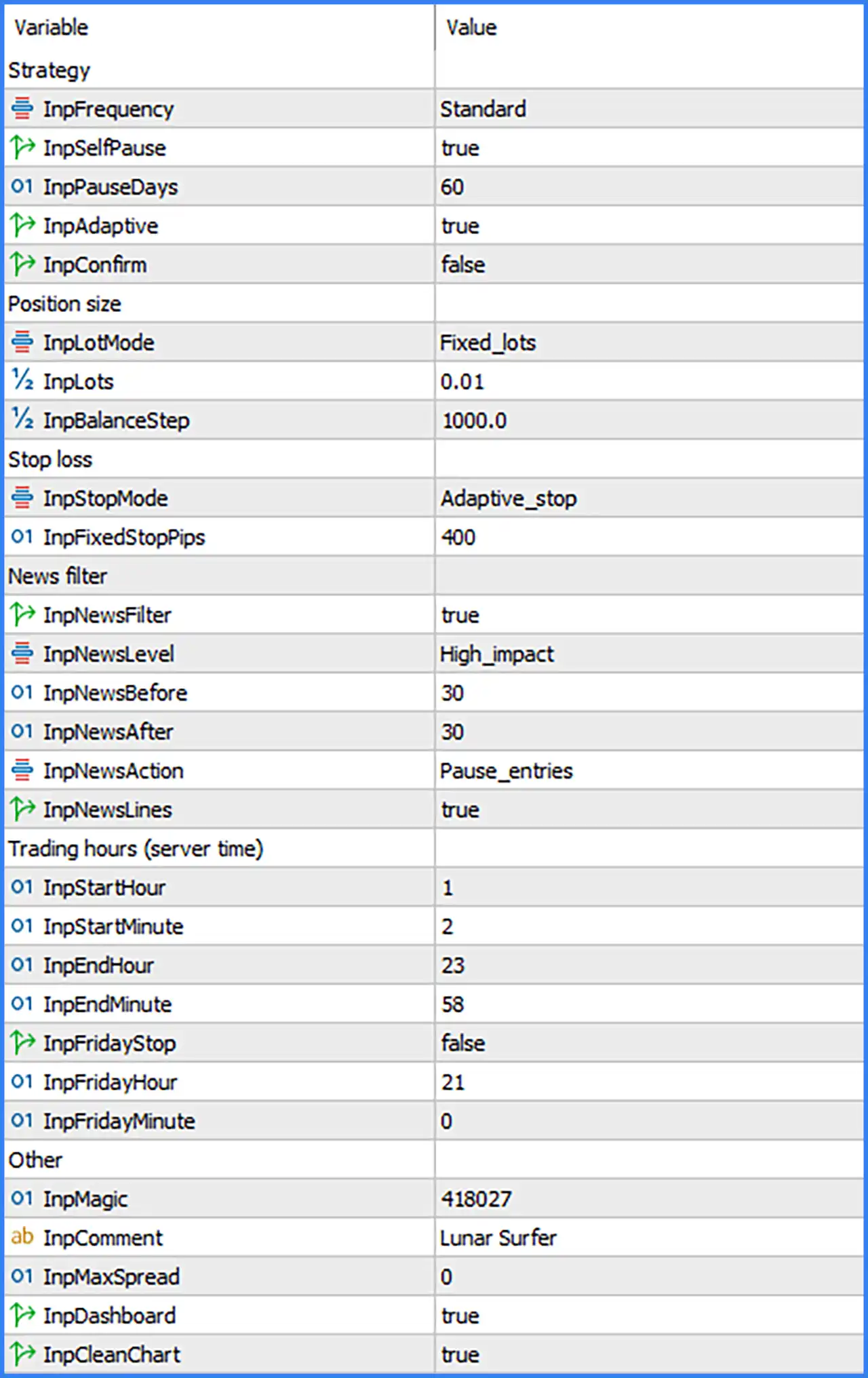
Strategy Settings
🔹 InpFrequency = Standard – Selects the trading frequency mode. The Standard setting determines the EA's configured signal or trading frequency according to its internal strategy.
🔹 InpSelfPause = true – Enables the EA's automatic self-pause functionality. When activated, the EA can temporarily pause its trading activity according to its internal conditions.
🔹 InpPauseDays = 60 – Defines the pause period as 60 days. This parameter determines the configured duration of the automatic pause mechanism.
🔹 InpAdaptive = true – Enables adaptive trading functionality. This allows the EA to apply its adaptive strategy logic when evaluating trading conditions and managing its operations.
🔹 InpConfirm = false – Controls the additional trade confirmation option. The default value of false disables this confirmation requirement.
Position Size Settings
🔹 InpLotMode = Fixed_lots – Selects the position-sizing method. The Fixed_lots mode instructs the EA to use a predefined lot size rather than dynamically calculating trading volume.
🔹 InpLots = 0.01 – Sets the fixed trading volume to 0.01 lots. This represents a micro lot and is the default position size when Fixed_lots mode is selected.
🔹 InpBalanceStep = 1000.0 – Defines the balance step reference at 1000.0 for the EA's position-sizing calculations. This parameter is relevant to balance-based lot management when the corresponding automatic sizing logic is used.
Stop Loss Settings
🔹 InpStopMode = Adaptive_stop – Selects the Adaptive Stop Loss mode. This setting allows the EA to determine Stop Loss placement using its adaptive risk management logic rather than relying exclusively on a fixed distance.
🔹 InpFixedStopPips = 400 – Sets the fixed Stop Loss reference distance to 400 pips. This value provides a fixed-distance parameter that may be used when the EA operates in a fixed Stop Loss mode or according to its internal fallback logic.
News Filter Settings
🔹 InpNewsFilter = true – Enables the economic news filter. When activated, the EA applies its configured news restrictions to help avoid opening trades during selected economic announcements.
🔹 InpNewsLevel = High_impact – Selects High_impact as the economic news filtering level. This configuration focuses the news filter on high-impact economic events.
🔹 InpNewsBefore = 30 – Defines the trading restriction period before an economic news event as 30 minutes. The EA can pause new trading activity during this configured pre-news interval.
🔹 InpNewsAfter = 30 – Sets the post-news waiting period to 30 minutes. This allows the EA to avoid opening new positions immediately after selected economic announcements.
🔹 InpNewsAction = Pause_entries – Defines the action taken when a filtered news event is approaching or occurring. The Pause_entries option instructs the EA to pause new trade entries during the restricted period.
🔹 InpNewsLines = true – Enables the display of news-related lines on the trading chart. This option allows traders to visualize relevant economic news information through chart objects.
Trading Hours Settings (Server Time)
🔹 InpStartHour = 1 – Defines the starting hour for the EA's trading schedule as 01:00 broker server time.
🔹 InpStartMinute = 2 – Sets the starting minute to 02. Combined with InpStartHour = 1, the configured trading session begins at 01:02 server time.
🔹 InpEndHour = 23 – Defines the ending hour of the trading schedule as 23:00 broker server time.
🔹 InpEndMinute = 58 – Sets the ending minute to 58. Combined with InpEndHour = 23, the configured trading session ends at 23:58 server time.
🔹 InpFridayStop = false – Enables or disables the additional Friday trading stop function. The default value of false means this specific Friday restriction is disabled.
🔹 InpFridayHour = 21 – Defines the hour for the Friday trading stop as 21:00. This parameter establishes the configured stopping hour when the Friday restriction is enabled.
🔹 InpFridayMinute = 0 – Sets the Friday stopping minute to 00. Combined with InpFridayHour = 21, the configured Friday stopping time is 21:00 server time.
Other Settings
🔹 InpMagic = 418027 – Assigns Magic Number 418027 to trades managed by Classic Lunar Surfer MT5. This unique identifier helps distinguish the EA's positions from manually opened trades and positions managed by other Expert Advisors.
🔹 InpComment = Lunar Surfer – Defines the trade comment attached to positions opened by the EA. The default comment Lunar Surfer helps identify trades associated with this automated trading system.
🔹 InpMaxSpread = 0 – Defines the maximum permitted spread parameter. The default value of 0 indicates that no positive spread threshold is specified; verify whether the EA interprets this value as disabling spread filtering.
🔹 InpDashboard = true – Enables the EA's on-chart dashboard. When set to true, the dashboard is displayed on the MetaTrader 5 chart, providing access to the available trading information.
🔹 InpCleanChart = true – Enables the chart-cleaning function. This option allows the EA to clean or manage chart objects according to its internal chart display settings.
Conclusion
Classic Lunar Surfer MT5 provides a configurable automated trading system with adaptive strategy management, fixed lot sizing, adaptive Stop Loss functionality, economic news filtering, and customizable trading hours.
The default configuration uses Standard trading frequency, an enabled adaptive mode, and a fixed lot size of 0.01. Its Stop Loss mode is set to Adaptive_stop, with a fixed Stop Loss reference of 400 pips.
The EA also includes an enabled high-impact news filter with 30-minute restrictions before and after economic announcements. Its trading schedule runs from 01:02 to 23:58 broker server time, while the additional Friday stop function is disabled.
For trade identification, Classic Lunar Surfer MT5 uses Magic Number 418027 and the trade comment Lunar Surfer. Its dashboard and chart-cleaning features are both enabled by default.
Before using Classic Lunar Surfer MT5 on a live account, traders should verify the adaptive Stop Loss behavior, automatic pause conditions, broker server time, and spread filtering configuration. Demo testing is recommended to understand how the EA manages trading signals and risk under different market conditions.