

Introduction
Dragon Gold MT4 is an automated trading Expert Advisor (EA) designed for the MetaTrader 4 platform. It provides configurable trading directions, automated money management, Stop Loss (SL) and Take Profit (TP) settings, spread control, and advanced market condition filters.
The EA includes specialized features for managing excessive price movements, avoiding trading after market gaps, and controlling the number of currency pairs with open positions. It also incorporates an economic news filter with customizable impact levels, currency selections, and trading restrictions before and after scheduled news events.
Additionally, Dragon Gold MT4 offers customizable news lines on the trading chart, allowing traders to monitor important economic announcements and distinguish different news categories through color-coded indicators.

Dragon Gold MT4 Settings Explained
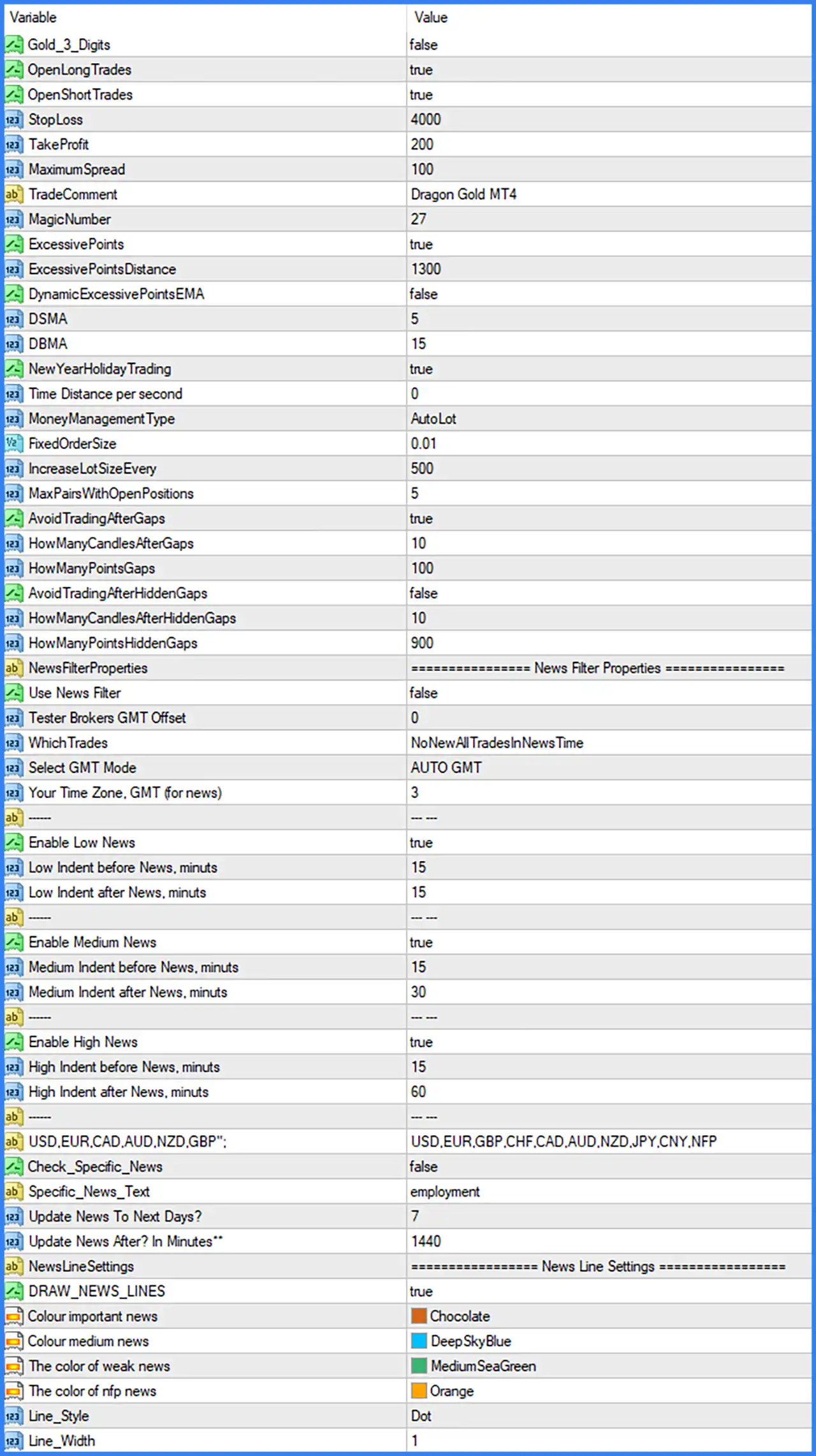
General Trading Settings
🔹 Gold_3_Digits = false – Determines whether the EA uses a 3-digit Gold price configuration. The default value of false disables this specific 3-digit pricing option.
🔹 OpenLongTrades = true – Enables Buy (Long) trading, allowing Dragon Gold MT4 to open purchase positions when its trading conditions are satisfied.
🔹 OpenShortTrades = true – Enables Sell (Short) trading, allowing the EA to open selling positions when its internal trading conditions generate valid signals.
🔹 StopLoss = 4000 – Sets the Stop Loss distance to 4000 points, defining the configured protective price level for each applicable trading position.
🔹 TakeProfit = 200 – Sets the Take Profit target to 200 points, establishing the configured profit-taking distance for trading positions.
🔹 MaximumSpread = 100 – Sets the maximum permitted spread to 100 points. The EA can use this threshold to prevent opening trades when market spreads exceed the configured limit.
🔹 TradeComment = Dragon Gold MT4 – Defines the comment attached to orders opened by the EA, making Dragon Gold MT4 positions easier to identify in the MetaTrader 4 trading terminal.
🔹 MagicNumber = 27 – Assigns Magic Number 27 to the EA's trades, allowing Dragon Gold MT4 to identify and distinguish its positions from manual trades and orders opened by other Expert Advisors.
Excessive Points and Market Movement Settings
🔹 ExcessivePoints = true – Enables the excessive price movement protection feature, allowing the EA to apply additional checks when market movements exceed its configured thresholds.
🔹 ExcessivePointsDistance = 1300 – Sets the excessive price movement distance threshold to 1300 points, defining the reference distance used by the EA to identify unusually large price movements.
🔹 DynamicExcessivePointsEMA = false – Disables the dynamic excessive-points calculation based on an Exponential Moving Average (EMA). The EA therefore does not use this optional dynamic EMA-based adjustment.
🔹 DSMA = 5 – Sets the DSMA-related calculation period or parameter to 5, providing a configurable reference for the EA's internal market analysis.
🔹 DBMA = 15 – Sets the DBMA-related calculation period or parameter to 15, providing an additional calculation reference for the EA's market analysis.
🔹 NewYearHolidayTrading = true – Enables the New Year holiday trading option, allowing the EA to apply its configured trading behavior during the New Year holiday period.
🔹 Time Distance per second = 0 – Sets the time-distance parameter to 0 seconds, defining the configured timing reference for the EA's internal trading operations.
Money Management Settings
🔹 MoneyManagementType = AutoLot – Selects AutoLot as the money management method, allowing the EA to use its automatic lot-sizing calculation instead of relying exclusively on a fixed order volume.
🔹 FixedOrderSize = 0.01 – Sets the fixed order size reference to 0.01 lots, providing the configured lot-size value for the EA's fixed-volume trading configuration.
🔹 IncreaseLotSizeEvery = 500 – Sets the lot-size adjustment interval to 500, defining the numerical interval used by the EA when applying its internal lot-increase logic.
🔹 MaxPairsWithOpenPositions = 5 – Limits the number of currency pairs with open positions to 5, helping control the number of simultaneously traded instruments.
Market Gap Protection Settings
🔹 AvoidTradingAfterGaps = true – Enables the market gap avoidance feature, allowing the EA to restrict trading after detecting significant price gaps.
🔹 HowManyCandlesAfterGaps = 10 – Sets the number of candles after a detected market gap to 10, defining the candle-count reference for the EA's gap-related trading restriction.
🔹 HowManyPointsGaps = 100 – Sets the market gap detection threshold to 100 points, establishing the price-distance reference used to identify qualifying gaps.
🔹 AvoidTradingAfterHiddenGaps = false – Disables the hidden market gap avoidance feature, meaning the EA does not activate this additional gap-protection option under the supplied configuration.
🔹 HowManyCandlesAfterHiddenGaps = 10 – Sets the hidden-gap candle waiting parameter to 10, defining the number of candles used by this optional protection feature.
🔹 HowManyPointsHiddenGaps = 900 – Sets the hidden-gap detection distance to 900 points, providing the price-movement threshold for the optional hidden-gap protection logic.
Economic News Filter Settings
🔹 NewsFilterProperties – Identifies the economic news filter configuration section, containing the master news filter switch, GMT settings, news impact levels, currency selection, and event restrictions.
🔹 Use News Filter = false – Disables the master economic news filter. Although the individual low-, medium-, and high-impact news options are enabled, the main news filtering function is disabled with this setting.
🔹 Tester Brokers GMT Offset = 0 – Sets the broker GMT offset reference used for testing to 0, providing a time-zone adjustment value for historical testing configurations.
🔹 WhichTrades = NoNewAllTradesInNewsTime – Selects the NoNewAllTradesInNewsTime news trading mode, defining how the EA handles new orders and trading activity during scheduled news periods.
🔹 Select GMT Mode = AUTO GMT – Selects automatic GMT detection, allowing the EA to determine the applicable GMT time adjustment automatically for its news-related calculations.
🔹 Your Time Zone, GMT (for news) = 3 – Sets the news time-zone reference to GMT+3, providing the configured time adjustment for economic calendar events.
Low-Impact News Settings
🔹 Enable Low News = true – Enables the low-impact economic news category, allowing the EA's news filtering system to recognize low-impact announcements when the master news filter is active.
🔹 Low Indent before news, minutes = 15 – Sets the restriction period before low-impact news events to 15 minutes, defining how early the EA should apply its news-related trading restrictions.
🔹 Low Indent after News, minutes = 15 – Sets the waiting period after low-impact news events to 15 minutes before normal trading activity can resume under the news filter.
Medium-Impact News Settings
🔹 Enable Medium News = true – Enables medium-impact economic news filtering, allowing the EA to recognize and apply the configured restrictions around medium-impact announcements.
🔹 Medium Indent before News, minutes = 15 – Sets the trading restriction period before medium-impact news events to 15 minutes.
🔹 Medium Indent after news, minutes = 30 – Defines a 30-minute waiting period after medium-impact economic announcements before the EA resumes normal trading under the news filter.
High-Impact News Settings
🔹 Enable High News = true – Enables high-impact economic news filtering, allowing the EA to identify important announcements that may cause significant market volatility.
🔹 High Indent before News, minutes = 15 – Sets the restriction period before high-impact news events to 15 minutes, helping reduce exposure immediately before major economic announcements.
🔹 High Indent after News, minutes = 60 – Sets the waiting period after high-impact news events to 60 minutes, allowing additional time for market volatility to settle before trading resumes.
Currency and Specific News Settings
🔹 USD,EUR,CAD,AUD,NZD,GBP = USD,EUR,GBP,CHF,CAD,AUD,NZD,JPY,CNY,NFP – Defines the economic news currency and event selection list. The configured value includes USD, EUR, GBP, CHF, CAD, AUD, NZD, JPY, CNY, and NFP, covering multiple major currencies and Non-Farm Payroll events.
🔹 Check_Specific_News = false – Disables the specific economic news checking option, meaning the EA does not activate this additional custom news selection filter.
🔹 Specific_News_Text = employment – Defines the keyword employment for specific news identification, providing a text reference for matching selected economic announcements when the specific news filter is enabled.
🔹 Update News To Next Days? = 7 – Sets the economic news calendar update horizon to 7 days, defining how far ahead the EA is configured to retrieve or update scheduled news information.
🔹 Update News After? In Minutes = 1440 – Sets the news calendar refresh interval to 1440 minutes, equivalent to 24 hours, defining the configured update frequency.
News Line Settings
🔹 NewsLineSettings – Identifies the chart news-line configuration section, which controls the visibility, colors, and visual appearance of economic event lines.
🔹 DRAW_NEWS_LINES = true – Enables the display of economic news lines on the trading chart, allowing traders to visualize scheduled announcements and their timing.
🔹 Colour important news = Chocolate – Sets the chart line color for important economic news to Chocolate, helping distinguish important events visually.
🔹 Colour medium news = DeepSkyBlue – Assigns DeepSkyBlue to medium-impact economic news lines, providing a separate visual indicator for medium-impact announcements.
🔹 The color of weak news = MediumSeaGreen – Sets the color of weak or low-impact news lines to MediumSeaGreen, making lower-impact economic events easier to distinguish.
🔹 The color of nfp news = Orange – Assigns Orange to Non-Farm Payroll (NFP) news lines, highlighting this important employment-related economic announcement category.
🔹 Line_Style = Dot – Sets the chart news-line style to Dot, displaying economic event indicators as dotted lines.
🔹 Line_Width = 1 – Sets the news-line thickness to 1, defining the visual width of economic event lines displayed on the chart.
Conclusion
Dragon Gold MT4 provides a comprehensive collection of automated trading settings covering trade execution, money management, excessive price movement protection, market gap avoidance, and economic news filtering.
The supplied configuration enables both Buy and Sell trading, with Stop Loss = 4000 points, Take Profit = 200 points, and MaximumSpread = 100 points. Its money management method is set to AutoLot, with FixedOrderSize = 0.01 and a maximum of 5 currency pairs with open positions.
The EA also includes market gap protection with a 100-point detection threshold and a 10-candle waiting period. Its economic news settings cover low-, medium-, and high-impact announcements, with configurable restrictions before and after each event.
For chart analysis, Dragon Gold MT4 supports color-coded news lines, using Chocolate, DeepSkyBlue, MediumSeaGreen, and Orange to distinguish different economic event categories.
Before using Dragon Gold MT4 on a live account, traders should carefully review the Stop Loss, Take Profit, AutoLot calculations, maximum spread, and market gap protection parameters. The master news filter is currently disabled, despite the individual news impact options being enabled. Traders should activate and test the master filter if they want the EA to restrict trading around economic announcements.