


Janus Zone EA is an automated trading system for MetaTrader 5, featuring multiple trading strategies, configurable position sizing, exposure controls, and advanced account protection mechanisms. Its architecture includes seven independent strategy modules, identified as Janus S-1 through Janus S-7, which can be individually enabled or disabled.
The EA provides several money management methods, including Fixed Lot, Risk-Based Lot, Auto-Compounding, and Drawdown Budget. It also incorporates daily profit and loss limits, optional economic news filtering, weekend position management, and dedicated Prop Firm Mode settings.
With additional controls for maximum open trades, directional exposure, broker GMT offset, and server request limits, Janus Zone EA offers traders extensive flexibility when configuring automated trading operations.
General Settings
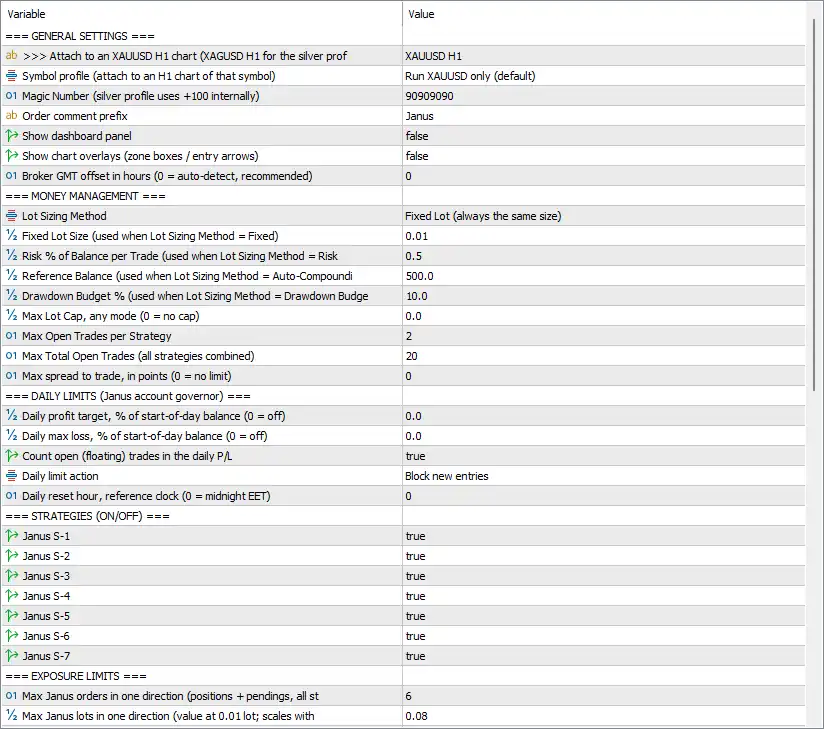
This section controls the EA’s chart attachment, trading symbol, order identification, and visual display options.
🔹 Attach to an XAUUSD H1 chart (XAGUSD H1 for the silver profile) = XAUUSD H1 – Specifies the chart configuration required to run the EA. The default setup uses the XAUUSD H1 chart, while the silver profile uses the XAGUSD H1 chart.
🔹 Symbol profile (attach to an H1 chart of that symbol) = Run XAUUSD only (default) – Selects the trading symbol profile used by the EA. The default configuration is designed to run the XAUUSD strategy profile only.
🔹 Magic Number (silver profile uses +100 internally) = 90909090 – Assigns the unique Magic Number 90909090 to identify trades opened by Janus Zone EA MT5. The silver profile automatically uses an additional 100 internally for trade identification.
🔹 Order comment prefix = Janus – Sets the order comment prefix to Janus, making it easier to recognize positions generated by the EA in the MT5 trading terminal.
🔹 Show dashboard panel = false – Disables the on-chart dashboard panel. When enabled, the EA can display its dashboard information directly on the trading chart.
🔹 Show chart overlays (zone boxes / entry arrows) = false – Disables graphical trading overlays, including zone boxes and entry arrows. Enabling this option allows traders to visualize relevant trading information on the chart.
🔹 Broker GMT offset in hours (0 = auto-detect, recommended) = 0 – Sets the broker’s GMT time offset. A value of 0 enables automatic offset detection, which is the recommended default configuration.
Money Management Settings
Janus Zone EA MT5 supports multiple position-sizing methods, allowing traders to customize trading volume according to their account balance, risk preferences, and drawdown budget.
🔹 Lot Sizing Method = Fixed Lot (always same size) – Selects the position-sizing method. The default Fixed Lot option uses the same trading volume for every position instead of dynamically adjusting lot size.
🔹 Fixed Lot Size (used when Lot Sizing Method = Fixed) = 0.01 – Defines the fixed trading volume as 0.01 lots when the Fixed Lot method is selected.
🔹 Risk % of Balance per Trade (used when Lot Sizing Method = Risk) = 0.5 – Sets the risk allocation parameter to 0.5% of the account balance per trade when the Risk-based position-sizing method is selected.
🔹 Reference Balance (used when Lot Sizing Method = Auto-Compounding) = 500.0 – Sets the reference account balance to 500.0 for the Auto-Compounding method, providing the baseline used by the EA’s automatic position-sizing calculations.
🔹 Drawdown Budget % (used when Lot Sizing Method = Drawdown Budget) = 10.0 – Defines a drawdown budget of 10.0% for the Drawdown Budget position-sizing method, allowing the EA to calculate trading volume based on the configured risk budget.
🔹 Max Lot Cap, any mode (0 = no cap) = 0.0 – Sets the maximum permitted lot size across all money management modes. A value of 0.0 disables the maximum lot restriction.
🔹 Max Open Trades per Strategy = 2 – Limits each individual strategy to a maximum of 2 simultaneously open trades, helping control the number of active positions generated by each strategy module.
🔹 Max Total Open Trades (all strategies combined) = 20 – Sets the maximum combined number of open trades across all Janus strategies to 20, providing an overall limit on simultaneous trading positions.
🔹 Max spread to trade, in points (0 = no limit) = 0 – Defines the maximum acceptable market spread in points. A value of 0 disables spread restrictions, allowing the EA to trade without a configured maximum spread limit.
Daily Limits – Janus Account Governor
This section provides account-level trading restrictions designed to control daily profitability and losses.
🔹 Daily profit target, % of start-of-day balance (0 = off) = 0.0 – Sets the daily profit target as a percentage of the account’s starting balance for the day. A value of 0.0 disables the daily profit target.
🔹 Daily max loss, % of start-of-day balance (0 = off) = 0.0 – Defines the maximum permitted daily loss as a percentage of the starting balance. The default value of 0.0 disables this daily loss restriction.
🔹 Count open (floating) trades in the daily P/L = true – Includes unrealized profit and loss from currently open positions when calculating daily trading performance, allowing the account governor to consider both realized and floating results.
🔹 Daily limit action = Block new entries – Determines the EA’s response when a configured daily profit or loss limit is reached. The default action blocks new trade entries rather than automatically closing existing positions.
🔹 Daily reset hour, reference clock (0 = midnight EET) = 0 – Sets the daily limit reset hour according to the reference clock. A value of 0 means the daily calculations reset at midnight EET.
Strategy Activation Settings (ON/OFF)
Janus Zone EA MT5 includes seven independent strategy modules. Each strategy can be activated or deactivated according to the trader’s preferred configuration.
🔹 Janus S-1 = true – Enables the Janus S-1 strategy module, allowing it to participate in the EA’s automated trading operations.
🔹 Janus S-2 = true – Enables the Janus S-2 strategy module, allowing this strategy to generate and manage its own trading opportunities.
🔹 Janus S-3 = true – Activates the Janus S-3 strategy module as part of the EA’s multi-strategy trading architecture.
🔹 Janus S-4 = true – Enables the Janus S-4 strategy module, allowing it to operate alongside the other activated Janus strategies.
🔹 Janus S-5 = true – Activates the Janus S-5 strategy module, making it available for automated trade execution.
🔹 Janus S-6 = true – Enables the Janus S-6 strategy module to participate in the overall trading system.
🔹 Janus S-7 = true – Activates the Janus S-7 strategy module, completing the default configuration in which all seven Janus strategies are enabled.
Exposure Limits
These parameters help control the EA’s directional trading exposure by restricting the number of orders and total trading volume in one direction.
🔹 Max Janus orders in one direction (positions + pendings, all strategies) = 6 – Limits the total number of Janus orders in a single direction to 6, including both active positions and pending orders across all strategies.
🔹 Max Janus lots in one direction (value at 0.01 lot; scales with account) = 0.08 – Sets the directional lot exposure limit to 0.08 at the configured reference value of 0.01 lot, with the limit scaling according to the account. This setting helps prevent excessive BUY-side or SELL-side exposure.
News Filter Settings
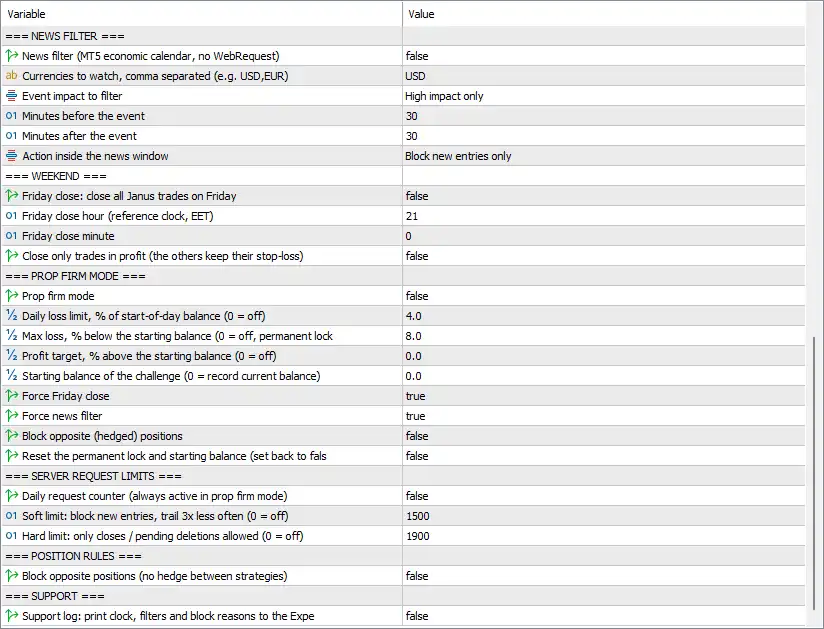
The news filter uses the built-in MT5 economic calendar and does not require an external WebRequest connection. These parameters control which economic events are considered and how the EA behaves around scheduled announcements.
🔹 News filter (MT5 economic calendar, no WebRequest) = false – Disables the economic news filter by default. When activated, the EA can use the MT5 economic calendar to identify scheduled news events and apply the configured trading restrictions.
🔹 Currencies to watch, comma separated (e.g. USD,EUR) = USD – Specifies the currencies monitored by the news filter. The default USD setting means the filter is configured to monitor USD-related economic announcements.
🔹 Event impact to filter = High impact only – Selects the economic news importance level considered by the filter. The default configuration monitors high-impact economic events only.
🔹 Minutes before the event = 30 – Defines a news protection window of 30 minutes before a scheduled economic announcement, during which the configured news restrictions can be applied.
🔹 Minutes after the event = 30 – Sets the post-news protection period to 30 minutes after the scheduled announcement, helping avoid immediate trading during potentially volatile market conditions.
🔹 Action inside the news window = Block new entries only – Determines how the EA behaves during the news protection window. The default setting prevents new trade entries while allowing existing positions to remain managed.
Weekend Trading and Friday Closing Settings
This section controls how Janus Zone EA MT5 handles open positions before the weekend market closure.
🔹 Friday close: close all Janus trades on Friday = false – Disables the regular Friday closing function. When activated, the EA can automatically close all Janus trading positions on Friday according to the configured closing schedule.
🔹 Friday close hour (reference clock, EET) = 21 – Sets the scheduled Friday closing hour to 21:00 according to the EET reference clock when the regular Friday closing function is enabled.
🔹 Friday close minute = 0 – Defines the minute of the scheduled Friday closing time. The default value of 0 means the configured closing time is exactly 21:00.
🔹 Close only trades in profit (the others keep their stop-loss) = false – Disables profit-only Friday closing. When enabled, the EA closes profitable positions while leaving losing positions open with their existing Stop Loss protection.
Prop Firm Mode Settings
Prop Firm Mode provides additional account protection controls designed to help traders configure the EA around common proprietary trading firm evaluation rules.
🔹 Prop firm mode = false – Disables Prop Firm Mode by default. When activated, the EA applies its dedicated account protection and trading restriction mechanisms.
🔹 Daily loss limit, % of start-of-day balance (0 = off) = 4.0 – Sets the daily loss threshold to 4.0% of the starting balance for the day. When Prop Firm Mode is active, this parameter helps restrict trading after the configured daily loss limit is reached.
🔹 Max loss, % below the starting balance (0 = off, permanent lock) = 8.0 – Sets the maximum overall loss threshold to 8.0% below the starting balance. Reaching this limit can trigger a permanent trading lock to prevent further trading.
🔹 Profit target, % above the starting balance (0 = off) = 0.0 – Defines the challenge profit target as a percentage above the starting balance. The default 0.0 disables this profit target restriction.
🔹 Starting balance of the challenge (0 = record current balance) = 0.0 – Specifies the initial balance used for challenge calculations. A value of 0.0 instructs the EA to record the current account balance as the starting balance.
🔹 Force Friday close = true – Enables the mandatory Friday closing rule in Prop Firm Mode, allowing the EA to close Janus positions before the weekend according to its internal Friday closing logic.
🔹 Force news filter = true – Enables the mandatory news-filter behavior when Prop Firm Mode is active, helping enforce the configured economic news restrictions during a challenge.
🔹 Block opposite (hedged) positions = false – Disables the restriction against opposite or hedged positions by default. When enabled, the EA can prevent opening opposing positions under the applicable Prop Firm Mode rules.
🔹 Reset the permanent lock and starting balance (set back to false) = false – Provides a reset control for the permanent trading lock and recorded starting balance. The default false keeps the reset function inactive. When used, this parameter can reset the relevant account protection state.
Server Request Limits
These settings control the EA’s trading request activity and provide additional restrictions to help manage server communication limits.
🔹 Daily request counter (always active in prop firm mode) = false – Disables the daily request counter in the standard configuration. This setting is designed to monitor or restrict the EA’s daily request activity and is specified to remain active in Prop Firm Mode.
🔹 Soft limit: block new entries, trail 3x less often (0 = off) = 1500 – Sets the soft request limit to 1500. When this threshold is reached, the EA can block new trade entries and reduce Trailing Stop update frequency by a factor of 3 to limit additional trading requests.
🔹 Hard limit: only closes / pending deletions allowed (0 = off) = 1900 – Sets the hard request limit to 1900. When this threshold is reached, the EA restricts trading operations to closing existing positions and deleting pending orders, while preventing other types of trading requests.
Position Rules
These settings manage position relationships between different Janus strategies and help control opposing market exposure.
🔹 Block opposite positions (no hedge between strategies) = false – Disables the restriction against opposite positions between strategies. When enabled, the EA prevents different Janus strategy modules from opening opposing positions, reducing hedging between strategies.
Support and Diagnostic Settings
This section provides additional logging functionality for monitoring the EA’s operating conditions and troubleshooting trading restrictions.
🔹 Support log: print clock, filters and block reasons to the Experts log = false – Disables detailed diagnostic logging by default. When enabled, the EA prints its reference clock, active filters, and reasons for blocked trading operations in the MT5 Experts log, helping traders and support teams investigate configuration or execution issues.
Conclusion
The Janus Zone EA settings provide a comprehensive configuration framework for multi-strategy automated trading, money management, exposure control, and account protection.
The default configuration enables all seven Janus strategy modules, uses Fixed Lot trading with 0.01 lots, and allows a maximum of 2 open trades per strategy and 20 trades across all strategies. Directional exposure is limited to 6 orders and 0.08 lots under the displayed configuration.
The EA also includes advanced account protection parameters, such as a 4.0% daily loss limit and an 8.0% maximum overall loss limit. However, Prop Firm Mode is disabled by default, meaning these dedicated challenge restrictions should not be assumed to be actively enforced until the mode is enabled.
For news protection, the default configuration monitors USD high-impact events with a 30-minute window before and after announcements. The regular news filter is disabled, while the Prop Firm Mode option to force news filtering is enabled.
Before deploying Janus Zone EA on a live account, traders should carefully review the money management method, daily limits, directional exposure, news filter, and Prop Firm Mode settings. It is also important to verify the EA’s reference clock and broker execution conditions.