

Introduction to MoonDog EA
MoonDog EA is an advanced automated trading system featuring multiple specialized trading modules, adaptive position sizing, intelligent stop-loss protection, profit management, and configurable risk controls. It includes several preset configurations, allowing traders to select different trading modes according to their preferred strategy and account requirements. MoonDog EA also integrates MoonLock profit protection, partial take-profit management, trailing stop functionality, economic news filters, weekend trading controls, and optional prop firm protection. Its extensive settings allow traders to customize trade execution, position management, and account-level risk parameters.
Quick Setup and Trading Configuration
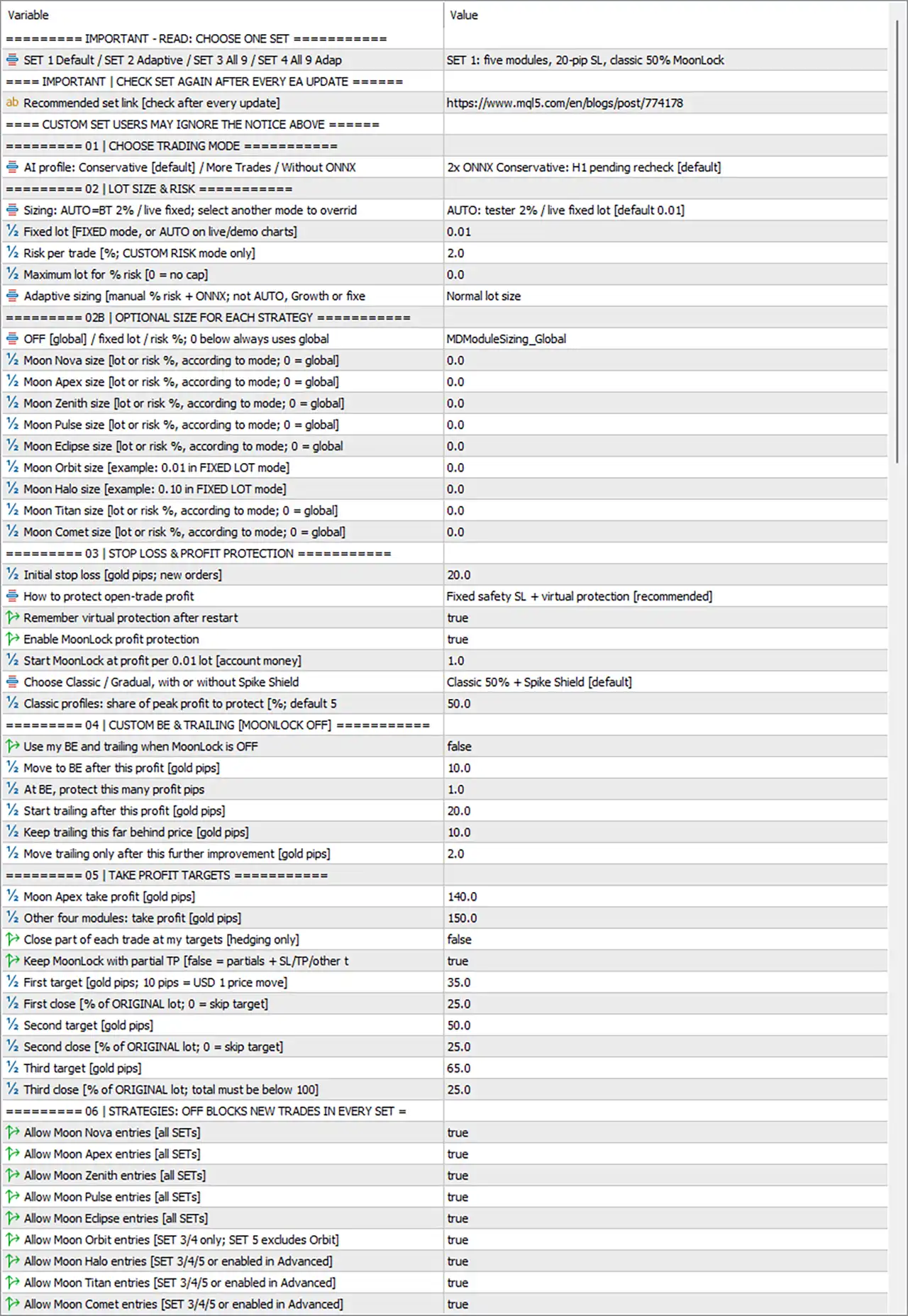
🔹 Choose One Set: Select one of the four available configurations: SET 1 Default, SET 2 Adaptive, SET 3 All 9, or SET 4 All 9 Adap. Each preset determines the enabled trading modules and general configuration.
🔹 Selected Set – SET 1: The current default configuration uses five trading modules, a 20-pip stop loss, and Classic 50% MoonLock profit protection.
🔹 AI Profile: Choose between Conservative [default], More Trades, or Without ONNX. The current selection is 2x ONNX Conservative: H1 pending recheck [default], which represents the conservative AI configuration with an H1 pending recheck condition.
Lot Size and Risk Management
🔹 Sizing: AUTO: tester 2% / live fixed lot [default 0.01]. This mode automatically uses 2% risk during strategy testing while applying a fixed lot size of 0.01 on live accounts by default.
🔹 Fixed Lot: 0.01 – Defines the fixed trading volume used in FIXED mode or AUTO mode on live and demo charts. Increasing this value increases the position size and potential exposure.
🔹 Risk per Trade: 2.0% – Defines the percentage of account risk allocated to each trade when CUSTOM RISK mode is selected.
🔹 Maximum Lot for % Risk: 0.0 – Sets the maximum permitted lot size when percentage-based risk management is active. A value of 0 means there is no maximum lot cap.
🔹 Adaptive Sizing: Normal lot size – Controls manual percentage-based risk and ONNX adaptive sizing. This option does not apply to AUTO, Growth, or Fixed sizing modes.
2B. Optional Position Sizing for Each Strategy
🔹 OFF [Global] / Fixed Lot / Risk %: MDModuleSizing_Global – Determines how individual trading modules calculate their position sizes. When the module-specific value is 0, the EA uses the global lot-sizing configuration.
🔹 Moon Nova Size: 0.0 – Defines the individual lot size or risk percentage assigned to the Moon Nova trading module. A value of 0.0 means the global position-sizing configuration is used.
🔹 Moon Apex Size: 0.0 – Controls the individual position size or risk allocation for Moon Apex. The default value of 0.0 delegates position sizing to the global configuration.
🔹 Moon Zenith Size: 0.0 – Specifies the individual lot size or risk percentage for Moon Zenith, with 0.0 allowing the EA to use the global sizing settings.
🔹 Moon Pulse Size: 0.0 – Determines the dedicated trading volume or risk allocation for Moon Pulse. The default 0.0 value means no separate module-specific sizing is applied.
🔹 Moon Eclipse Size: 0.0 – Controls the individual position size or risk percentage for Moon Eclipse. When configured at 0.0, the module inherits the global sizing rules.
🔹 Moon Orbit Size: 0.0 – Sets the dedicated trading volume for Moon Orbit. For example, 0.01 represents a fixed lot of 0.01 when FIXED LOT mode is selected.
🔹 Moon Halo Size: 0.0 – Defines the individual position size or risk allocation for Moon Halo. The example configuration indicates 0.10 in FIXED LOT mode, while 0.0 uses global sizing.
🔹 Moon Titan Size: 0.0 – Specifies the individual lot size or risk percentage for Moon Titan, allowing traders to customize its exposure independently when a nonzero value is entered.
🔹 Moon Comet Size: 0.0 – Determines the dedicated position size or risk percentage for Moon Comet. The default 0.0 value means the global lot-sizing configuration remains active.
Stop Loss and Profit Protection
🔹 Initial Stop Loss: 20.0 gold pips – Sets the initial stop-loss distance for newly opened positions. This provides a predefined exit level to control potential losses.
🔹 How to Protect Open-Trade Profit: Fixed safety SL + virtual protection [recommended] – Combines a fixed safety stop loss with virtual profit-protection logic to manage open trades.
🔹 Remember Virtual Protection After Restart: true – Allows the EA to remember its virtual protection settings after the trading platform or EA is restarted.
🔹 Enable MoonLock Profit Protection: true – Activates MoonLock, a profit-protection mechanism designed to preserve a portion of accumulated floating profits when the market reverses.
🔹 Start MoonLock at Profit per 0.01 Lot: 1.0 account money – Determines the minimum profit required to activate MoonLock for every 0.01 lot of trading volume.
🔹 Choose Classic / Gradual, with or without Spike Shield: Classic 50% + Spike Shield [default] – Selects the MoonLock protection method. The current configuration uses Classic 50% profit protection together with Spike Shield.
🔹 Classic Profile – Share of Peak Profit to Protect: 50.0% – Specifies the percentage of peak floating profit that MoonLock aims to protect under the Classic configuration.
Custom Break-Even and Trailing Stop (MoonLock OFF)
🔹 Use My BE and Trailing When MoonLock Is OFF: false – Determines whether the EA uses the separately configured break-even and trailing stop system when MoonLock is disabled.
🔹 Move to BE After This Profit: 10.0 gold pips – Defines the profit threshold at which the EA moves the stop loss to the break-even level.
🔹 At BE, Protect This Many Profit Pips: 1.0 – Adds a 1.0-pip profit buffer beyond the entry price when the break-even mechanism is activated.
🔹 Start Trailing After This Profit: 20.0 gold pips – Activates the trailing stop mechanism after an open position reaches 20.0 gold pips in profit.
🔹 Keep Trailing This Far Behind Price: 10.0 gold pips – Maintains a 10.0-pip distance between the trailing stop level and the current market price.
🔹 Move Trailing Only After This Further Improvement: 2.0 gold pips – Requires an additional 2.0-pip favorable price movement before the EA updates the trailing stop.
Take Profit Targets
🔹 Moon Apex Take Profit: 140.0 gold pips – Sets the individual take-profit distance for trades generated by the Moon Apex module.
🔹 Other Four Modules Take Profit: 150.0 gold pips – Defines the take-profit distance for the other four modules included in the default configuration.
🔹 Close Part of Each Trade at My Targets: false – Determines whether the EA closes portions of individual positions when predefined take-profit targets are reached. This feature is specifically intended for hedging accounts.
🔹 Keep MoonLock with Partial TP: true – Allows MoonLock profit protection to remain active when partial take-profit management is enabled.
🔹 First Target: 35.0 gold pips – Defines the first partial profit-taking level, where the EA can close a specified portion of the original position.
🔹 First Dose: 25.0% – Closes 25.0% of the original trading volume when the first take-profit target is reached.
🔹 Second Target: 50.0 gold pips – Sets the second partial take-profit level, allowing the EA to secure additional profits after favorable market movement.
🔹 Second Dose: 25.0% – Determines the percentage of the original position volume to close at the second profit target.
🔹 Third Target: 65.0 gold pips – Defines the third partial take-profit level for progressively securing profits as the trade moves further into positive territory.
🔹 Third Dose: 25.0% – Closes 25.0% of the original trading volume at the third target. The combined allocation across all three targets is 75.0%.
Trading Strategy Modules
These settings determine which MoonDog trading modules are permitted to generate new trading entries across the selected configurations.
🔹 Allow Moon Nova Entries: true – Enables new trade entries generated by the Moon Nova module across all available preset configurations.
🔹 Allow Moon Apex Entries: true – Allows Moon Apex to identify and execute new trading opportunities whenever its trading conditions are satisfied.
🔹 Allow Moon Zenith Entries: true – Activates Moon Zenith entries across all configurations where the module is available.
🔹 Allow Moon Pulse Entries: true – Permits the Moon Pulse module to open new positions when its internal entry conditions are met.
🔹 Allow Moon Eclipse Entries: true – Enables Moon Eclipse trading signals across all supported preset configurations.
🔹 Allow Moon Orbit Entries: true – Allows Moon Orbit to generate new positions in SET 3 and SET 4 configurations, while SET 5 excludes this module according to the input description.
🔹 Allow Moon Halo Entries: true – Enables Moon Halo entries in SET 3, SET 4, SET 5, or when the module is activated through Advanced Custom mode.
🔹 Allow Moon Titan Entries: true – Permits Moon Titan to open new trades in SET 3, SET 4, SET 5, or when enabled through Advanced Custom mode.
🔹 Allow Moon Comet Entries: true – Activates Moon Comet entries in SET 3, SET 4, SET 5, or when specifically enabled through Advanced Custom mode.
Advanced Custom Configuration Only
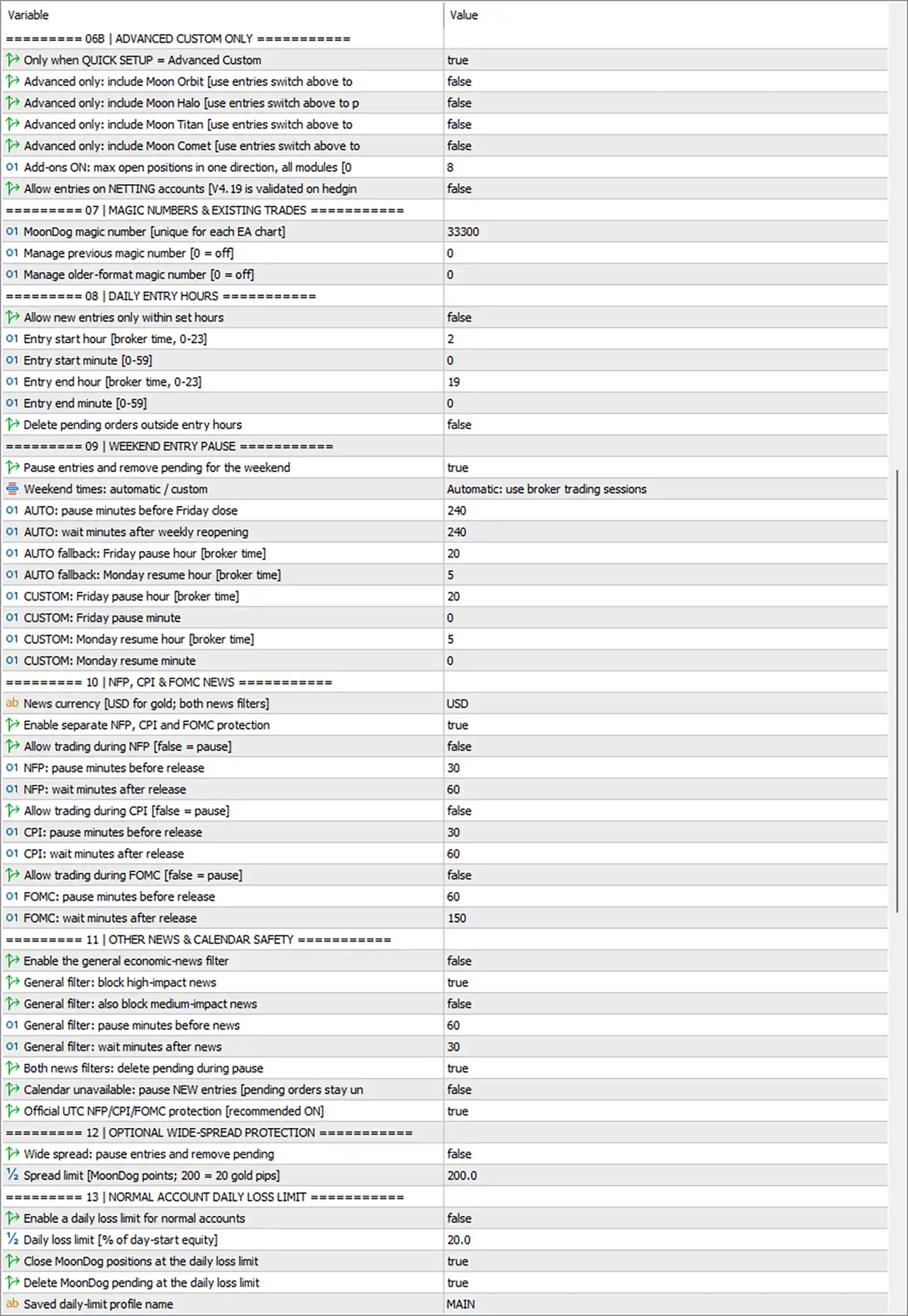
🔹 Only When QUICK SETUP = Advanced Custom: true – Restricts the following advanced module controls to the Advanced Custom configuration rather than applying them to ordinary quick-setup presets.
🔹 Advanced Only – Include Moon Orbit: false – Determines whether Moon Orbit is included when the EA operates in Advanced Custom mode.
🔹 Advanced Only – Include Moon Halo: false – Controls the availability of Moon Halo in Advanced Custom mode, with false indicating that this additional module is disabled.
🔹 Advanced Only – Include Moon Titan: false – Determines whether Moon Titan can participate in the Advanced Custom configuration.
🔹 Advanced Only – Include Moon Comet: false – Controls whether Moon Comet is included as an additional trading module in Advanced Custom mode.
🔹 Add-ons ON – Max Open Positions in One Direction, All Modules: 8 – Sets the maximum number of simultaneous open positions permitted in one direction across all enabled modules when the add-on functionality is active.
🔹 Allow Entries on NETTING Accounts: false – Controls whether the EA is permitted to open new positions on netting accounts. The input notes that V4.19 is validated on hedging accounts.
Magic Numbers and Existing Trades
🔹 MoonDog Magic Number: 33300 – Assigns a unique identification number to MoonDog EA trades on each chart, helping the EA distinguish and manage its own positions.
🔹 Manage Previous Magic Number: 0 – Determines whether the EA manages positions associated with a previous magic number. A value of 0 disables this additional management function.
🔹 Manage Older-Format Magic Number: 0 – Controls compatibility with positions using an older magic-number format. The default value of 0 disables this feature.
Daily Entry Hours
🔹 Allow New Entries Only Within Set Hours: false – Determines whether MoonDog EA restricts new trade entries to a predefined trading session.
🔹 Entry Start Hour: 2 – Sets the beginning of the permitted trading window at 02:00 broker time, using the 0–23 hour format.
🔹 Entry Start Minute: 0 – Defines the starting minute of the trading session, making the configured starting time 02:00 broker time.
🔹 Entry End Hour: 19 – Sets the ending hour of the trading session at 19:00 broker time.
🔹 Entry End Minute: 0 – Defines the final minute of the permitted entry window, making the configured ending time 19:00 broker time.
🔹 Delete Pending Orders Outside Entry Hours: false – Determines whether pending orders are automatically deleted when they fall outside the configured trading session.
Weekend Entry Pause
🔹 Pause Entries and Remove Pending for the Weekend: true – Activates weekend protection by pausing new entries and removing pending orders according to the EA’s weekend schedule.
🔹 Weekend Times: Automatic / Custom: Automatic: use broker trading sessions – Allows MoonDog EA to identify weekend trading interruptions based on the broker’s trading sessions rather than relying exclusively on manually entered times.
🔹 AUTO – Pause Minutes Before Friday Close: 240 – In automatic mode, the EA pauses trading 240 minutes before the broker’s Friday market closing time.
🔹 AUTO – Wait Minutes After Weekly Reopening: 240 – Delays the resumption of new trading entries for 240 minutes after the weekly market reopening.
🔹 AUTO Fallback – Friday Pause Hour: 20 – Sets the fallback Friday trading-pause time to 20:00 broker time when automatic session information cannot be used.
🔹 AUTO Fallback – Monday Resume Hour: 5 – Defines the fallback Monday trading resumption time as 05:00 broker time.
🔹 CUSTOM – Friday Pause Hour: 20 – Sets the manually configured Friday weekend-pause hour to 20:00 broker time.
🔹 CUSTOM – Friday Pause Minute: 0 – Specifies the minute component of the custom Friday pause time, resulting in a configured time of 20:00.
🔹 CUSTOM – Monday Resume Hour: 5 – Sets the manually configured Monday trading resumption hour to 05:00 broker time.
🔹 CUSTOM – Monday Resume Minute: 0 – Defines the minute component of the custom Monday resumption time, resulting in a configured time of 05:00.
NFP, CPI and FOMC News Protection
🔹 News Currency: USD – Specifies USD as the currency used for the separate NFP, CPI, and FOMC economic news protection filters.
🔹 Enable Separate NFP, CPI and FOMC Protection: true – Activates dedicated protection rules for major US economic announcements that may cause substantial market volatility.
🔹 Allow Trading During NFP: false – Prevents the EA from opening new trades during the configured NFP protection period.
🔹 NFP – Pause Minutes Before Release: 30 – Stops new trading entries 30 minutes before the scheduled Non-Farm Payrolls announcement.
🔹 NFP – Wait Minutes After Release: 60 – Keeps new entries paused for another 60 minutes after the NFP announcement.
🔹 Allow Trading During CPI: false – Prevents new trading entries during the configured Consumer Price Index news-protection window.
🔹 CPI – Pause Minutes Before Release: 30 – Suspends new entries 30 minutes before the scheduled CPI announcement.
🔹 CPI – Wait Minutes After Release: 60 – Maintains the trading pause for 60 minutes after the CPI release to reduce exposure to post-news volatility.
🔹 Allow Trading During FOMC: false – Disables new trading entries during the configured Federal Open Market Committee protection period.
🔹 FOMC – Pause Minutes Before Release: 60 – Stops new entries 60 minutes before the scheduled FOMC announcement.
🔹 FOMC – Wait Minutes After Release: 150 – Keeps new trading entries paused for 150 minutes following the FOMC announcement.
Other News and Economic Calendar Safety
🔹 Enable the General Economic-News Filter: false – Determines whether the additional general economic calendar filter is activated alongside the dedicated NFP, CPI, and FOMC protection.
🔹 General Filter – Block High-Impact News: true – Configures the general news filter to block new trading entries around high-impact economic announcements when the general filter is enabled.
🔹 General Filter – Also Block Medium-Impact News: false – Determines whether medium-impact economic events are included in the general news protection system.
🔹 General Filter – Pause Minutes Before News: 60 – Sets the general news protection period to begin 60 minutes before a qualifying economic announcement.
🔹 General Filter – Wait Minutes After News: 30 – Keeps new entries paused for 30 minutes after a qualifying economic announcement.
🔹 Both News Filters – Delete Pending During Pause: true – Allows the EA to delete pending orders during news-protection periods when the relevant filters are active.
🔹 Calendar Unavailable – Pause NEW Entries: false – Determines whether MoonDog EA pauses new entries when economic calendar information is unavailable. The input specifies that pending orders stay unchanged under this option.
🔹 Official UTC NFP/CPI/FOMC Protection: true – Enables the official UTC-based protection schedule for NFP, CPI, and FOMC events, which is recommended to remain enabled.
Optional Wide-Spread Protection
🔹 Wide Spread – Pause Entries and Remove Pending: false – Determines whether the EA pauses new trading entries and removes pending orders when market spreads exceed the configured threshold.
🔹 Spread Limit: 200.0 MoonDog points – Defines the maximum permitted spread before the optional wide-spread protection is triggered. According to the input description, 200 MoonDog points correspond to 20 gold pips.
Normal Account Daily Loss Limit
🔹 Enable a Daily Loss Limit for Normal Accounts: false – Activates the optional daily loss protection for standard trading accounts, independently of the prop firm protection settings.
🔹 Daily Loss Limit: 20.0% – Defines the maximum permitted daily loss as a percentage of day-start equity when this protection is enabled.
🔹 Close MoonDog Positions at the Daily Loss Limit: true – Instructs the EA to close its managed positions when the configured daily loss threshold is reached.
🔹 Delete MoonDog Pending at the Daily Loss Limit: true – Removes MoonDog pending orders when the daily loss threshold is triggered, preventing additional pending entries.
🔹 Saved Daily-Limit Profile Name: MAIN – Identifies the saved daily-loss protection profile currently selected by the EA.
Prop Firm Limits
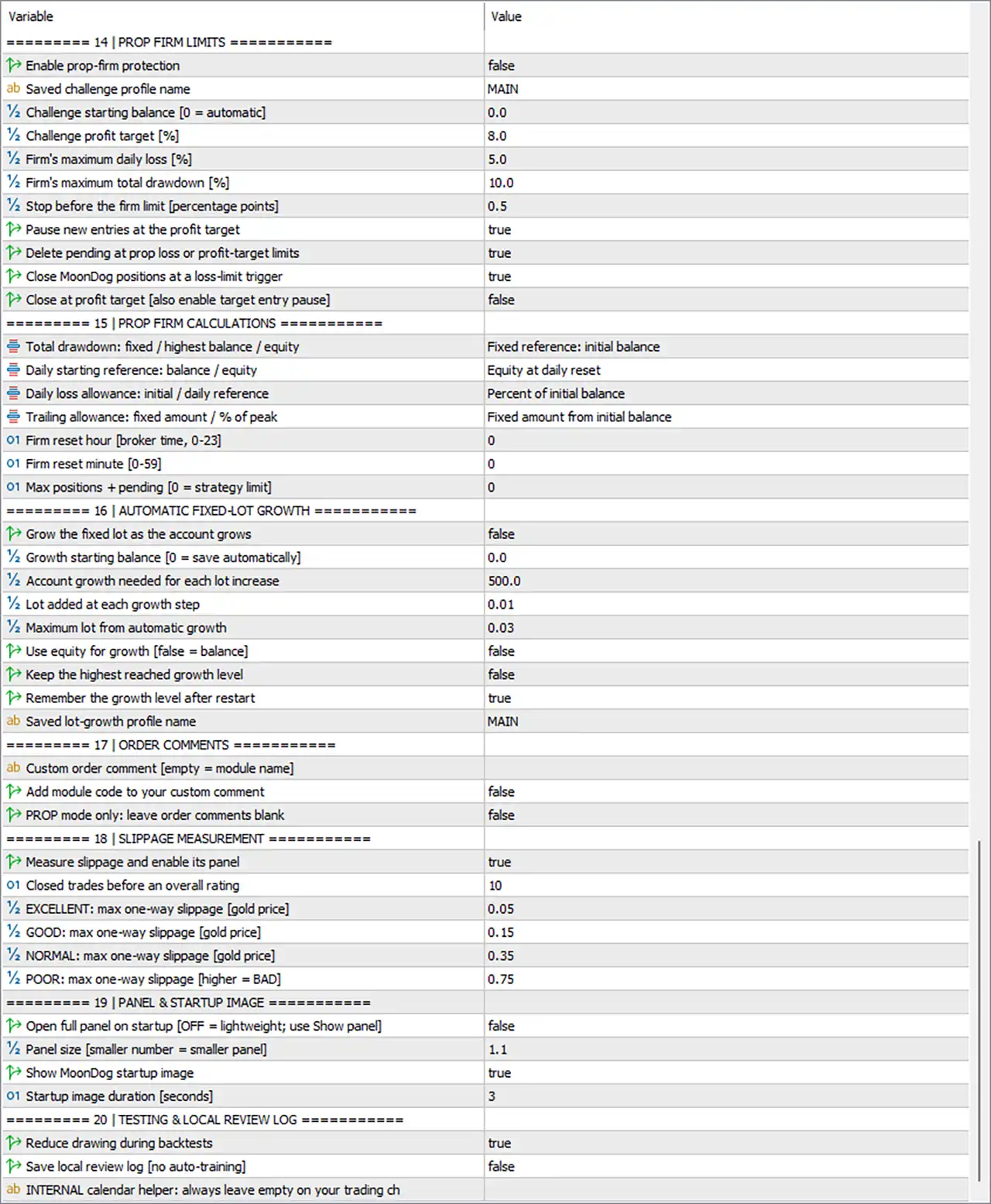
🔹 Enable Prop-Firm Protection: false – Activates the dedicated prop firm risk-management system when enabled. The current configuration leaves this protection disabled.
🔹 Saved Challenge Profile Name: MAIN – Specifies the name of the saved prop firm challenge profile used to organize the account protection settings.
🔹 Challenge Starting Balance: 0.0 – Defines the initial account balance for the prop firm challenge. A value of 0.0 allows the EA to determine this value automatically.
🔹 Challenge Profit Target: 8.0% – Sets the challenge profit objective at 8.0% of the starting balance.
🔹 Firm’s Maximum Daily Loss: 5.0% – Defines the maximum permitted daily loss according to the selected prop firm’s rules.
🔹 Firm’s Maximum Total Drawdown: 10.0% – Sets the maximum overall drawdown threshold at 10.0% for the prop firm challenge.
🔹 Stop Before the Firm Limit: 0.5 percentage points – Instructs the EA to stop trading 0.5 percentage points before reaching the configured prop firm loss limit, providing an additional safety buffer.
🔹 Pause New Entries at the Profit Target: true – Automatically pauses new trading entries when the configured prop firm profit target is achieved.
🔹 Delete Pending at Prop Loss or Profit-Target Limits: true – Removes pending orders when the configured prop firm loss threshold or profit target is reached.
🔹 Close MoonDog Positions at a Loss-Limit Trigger: true – Instructs the EA to close its managed positions when a configured prop firm loss limit is triggered.
🔹 Close at Profit Target [Also Enable Target Entry Pause]: false – Determines whether open MoonDog positions are automatically closed when the profit target is reached, in addition to pausing new entries.
Prop Firm Calculations
🔹 Total Drawdown: Fixed reference: initial balance – Uses the initial account balance as the reference for calculating total drawdown instead of a changing balance or equity reference.
🔹 Daily Starting Reference: Equity at daily reset – Uses account equity at the daily reset time as the starting reference for daily drawdown calculations.
🔹 Daily Loss Allowance: Percent of initial balance – Calculates the permitted daily loss using a percentage of the initial account balance.
🔹 Trailing Allowance: Fixed amount from initial balance – Uses a fixed monetary allowance calculated from the initial balance rather than a percentage of peak account performance.
🔹 Firm Reset Hour: 0 – Sets the daily prop firm calculation reset hour to 00:00 broker time, using the permitted 0–23 hour range.
🔹 Firm Reset Minute: 0 – Defines the reset minute as 00, making the configured daily reset time 00:00 broker time.
🔹 Max Positions + Pending: 0 – Defines the maximum number of combined open positions and pending orders for the prop firm calculation system. A value of 0 means the strategy limit is used.
Automatic Fixed-Lot Growth
🔹 Grow the Fixed Lot as the Account Grows: false – Activates automatic fixed-lot increases as the account balance grows. The current configuration disables automatic lot growth.
🔹 Growth Starting Balance: 0.0 – Specifies the account balance at which automatic lot growth begins. A value of 0 allows the EA to save the starting balance automatically.
🔹 Account Growth Needed for Each Lot Increase: 500.0 – Requires an additional 500.0 in account growth before the next fixed-lot increase is applied.
🔹 Lot Added at Each Growth Step: 0.01 – Increases the fixed trading volume by 0.01 lots whenever the configured account growth threshold is reached.
🔹 Maximum Lot from Automatic Growth: 0.03 – Limits the maximum trading volume generated by the automatic lot-growth mechanism to 0.03 lots.
🔹 Use Equity for Growth: false – Determines whether account equity or account balance is used to calculate growth. The current false setting uses balance.
🔹 Keep the Highest Reached Growth Level: false – Determines whether the EA retains the highest previously achieved growth level instead of recalculating it downward after account fluctuations.
🔹 Remember the Growth Level After Restart: true – Allows the EA to retain the current automatic lot-growth level after the trading platform or EA is restarted.
🔹 Saved Lot-Growth Profile Name: MAIN – Identifies the saved automatic fixed-lot growth configuration currently selected.
Order Comments
🔹 Custom Order Comment: Empty – Allows traders to enter a custom text comment that will be attached to orders. Leaving this field empty means the EA uses the module name as the order comment.
🔹 Add Module Code to Your Custom Comment: false – Determines whether the EA adds the corresponding trading module identification code to the custom order comment.
🔹 PROP MODE Only: Leave Order Comments Blank: false – Controls whether order comments are left blank when the EA operates in prop firm mode.
Slippage Measurement
🔹 Measure Slippage and Enable Its Panel: true – Activates slippage measurement and displays the corresponding slippage information panel to help traders evaluate execution quality.
🔹 Closed Trades Before an Overall Rating: 10 – Requires 10 closed trades before the EA generates an overall execution-quality rating based on measured slippage.
🔹 EXCELLENT – Maximum One-Way Slippage: 0.05 gold price – Classifies execution as EXCELLENT when measured one-way slippage does not exceed 0.05 in gold price.
🔹 GOOD – Maximum One-Way Slippage: 0.15 gold price – Defines the maximum one-way slippage threshold of 0.15 for the GOOD execution-quality category.
🔹 NORMAL – Maximum One-Way Slippage: 0.35 gold price – Sets the maximum one-way slippage threshold of 0.35 for the NORMAL execution-quality category.
🔹 POOR – Maximum One-Way Slippage: 0.75 gold price – Defines the maximum one-way slippage threshold of 0.75 for the POOR execution-quality category, with higher slippage considered BAD.
Panel and Startup Image
🔹 Open Full Panel on Startup: false – Determines whether MoonDog EA automatically displays its full control panel when the trading chart is initialized. The false setting uses a lightweight startup configuration.
🔹 Panel Size: 1.1 – Controls the scaling of the EA interface. Smaller values produce a smaller panel, while larger values increase its display size.
🔹 Show MoonDog Startup Image: true – Enables the MoonDog startup image when the EA is launched on the trading chart.
🔹 Startup Image Duration: 3 seconds – Specifies how long the startup image remains visible before disappearing.
Testing and Local Review Log
🔹 Reduce Drawing During Backtests: true – Reduces graphical drawing operations during strategy testing to improve testing efficiency and minimize unnecessary chart-rendering activity.
🔹 Save Local Review Log: false – Determines whether the EA saves a local review log for analysis. The input explicitly indicates that this function does not perform automatic training.
🔹 Internal Calendar Helper: Always leave this field empty on your trading chart, as specified by the EA input description. This is an internal calendar-related helper field rather than a normal user configuration parameter.
Conclusion
MoonDog EA provides an extensive configuration system covering multiple trading modules, AI profiles, adaptive lot sizing, stop-loss management, MoonLock profit protection, partial take-profit targets, and automated trading restrictions. Its additional features include weekend protection, economic news filters, spread monitoring, slippage measurement, daily loss controls, and dedicated prop firm risk settings.
The displayed configuration uses SET 1 Default, a 0.01 fixed lot, 20.0 gold pips initial stop loss, Classic 50% MoonLock with Spike Shield, and enabled NFP, CPI, and FOMC protection. However, several optional protections, including normal-account daily loss limits and prop firm protection, are currently disabled. Traders should review these settings carefully and test the EA on a demo account before using it with real capital.