

This guide walks through the inputs of Omega Wave Count Indicator MT5 with the values recommended for live trading. The set files that come with the EA already contain these settings, so you can load them in one click and adjust only what your broker or account needs.
Installation
🔹 Step 1: in MetaTrader 5, open File > Open Data Folder and copy the .ex5 file into MQL5Indicators.
🔹 Step 2: go to Tools > Options > Expert Advisors and tick "Allow DLL imports" (needed for the licence check, Telegram and the dashboard buttons).
🔹 Step 3: refresh the Navigator, then drag Omega Wave Count onto a chart.
🔹 Step 4: paste your licence key into InpLicenseKey and press OK. If something is wrong, the reason appears in the top-left corner of the chart.
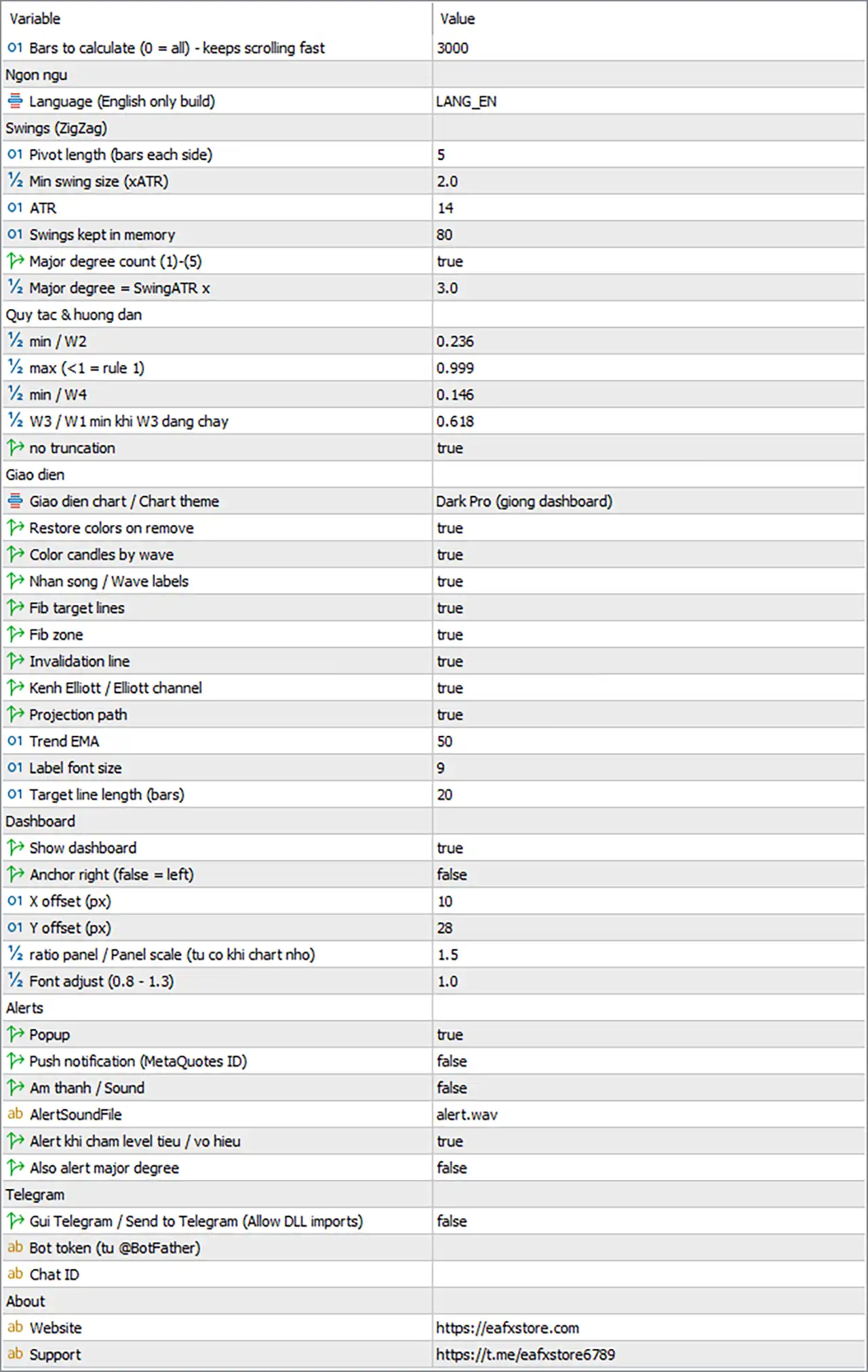
General and Licence
| Input | Default | What it does |
|---|---|---|
| MaxBarsCalc | 3000 | Bars the indicator calculates; fewer bars load faster (0 = all) |
| InpLicenseKey | (empty) | Your licence key from eafxstore.com |
| Lang | LANG_EN | Display language; this version is English only |
Swings (ZigZag)
| Input | Default | What it does |
|---|---|---|
| PivLen | 5 | Bars on each side needed to confirm a swing high or low |
| SwingATR | 2.0 | Smallest move counted as a wave, in ATR; higher = fewer, bigger waves |
| AtrLen | 14 | ATR period used for the swing filter |
| MaxSwings | 80 | How many swings the indicator remembers |
| ShowMajor | true | Also counts the bigger (major) degree, labelled (1)-(5) |
| MajorMult | 3.0 | How much bigger a major swing must be than a minor one |
On noisy M1-M5 charts, raise SwingATR to 2.5-3.0 so only clear waves are counted.
Rules & Guidelines
| Input | Default | What it does |
|---|---|---|
| W2MinRet | 0.236 | Smallest pullback accepted as wave 2 |
| W2MaxRet | 0.999 | Largest wave 2 pullback; below 1.0 keeps Elliott rule 1 |
| W4MinRet | 0.146 | Smallest pullback accepted as wave 4 |
| W3MinRatio | 0.618 | Shortest wave 3 allowed, compared with wave 1 |
| StrictW5 | true | Wave 5 must go past the end of wave 3 |
Display
| Input | Default | What it does |
|---|---|---|
| Theme | Dark Pro | Chart colours: Keep chart colors, Dark Pro, Midnight Blue or Light Clean |
| RestoreTheme | true | Puts your own chart colours back when you remove the indicator |
| ColorByWave | true | Colours candles by wave |
| ShowLabels | true | Shows the wave numbers and letters |
| ShowTargets | true | Draws the three Fibonacci target lines |
| ShowZones | true | Shades the zone between Target 1 and Target 2 |
| ShowInvalid | true | Draws the invalidation line |
| ShowChannel | true | Draws the Elliott channel during waves 3, 4 and 5 |
| ShowProjection | true | Draws a path from the last swing to Target 1 |
| TrendLen | 50 | Period of the trend EMA (moving average) on the chart |
| LabelFont | 9 | Size of the wave labels |
| TargetBars | 20 | How far to the right target lines extend, in bars |
For a clean chart, turn off ShowChannel, ShowProjection and ShowZones.
Dashboard
| Input | Default | What it does |
|---|---|---|
| ShowDash | true | Shows the dashboard panel |
| DashRight | false | Places the panel on the right side instead of the left |
| DashX / DashY | 10 / 28 | Panel distance from the chart edge, in pixels |
| DashScale | 1.5 | Panel size; it shrinks automatically on small charts |
| DashFontAdj | 1.0 | Text size inside the panel (0.8-1.3) |
You can also drag the panel by its header; the chart remembers the new position.
Alerts
| Input | Default | What it does |
|---|---|---|
| AlertPopup | true | Pop-up window in MetaTrader |
| AlertPush | false | Notification to the MetaTrader mobile app |
| AlertSoundOn | false | Plays a sound |
| AlertSoundFile | alert.wav | Sound file used |
| AlertTargets | true | Alerts when a target is hit or the invalidation line breaks |
| AlertMajor | false | Also alerts when the major-degree count changes |
Swing traders can switch AlertMajor to true to hear about big-picture changes.
Telegram
| Input | Default | What it does |
|---|---|---|
| TgEnable | false | Sends every alert to Telegram |
| TgToken | (empty) | Your bot token from @BotFather |
| TgChatID | (empty) | The chat, group or channel that receives the alerts |
Telegram setup
🔹 Step 1: open @BotFather in Telegram, create a bot and copy its token.
🔹 Step 2: start a chat with your bot (or add it to your group) and send it any message.
🔹 Step 3: get your chat ID, for example with @userinfobot.
🔹 Step 4: paste the token and chat ID, set TgEnable to true and press TEST TG on the dashboard.
Get Omega Wave Count Indicator MT5
Download Omega Wave Count Indicator MT5 with its set files, read the full product details and requirements here: Omega Wave Count Indicator MT5 →