

🔢 Adaptive Alpha Trend Pro MT5 – Simple Inputs Guide
This guide explains the Adaptive Alpha Trend Pro MT5 settings in a simple and easy-to-read format.
The indicator combines AlphaTrend, multi-timeframe confirmation, candlestick patterns, automatic optimization, and statistical analysis to generate trading signals.
🔢 Before You Start
🔹 Open MetaTrader 5.
🔹 Drag Adaptive Alpha Trend Pro MT5 from the Navigator onto a chart.
🔹 Open the Inputs tab.
🔹 Settings are divided into different groups.
🔹 Use Save and Load to save your preferred settings as a .set file.
🔹 Pip Calculation — On 3- and 5-digit symbols, 1 pip = 10 points. On other symbols, 1 pip = 1 point.
🔹 DLL Imports — DLL imports are only required if the Telegram or Web buttons need to open a browser. Other indicator functions do not require DLLs.
Simple Recommendation: For a first setup, focus mainly on Operating Mode, Signal Frequency, InpCostPips, and the SL/TP multipliers. The other defaults are designed to work without major changes.
🔢 Operating Mode
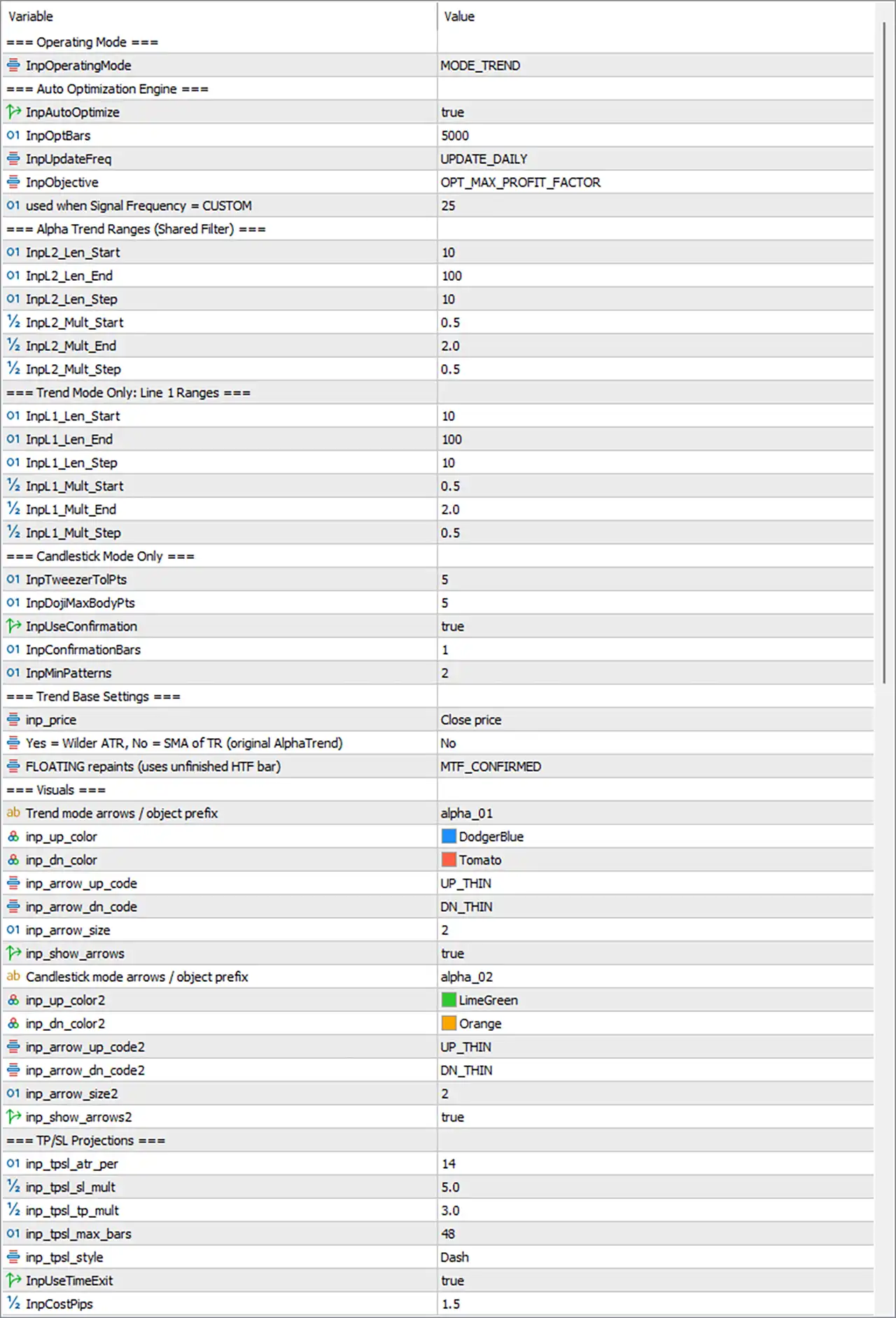
🔹 Operating Mode [InpOperatingMode] — Default: MODE_TREND — Selects how the indicator generates signals. Recommended: MODE_TREND.
MODE_TREND uses Line 1 on the current chart timeframe and Line 2 on the higher timeframe as a trend filter.
MODE_CANDLESTICK uses candlestick patterns in the direction of Line 2.
Simple Idea: MODE_TREND focuses on AlphaTrend lines, while MODE_CANDLESTICK focuses on candlestick patterns.
🔢 Auto Optimization Engine
🔹 Auto Optimization [InpAutoOptimize] — Default: true — Automatically searches the available parameter ranges and selects the best combination. Recommended: true.
When false, the indicator uses the starting values of the selected ranges.
🔹 Optimization Bars [InpOptBars] — Default: 5000 — Controls how many recent closed bars are used for optimization and statistics. Recommended: 3000–10000.
More bars provide more trading samples but make optimization slower.
🔹 Update Frequency [InpUpdateFreq] — Default: UPDATE_DAILY — Controls how often optimization is repeated. Recommended: UPDATE_DAILY for M15–H1.
Available options:
🔹 Daily [UPDATE_DAILY] — Updates every day.
🔹 Weekly [UPDATE_WEEKLY] — Updates every week.
🔹 Monthly [UPDATE_MONTHLY] — Updates every month.
Weekly or monthly updates are more suitable for H4 and higher timeframes.
🔹 Optimization Objective [InpObjective] — Default: OPT_MAX_PROFIT_FACTOR — Selects what the optimizer tries to maximize. Recommended: OPT_MAX_PROFIT_FACTOR.
Available objectives:
🔹 Profit Factor [OPT_MAX_PROFIT_FACTOR] — Maximizes gross profit divided by gross loss.
🔹 Net Profit [OPT_MAX_NET_PROFIT] — Maximizes total pips after costs.
🔹 Win Rate [OPT_MAX_WIN_RATE] — Maximizes the percentage of winning trades.
🔹 Recovery [OPT_MAX_RECOVERY] — Maximizes net profit compared with maximum drawdown.
🔹 Minimum Drawdown [OPT_MIN_DRAWDOWN] — Searches for the smallest drawdown among profitable settings.
🔹 Minimum Trades [InpMinTrades] — Default: 30 — Sets the minimum number of trades required for an optimization result to be accepted. Recommended: 30.
This setting is used only with FREQ_CUSTOM.
The built-in presets use:
🔹 LOW — 25 trades.
🔹 MEDIUM — 30 trades.
🔹 HIGH — 40 trades.
Simple Idea: The optimization engine tests different settings and selects a configuration based on the selected objective.
🔢 Alpha Trend Line 2
Line 2 runs on the higher timeframe and works as the main trend filter in both operating modes.
🔹 Line 2 Length Start [InpL2_Len_Start] — Default: 10 — Smallest length tested by the optimizer. Recommended: 10.
🔹 Line 2 Length End [InpL2_Len_End] — Default: 100 — Largest length tested by the optimizer. Recommended: 100.
🔹 Line 2 Length Step [InpL2_Len_Step] — Default: 10 — Controls the step between tested lengths. Recommended: 10.
For example, 10 / 100 / 10 tests:
10, 20, 30 ... 100
🔹 Line 2 Multiplier Start [InpL2_Mult_Start] — Default: 0.5 — Smallest ATR multiplier tested. Recommended: 0.5.
Lower values keep the line closer to price and make it more sensitive.
🔹 Line 2 Multiplier End [InpL2_Mult_End] — Default: 2.0 — Largest ATR multiplier tested. Recommended: 2.0.
Higher values place the line farther from price and reduce direction changes.
🔹 Line 2 Multiplier Step [InpL2_Mult_Step] — Default: 0.5 — Controls the step between tested multipliers. Recommended: 0.5.
For example, 0.5 / 2.0 / 0.5 tests:
0.5, 1.0, 1.5, 2.0
Simple Idea: Line 2 provides the higher-timeframe trend direction used to filter signals.
🔢 Alpha Trend Line 1
Line 1 runs on the current chart timeframe and generates entry signals in MODE_TREND.
It is not used for signal generation in MODE_CANDLESTICK.
🔹 Line 1 Length Start [InpL1_Len_Start] — Default: 10 — Smallest Line 1 length tested. Recommended: 10.
🔹 Line 1 Length End [InpL1_Len_End] — Default: 100 — Largest Line 1 length tested. Recommended: 100.
A lower value, such as 60, can favour faster and more active settings.
🔹 Line 1 Length Step [InpL1_Len_Step] — Default: 10 — Controls the step between tested lengths. Recommended: 10.
🔹 Line 1 Multiplier Start [InpL1_Mult_Start] — Default: 0.5 — Smallest ATR multiplier tested. Recommended: 0.5.
🔹 Line 1 Multiplier End [InpL1_Mult_End] — Default: 2.0 — Largest ATR multiplier tested. Recommended: 2.0.
🔹 Line 1 Multiplier Step [InpL1_Mult_Step] — Default: 0.5 — Controls the step between tested multipliers. Recommended: 0.5.
Simple Idea: Line 1 works on the current timeframe and provides the main entry signal in Trend mode.
🔢 Candlestick Mode
These settings are used only when InpOperatingMode = MODE_CANDLESTICK.
🔹 Tweezer Tolerance [InpTweezerTolPts] — Default: 5 — Maximum difference in points between two highs or lows for a Tweezer pattern. Recommended: 5.
For volatile symbols such as XAUUSD, values around 20–50 can be used.
🔹 Doji Maximum Body [InpDojiMaxBodyPts] — Default: 5 — Maximum candle body size allowed for a Doji pattern. Recommended: 5.
Larger values may be needed on symbols with larger price movements.
🔹 Use Confirmation [InpUseConfirmation] — Default: true — Waits for a later candle to close beyond the pattern before creating a signal. Recommended: true.
true creates fewer but more confirmed signals.
false creates the signal directly on the pattern candle.
🔹 Confirmation Bars [InpConfirmationBars] — Default: 1 — Controls which candle after the pattern is checked for confirmation. Recommended: 1.
1 means the next candle.
🔹 Minimum Patterns [InpMinPatterns] — Default: 2 — Controls the minimum number of patterns the optimizer can combine. Recommended: 2.
1 allows single-pattern setups.
Higher values require broader pattern combinations.
Simple Idea: Candlestick mode uses recognized candle patterns together with the Line 2 trend direction.
🔢 Trend Base Settings
🔹 Price [inp_price] — Default: Close price — Selects the price used by the RSI filter when InpOscillator = OSC_RSI. Recommended: Close price.
Available choices include:
🔹 Close — Closing price.
🔹 Open — Opening price.
🔹 High — High price.
🔹 Low — Low price.
🔹 Median — Median price.
🔹 Typical — Typical price.
🔹 Weighted — Weighted price.
🔹 ATR Calculation [inp_change_calc] — Default: No — Selects the ATR calculation method used by AlphaTrend. Recommended: No.
No uses a simple True Range average.
Yes uses Wilder's smoothed ATR, similar to the MT5 ATR indicator.
🔹 MTF Mode [inp_mtf_mode] — Default: MTF_CONFIRMED — Controls how the higher-timeframe Line 2 is calculated. Recommended: MTF_CONFIRMED.
MTF_CONFIRMED uses only closed higher-timeframe candles and does not repaint.
MTF_FLOATING uses the currently forming higher-timeframe candle. It reacts earlier but historical signals can change.
Simple Idea: MTF_CONFIRMED is the safer starting choice when consistent historical signals are important.
🔢 Classic Arrow Settings
These settings are used when InpSignalIcon = ICON_ARROW.
⚙️ Trend Mode Arrows
🔹 Arrow ID [inp_arrow_id] — Default: alpha_01 — Object name prefix used in Trend mode. Recommended: alpha_01.
Use a different ID when multiple copies of the indicator are attached to the same chart.
🔹 BUY Arrow Colour [inp_up_color] — Default: DodgerBlue — Controls the BUY arrow colour in Trend mode.
🔹 SELL Arrow Colour [inp_dn_color] — Default: Tomato — Controls the SELL arrow colour in Trend mode.
🔹 BUY Arrow Shape [inp_arrow_up_code] — Default: UP_THIN — Controls the BUY arrow shape. Available options are UP_THIN, UP_THICK, and UP_CIRCLE.
🔹 SELL Arrow Shape [inp_arrow_dn_code] — Default: DN_THIN — Controls the SELL arrow shape. Available options are DN_THIN, DN_THICK, and DN_CIRCLE.
🔹 Arrow Size [inp_arrow_size] — Default: 2 — Controls arrow size from 1 to 5. Recommended: 2.
🔹 Show Arrows [inp_show_arrows] — Default: true — Shows or hides Trend mode arrows. Recommended: true.
The signal data remains available even when arrows are hidden.
⚙️ Candlestick Mode Arrows
🔹 Arrow ID 2 [inp_arrow_id2] — Default: alpha_02 — Object name prefix used in Candlestick mode.
🔹 BUY Arrow Colour 2 [inp_up_color2] — Default: LimeGreen — Controls the BUY arrow colour in Candlestick mode.
🔹 SELL Arrow Colour 2 [inp_dn_color2] — Default: Orange — Controls the SELL arrow colour in Candlestick mode.
🔹 BUY Arrow Shape 2 [inp_arrow_up_code2] — Default: UP_THIN — Controls the BUY arrow shape in Candlestick mode.
🔹 SELL Arrow Shape 2 [inp_arrow_dn_code2] — Default: DN_THIN — Controls the SELL arrow shape in Candlestick mode.
🔹 Arrow Size 2 [inp_arrow_size2] — Default: 2 — Controls Candlestick mode arrow size. Recommended: 2.
🔹 Show Arrows 2 [inp_show_arrows2] — Default: true — Shows or hides Candlestick mode arrows. Recommended: true.
🔢 TP/SL Projections
These settings control the TP and SL levels drawn on the chart and used in simulated trades and statistics.
🔹 TP/SL ATR Period [inp_tpsl_atr_per] — Default: 14 — Controls the ATR period used to calculate TP and SL distances. Recommended: 14.
🔹 Stop-Loss Multiplier [inp_tpsl_sl_mult] — Default: 5.0 — Sets the stop-loss distance as a multiple of ATR. Recommended: 5.0 by default.
Higher values create wider stop-loss distances.
🔹 Take-Profit Multiplier [inp_tpsl_tp_mult] — Default: 3.0 — Sets the take-profit distance as a multiple of ATR. Recommended: 3.0 by default.
For a positive risk-to-reward structure, the guide gives SL = 2.0 and TP = 3.0 as an example.
🔹 Maximum Bars [inp_tpsl_max_bars] — Default: 48 — Maximum number of bars a trade can remain open when the time exit is enabled. Recommended: 48.
For example, 48 bars equals approximately 2 days on H1.
🔹 TP/SL Line Style [inp_tpsl_style] — Default: Dash — Controls the line style of older TP/SL projections.
🔹 Use Time Exit [InpUseTimeExit] — Default: true — Controls whether trades can close after the maximum holding period. Recommended: true.
true closes a trade after Inp_tpsl_max_bars if neither TP nor SL has been reached.
false keeps the trade open until TP or SL is reached.
🔹 Trading Cost [InpCostPips] — Default: 1.5 — Sets the spread and commission deducted from simulated trades. Recommended: use the broker's real cost.
Typical examples from the guide:
🔹 Major Forex pairs — About 1–2 pips.
🔹 2-digit XAUUSD — About 20–40 pips.
Simple Idea: TP and SL are calculated from ATR, so the distances adapt to market volatility.
🔢 Metrics Dashboard
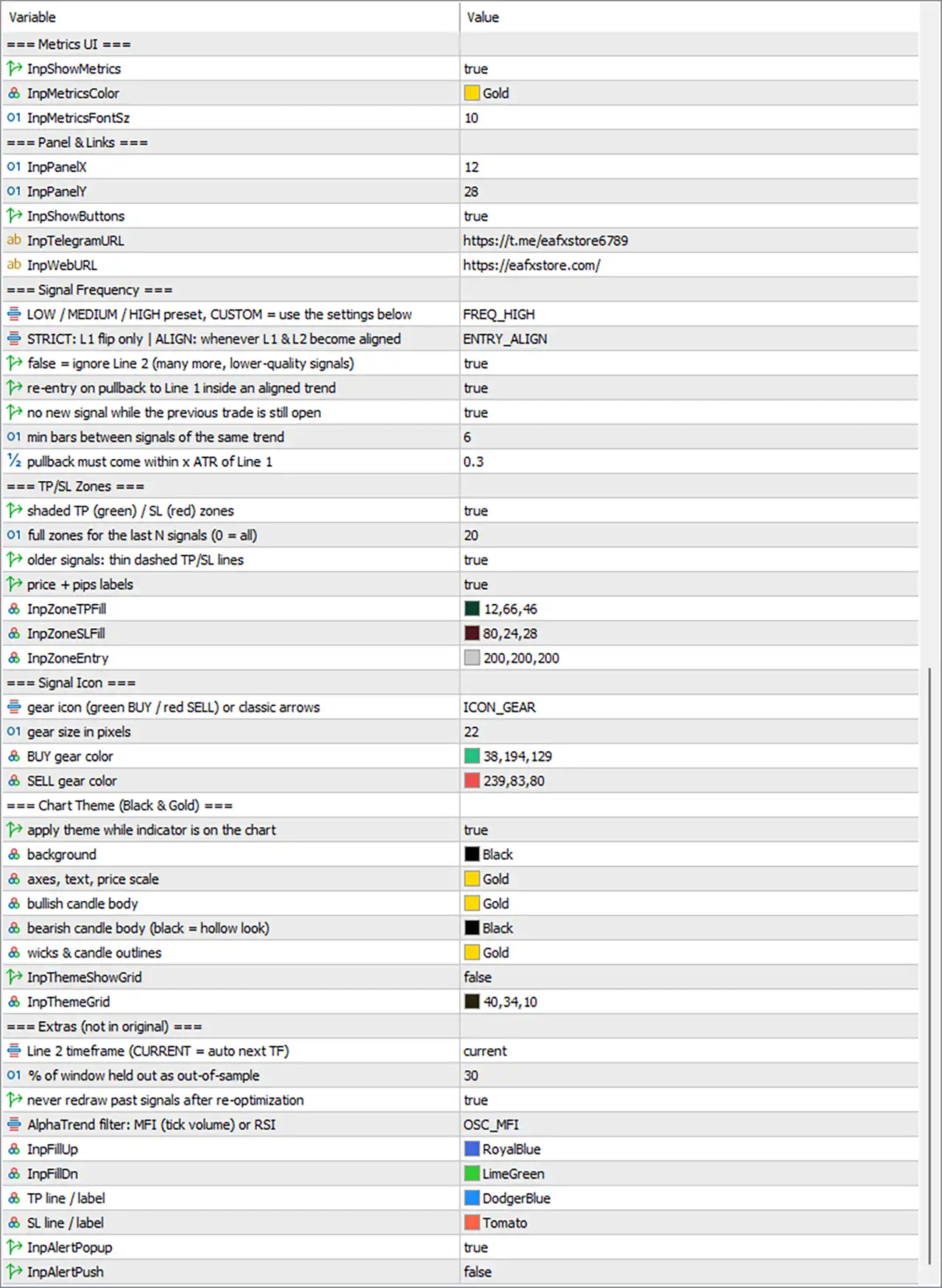
🔹 Show Metrics [InpShowMetrics] — Default: true — Shows or hides the metrics dashboard. Recommended: true.
🔹 Metrics Colour [InpMetricsColor] — Default: Gold — Controls the main dashboard accent colour.
🔹 Metrics Font Size [InpMetricsFontSz] — Default: 10 — Controls the dashboard font size. Recommended: 10.
🔢 Panel & Links
🔹 Panel X Position [InpPanelX] — Default: 12 — Controls the horizontal distance of the dashboard from the left side of the chart.
🔹 Panel Y Position [InpPanelY] — Default: 28 — Controls the vertical distance from the top of the chart.
🔹 Show Buttons [InpShowButtons] — Default: true — Shows or hides the TELEGRAM and WEB buttons. Recommended: true.
🔹 Telegram URL [InpTelegramURL] — Default: t.me/eafxstore6789 — Link opened by the TELEGRAM button.
🔹 Web URL [InpWebURL] — Default: eafxstore.com — Link opened by the WEB button.
If DLL imports are not allowed, the web link is shown in an alert instead.
🔢 Signal Frequency
🔹 Signal Frequency [InpSignalFreq] — Default: FREQ_MEDIUM — Controls how frequently signals are generated. Recommended: FREQ_MEDIUM.
Available options:
🔹 Low [FREQ_LOW] — Strict entries and the fewest signals.
🔹 Medium [FREQ_MEDIUM] — Signals when Line 1 and Line 2 become aligned.
🔹 High [FREQ_HIGH] — Medium signals plus pullback re-entries.
🔹 Custom [FREQ_CUSTOM] — Uses the custom entry and continuation settings.
🔹 Entry Mode [InpEntryMode] — Default: ENTRY_ALIGN — Controls the entry condition when using FREQ_CUSTOM. Recommended: ENTRY_ALIGN.
ENTRY_STRICT requires Line 1 to turn while Line 2 already agrees.
ENTRY_ALIGN generates a signal as soon as both lines agree.
🔹 Use Higher-Timeframe Filter [InpUseHTFFilter] — Default: true — Uses Line 2 as the higher-timeframe filter. Recommended: true.
When false, Line 2 is ignored and more counter-trend signals can appear.
🔹 Continuation [InpContinuation] — Default: true — Allows pullback re-entries inside an aligned trend when using FREQ_CUSTOM. Recommended: true.
🔹 One Trade at a Time [InpOneTradeAtATime] — Default: true — Prevents a new signal while the previous trade is still open. Recommended: true.
This keeps TP/SL zones from overlapping and makes the statistics represent a single-position account.
🔹 Continuation Cooldown [InpContCooldown] — Default: 6 — Minimum number of bars between continuation signals in the same trend. Recommended: 6.
🔹 Continuation Touch ATR [InpContTouchATR] — Default: 0.30 — Controls how close price must come to Line 1 for a pullback re-entry. Recommended: 0.30.
Higher values allow more re-entries.
Simple Idea: InpSignalFreq is one of the most important settings for controlling how many trading opportunities the indicator produces.
🔢 TP/SL Zones
🔹 Show TP/SL Zones [InpShowZones] — Default: true — Draws shaded TP and SL zones on the chart. Recommended: true.
The green area represents the take-profit zone.
The red area represents the stop-loss zone.
🔹 Zone Last N [InpZoneLastN] — Default: 20 — Controls how many recent signals are shown as full zones. Recommended: 20.
Older signals are displayed as thin lines.
0 displays full zones for all signals.
🔹 Show Old Lines [InpShowOldLines] — Default: true — Shows thin dashed TP/SL lines for older signals. Recommended: true.
🔹 Zone Labels [InpZoneLabels] — Default: true — Shows TP, SL, entry price, BUY/SELL information, and trade results. Recommended: true.
🔹 TP Zone Fill [InpZoneTPFill] — Default: dark green — Controls the colour of the take-profit zone.
🔹 SL Zone Fill [InpZoneSLFill] — Default: dark red — Controls the colour of the stop-loss zone.
🔹 Entry Line Colour [InpZoneEntry] — Default: light grey — Controls the dotted entry line and running label colour.
🔢 Signal Icon
🔹 Signal Icon [InpSignalIcon] — Default: ICON_GEAR — Selects the signal icon shown on the chart. Recommended: ICON_GEAR.
Available options:
🔹 Gear [ICON_GEAR] — Green gear below the candle for BUY and red gear above the candle for SELL.
🔹 Classic Arrow [ICON_ARROW] — Uses the classic arrow settings from Section 8.
🔹 Gear Size [InpGearSize] — Default: 30 — Controls gear size in pixels. Recommended: 24–40.
🔹 BUY Gear Colour [InpGearBuy] — Default: green — Controls the BUY gear and BUY label colour.
🔹 SELL Gear Colour [InpGearSell] — Default: red — Controls the SELL gear and SELL label colour.
🔢 Chart Theme
The default theme uses a Black & Gold appearance.
🔹 Apply Theme [InpApplyTheme] — Default: true — Applies the Black & Gold theme while the indicator is attached. Recommended: true.
The original chart colours are restored when the indicator is removed.
🔹 Background Colour [InpThemeBg] — Default: Black — Controls the chart background.
🔹 Foreground Colour [InpThemeFg] — Default: Gold — Controls axes, price scale, and chart text.
🔹 Bullish Candle Body [InpThemeBullBody] — Default: Gold — Controls bullish candle body colour.
🔹 Bearish Candle Body [InpThemeBearBody] — Default: Black — Controls bearish candle body colour.
Black creates a hollow-style bearish candle with a gold outline.
🔹 Candle Outline [InpThemeOutline] — Default: Gold — Controls candle wick and outline colour.
🔹 Show Grid [InpThemeShowGrid] — Default: false — Shows or hides the chart grid. Recommended: false.
🔹 Grid Colour [InpThemeGrid] — Default: dark olive — Controls the grid colour when the grid is enabled.
🔢 Extra Settings
🔹 Higher Timeframe [InpHTF] — Default: current — Controls the timeframe used by Line 2. Recommended: current.
current automatically selects the next higher timeframe.
Examples:
🔹 M5 → M15
🔹 M15 → H1
🔹 M30 → H2
🔹 H1 → H4
🔹 H4 → D1
🔹 D1 → W1
A specific timeframe can also be selected, but it must be equal to or higher than the chart timeframe.
🔹 Validation Percentage [InpValidationPct] — Default: 30 — Controls how much of the optimization window is reserved as out-of-sample data. Recommended: 20–40.
Allowed range: 0–90.
🔹 Freeze History [InpFreezeHistory] — Default: true — Prevents previously drawn signals from changing when the optimizer switches to new settings. Recommended: true.
With true, new settings apply only to future bars.
With false, the entire history is redrawn using the latest settings.
🔹 Oscillator [InpOscillator] — Default: OSC_MFI — Selects the momentum filter used by AlphaTrend. Recommended: OSC_MFI.
OSC_MFI uses Money Flow Index with tick volume.
OSC_RSI uses RSI based on inp_price and can be used when volume data is unreliable.
🔹 Rising Band Colour [InpFillUp] — Default: RoyalBlue — Controls the AlphaTrend band colour when the line is rising.
🔹 Falling Band Colour [InpFillDn] — Default: LimeGreen — Controls the AlphaTrend band colour when the line is falling.
🔹 Take-Profit Colour [InpTPColor] — Default: green — Controls the TP line and label colour.
🔹 Stop-Loss Colour [InpSLColor] — Default: red — Controls the SL line and label colour.
🔢 Signal Alerts
🔹 Popup Alert [InpAlertPopup] — Default: true — Shows a popup alert with sound when a new signal appears on a closed candle. Recommended: true.
🔹 Push Alert [InpAlertPush] — Default: false — Sends a notification to the MetaTrader mobile application. Recommended: false unless mobile alerts are needed.
A MetaQuotes ID must be configured in Tools → Options → Notifications.
🔢 Quick Setup Recipes
⚙️ Fewer Signals
For fewer and stricter signals:
🔹 Signal Frequency [InpSignalFreq] — FREQ_LOW
🔹 MTF Mode [inp_mtf_mode] — MTF_CONFIRMED
🔹 Update Frequency [InpUpdateFreq] — UPDATE_WEEKLY
⚙️ More Trading Opportunities
For more signals:
🔹 Signal Frequency [InpSignalFreq] — FREQ_HIGH
🔹 Line 1 Length End [InpL1_Len_End] — 60
For Custom mode, a lower InpContCooldown can also allow more continuation entries.
⚙️ Positive Risk-to-Reward Example
🔹 Stop-Loss Multiplier [inp_tpsl_sl_mult] — 2.0
🔹 Take-Profit Multiplier [inp_tpsl_tp_mult] — 3.0
⚙️ XAUUSD
🔹 Trading Cost [InpCostPips] — 20–40
🔹 Tweezer Tolerance [InpTweezerTolPts] — 30
🔹 Doji Maximum Body [InpDojiMaxBodyPts] — 30
🔹 Recommended Timeframe — M30 or H1
⚙️ Candlestick Entries
🔹 Operating Mode [InpOperatingMode] — MODE_CANDLESTICK
🔹 Use Confirmation [InpUseConfirmation] — true
🔹 Minimum Patterns [InpMinPatterns] — 2
⚙️ Keep Original Chart Colours
🔹 Apply Theme [InpApplyTheme] — false
⚙️ Clean Chart
🔹 Zone Last N [InpZoneLastN] — 5
🔹 Show Old Lines [InpShowOldLines] — false
🔢 Using the Indicator With an Expert Advisor
The guide specifies the following buffers for EA integration:
🔹 Buffer 4 — Signal: +1 for BUY and -1 for SELL.
🔹 Buffer 5 — Stop-Loss.
🔹 Buffer 6 — Take-Profit.
These can be read with iCustom on the last closed bar using shift 1.
🔢 Troubleshooting
🔹 Status: Waiting for History — The chart does not have enough historical data. Load more chart history, increase Max bars in chart, or reduce InpOptBars.
🔹 Status: Loading H4 Data — Higher-timeframe data is still downloading. Wait a few seconds or open the higher timeframe once.
🔹 Status: No Set Met MinTrades — The optimization window does not contain enough trades. Increase InpOptBars, choose a higher Signal Frequency, or lower InpMinTrades when using FREQ_CUSTOM.
🔹 WEB or TELEGRAM Buttons Do Not Open — Enable Allow DLL imports on the Common tab.
🔹 New Defaults Are Not Applied — Remove the indicator from the chart and attach it again.
🔹 Strategy Tester Colours Look Different — Make sure InpApplyTheme = true, or install the supplied tester template.
🔹 Optimization Is Slow — Increase InpL1_Len_Step, InpL2_Len_Step, InpL1_Mult_Step, or InpL2_Mult_Step, or reduce InpOptBars.
🔢 Simple Adaptive Alpha Trend Pro Logic
The indicator can be understood through a simple process:
🔹 Step 1 — Select Operating Mode — The indicator works in Trend mode or Candlestick mode.
🔹 Step 2 — Build AlphaTrend Lines — Line 1 works on the chart timeframe while Line 2 works on the higher timeframe.
🔹 Step 3 — Optimize Parameters — When InpAutoOptimize = true, the indicator tests different AlphaTrend lengths and multipliers.
🔹 Step 4 — Select the Best Configuration — The optimizer selects a configuration based on the chosen InpObjective.
🔹 Step 5 — Check the Higher-Timeframe Trend — Line 2 acts as the main trend filter.
🔹 Step 6 — Generate Entry Signals — Trend mode uses Line 1 alignment. Candlestick mode uses candlestick patterns in the direction of Line 2.
🔹 Step 7 — Apply Signal Frequency — InpSignalFreq controls whether entries are strict, balanced, frequent, or custom.
🔹 Step 8 — Calculate TP and SL — TP and SL are calculated using ATR multipliers.
🔹 Step 9 — Manage the Exit — The trade can close through TP, SL, an opposite signal, or the time exit depending on the selected settings.
🔹 Step 10 — Update the Model — The optimizer can periodically re-test the available settings according to InpUpdateFreq.
🔢 Recommended Starting Settings
For a simple starting configuration, the following settings can be used:
🔹 Operating Mode [InpOperatingMode] — MODE_TREND
🔹 Auto Optimization [InpAutoOptimize] — true
🔹 Optimization Bars [InpOptBars] — 5000
🔹 Update Frequency [InpUpdateFreq] — UPDATE_DAILY
🔹 Optimization Objective [InpObjective] — OPT_MAX_PROFIT_FACTOR
🔹 Minimum Trades [InpMinTrades] — 30
🔹 Line 2 Length Start [InpL2_Len_Start] — 10
🔹 Line 2 Length End [InpL2_Len_End] — 100
🔹 Line 2 Length Step [InpL2_Len_Step] — 10
🔹 Line 2 Multiplier Start [InpL2_Mult_Start] — 0.5
🔹 Line 2 Multiplier End [InpL2_Mult_End] — 2.0
🔹 Line 2 Multiplier Step [InpL2_Mult_Step] — 0.5
🔹 Line 1 Length Start [InpL1_Len_Start] — 10
🔹 Line 1 Length End [InpL1_Len_End] — 100
🔹 Line 1 Length Step [InpL1_Len_Step] — 10
🔹 Line 1 Multiplier Start [InpL1_Mult_Start] — 0.5
🔹 Line 1 Multiplier End [InpL1_Mult_End] — 2.0
🔹 Line 1 Multiplier Step [InpL1_Mult_Step] — 0.5
🔹 MTF Mode [inp_mtf_mode] — MTF_CONFIRMED
🔹 Signal Frequency [InpSignalFreq] — FREQ_MEDIUM
🔹 Use Higher-Timeframe Filter [InpUseHTFFilter] — true
🔹 One Trade at a Time [InpOneTradeAtATime] — true
🔹 TP/SL ATR Period [inp_tpsl_atr_per] — 14
🔹 Stop-Loss Multiplier [inp_tpsl_sl_mult] — 5.0
🔹 Take-Profit Multiplier [inp_tpsl_tp_mult] — 3.0
🔹 Maximum Holding Bars [inp_tpsl_max_bars] — 48
🔹 Use Time Exit [InpUseTimeExit] — true
🔹 Trading Cost [InpCostPips] — 1.5 for the default example; adjust to the broker's real cost.
🔹 Show Metrics [InpShowMetrics] — true
🔹 Show TP/SL Zones [InpShowZones] — true
🔹 Zone Labels [InpZoneLabels] — true
🔹 Signal Icon [InpSignalIcon] — ICON_GEAR
🔹 Apply Theme [InpApplyTheme] — true
🔹 Higher Timeframe [InpHTF] — current
🔹 Freeze History [InpFreezeHistory] — true
🔹 Oscillator [InpOscillator] — OSC_MFI
🔹 Popup Alert [InpAlertPopup] — true
🔹 Push Alert [InpAlertPush] — false
Important: Adaptive Alpha Trend Pro MT5 is an analytical tool and does not guarantee profits. Historical, simulated, in-sample, out-of-sample, and forward results are not reliable guarantees of future performance. The source recommends testing on a demo account first and using risk capital appropriately.