

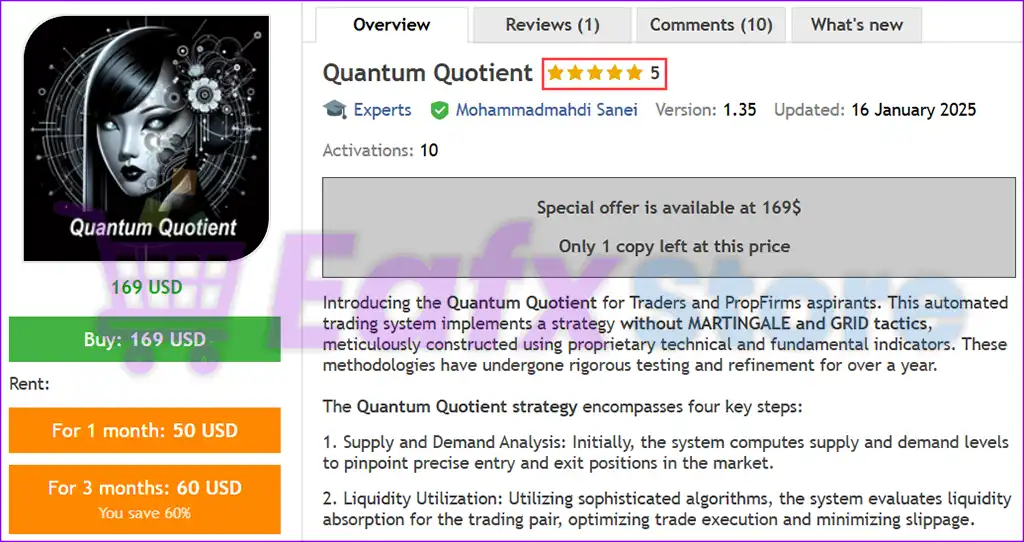
🔢 Quantum Quotient EA MT5 Settings Explained – Complete Parameter Guide
Quantum Quotient EA is a fully automated MetaTrader 5 Expert Advisor designed for multi-currency Forex trading with intelligent signal processing, ATR-based recovery management, flexible money management and comprehensive risk controls.
It supports configurable trading sessions, profit targets, drawdown protection, martingale distance optimization, and spread filtering, making it suitable for traders seeking a balance between automation and capital preservation. Below is a complete SEO-friendly explanation of every parameter available in the settings panel.

🔢 Installation Panel Parameters
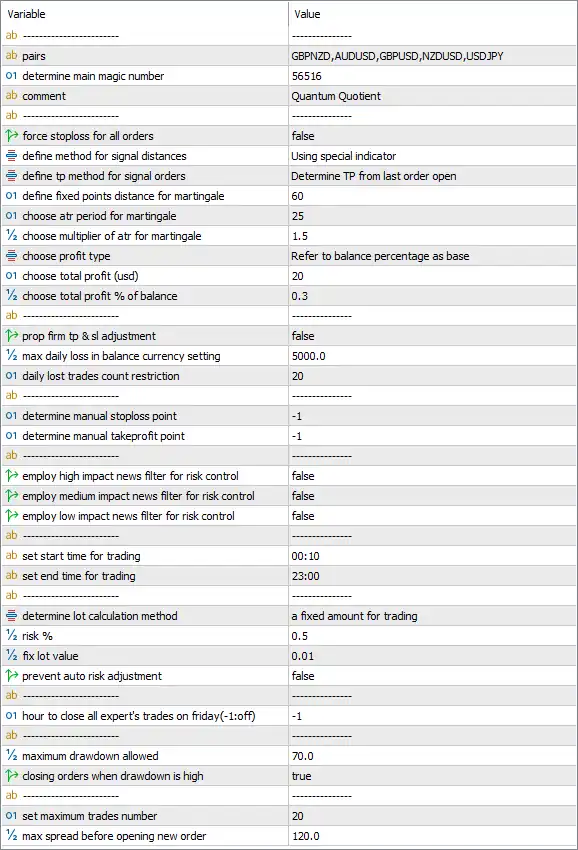
Below are the details of the parameters in the advisor’s trading system settings table:
🔶 General Settings
🔹 Pairs = GBPNZD, AUDUSD, GBPUSD, NZDUSD, USDJPY – Defines the currency pairs that the EA is configured to trade.
🔹 Determine Main Magic Number = 56516 – Sets the primary Magic Number (56516) used to uniquely identify and manage all trades opened by the EA.
🔹 Comment = Quantum Quotient – Adds the comment "Quantum Quotient" to every trade opened by the EA.
🔶 Trading Strategy Settings
🔹 Force StopLoss for All Orders = false – Disables mandatory Stop Loss placement for every position, allowing the EA to use its internal management logic.
🔹 Define Method for Signal Distances = Using Special Indicator – Calculates entry signal distances using the EA's proprietary indicator.
🔹 Define TP Method for Signal Orders = Determine TP from Last Order Open – Calculates the Take Profit level based on the opening price of the latest position.
🔹 Define Fixed Points Distance for Martingale = 60 – Sets the fixed spacing between martingale orders to 60 points.
🔹 Choose ATR Period for Martingale = 25 – Uses an ATR Period of 25 for volatility calculations during martingale management.
🔹 Choose Multiplier of ATR for Martingale = 1.5 – Multiplies the ATR value by 1.5 when determining adaptive martingale distances.
🔶 Profit Management
🔹 Choose Profit Type = Refer to Balance Percentage as Base – Calculates profit targets using the account balance percentage rather than fixed pip values.
🔹 Choose Total Profit (USD) = 20 – Sets the total basket profit target to 20 USD when using fixed-currency profit mode.
🔹 Choose Total Profit % of Balance = 0.3 – Sets the overall basket profit target to 0.3% of the account balance.
🔶 Prop Firm & Risk Adjustment
🔹 Prop Firm TP & SL Adjustment = false – Disables automatic adjustments designed for prop firm trading rules.
🔹 Max Daily Loss in Balance Currency Setting = 5000.0 – Sets the maximum allowable daily loss to 5000.0 units of the account currency.
🔹 Daily Lost Trades Count Restriction = 20 – Limits the EA to 20 losing trades per day before additional restrictions apply.
🔶 Manual Stop Loss & Take Profit
🔹 Determine Manual StopLoss Point = -1 – A value of -1 disables manual Stop Loss and allows automatic management.
🔹 Determine Manual TakeProfit Point = -1 – A value of -1 disables manual Take Profit and enables automatic TP calculation.
🔶 News Filter
🔹 Employ High Impact News Filter for Risk Control = false – Does not pause trading during high-impact economic news.
🔹 Employ Medium Impact News Filter for Risk Control = false – Does not filter medium-impact news events.
🔹 Employ Low Impact News Filter for Risk Control = false – Does not filter low-impact news releases.
🔶 Trading Schedule
🔹 Set Start Time for Trading = 00:10 – Trading begins daily at 00:10.
🔹 Set End Time for Trading = 23:00 – Trading stops at 23:00 each day.
🔶 Money Management
🔹 Determine Lot Calculation Method = A Fixed Amount for Trading – Uses a fixed lot sizing method rather than dynamic position sizing.
🔹 Risk % = 0.5 – Sets the trading risk to 0.5% when percentage-based risk management is enabled.
🔹 Fix Lot Value = 0.01 – Opens new positions with a fixed volume of 0.01 lots.
🔹 Prevent Auto Risk Adjustment = false – Allows the EA to automatically adjust risk if required.
🔶 Friday Management
🔹 Hour to Close All Expert's Trades on Friday (-1: Off) = -1 – A value of -1 disables automatic Friday trade closure.
🔶 Drawdown Protection
🔹 Maximum Drawdown Allowed = 70.0 – Limits the maximum account drawdown to 70.0%.
🔹 Closing Orders When Drawdown is High = true – Automatically closes open positions if the configured drawdown limit is exceeded.
🔶 Trading Limits
🔹 Set Maximum Trades Number = 20 – Limits the EA to a maximum of 20 simultaneously open trades.
🔹 Max Spread Before Opening New Order = 120.0 – Prevents opening new positions when the spread exceeds 120.0 points.
🔢 Conclusion
Quantum Quotient EA MT5 is a feature-rich automated trading solution that combines intelligent signal generation, ATR-based recovery techniques, flexible money management and extensive risk protection.
With support for multiple currency pairs, configurable trading sessions, drawdown control, spread filtering, and profit management, the EA offers traders a highly customizable framework suitable for both personal and professional trading environments.
🔢 FAQs
❓ What currency pairs are recommended for Quantum Quotient EA MT5?
The default configuration includes GBPNZD, AUDUSD, GBPUSD, NZDUSD, and USDJPY.
❓ Does Quantum Quotient EA MT5 use ATR for its trading logic?
Yes. The EA uses an ATR Period of 25 with a 1.5 multiplier to optimize martingale spacing based on market volatility.
❓ Can I use fixed lots or risk-based money management?
Yes. The EA supports fixed lot sizing (0.01 lots) and configurable percentage-based risk management (0.5%).
❓ Does Quantum Quotient EA MT5 include drawdown protection?
Yes. The EA limits drawdown to 70.0% and can automatically close positions when the configured threshold is reached.
❓ Can I restrict trading to specific hours?
Yes. The default trading window is from 00:10 to 23:00, and these trading session settings can be customized to suit your preferred schedule.