

Introduction to My AI Gold MT5
My AI Gold MT5 is an automated trading Expert Advisor (EA) designed for the MetaTrader 5 platform, featuring configurable money management, automated trade execution, scheduled trading sessions, and advanced trade protection.
The EA provides flexible lot sizing through fixed-lot or automatic volume calculation, with additional balance-based risk management options. It also includes configurable Take Profit, Stop Loss, and Trailing Stop functionality to help manage individual trading positions.
Another important feature is its trading schedule management, which allows traders to configure Friday and Wednesday closing rules, broker GMT offset detection, and specific trading hours. Additionally, My AI Gold MT5 provides an optional economic news filter and a customizable on-chart information panel.
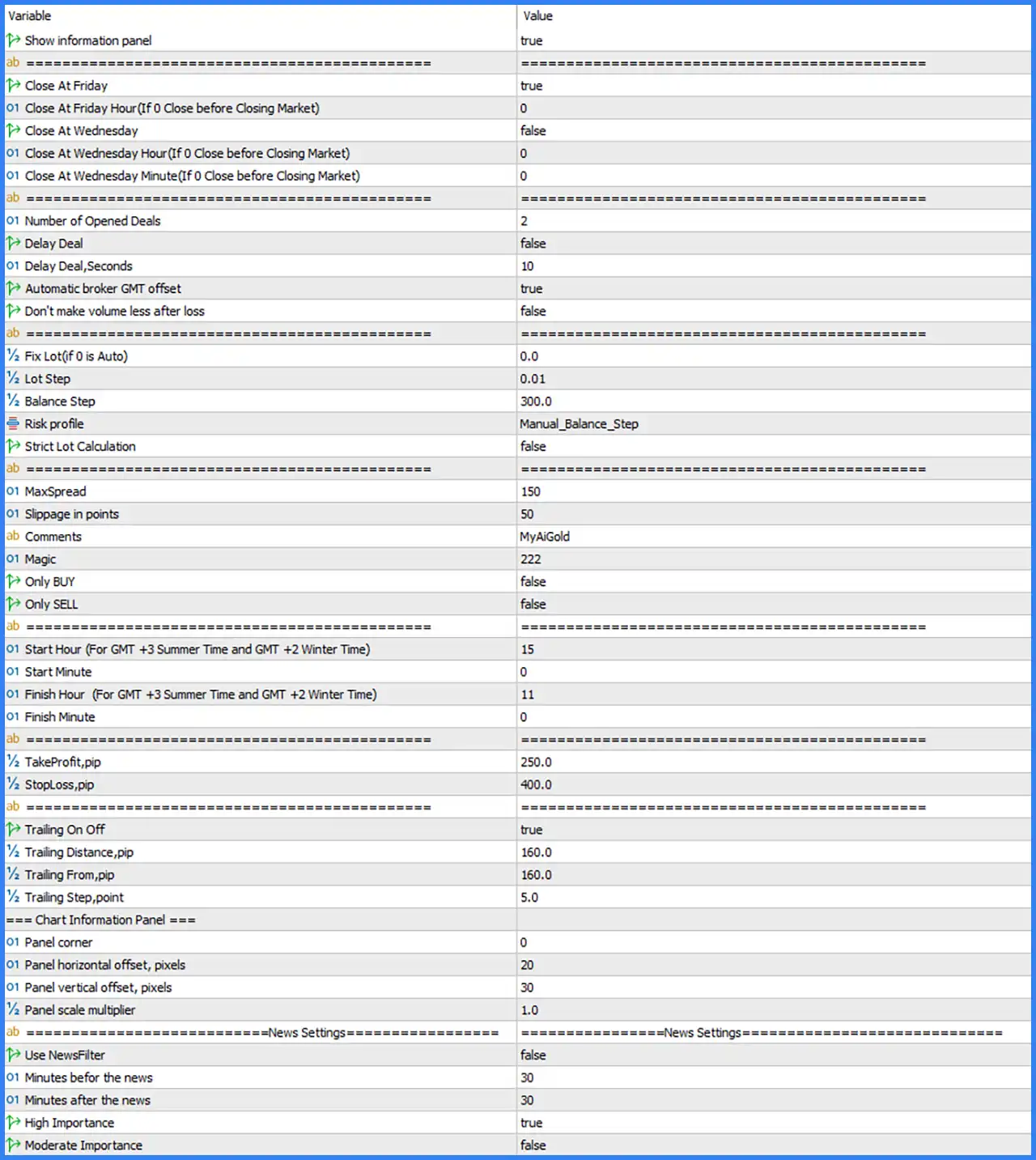
General Settings – Information Panel and Trade Management
This section controls the EA’s information display, scheduled position closing, and trade execution behavior.
🔹 Show information panel = true – Enables the on-chart information panel, allowing traders to view the EA’s available trading information directly on the MT5 chart.
🔹 Close At Friday = true – Enables the Friday position-closing function. This setting allows the EA to close applicable open trades before the weekend market closure according to its configured Friday closing rules.
🔹 Close At Friday Hour (If 0 Close before Closing Market) = 0 – Sets the Friday closing hour to 0. According to the input description, a value of 0 instructs the EA to close positions before the market closes rather than using a specific closing hour.
🔹 Close At Wednesday = false – Disables the Wednesday automatic position-closing function. When enabled, the EA can close applicable trades according to the configured Wednesday closing schedule.
🔹 Close At Wednesday Hour (If 0 Close before Closing Market) = 0 – Sets the Wednesday closing hour to 0. The description indicates that a value of 0 means the EA uses its before-market-closing behavior instead of a specific hour when the Wednesday closing feature is enabled.
🔹 Close At Wednesday Minute (If 0 Close before Closing Market) = 0 – Sets the Wednesday closing minute to 0. According to the input description, a value of 0 uses the EA’s before-market-closing behavior when the Wednesday closing function is activated.
🔹 Number of Opened Deals = 2 – Sets the configured number of opened deals to 2. This parameter controls the number of trading deals allowed by the EA according to its internal order management logic.
🔹 Delay Deal = false – Disables the delay between deal executions. When enabled, the EA can apply a waiting period between applicable trading deals.
🔹 Delay Deal,Seconds = 10 – Sets the deal execution delay to 10 seconds. This parameter defines the waiting interval used when the Delay Deal function is enabled.
🔹 Automatic broker GMT offset = true – Enables automatic broker GMT offset detection. This allows the EA to adjust its trading schedule according to the broker server’s GMT time difference.
🔹 Don’t make volume less after loss = false – Disables the option to prevent trading volume from decreasing after a losing trade. With this setting disabled, the EA may reduce its calculated trading volume following a loss according to its internal money management rules.
Money Management – Lot Sizing and Risk Profile
This section controls the EA’s trading volume calculation, balance-based lot adjustments, and risk management configuration.
🔹 Fix Lot (if 0 is Auto) = 0.0 – Sets the fixed lot parameter to 0.0. According to the input description, a value of 0 activates automatic lot calculation instead of using a predefined fixed trading volume.
🔹 Lot Step = 0.01 – Sets the lot adjustment increment to 0.01 lots. This parameter determines the volume increment used when the EA calculates or adjusts trading positions.
🔹 Balance Step = 300.0 – Sets the account balance calculation step to 300.0. This parameter defines the balance increment used by the EA’s balance-based position-sizing mechanism.
🔹 Risk profile = Manual_Balance_Step – Selects the Manual_Balance_Step risk profile. This configuration indicates that the EA uses a balance-step-based approach for calculating or adjusting trading volume rather than relying exclusively on a predefined fixed lot.
🔹 Strict Lot Calculation = false – Disables strict lot calculation. When enabled, the EA can apply stricter volume calculation rules according to its internal lot-sizing logic and broker trading requirements.
Trading Conditions – Spread, Slippage and Order Identification
This section manages execution quality, trading direction restrictions, and order identification.
🔹 MaxSpread = 150 – Sets the maximum permitted spread to 150 points. This parameter helps prevent the EA from opening trades when market spreads exceed the configured threshold.
🔹 Slippage in points = 50 – Sets the maximum configured execution slippage to 50 points. This parameter controls the acceptable difference between the requested order price and the actual execution price.
🔹 Comments = MyAiGold – Sets the custom order comment to MyAiGold. This label helps traders identify positions opened by the EA in the MT5 trading terminal and account history.
🔹 Magic = 222 – Assigns Magic Number 222 to trades opened by My AI Gold MT5. This unique identifier helps distinguish the EA’s orders from manual trades and positions opened by other Expert Advisors.
🔹 Only BUY = false – Disables Buy-only trading mode. This allows the EA to consider both Buy and Sell trading opportunities, subject to its internal entry conditions and the Only SELL setting.
🔹 Only SELL = false – Disables Sell-only trading mode. Combined with Only BUY = false, this configuration does not restrict the EA to a single trading direction.
Trading Hours – Session Management
This section defines the EA’s permitted trading window using GMT-based trading hours and minutes.
🔹 Start Hour (For GMT +3 Summer Time and GMT +2 Winter Time) = 15 – Sets the trading session starting hour to 15:00. The description references GMT +3 during summer time and GMT +2 during winter time, so traders should verify the applicable broker time adjustment.
🔹 Start Minute = 0 – Sets the trading session starting minute to 0. Combined with Start Hour = 15, the configured starting time is 15:00.
🔹 Finish Hour (For GMT +3 Summer Time and GMT +2 Winter Time) = 11 – Sets the trading session finishing hour to 11:00. This parameter defines the configured ending hour of the trading schedule.
🔹 Finish Minute = 0 – Sets the trading session finishing minute to 0. Combined with Finish Hour = 11, the configured finishing time is 11:00.
Configuration note: The supplied settings show a starting hour of 15 and a finishing hour of 11. This may represent an overnight trading window or require special handling by the EA. Traders should verify how the EA interprets this schedule before live trading.
Take Profit and Stop Loss Settings
This section defines the profit target and loss protection distances for trading positions.
🔹 TakeProfit,pip = 250.0 – Sets the Take Profit distance to 250.0 pips. This parameter defines the configured profit target at which the EA can automatically close a position when the market reaches the specified level.
🔹 StopLoss,pip = 400.0 – Sets the Stop Loss distance to 400.0 pips. This parameter establishes the configured maximum adverse price distance before the EA’s stop-loss protection closes an individual position.
Trailing Stop Settings
This section controls automatic Stop Loss adjustments as trades move into profit.
🔹 Trailing On Off = true – Enables the Trailing Stop function. When active, My AI Gold MT5 can automatically adjust the Stop Loss level as an open position moves favorably, helping protect accumulated profits.
🔹 Trailing Distance,pip = 160.0 – Sets the trailing stop distance to 160.0 pips. This parameter defines the configured distance between the current market price and the trailing Stop Loss level.
🔹 Trailing From,pip = 160.0 – Sets the trailing activation threshold to 160.0 pips. This means the trailing mechanism is configured to begin operating after the trade reaches the specified favorable price movement, according to the EA’s internal calculation.
🔹 Trailing Step,point = 5.0 – Sets the trailing adjustment step to 5.0 points. This parameter determines the configured minimum price movement required before the EA updates the trailing Stop Loss.
Chart Information Panel – Visual Configuration
This section controls the position and display size of the EA’s on-chart information panel.
🔹 Panel corner = 0 – Sets the chart panel anchor corner to 0. In standard MT5 chart positioning, corner 0 represents the upper-left corner of the chart.
🔹 Panel horizontal offset, pixels = 20 – Sets the horizontal panel offset to 20 pixels. This parameter controls the distance of the information panel from its selected chart corner along the horizontal axis.
🔹 Panel vertical offset, pixels = 30 – Sets the vertical panel offset to 30 pixels. This parameter controls the distance of the information panel from its selected chart corner along the vertical axis.
🔹 Panel scale multiplier = 1.0 – Sets the panel scaling multiplier to 1.0x. This maintains the default display scale of the information panel without applying additional enlargement or reduction.
News Settings – Economic Event Protection
This section controls the optional economic news filter and the trading restrictions applied around scheduled announcements.
🔹 Use NewsFilter = false – Disables the economic news filter. When enabled, the EA can restrict trading activity around scheduled economic events according to the configured news importance levels and waiting periods.
🔹 Minutes before the news = 30 – Sets the pre-news trading restriction period to 30 minutes. This parameter determines how long before an applicable economic announcement the EA should stop opening new trades when the news filter is enabled.
🔹 Minutes after the news = 30 – Sets the post-news restriction period to 30 minutes. This defines the waiting period after an applicable announcement before the EA can resume normal trading activity.
🔹 High Importance = true – Enables filtering of high-impact economic news events. When the news filter is active, the EA can apply trading restrictions around major announcements that may cause significant market volatility.
🔹 Moderate Importance = false – Disables filtering of moderate-impact economic news events. When the news filter is active, moderate-impact announcements are not included in this particular restriction category.