

Introduction
Autotrade Gold EA is an automated trading Expert Advisor (EA) designed for Gold trading on the MetaTrader 4 platform. It combines price action analysis, technical indicator confirmations, trend-direction filters, and dynamic exit strategies to identify and manage trading opportunities.

The EA features independent Buy and Sell money management configurations, allowing traders to customize trading volume, Stop Loss (SL), Take Profit (TP), and trade comments for each direction. Its Price Action Core Strategy works alongside ADX, RSI, and Moving Average confirmations to help evaluate market conditions before executing trades.
Autotrade Gold EA also provides configurable trading hours, weekday and monthly trading schedules, spread protection, and dynamic exit mechanisms. These features give traders flexibility when managing Gold positions and adapting the EA to different market conditions.
Autotrade Gold EA MT4 Settings Explained
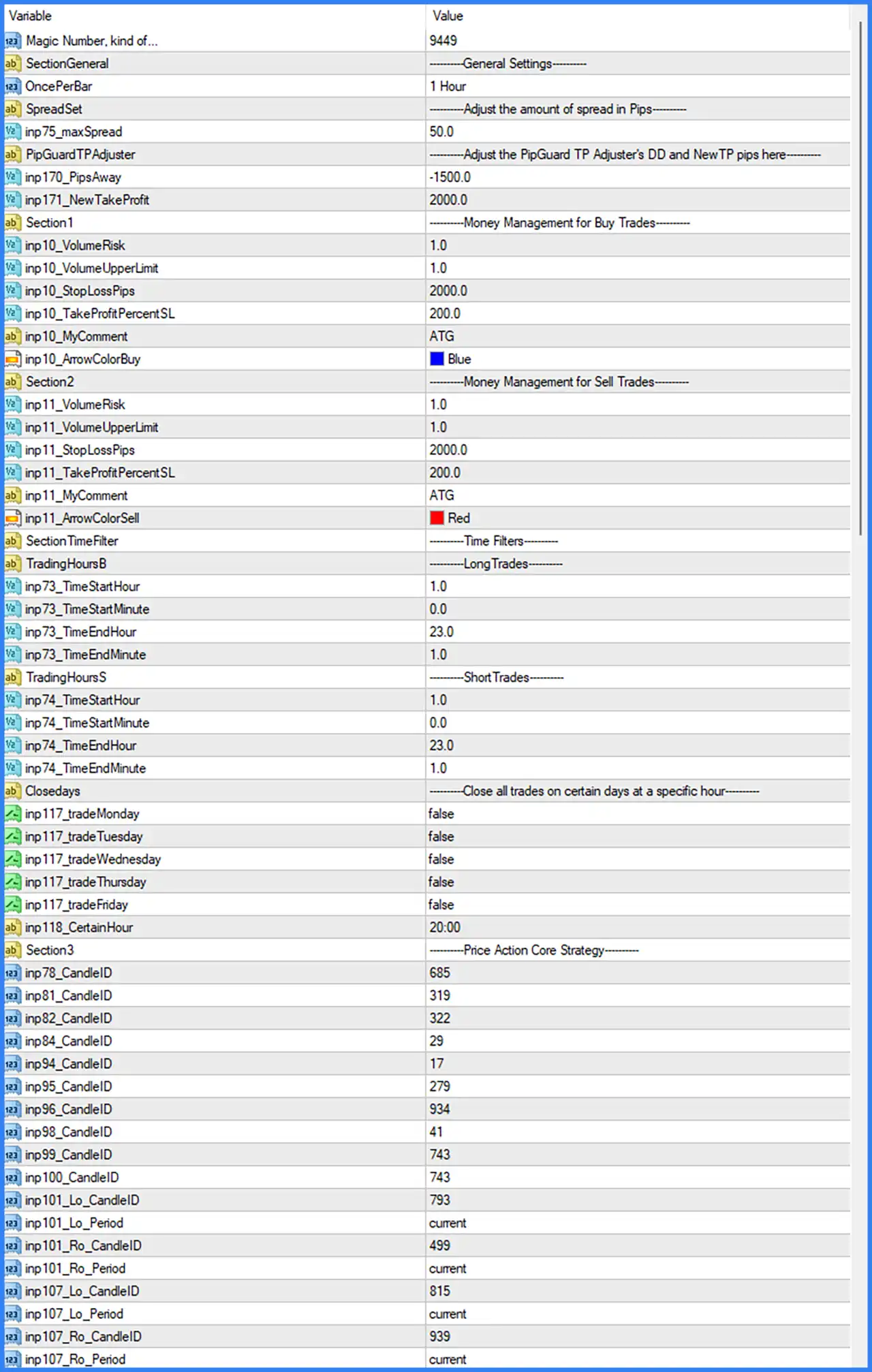
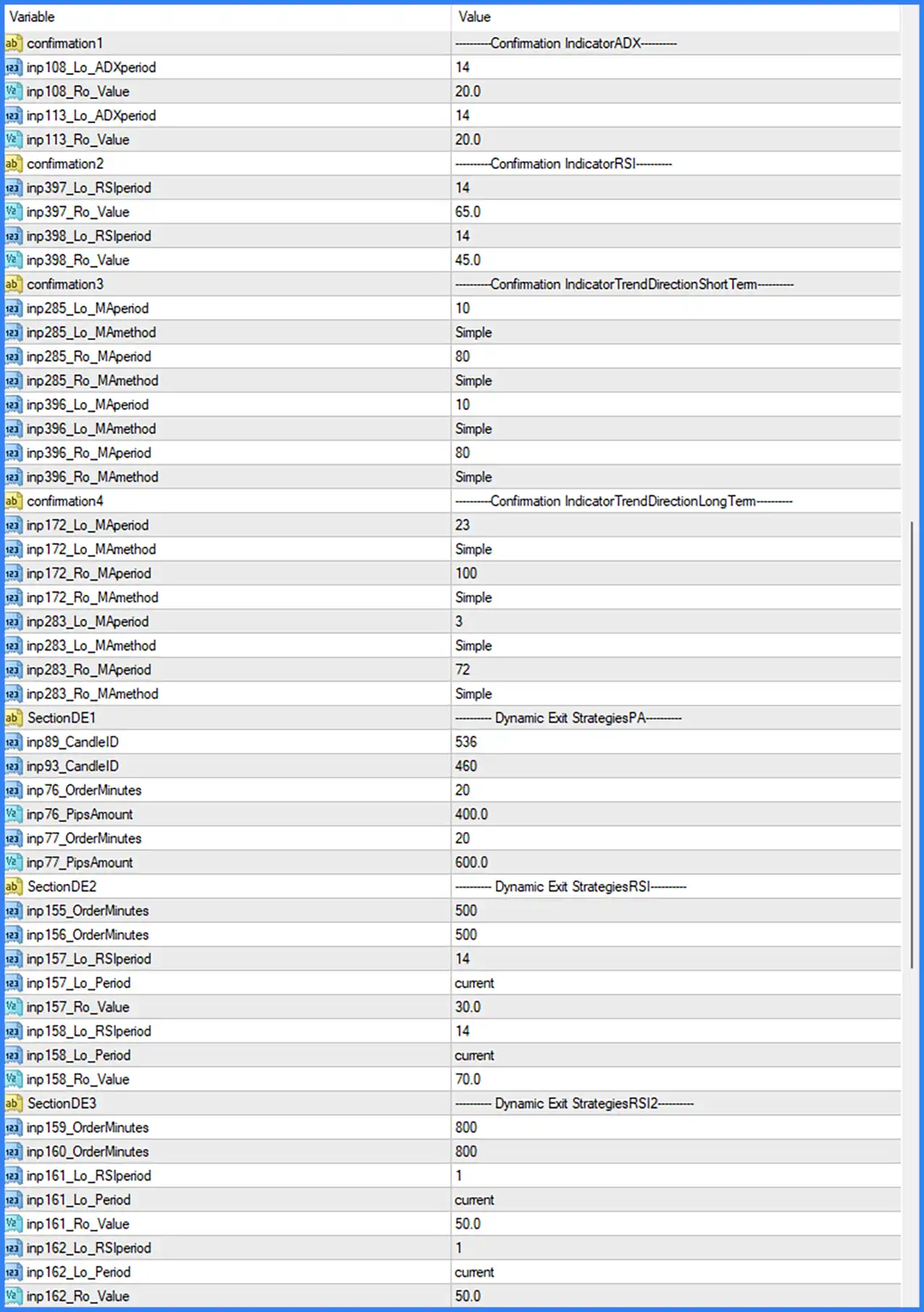
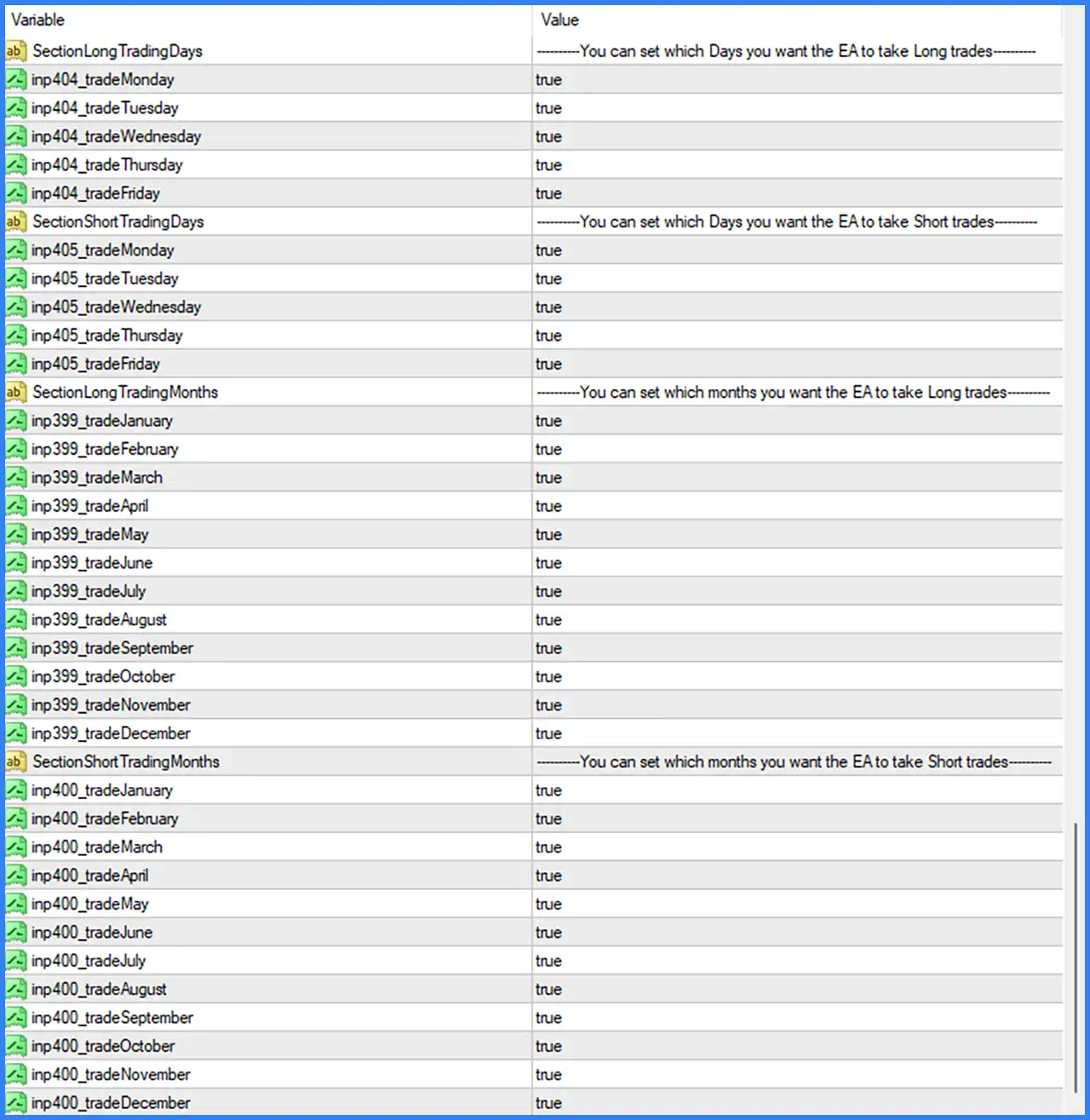
1. General Settings
🔹 Magic Number, kind of... = 9449 – Assigns Magic Number 9449 to identify trades managed by Autotrade Gold EA MT4 and distinguish them from manual positions or trades opened by other Expert Advisors.
🔹 SectionGeneral = General Settings – Section heading that organizes the EA's main configuration parameters.
🔹 OncePerBar = 1 Hour – Sets the EA's once-per-bar execution interval to 1 Hour, controlling how frequently the corresponding trading logic can be evaluated or triggered.
2. Spread Settings
🔹 SpreadSet = Adjust the amount of spread in Pips – Section heading for configuring the spread-related trading parameters.
🔹 inp75_maxSpread = 50.0 – Sets the maximum permitted spread to 50.0 pips according to the EA's spread filter, helping prevent entries when trading costs exceed the configured threshold.
3. PipGuard Take Profit Adjuster Settings
🔹 PipGuardTPAdjuster = Adjust the PipGuard TP Adjuster's DD and NewTP pips here – Section heading for the PipGuard Take Profit adjustment parameters.
🔹 inp170_PipsAway = -1500.0 – Sets the PipGuard price-distance reference to -1500.0 pips, defining the configured distance used by the EA's drawdown and Take Profit adjustment mechanism.
🔹 inp171_NewTakeProfit = 2000.0 – Sets the adjusted Take Profit target to 2000.0 pips when the PipGuard adjustment function is activated.
4. Buy Trade Money Management Settings
🔹 Section1 = Money Management for Buy Trades – Section heading containing the position-sizing and risk management parameters specifically assigned to Buy trades.
🔹 inp10_VolumeRisk = 1.0 – Sets the Buy trade volume-risk parameter to 1.0, defining the configured risk or volume reference used by the EA's Buy position management.
🔹 inp10_VolumeUpperLimit = 1.0 – Sets the maximum Buy trading volume limit to 1.0 lot, restricting the applicable Buy position size according to this parameter.
🔹 inp10_StopLossPips = 2000.0 – Sets the Buy trade Stop Loss distance to 2000.0 pips, defining the configured downside protection level for Buy positions.
🔹 inp10_TakeProfitPercentSL = 200.0 – Sets the Buy Take Profit target to 200.0% of the configured Stop Loss distance, establishing a reward target based on the SL reference.
🔹 inp10_MyComment = ATG – Assigns the comment ATG to Buy orders, making it easier to identify positions opened by the EA.
🔹 inp10_ArrowColorBuy = Blue – Sets the chart arrow color for Buy trading signals to Blue, helping visually distinguish Buy entries from other trading signals.
5. Sell Trade Money Management Settings
🔹 Section2 = Money Management for Sell Trades – Section heading containing the position-sizing and risk management parameters specifically assigned to Sell trades.
🔹 inp11_VolumeRisk = 1.0 – Sets the Sell trade volume-risk parameter to 1.0, defining the configured risk or volume reference used by the EA's Sell position management.
🔹 inp11_VolumeUpperLimit = 1.0 – Sets the maximum Sell trading volume limit to 1.0 lot, restricting the applicable Sell position size according to this parameter.
🔹 inp11_StopLossPips = 2000.0 – Sets the Sell trade Stop Loss distance to 2000.0 pips, defining the configured downside protection level for Sell positions.
🔹 inp11_TakeProfitPercentSL = 200.0 – Sets the Sell Take Profit target to 200.0% of the configured Stop Loss distance, establishing a reward target based on the SL reference.
🔹 inp11_MyComment = ATG – Assigns the comment ATG to Sell orders, making it easier to identify positions opened by the EA.
🔹 inp11_ArrowColorSell = Red – Sets the chart arrow color for Sell trading signals to Red, helping visually distinguish Sell entries from Buy signals.
6. Trading Time Filters
Long Trade Trading Hours
🔹 SectionTimeFilter = Time Filters – Section heading containing the EA's trading schedule configuration.
🔹 TradingHoursB = Long Trades – Identifies the trading-hour settings that control the operating window for Buy positions.
🔹 inp73_TimeStartHour = 1.0 – Sets the starting hour for Long trades to 01:00 according to the configured time reference.
🔹 inp73_TimeStartMinute = 0.0 – Sets the starting minute for Long trades to 00, establishing a start time of 01:00.
🔹 inp73_TimeEndHour = 23.0 – Sets the ending hour for Long trades to 23:00.
🔹 inp73_TimeEndMinute = 1.0 – Sets the ending minute for Long trades to 01, establishing an end time of 23:01.
Short Trade Trading Hours
🔹 TradingHoursS = Short Trades – Identifies the trading-hour settings that control the operating window for Sell positions.
🔹 inp74_TimeStartHour = 1.0 – Sets the starting hour for Short trades to 01:00.
🔹 inp74_TimeStartMinute = 0.0 – Sets the starting minute for Short trades to 00, establishing a start time of 01:00.
🔹 inp74_TimeEndHour = 23.0 – Sets the ending hour for Short trades to 23:00.
🔹 inp74_TimeEndMinute = 1.0 – Sets the ending minute for Short trades to 01, establishing an end time of 23:01.
7. Trading Days and Closing Time Settings
🔹 Closedays = Close all trades on certain days at a specific hour – Section heading for configuring weekday-based trade restrictions and scheduled closing behavior.
🔹 inp117_tradeMonday = false – Disables the Monday closing-day condition, so Monday is not selected for this particular scheduled closing rule.
🔹 inp117_tradeTuesday = false – Disables the Tuesday closing-day condition, so Tuesday is not selected for this particular scheduled closing rule.
🔹 inp117_tradeWednesday = false – Disables the Wednesday closing-day condition, so Wednesday is not selected for this particular scheduled closing rule.
🔹 inp117_tradeThursday = false – Disables the Thursday closing-day condition, so Thursday is not selected for this particular scheduled closing rule.
🔹 inp117_tradeFriday = false – Disables the Friday closing-day condition, so Friday is not selected for this particular scheduled closing rule.
🔹 inp118_CertainHour = 20:00 – Sets the specific scheduled closing hour to 20:00, which is used by the corresponding closing-day function when activated.
8. Price Action Core Strategy Settings
🔹 Section3 = Price Action Core Strategy – Section heading containing the internal candle-pattern identifiers used by the EA's core price action trading logic.
🔹 inp78_CandleID = 685 – Sets the internal candle pattern identifier to 685 for one of the EA's price action recognition conditions.
🔹 inp81_CandleID = 319 – Sets the internal candle pattern identifier to 319 for another price action recognition condition.
🔹 inp82_CandleID = 322 – Sets the internal candle pattern identifier to 322 for an additional candle-based trading condition.
🔹 inp84_CandleID = 29 – Sets the internal candle pattern identifier to 29 for the corresponding price action condition.
🔹 inp94_CandleID = 17 – Sets the internal candle pattern identifier to 17 for the EA's candle recognition logic.
🔹 inp95_CandleID = 279 – Sets the internal candle pattern identifier to 279 for another configured price action condition.
🔹 inp96_CandleID = 934 – Sets the internal candle pattern identifier to 934 for the corresponding candle-based signal.
🔹 inp98_CandleID = 41 – Sets the internal candle pattern identifier to 41 for an additional price action recognition rule.
🔹 inp99_CandleID = 743 – Sets the internal candle pattern identifier to 743 for the corresponding candle recognition condition.
🔹 inp100_CandleID = 743 – Sets another candle pattern identifier to 743, configuring an additional price action condition.
🔹 inp101_Lo_CandleID = 793 – Sets the left-side candle pattern identifier to 793 for the corresponding price action comparison.
🔹 inp101_Lo_Period = current – Uses the current chart period for the left-side candle pattern identification associated with parameter 101.
🔹 inp101_Ro_CandleID = 499 – Sets the right-side candle pattern identifier to 499 for the corresponding price action comparison.
🔹 inp101_Ro_Period = current – Uses the current chart period for the right-side candle pattern identification associated with parameter 101.
🔹 inp107_Lo_CandleID = 815 – Sets the left-side candle pattern identifier to 815 for another price action comparison.
🔹 inp107_Lo_Period = current – Uses the current chart period for the left-side candle pattern identification associated with parameter 107.
🔹 inp107_Ro_CandleID = 939 – Sets the right-side candle pattern identifier to 939 for the corresponding price action comparison.
🔹 inp107_Ro_Period = current – Uses the current chart period for the right-side candle pattern identification associated with parameter 107.
9. ADX Confirmation Indicator Settings
🔹 confirmation1 = Confirmation Indicator ADX – Section heading for the ADX-based confirmation parameters used to evaluate market strength.
🔹 inp108_Lo_ADXperiod = 14 – Sets the first ADX indicator period to 14, defining the number of periods used to calculate the Average Directional Index.
🔹 inp108_Ro_Value = 20.0 – Sets the corresponding ADX reference value to 20.0 for the first confirmation condition.
🔹 inp113_Lo_ADXperiod = 14 – Sets the second ADX indicator period to 14 for another confirmation condition.
🔹 inp113_Ro_Value = 20.0 – Sets the second ADX reference value to 20.0, providing another market-strength confirmation threshold.
10. RSI Confirmation Indicator Settings
🔹 confirmation2 = Confirmation Indicator RSI – Section heading for the Relative Strength Index confirmation parameters.
🔹 inp397_Lo_RSIperiod = 14 – Sets the first RSI calculation period to 14 for the corresponding trading confirmation.
🔹 inp397_Ro_Value = 65.0 – Sets the first RSI reference level to 65.0, defining the configured threshold for this confirmation condition.
🔹 inp398_Lo_RSIperiod = 14 – Sets the second RSI calculation period to 14 for another confirmation condition.
🔹 inp398_Ro_Value = 45.0 – Sets the second RSI reference level to 45.0, providing an additional RSI threshold for signal evaluation.
11. Short-Term Trend Direction Confirmation Settings
🔹 confirmation3 = Confirmation Indicator TrendDirectionShortTerm – Section heading for the short-term trend-direction confirmation system using Moving Average indicators.
🔹 inp285_Lo_MAperiod = 10 – Sets the first short-term Moving Average period to 10 for the corresponding trend confirmation.
🔹 inp285_Lo_MAmethod = Simple – Selects the Simple Moving Average (SMA) calculation method for the MA with period 10.
🔹 inp285_Ro_MAperiod = 80 – Sets the second short-term trend confirmation Moving Average period to 80.
🔹 inp285_Ro_MAmethod = Simple – Selects the Simple Moving Average (SMA) calculation method for the MA with period 80.
🔹 inp396_Lo_MAperiod = 10 – Sets another short-term Moving Average period to 10 for an additional trend-direction condition.
🔹 inp396_Lo_MAmethod = Simple – Selects the Simple Moving Average calculation method for the corresponding MA with period 10.
🔹 inp396_Ro_MAperiod = 80 – Sets the second Moving Average period to 80 for the additional short-term trend confirmation.
🔹 inp396_Ro_MAmethod = Simple – Selects the Simple Moving Average calculation method for the corresponding MA with period 80.
12. Long-Term Trend Direction Confirmation Settings
🔹 confirmation4 = Confirmation Indicator TrendDirectionLongTerm – Section heading for the long-term trend-direction confirmation system.
🔹 inp172_Lo_MAperiod = 23 – Sets the first long-term trend confirmation Moving Average period to 23.
🔹 inp172_Lo_MAmethod = Simple – Selects the Simple Moving Average calculation method for the MA with period 23.
🔹 inp172_Ro_MAperiod = 100 – Sets the second long-term trend confirmation Moving Average period to 100.
🔹 inp172_Ro_MAmethod = Simple – Selects the Simple Moving Average calculation method for the MA with period 100.
🔹 inp283_Lo_MAperiod = 3 – Sets another Moving Average period to 3 for an additional long-term trend-direction condition.
🔹 inp283_Lo_MAmethod = Simple – Selects the Simple Moving Average calculation method for the MA with period 3.
🔹 inp283_Ro_MAperiod = 72 – Sets the second Moving Average period to 72 for the corresponding trend confirmation.
🔹 inp283_Ro_MAmethod = Simple – Selects the Simple Moving Average calculation method for the MA with period 72.
13. Dynamic Exit Strategies – Price Action
🔹 SectionDE1 = Dynamic Exit Strategies PA – Section heading for the dynamic exit system based on price action conditions.
🔹 inp89_CandleID = 536 – Sets the internal candle pattern identifier to 536 for the first dynamic price action exit condition.
🔹 inp93_CandleID = 460 – Sets the internal candle pattern identifier to 460 for the second dynamic price action exit condition.
🔹 inp76_OrderMinutes = 20 – Sets the order-time reference to 20 minutes for the first dynamic price action exit condition.
🔹 inp76_PipsAmount = 400.0 – Sets the corresponding price-distance threshold to 400.0 pips for the first dynamic price action exit condition.
🔹 inp77_OrderMinutes = 20 – Sets the order-time reference to 20 minutes for the second dynamic price action exit condition.
🔹 inp77_PipsAmount = 600.0 – Sets the corresponding price-distance threshold to 600.0 pips for the second dynamic price action exit condition.
14. Dynamic Exit Strategies – RSI
🔹 SectionDE2 = Dynamic Exit Strategies RSI – Section heading for dynamic position exits using RSI indicator conditions.
🔹 inp155_OrderMinutes = 500 – Sets the first RSI-based dynamic exit time reference to 500 minutes.
🔹 inp156_OrderMinutes = 500 – Sets the second RSI-based dynamic exit time reference to 500 minutes.
🔹 inp157_Lo_RSIperiod = 14 – Sets the first RSI indicator period to 14 for the corresponding dynamic exit condition.
🔹 inp157_Lo_Period = current – Uses the current chart timeframe for the first RSI-based dynamic exit calculation.
🔹 inp157_Ro_Value = 30.0 – Sets the first RSI exit reference level to 30.0, representing the configured lower RSI threshold.
🔹 inp158_Lo_RSIperiod = 14 – Sets the second RSI indicator period to 14 for another dynamic exit condition.
🔹 inp158_Lo_Period = current – Uses the current chart timeframe for the second RSI-based dynamic exit calculation.
🔹 inp158_Ro_Value = 70.0 – Sets the second RSI exit reference level to 70.0, representing the configured upper RSI threshold.
15. Dynamic Exit Strategies – RSI2
🔹 SectionDE3 = Dynamic Exit Strategies RSI2 – Section heading for an additional RSI-based dynamic exit configuration.
🔹 inp159_OrderMinutes = 800 – Sets the first RSI2-based dynamic exit time reference to 800 minutes.
🔹 inp160_OrderMinutes = 800 – Sets the second RSI2-based dynamic exit time reference to 800 minutes.
🔹 inp161_Lo_RSIperiod = 1 – Sets the first RSI2 indicator period to 1 for the corresponding dynamic exit condition.
🔹 inp161_Lo_Period = current – Uses the current chart timeframe for the first RSI2-based exit calculation.
🔹 inp161_Ro_Value = 50.0 – Sets the first RSI2 reference threshold to 50.0 for the corresponding exit condition.
🔹 inp162_Lo_RSIperiod = 1 – Sets the second RSI2 indicator period to 1 for another dynamic exit condition.
🔹 inp162_Lo_Period = current – Uses the current chart timeframe for the second RSI2-based exit calculation.
🔹 inp162_Ro_Value = 50.0 – Sets the second RSI2 reference threshold to 50.0 for the corresponding exit condition.
16. Long Trading Days Settings
🔹 SectionLongTradingDays = Long Trading Days – Section heading for selecting the weekdays on which the EA is permitted to open Long (Buy) trades.
🔹 inp404_tradeMonday = true – Enables Monday trading for Long positions.
🔹 inp404_tradeTuesday = true – Enables Tuesday trading for Long positions.
🔹 inp404_tradeWednesday = true – Enables Wednesday trading for Long positions.
🔹 inp404_tradeThursday = true – Enables Thursday trading for Long positions.
🔹 inp404_tradeFriday = true – Enables Friday trading for Long positions.
17. Short Trading Days Settings
🔹 SectionShortTradingDays = Short Trading Days – Section heading for selecting the weekdays on which the EA is permitted to open Short (Sell) trades.
🔹 inp405_tradeMonday = true – Enables Monday trading for Short positions.
🔹 inp405_tradeTuesday = true – Enables Tuesday trading for Short positions.
🔹 inp405_tradeWednesday = true – Enables Wednesday trading for Short positions.
🔹 inp405_tradeThursday = true – Enables Thursday trading for Short positions.
🔹 inp405_tradeFriday = true – Enables Friday trading for Short positions.
18. Long Trading Months Settings
🔹 SectionLongTradingMonths = Long Trading Months – Section heading for selecting the calendar months during which the EA can open Long (Buy) trades.
🔹 inp399_tradeJanuary = true – Enables Long trading during January.
🔹 inp399_tradeFebruary = true – Enables Long trading during February.
🔹 inp399_tradeMarch = true – Enables Long trading during March.
🔹 inp399_tradeApril = true – Enables Long trading during April.
🔹 inp399_tradeMay = true – Enables Long trading during May.
🔹 inp399_tradeJune = true – Enables Long trading during June.
🔹 inp399_tradeJuly = true – Enables Long trading during July.
🔹 inp399_tradeAugust = true – Enables Long trading during August.
🔹 inp399_tradeSeptember = true – Enables Long trading during September.
🔹 inp399_tradeOctober = true – Enables Long trading during October.
🔹 inp399_tradeNovember = true – Enables Long trading during November.
🔹 inp399_tradeDecember = true – Enables Long trading during December.
19. Short Trading Months Settings
🔹 SectionShortTradingMonths = Short Trading Months – Section heading for selecting the calendar months during which the EA can open Short (Sell) trades.
🔹 inp400_tradeJanuary = true – Enables Short trading during January.
🔹 inp400_tradeFebruary = true – Enables Short trading during February.
🔹 inp400_tradeMarch = true – Enables Short trading during March.
🔹 inp400_tradeApril = true – Enables Short trading during April.
🔹 inp400_tradeMay = true – Enables Short trading during May.
🔹 inp400_tradeJune = true – Enables Short trading during June.
🔹 inp400_tradeJuly = true – Enables Short trading during July.
🔹 inp400_tradeAugust = true – Enables Short trading during August.
🔹 inp400_tradeSeptember = true – Enables Short trading during September.
🔹 inp400_tradeOctober = true – Enables Short trading during October.
🔹 inp400_tradeNovember = true – Enables Short trading during November.
🔹 inp400_tradeDecember = true – Enables Short trading during December.
Conclusion
Autotrade Gold EA MT4 provides a comprehensive automated trading configuration combining price action recognition, ADX and RSI confirmations, short-term and long-term Moving Average trend filters, and dynamic exit strategies.
The supplied settings configure both Buy and Sell trading with a maximum volume limit of 1.0 lot per direction, Stop Loss of 2000.0 pips, and a Take Profit reference of 200.0% of the Stop Loss distance. The EA also uses a maximum spread setting of 50.0 pips and a Magic Number of 9449.
Its trading schedule allows Long and Short trading from 01:00 to 23:01, while all weekdays and all 12 months are enabled for both trading directions. The scheduled closing-day conditions are disabled, with a configured closing hour of 20:00.
The combination of price action patterns, ADX, RSI, and Moving Average confirmations provides multiple layers of technical analysis. Dynamic exit settings add further flexibility for managing open positions.
Before using Autotrade Gold EA MT4 on a live account, traders should carefully evaluate the 2000.0-pip Stop Loss, the 200.0% Take Profit setting, the PipGuard adjustment parameters, and the interaction between its entry confirmations and dynamic exit conditions. Backtesting and demo trading are recommended before live deployment.