

This guide walks through the inputs of Bonnitta EA MT5 with the values recommended for live trading. The set files that come with the EA already contain these settings, so you can load them in one click and adjust only what your broker or account needs.
🔢 Bonnitta EA MT5 – Complete Settings & Parameters Guide
Bonnitta EA MT5 is an automated multi-symbol trading robot for MetaTrader 5 that combines flexible money management, advanced trade filtering, trailing stop functionality and integrated news protection.
The EA supports automatic lot sizing, multi-timeframe analysis, and customizable risk controls, making it suitable for traders seeking a structured and scalable trading approach.

🔢 Bonnitta EA MT5 Settings Explained
Below are the details of the parameters in the advisor’s trading system settings table:
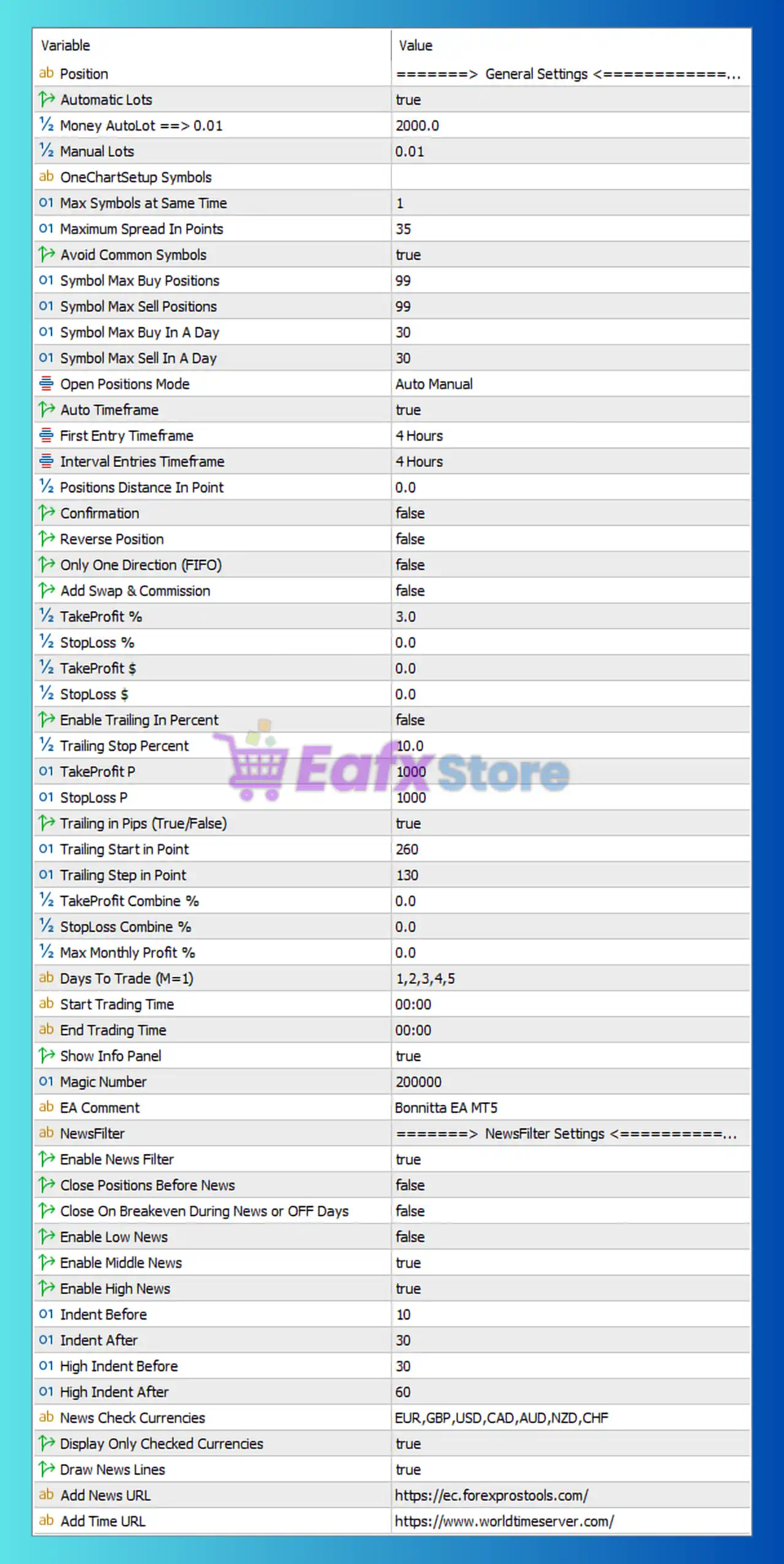
🔶 General Settings
🔹 Position = General Settings — Main section containing the core trading and money management parameters.
🔹 Automatic Lots = true — Enables automatic lot size calculation based on account balance.
🔹 Money AutoLot => 0.01 = 2000.0 — The EA opens 0.01 lots for every 2000.0 units of account balance when AutoLot is enabled.
🔹 Manual Lots = 0.01 — Fixed lot size used when Automatic Lots is disabled.
🔶 OneChart Setup Symbols
🔹 Max Symbols at Same Time = 1 — Limits the EA to trading only 1 symbol simultaneously.
🔹 Maximum Spread In Points = 35 — The maximum allowed spread is 35 points before trade execution is blocked.
🔹 Avoid Common Symbols = true — Prevents trading correlated or duplicate symbol combinations.
🔹 Symbol Max Buy Positions = 99 — Maximum number of buy positions allowed per symbol is 99.
🔹 Symbol Max Sell Positions = 99 — Maximum number of sell positions allowed per symbol is 99.
🔹 Symbol Max Buy In A Day = 30 — Limits buy entries to 30 trades per day per symbol.
🔹 Symbol Max Sell In A Day = 30 — Limits sell entries to 30 trades per day per symbol.
🔶 Trading Logic Settings
🔹 Open Positions Mode = Auto Manual — Allows the EA to manage both automatic and manual trade entries.
🔹 Auto Timeframe = true — Automatically selects the operational timeframe.
🔹 First Entry Timeframe = 4 Hours — Initial trade signals are generated from the H4 timeframe.
🔹 Interval Entries Timeframe = 4 Hours — Additional entries are evaluated using the H4 timeframe.
🔹 Positions Distance In Point = 0.0 — No minimum point distance is required between positions.
🔹 Confirmation = false — Additional confirmation filters are disabled.
🔹 Reverse Position = false — Reverse trading mode is disabled.
🔹 Only One Direction (FIFO) = false — Buy and sell positions can coexist simultaneously.
🔹 Add Swap & Commission = false — Swap and commission costs are not included in calculations.
🔶 Profit & Loss Management
🔹 TakeProfit % = 3.0 — Basket profit target is set to 3.0% of account value.
🔹 StopLoss % = 0.0 — Percentage-based stop loss is disabled.
🔹 TakeProfit $ = 0.0 — Dollar-based take profit is disabled.
🔹 StopLoss $ = 0.0 — Dollar-based stop loss is disabled.
🔹 Enable Trailing In Percent = false — Percentage trailing stop is disabled.
🔹 Trailing Stop Percent = 10.0 — Trailing percentage level is set to 10.0 if activated.
🔹 TakeProfit P = 1000 — Fixed take profit target equals 1000 points.
🔹 StopLoss P = 1000 — Fixed stop loss level equals 1000 points.
🔶 Trailing Stop Settings
🔹 Trailing in Pips (true/False) = true — Trailing stop operates using pip values.
🔹 Trailing Start in Point = 260 — Trailing begins after 260 points of profit.
🔹 Trailing Step in Point = 130 — Stop loss advances every 130 points of favorable movement.
🔶 Basket Management
🔹 TakeProfit Combine % = 0.0 — Combined basket take profit percentage is disabled.
🔹 StopLoss Combine % = 0.0 — Combined basket stop loss percentage is disabled.
🔹 Max Monthly Profit % = 0.0 — Monthly profit limitation is disabled.
🔶 Trading Schedule
🔹 Days To Trade (M=1) = 1,2,3,4,5 — Trading is allowed Monday through Friday.
🔹 Start Trading Time = 00:00 — Trading begins at 00:00 server time.
🔹 End Trading Time = 00:00 — No specific trading end restriction is applied.
🔶 Interface Settings
🔹 Show Info Panel = true — Displays the EA information panel directly on the chart.
🔹 Magic Number = 200000 — Unique identifier assigned to all Bonnitta EA trades.
🔹 EA Comment = Bonnitta EA MT5 — Custom comment attached to all orders opened by the EA.
🔶 News Filter Settings
🔹 Enable News Filter = true — Activates the built-in economic news protection system.
🔹 Close Positions Before News = false — Existing trades remain open before major news releases.
🔹 Close On Breakeven During News or OFF Days = false — Breakeven closure during news events is disabled.
🔹 Enable Low News = false — Low-impact economic events are ignored.
🔹 Enable Middle News = true — Medium-impact news events are filtered.
🔹 Enable High News = true — High-impact news events are filtered.
🔹 Indent Before = 10 — Trading pauses 10 minutes before medium-impact news.
🔹 Indent After = 30 — Trading resumes 30 minutes after medium-impact news.
🔹 High Indent Before = 30 — Trading pauses 30 minutes before high-impact news.
🔹 High Indent After = 60 — Trading resumes 60 minutes after high-impact news.
🔹 News Check Currencies = EUR,GBP,USD,CAD,AUD,NZD,CHF — Monitored currencies for economic news events.
🔹 Display Only Checked Currencies = true — Displays only selected currencies in the news panel.
🔹 Draw News Lines = true — News event markers are displayed on the chart.
🔹 Add News URL = https://ec.forexprostools.com/ — Data source used for economic calendar events.
🔹 Add Time URL = https://www.worldtimeserver.com/ — Time synchronization source used by the EA.
🔢 Conclusion
Bonnitta EA MT5 is a comprehensive multi-symbol trading system featuring automatic lot sizing, H4-based trade analysis, advanced trailing stop management, basket profit controls and a powerful economic news filter.
With support for both manual and automated trading modes, flexible risk management, and extensive news protection settings, it provides traders with a robust framework for managing positions while adapting to changing market conditions.
🔢 FAQs
❓ What timeframe does Bonnitta EA MT5 use for trading decisions?
The EA uses the 4 Hours (H4) timeframe for both first entries and interval entries.
❓ How does the AutoLot feature work?
When enabled, the EA calculates 0.01 lots for every 2000.0 units of account balance.
❓ Can Bonnitta EA MT5 trade multiple symbols simultaneously?
The current configuration allows only 1 symbol at the same time.
❓ Does Bonnitta EA MT5 include news protection?
Yes, it includes a built-in news filter supporting EUR, GBP, USD, CAD, AUD, NZD, and CHF economic events.
❓ What is the Magic Number used in this setup?
The EA uses Magic Number 200000 to uniquely identify and manage its own trades.
Get Bonnitta EA MT5
Download Bonnitta EA MT5 with its set files, read the full product details and requirements here: Bonnitta EA MT5 →