

Introduction
Breakfast in Canada EA is an automated trading Expert Advisor (EA) designed for the MetaTrader 4 platform. Its configuration includes flexible trading schedules based on GMT, optional lunch-session trading, spread and slippage filters, automated lot sizing, pending order management, and virtual Stop Loss functionality.

The EA also provides money management controls, maximum position limits, swap and commission considerations, and a statistics display. Understanding each parameter helps traders configure Breakfast in Canada EA according to their account size, trading schedule, and risk management preferences.
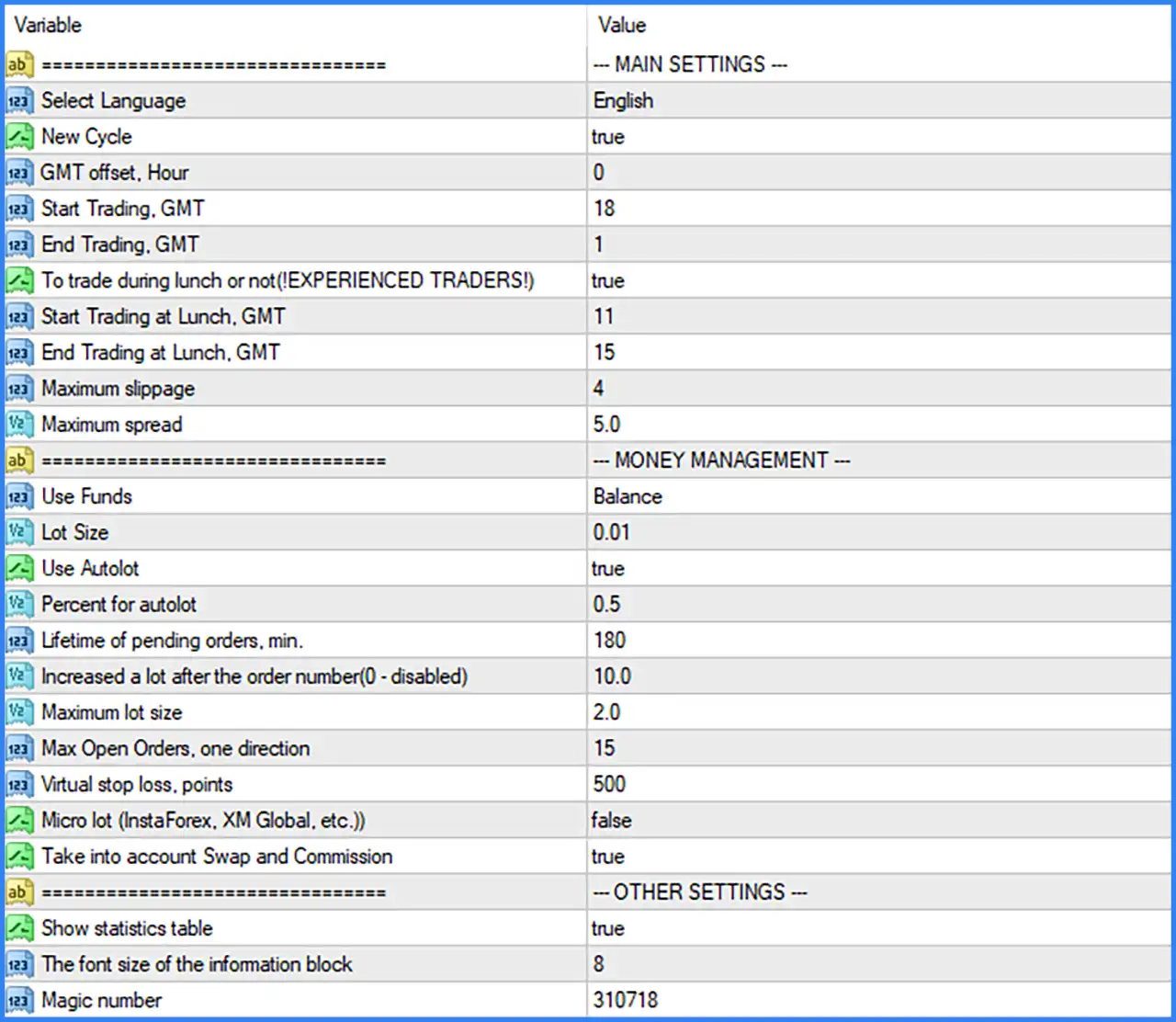
Main Settings
🔹 Select Language = English: Selects English as the display language for the EA interface, making its settings, information panels, and messages easier to understand.
🔹 New Cycle = true: Enables the New Cycle function, allowing the EA to initiate a new trading cycle according to its internal trading strategy and cycle-management conditions.
🔹 GMT offset, Hour = 0: Sets the GMT time offset to 0 hours. This parameter helps synchronize the EA's trading schedule with the selected GMT reference time.
🔹 Start Trading, GMT = 18: Defines 18:00 GMT as the starting time for the main trading session, allowing the EA to begin its scheduled trading activity from this hour.
🔹 End Trading, GMT = 1: Sets 01:00 GMT as the ending time for the main trading session, defining the end of the configured trading window.
🔹 To trade during lunch or not (EXPERIENCED TRADERS!) = true: Enables trading during the lunch session. This option is intended for experienced traders who want the EA to operate during the additional trading period.
🔹 Start Trading at Lunch, GMT = 11: Sets the lunch trading session to begin at 11:00 GMT, allowing the EA to consider trading opportunities during the specified lunch period.
🔹 End Trading at Lunch, GMT = 15: Defines 15:00 GMT as the ending time for the lunch trading session, completing the additional trading window.
🔹 Maximum slippage = 4: Sets the maximum acceptable price slippage to 4 points or the EA's corresponding execution units, helping control differences between requested and actual trade execution prices.
🔹 Maximum spread = 5.0: Defines the maximum permitted spread at 5.0. The EA can use this filter to avoid opening trades when market spreads exceed the configured threshold.
Money Management Settings
🔹 Use Funds = Balance: Selects account Balance as the reference for the EA's money management calculations, rather than using another available account-funds measurement.
🔹 Lot Size = 0.01: Sets the default trading volume to 0.01 lots, establishing the configured position size when the EA uses its fixed lot-sizing option.
🔹 Use Autolot = true: Enables automatic lot calculation, allowing the EA to adjust position sizes according to its money management rules instead of relying exclusively on a fixed lot size.
🔹 Percent for autolot = 0.5: Sets the automatic lot calculation percentage to 0.5. This value is used by the EA's position-sizing mechanism, with the exact calculation depending on its internal implementation.
🔹 Lifetime of pending orders, min. = 180: Defines the lifetime of pending orders as 180 minutes. Pending orders can be managed according to this expiration period if they remain unexecuted.
🔹 Increased a lot after the order number (0 - disabled) = 10.0: Configures the lot-increase condition at order number 10.0. This parameter may increase trading volume after the specified order count, while setting it to 0 disables the function.
🔹 Maximum lot size = 2.0: Establishes the maximum permitted trading volume at 2.0 lots, limiting the position size generated by the EA's automatic or progressive lot-sizing mechanism.
🔹 Max Open Orders, one direction = 15: Limits the maximum number of simultaneously open orders in one trading direction to 15, helping control the EA's position accumulation.
🔹 Virtual stop loss, points = 500: Sets the virtual Stop Loss distance to 500 points. This parameter allows the EA to manage stop-loss conditions internally rather than relying exclusively on a conventional broker-side Stop Loss order.
🔹 Micro lot (InstaForex, XM Global, etc.) = false: Disables the micro-lot account compatibility option. This setting should be enabled only when the trading account uses a broker-specific micro-lot contract configuration supported by the EA.
🔹 Take into account Swap and Commission = true: Enables consideration of swap charges and trading commissions in the EA's calculations, helping account for additional trading costs when evaluating trade profitability.
Other Settings
🔹 Show statistics table = true: Enables the statistics table display, allowing traders to monitor the EA's trading information and performance data directly on the MetaTrader 4 chart.
🔹 The font size of the information block = 8: Sets the font size of the EA's information block to 8, controlling the text appearance and readability of the on-chart display.
🔹 Magic number = 310718: Assigns the Magic Number 310718 to trades opened by Breakfast in Canada EA MT4. This unique identifier helps the EA distinguish and manage its own positions separately from manual trades or other Expert Advisors.
Conclusion
Breakfast in Canada EA MT4 offers a comprehensive collection of configuration parameters covering trading schedules, money management, order execution, and position management.
Its default settings include a main trading session from 18:00 GMT to 01:00 GMT, an additional lunch session from 11:00 GMT to 15:00 GMT, automatic lot sizing enabled at 0.5%, a maximum lot size of 2.0, and a maximum of 15 open orders in one direction.
The EA also uses a virtual Stop Loss of 500 points and considers swap and commission costs in its calculations.
Before using Breakfast in Canada EA MT4 on a live account, traders should carefully evaluate the automatic lot-sizing mechanism, maximum order limits, virtual Stop Loss behavior, and GMT configuration. Testing these settings on a demo account is recommended to understand how the EA manages trades under different market conditions.