

Introduction
The Viper EA is an automated trading Expert Advisor (EA) designed for the MetaTrader 4 platform. It features automated trade entries, recovery trading, pending order management, configurable lot sizing, GMT-based trading schedules, economic news filtering, and rollover protection.

The EA provides flexible controls for both BUY and SELL positions, including adjustable spread limits, maximum trade counts, recovery distances, and profit-closing conditions. It also supports multi-pair configuration and automatic GMT adjustment to accommodate seasonal time changes.
Understanding The Viper EA MT4 settings helps traders configure trading operations, manage recovery positions, control exposure, and customize the EA according to their trading preferences.
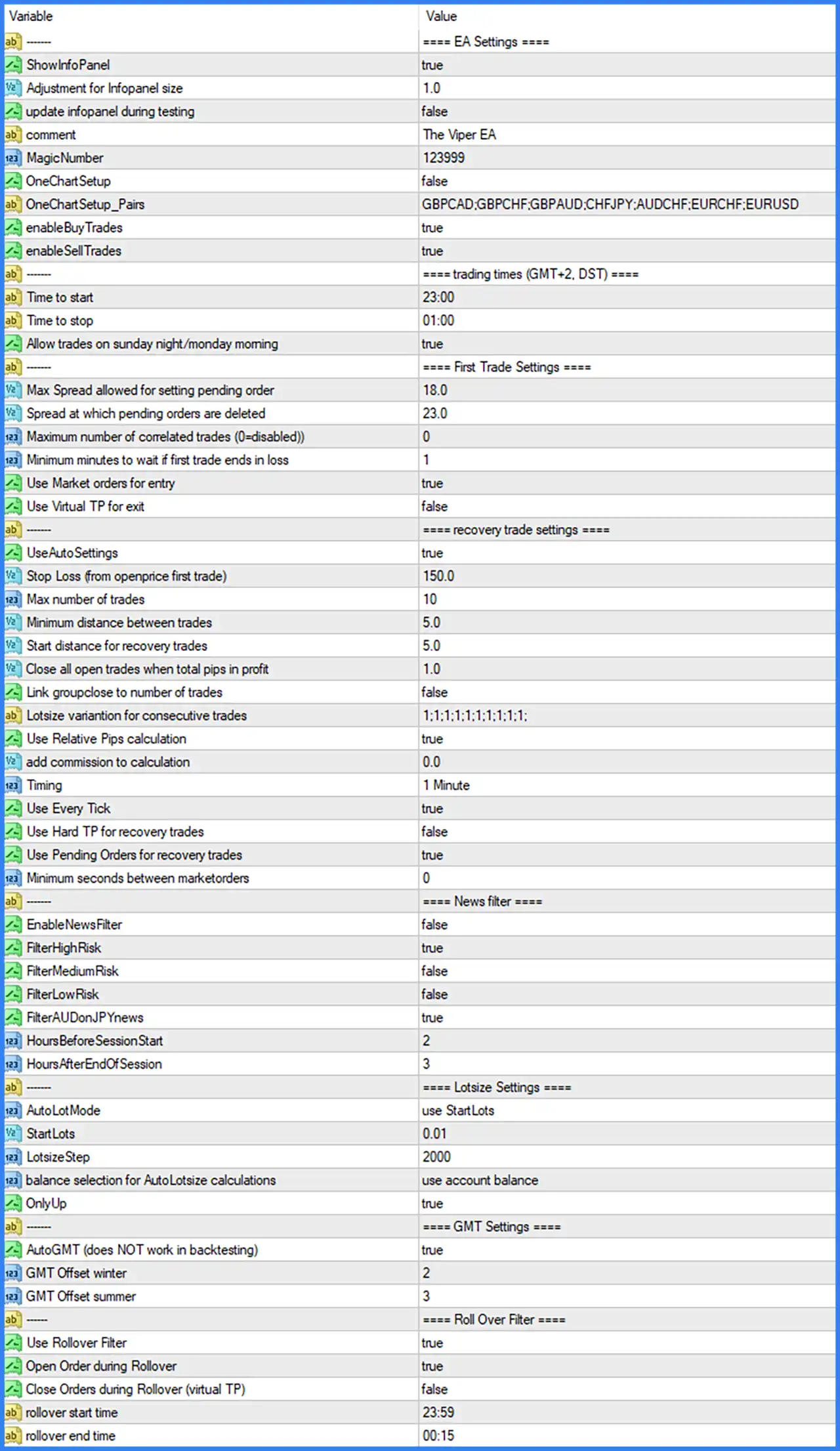
EA General Settings
🔹 ShowInfoPanel = true: Enables the information panel on the MT4 chart, allowing traders to monitor relevant EA information directly from the trading interface.
🔹 Adjustment for Infopanel size = 1.0: Sets the information panel size adjustment to 1.0, controlling the scaling of the EA's on-chart display.
🔹 update infopanel during testing = false: Disables information panel updates during backtesting, potentially reducing unnecessary chart updates while running historical tests.
🔹 comment = The Viper EA: Sets the trade comment to "The Viper EA", allowing traders to identify positions opened by this Expert Advisor in the MT4 terminal.
🔹 MagicNumber = 123999: Assigns Magic Number 123999 to trades opened by The Viper EA MT4, helping the EA distinguish and manage its own trading positions.
🔹 OneChartSetup = false: Disables the one-chart setup option, meaning the EA does not use this particular centralized chart configuration.
🔹 OneChartSetup_Pairs = GBPCAD; GBPCHF; GBPAUD; CHFJPY; AUDCHF; EURCHF; EURUSD, ... : Specifies seven currency pairs for the one-chart setup: GBPCAD, GBPCHF, GBPAUD, CHFJPY, AUDCHF, EURCHF, and EURUSD.
🔹 enableBuyTrades = true: Enables BUY trading, allowing the EA to open long positions when its trading conditions are satisfied.
🔹 enableSellTrades = true: Enables SELL trading, allowing the EA to open short positions when its trading conditions are satisfied.
Trading Time Settings (GMT+2, DST)
🔹 Time to start = 23:00: Sets the starting time of the trading session to 23:00, based on the GMT+2 and Daylight Saving Time reference indicated in the settings.
🔹 Time to stop = 01:00: Sets the ending time of the trading session to 01:00, defining the configured trading window.
🔹 Allow trades on sunday night/monday morning = true: Enables trading during Sunday night and Monday morning, allowing the EA to open positions during the transition into the new trading week.
First Trade Settings
🔹 Max Spread allowed for setting pending order = 18.0: Sets the maximum permitted spread to 18.0 for placing pending orders, helping prevent order placement under unfavorable spread conditions.
🔹 Spread at which pending orders are deleted = 23.0: Defines the spread threshold of 23.0 at which existing pending orders are deleted, helping manage execution risks when spreads increase significantly.
🔹 Maximum number of correlated trades (0=disabled) = 0: Sets the maximum number of correlated trades to 0. According to the parameter description, a value of 0 disables this particular correlation-based trade limit.
🔹 Minimum minutes to wait if first trade ends in loss = 1: Configures a waiting period of 1 minute before the EA can proceed with another first trade after the previous first trade closes at a loss.
🔹 Use Market orders for entry = true: Enables market orders for trade entries, allowing the EA to execute positions at the available market price instead of relying exclusively on pending orders.
🔹 Use Virtual TP for exit = false: Disables virtual Take Profit for the initial trade exit, meaning this particular virtual TP function is not used under the default configuration.
Recovery Trade Settings
🔹 UseAutoSettings = true: Enables automatic recovery settings, allowing the EA to apply its predefined recovery configuration rather than requiring every recovery parameter to be managed manually.
🔹 Stop Loss (from open price first trade) = 150.0: Sets the Stop Loss reference distance to 150.0 from the opening price of the first trade, defining the configured loss boundary for the recovery trading system.
🔹 Max number of trades = 10: Limits the maximum number of trades in the recovery sequence to 10, helping control the number of accumulated positions.
🔹 Minimum distance between trades = 5.0: Sets the minimum distance between consecutive trades to 5.0 pips, controlling how closely recovery positions can be placed.
🔹 Start distance for recovery trades = 5.0: Defines the initial distance for opening recovery trades as 5.0 pips from the relevant reference price.
🔹 Close all open trades when total pips in profit = 1.0: Configures the EA to close all open trades when the combined trading result reaches a total profit of 1.0 pip according to its internal calculation.
🔹 Link groupclose to number of trades = false: Disables the option to link group-closing conditions directly to the number of open trades.
🔹 Lotsize variation for consecutive trades = 1:1:1:1:1:1:1:1:1:: Defines the lot-size variation sequence for consecutive recovery trades. Each displayed multiplier is 1, indicating equal lot-size proportions across the configured sequence.
🔹 Use Relative Pips calculation = true: Enables relative pip calculation for recovery trade management, allowing the EA to calculate trading distances using its relative-pip methodology.
🔹 add commission to calculation = 0.0: Sets the commission adjustment to 0.0 in the EA's trading calculations, meaning no additional commission value is manually added through this parameter.
🔹 Timing = 1 Minute: Sets the recovery trading timing interval to 1 minute, defining the selected timing reference for the recovery system.
🔹 Use Every Tick = true: Enables tick-by-tick processing, allowing the EA to evaluate relevant trading conditions whenever a new market tick is received.
🔹 Use Hard TP for recovery trades = false: Disables fixed broker-side Take Profit placement for recovery trades through this option.
🔹 Use Pending Orders for recovery trades = true: Enables pending orders for recovery trades, allowing the EA to place recovery entries at specified price levels instead of relying exclusively on immediate market execution.
🔹 Minimum seconds between marketorders = 0: Sets the minimum waiting interval between market orders to 0 seconds, meaning no additional delay is configured through this parameter.
News Filter Settings
🔹 EnableNewsFilter = false: Disables the economic news filter, meaning the EA does not apply its configured news-event restrictions under the default settings.
🔹 FilterHighRisk = true: Enables filtering for high-impact economic news events when the main news filter is activated.
🔹 FilterMediumRisk = false: Disables filtering for medium-impact economic news events.
🔹 FilterLowRisk = false: Disables filtering for low-impact economic news events.
🔹 FilterAUDonJPYnews = true: Enables the specific AUD-related filtering option for JPY news events, according to the EA's currency-news filtering logic.
🔹 HoursBeforeSessionStart = 2: Sets the news-filtering period to 2 hours before the relevant trading session starts.
🔹 HoursAfterEndOfSession = 3: Sets the news-filtering period to 3 hours after the relevant trading session ends.
Lot Size Settings
🔹 AutoLotMode = use StartLots: Selects the StartLots-based lot-sizing mode, using the configured starting lot as the reference for position sizing.
🔹 StartLots = 0.01: Sets the initial trading volume to 0.01 lots, establishing the default starting position size.
🔹 LotsizeStep = 2000: Sets the lot-size calculation step to 2000, which is used by the EA's automatic position-sizing mechanism.
🔹 balance selection for AutoLotsize calculations = use account balance: Selects Account Balance as the reference for automatic lot-size calculations rather than another account measurement such as equity.
🔹 OnlyUp = true: Enables the OnlyUp option, allowing the EA to apply its upward-only lot adjustment logic according to its internal automatic lot-sizing rules.
GMT Settings
🔹 AutoGMT (does NOT work in backtesting) = true: Enables automatic GMT offset detection for live trading. The setting description explicitly indicates that this function does not work during backtesting.
🔹 GMT Offset winter = 2: Sets the GMT offset to 2 hours during winter time, helping synchronize the EA's trading schedule with the broker's server time.
🔹 GMT Offset summer = 3: Sets the GMT offset to 3 hours during summer time, allowing the EA to account for the seasonal time adjustment.
Rollover Filter Settings
🔹 Use Rollover Filter = true: Enables the rollover filter, allowing the EA to apply specific trading management rules around the broker's daily rollover period.
🔹 Open Order during Rollover = true: Allows the EA to open orders during the rollover period, even when the rollover filter is enabled.
🔹 Close Orders during Rollover (virtual TP) = false: Disables the virtual Take Profit-based order-closing function during rollover.
🔹 rollover start time = 23:59: Sets the beginning of the rollover period to 23:59.
🔹 rollover end time = 00:15: Sets the end of the rollover period to 00:15, defining a rollover window that crosses midnight.