

Introduction
Forex Flare Robot is an automated trading Expert Advisor (EA) designed to provide flexible trading configurations through multiple strategy components and customizable trade management settings. It offers selectable trading features, including Renko Chart analysis, Price Action trading, and Mean Aversion logic, allowing traders to configure different approaches according to their trading preferences.

Forex Flare Robot includes adjustable lot sizing, risk management options, maximum trade limits, Stop Loss (SL) and Take Profit (TP) parameters, and optional trailing stop functionality. It also provides configurable trading hours, trade identification settings, and a re-entry delay after Stop Loss events.
With its combination of strategy controls and trade management features, Forex Flare Robot gives traders the flexibility to customize their automated trading environment on the MetaTrader platform.
Forex Flare Robot Settings Explained
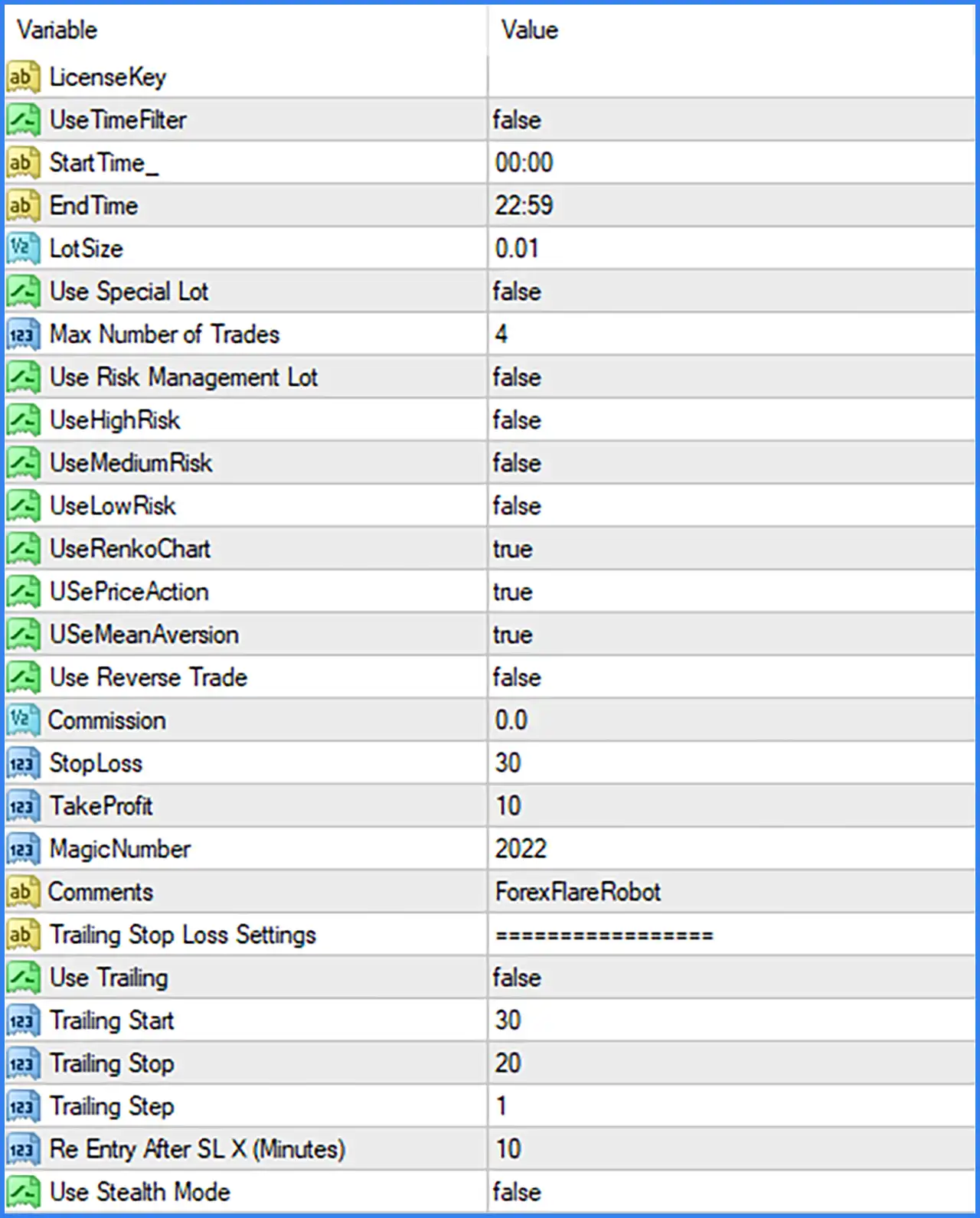
1. General Settings
🔹 LicenseKey – This parameter is intended for entering the EA activation or license key required by the software. The supplied configuration does not display a value.
🔹 UseTimeFilter = false – Disables the trading time filter, allowing the EA to operate without applying the configured StartTime_ and EndTime_ restrictions.
🔹 StartTime_ = 00:00 – Defines the starting time of the permitted trading window as 00:00 (midnight) when the time filter is enabled.
🔹 EndTime_ = 22:59 – Defines the ending time of the permitted trading window as 22:59 when the time filter is enabled.
2. Lot Size and Risk Management Settings
🔹 LotSize = 0.01 – Sets the default trading volume to 0.01 lots, providing a small initial position size for automated trading.
🔹 Use Special Lot = false – Disables the special lot-sizing function, allowing the EA to use its standard lot-size configuration.
🔹 Max Number of Trades = 4 – Limits the configured maximum number of trades to 4, helping control the number of trading positions opened by the EA.
🔹 Use Risk Management Lot = false – Disables the risk-management-based lot-sizing function, so the EA does not use this particular option to calculate position volume.
🔹 UseHighRisk = false – Disables the High Risk trading configuration.
🔹 UseMediumRisk = false – Disables the Medium Risk trading configuration.
🔹 UseLowRisk = false – Disables the Low Risk trading configuration.
3. Trading Strategy Settings
🔹 UseRenkoChart = true – Enables the Renko Chart trading component, allowing the EA to use Renko-based market analysis in its trading logic.
🔹 UsePriceAction = true – Enables the Price Action strategy component, allowing the EA to incorporate price movement and market behavior into its trading decisions.
🔹 UseMeanAversion = true – Enables the Mean Aversion strategy component, providing an additional market-analysis approach within the EA's trading configuration.
🔹 Use Reverse Trade = false – Disables Reverse Trade functionality, preventing the EA from activating this optional reverse-direction trading mode.
4. Trading Execution and Order Settings
🔹 Commission = 0.0 – Sets the commission parameter to 0.0, indicating that no additional commission value is specified in this input configuration.
🔹 StopLoss = 30 – Sets the default Stop Loss distance to 30 points or the EA's configured distance units, defining the intended loss-protection level for trades.
🔹 TakeProfit = 10 – Sets the default Take Profit distance to 10 points or the EA's configured distance units, defining the intended profit target for trades.
🔹 MagicNumber = 2022 – Assigns the Magic Number 2022 to identify trades opened by Forex Flare Robot and distinguish them from other automated or manually placed orders.
🔹 Comments = ForexFlareRobot – Adds the comment ForexFlareRobot to trading orders, making it easier to recognize positions managed by this EA in the trading terminal.
5. Trailing Stop Loss Settings
🔹 UseTrailing = false – Disables the trailing stop functionality, meaning the EA will not use its configured trailing parameters to dynamically adjust Stop Loss levels.
🔹 Trailing Start = 30 – Sets the profit-distance threshold to 30 points before the trailing stop mechanism becomes eligible to activate when enabled.
🔹 Trailing Stop = 20 – Sets the trailing distance to 20 points, defining the distance maintained between the market price and the adjusted Stop Loss level.
🔹 Trailing Step = 1 – Sets the trailing adjustment step to 1 point, determining the minimum price movement used for successive trailing Stop Loss updates.
6. Re-Entry and Stealth Mode Settings
🔹 Re Entry After SL X (Minutes) = 10 – Sets a 10-minute waiting period after a Stop Loss event before the EA can execute the corresponding re-entry logic.
🔹 Use Stealth Mode = false – Disables Stealth Mode, leaving the EA's standard order-management configuration active rather than enabling its optional stealth functionality.
Conclusion
Forex Flare Robot provides a customizable automated trading configuration with several strategy components, including Renko Chart analysis, Price Action, and Mean Aversion.
The supplied settings use a default lot size of 0.01, a maximum trade limit of 4, Stop Loss of 30, and Take Profit of 10. All three selectable risk profiles are disabled, while the Renko Chart, Price Action, and Mean Aversion components are enabled.
The time filter, trailing stop, reverse trading, and stealth mode are disabled in the supplied configuration. A 10-minute re-entry waiting period after Stop Loss is also configured.
Before running Forex Flare Robot on a live account, traders should carefully evaluate its Stop Loss and Take Profit distances, position-sizing behavior, and maximum trade exposure. Backtesting and demo testing are recommended to determine whether the configuration is appropriate for the selected currency pairs, broker conditions, and trading objectives.