

Introduction
Goldex AI MT5 is an automated trading Expert Advisor (EA) for the MetaTrader 5 platform, featuring configurable lot management, profit targets, Stop Loss protection, and Trailing Stop functionality. Its input parameters also include smart news filtering, smart trend filtering, scheduled order management, and customizable chart graphics.
With these settings, traders can adjust trading volume, manage potential losses, configure trading schedules, and control how the EA handles different market conditions.

Goldex AI MT5 Settings Explained
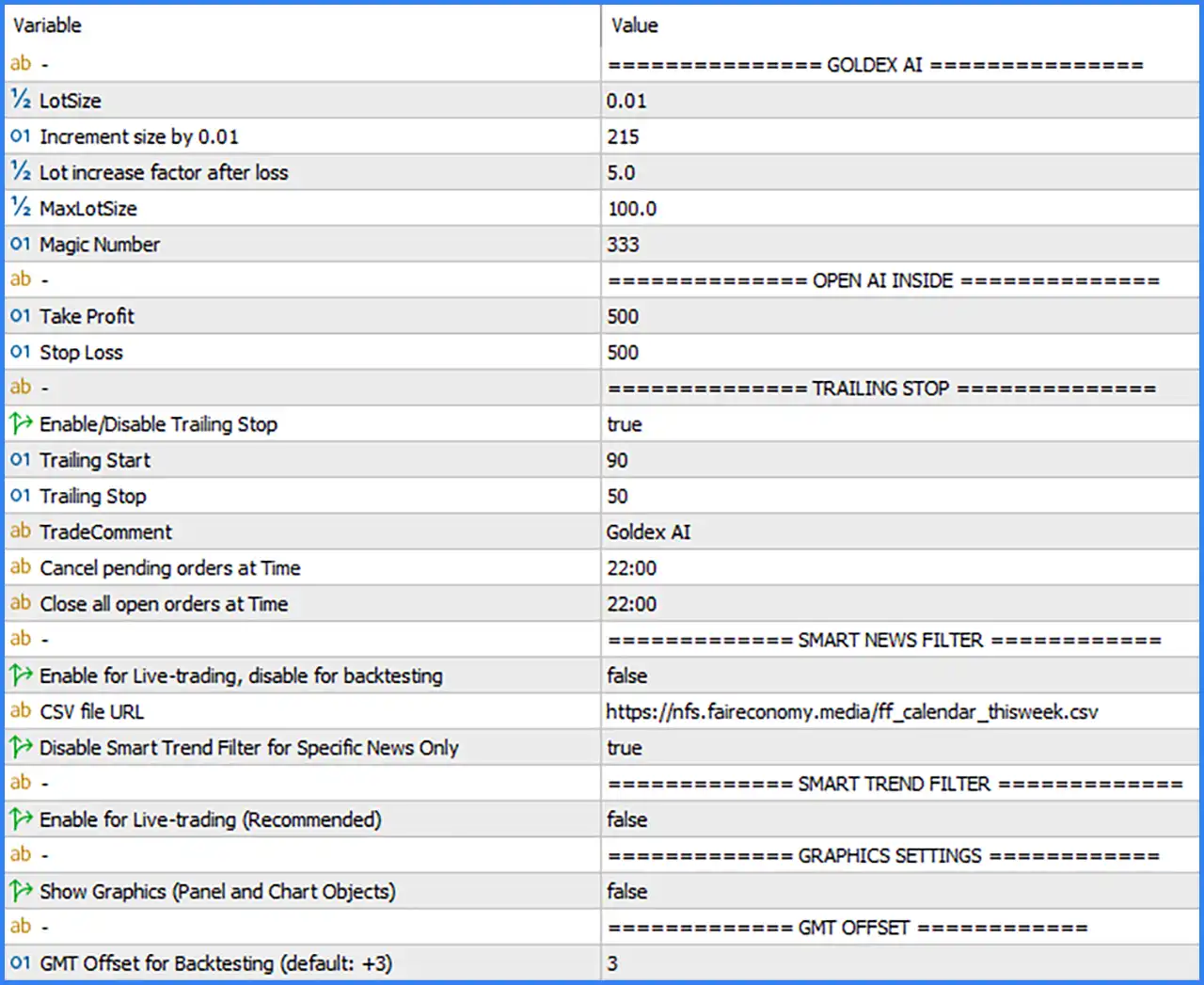
Goldex AI – Trading and Lot Management
🔹 LotSize = 0.01 – Defines the initial trading lot size used by Goldex AI MT5 when opening positions. The default value of 0.01 represents a micro lot, allowing traders to begin with a relatively small trading volume.
🔹 Increment size by 0.01 = 215 – Sets the configured increment parameter associated with the 0.01 lot-size adjustment. The default value of 215 is used by the EA's internal lot increment logic to determine how trading volume is adjusted.
🔹 Lot increase factor after loss = 5.0 – Defines the lot-size multiplication factor applied after a losing trade. A value of 5.0 means the configured lot adjustment factor is five times the reference amount, potentially increasing exposure after losses.
🔹 MaxLotSize = 100.0 – Sets the maximum permitted lot size for trading operations. The default value of 100.0 establishes an upper limit on position volume according to the EA's lot management logic.
🔹 Magic Number = 333 – Assigns a unique identification number to trades opened by Goldex AI MT5. This helps the EA distinguish its positions from manually opened trades and orders managed by other Expert Advisors.
Open AI Inside – Take Profit and Stop Loss
🔹 Take Profit = 500 – Sets the Take Profit target to 500 in the EA's configured distance units. When the market reaches the specified profit level, the EA is configured to close the position and secure the target profit.
🔹 Stop Loss = 500 – Sets the Stop Loss distance to 500 in the EA's configured distance units. This parameter establishes a predefined exit level to help limit potential losses when the market moves against an open position.
Trailing Stop Settings
🔹 Enable/Disable Trailing Stop = true – Enables the Trailing Stop function. When set to true, the EA can dynamically adjust the Stop Loss level according to its trailing logic as the trade moves into profit.
🔹 Trailing Start = 90 – Defines the profit distance required to activate the Trailing Stop mechanism. Once the trade reaches the configured threshold of 90, the EA can begin applying its trailing protection.
🔹 Trailing Stop = 50 – Sets the trailing distance to 50. This parameter determines how far the Stop Loss follows the market price after the Trailing Stop becomes active.
Trade Management and Scheduling
🔹 TradeComment = Goldex AI – Specifies the comment attached to trades opened by the Expert Advisor. The default text, Goldex AI, helps traders recognize positions associated with this automated trading system.
🔹 Cancel pending orders at Time = 22:00 – Sets the scheduled time for cancelling pending orders. At 22:00, the EA is configured to remove its pending orders according to its order management rules.
🔹 Close all open orders at Time = 22:00 – Defines the scheduled time for closing all open orders managed by the EA. The default setting is 22:00, allowing the EA to apply its scheduled position-closing logic.
Smart News Filter Settings
🔹 Enable for Live-trading, disable for backtesting = false – Controls the Smart News Filter's live-trading activation setting. The default value of false means this option is not enabled in the supplied configuration.
🔹 CSV file URL = https://nfs.faireconomy.media/ff_calendar_thisweek.csv – Specifies the external CSV calendar file used as the news data source. The URL points to the Forex Factory weekly economic calendar data, which the EA can use for its news-filtering functionality.
🔹 Disable Smart Trend Filter for Specific News Only = true – Enables the option to disable the Smart Trend Filter specifically for selected news events. The default value of true activates this configuration, allowing the EA to apply its designated news-related trend-filter exception logic.
Smart Trend Filter Settings
🔹 Enable for Live-trading (Recommended) = false – Controls whether the Smart Trend Filter is enabled during live trading. The default value of false means the filter is disabled in the supplied configuration, although the parameter description recommends enabling it for live-trading use.
Graphics Settings
🔹 Show Graphics (Panel and Chart Objects) = false – Controls the display of the EA's graphical interface and chart objects. When set to false, the dashboard panel and additional graphical objects are not displayed on the chart.
GMT Offset Settings
🔹 GMT Offset for Backtesting (default: +3) = 3 – Defines the GMT time offset used by the EA during backtesting. The default value of 3 represents GMT+3 and helps align historical trading calculations with the intended time reference.
Conclusion
Goldex AI MT5 offers a comprehensive collection of trading and management parameters, including adjustable lot sizing, loss-based lot increases, Take Profit, Stop Loss, Trailing Stop, smart news filtering, and smart trend filtering.
The default configuration includes a 0.01 initial lot size, a 5.0 lot increase factor after losses, a maximum lot size of 100.0, Take Profit of 500, and Stop Loss of 500. Its Trailing Stop is enabled with a starting threshold of 90 and a trailing distance of 50.
Traders should pay particular attention to the lot increase factor of 5.0 and MaxLotSize of 100.0, as these settings can significantly increase trading exposure. It is also important to verify the EA's news-filter configuration, broker time settings, and scheduled closing rules before using it on a live account. Demo testing and careful risk management are recommended.