

Introduction
Hedgehog MT5 is an automated trading Expert Advisor (EA) designed for the MetaTrader 5 platform. Its configuration provides flexible money management, customizable trade execution, advanced exit controls, and an integrated economic news filter.

The EA supports three money management modes: Fixed Lot, Risk Percentage, and Balance Lot. Traders can configure Stop Loss, Take Profit, Trailing Stop, and trailing distance to manage individual positions and control trading risk.
One of the key features of Hedgehog MT5 is its high-impact USD news filter, which monitors important economic announcements such as FOMC decisions, CPI, NFP, and PCE releases. It also includes a WebRequest backup system, automatic pending-order deletion before the weekend, and an optional trading dashboard.
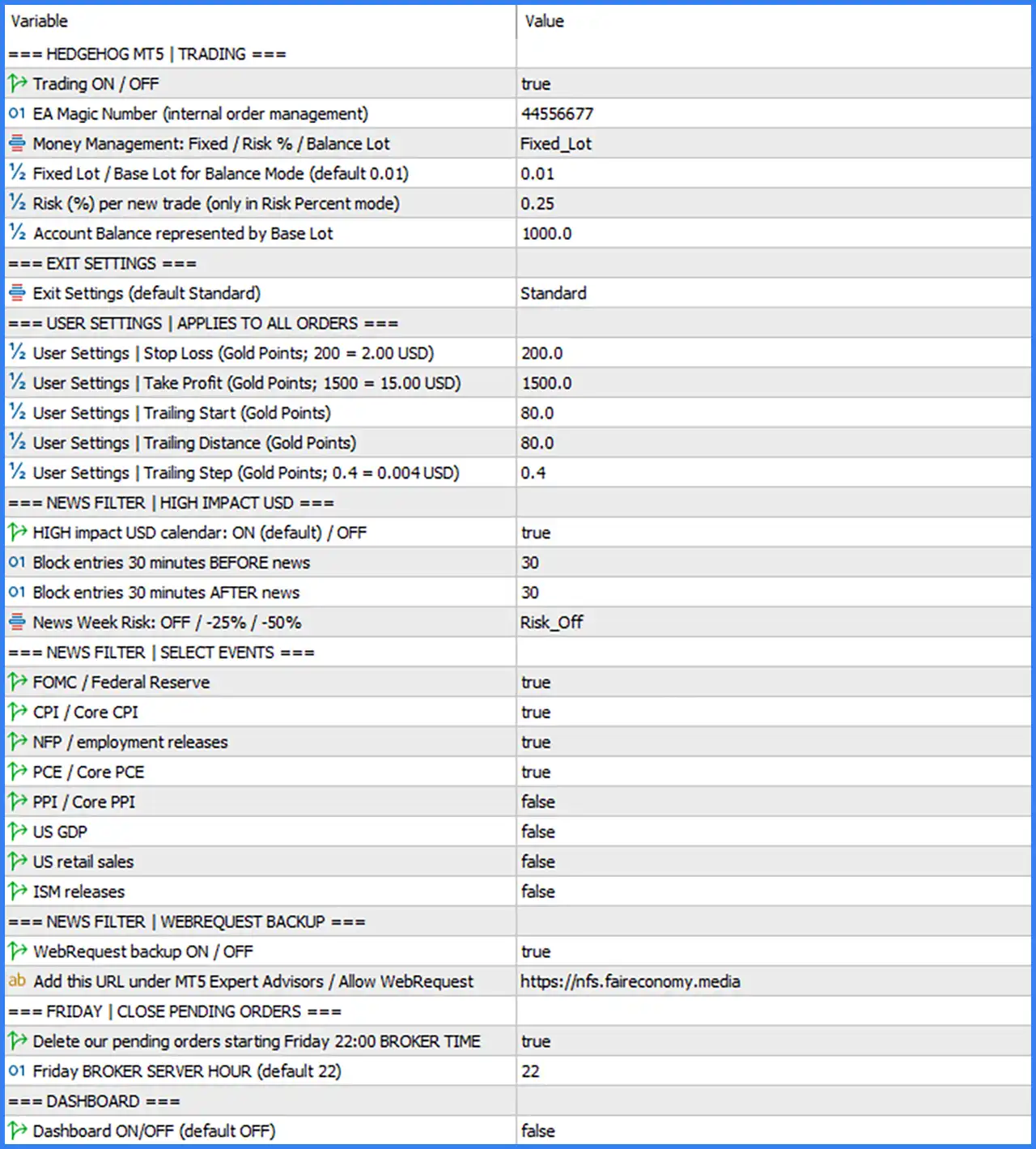
Trading Settings
🔹 Trading ON / OFF: true – Enables automated trading, allowing Hedgehog MT5 to execute trades according to its configured trading strategy and market conditions.
🔹 EA Magic Number (internal order management): 44556677 – Assigns the unique Magic Number 44556677 to trades managed by Hedgehog MT5, helping distinguish its positions from manual trades and other Expert Advisors.
🔹 Money Management: Fixed / Risk % / Balance Lot: Fixed_Lot – Selects the money management mode. Available options include Fixed Lot, Risk Percentage, and Balance Lot, with Fixed Lot selected in the current configuration.
🔹 Fixed Lot / Base Lot for Balance Mode (default 0.01): 0.01 – Sets the default trading volume to 0.01 lots. This value is used as the fixed position size in Fixed Lot mode and as the base lot reference in Balance Lot mode.
🔹 Risk (%) per new trade (only in Risk Percent mode): 0.25 – Sets the risk allocation to 0.25% per new trade when Risk Percent mode is selected, allowing position size to be calculated according to the configured risk level.
🔹 Account Balance represented by Base Lot: 1000.0 – Defines the account balance reference of 1000.0 for the base lot calculation in Balance Lot mode, determining how the EA scales trading volume relative to account equity or balance according to its internal logic.
Exit Settings
🔹 Exit Settings (default Standard): Standard – Selects the Standard exit management configuration, determining how the EA manages trade exits using its configured Stop Loss, Take Profit, and trailing stop parameters.
User Settings – Applies to All Orders
🔹 User Settings | Stop Loss (Gold Points; 200 = 2.00 USD): 200.0 – Sets the Stop Loss distance to 200 Gold points, equivalent to approximately 2.00 USD in Gold price movement according to the displayed conversion.
🔹 User Settings | Take Profit (Gold Points; 1500 = 15.00 USD): 1500.0 – Sets the Take Profit distance to 1500 Gold points, equivalent to approximately 15.00 USD in Gold price movement according to the displayed conversion.
🔹 User Settings | Trailing Start (Gold Points): 80.0 – Sets the trailing stop activation threshold to 80 Gold points, determining how far the trade must move into profit before trailing management begins.
🔹 User Settings | Trailing Distance (Gold Points): 80.0 – Sets the trailing stop distance to 80 Gold points, defining the distance maintained between the current market price and the trailing stop level.
🔹 User Settings | Trailing Step (Gold Points; 0.4 = 0.004 USD): 0.4 – Sets the trailing adjustment step to 0.4 Gold points, equivalent to approximately 0.004 USD in Gold price movement, defining the minimum configured increment for trailing stop adjustments.
Economic News Filter – High Impact USD
🔹 HIGH impact USD calendar: ON (default) / OFF: true – Enables the high-impact USD economic calendar filter, allowing the EA to restrict new trade entries around important US economic announcements.
🔹 Block entries 30 minutes BEFORE news: 30 – Prevents the EA from opening new positions during the 30 minutes preceding a scheduled high-impact USD news event, helping reduce exposure to pre-announcement volatility.
🔹 Block entries 30 minutes AFTER news: 30 – Prevents new trade entries for 30 minutes following a high-impact USD announcement, allowing the market time to react before the EA resumes opening positions.
🔹 News Week Risk: OFF / -25% / -50%: Risk_Off – Selects the Risk Off mode for news-week risk management. This is the selected option among the available Risk Off, -25%, and -50% configurations.
Economic News Filter – Select Events
🔹 FOMC / Federal Reserve: true – Enables filtering for Federal Open Market Committee announcements and Federal Reserve events, which can significantly influence the US Dollar and Gold prices.
🔹 CPI / Core CPI: true – Enables filtering for Consumer Price Index and Core CPI releases, helping the EA avoid opening new trades around important US inflation announcements.
🔹 NFP / employment releases: true – Enables filtering for Non-Farm Payrolls and other employment-related announcements, which can create substantial volatility in Gold and major currency markets.
🔹 PCE / Core PCE: true – Enables filtering for Personal Consumption Expenditures and Core PCE releases, which are important US inflation indicators monitored by financial markets.
🔹 PPI / Core PPI: false – Disables filtering for Producer Price Index and Core PPI announcements, meaning these specific events are not excluded by this individual news setting.
🔹 US GDP: false – Disables the dedicated news filter for US Gross Domestic Product releases, so GDP announcements are not specifically restricted through this option.
🔹 US retail sales: false – Disables filtering for US retail sales announcements, allowing the EA to operate without applying this specific event restriction.
🔹 ISM releases: false – Disables filtering for Institute for Supply Management economic reports, meaning ISM-related announcements are not specifically blocked by this setting.
Economic News Filter – WebRequest Backup
🔹 WebRequest backup ON / OFF: true – Enables the WebRequest backup function, providing an additional method for retrieving economic calendar information when required by the EA's news filtering system.
🔹 Add this URL under MT5 Expert Advisors / Allow WebRequest: https://nfs.faireconomy.media – Specifies the external economic calendar URL that must be added to MetaTrader 5's WebRequest permission list so the EA can access the required news data.
Friday – Close Pending Orders
🔹 Delete our pending orders starting Friday 22:00 BROKER TIME: true – Enables automatic deletion of the EA's pending orders starting at the configured Friday closing time, helping prevent unintended pending-order activation over the weekend.
🔹 Friday BROKER SERVER HOUR (default 22): 22 – Defines 22:00 as the broker server-time reference for the Friday pending-order deletion function.
Dashboard Settings
🔹 Dashboard ON/OFF (default OFF): false – Disables the EA's dashboard display, meaning the optional on-chart information panel is not shown under the current configuration.
Conclusion
Hedgehog MT5 provides a comprehensive automated trading configuration with flexible money management, customizable exit settings, trailing stop functionality, and an integrated economic news filter.
The default configuration uses Fixed Lot mode with a trading volume of 0.01 lots, a Stop Loss of 200 Gold points (2.00 USD), and a Take Profit of 1500 Gold points (15.00 USD). Its trailing stop activates at 80 Gold points, with an 80-point trailing distance and a 0.4-point adjustment step.
Another important feature is its high-impact USD news filter, which is configured to block new entries 30 minutes before and after selected economic announcements. FOMC, CPI, NFP, and PCE filters are enabled, while PPI, GDP, retail sales, and ISM filters are disabled.
Overall, Hedgehog MT5 offers traders several useful controls for automated trade execution and risk management. Before using it on a live account, traders should verify the Gold point conversion, broker server time, WebRequest permissions, and the behavior of each money management mode. Demo testing is recommended to evaluate the EA under different market conditions.