

Introduction
Instant Funding AI EA is an automated Forex trading Expert Advisor (EA) designed with multiple trading engines, grid trading functionality, configurable lot management, and advanced risk-control features.
The EA combines BUY and SELL trading engines with Moving Average and HILO indicators to manage market entries and position management.

One of its key features is its configurable grid system, which supports Martingale lot progression, adjustable grid spacing, maximum lot limits, and minimum-profit protection. It also includes Trailing Stop, Break Even, Equity Caution, Equity Stop, and economic news filtering.
Instant Funding AI EA provides additional trading controls, including maximum order limits, daily profit targets, trading schedules, and chart information displays. Understanding each input parameter allows traders to configure the EA according to their account balance, trading preferences, and risk tolerance.
Instant Funding AI EA MT4 Settings Explained
Maximum Trades and Hard Stop Loss Settings
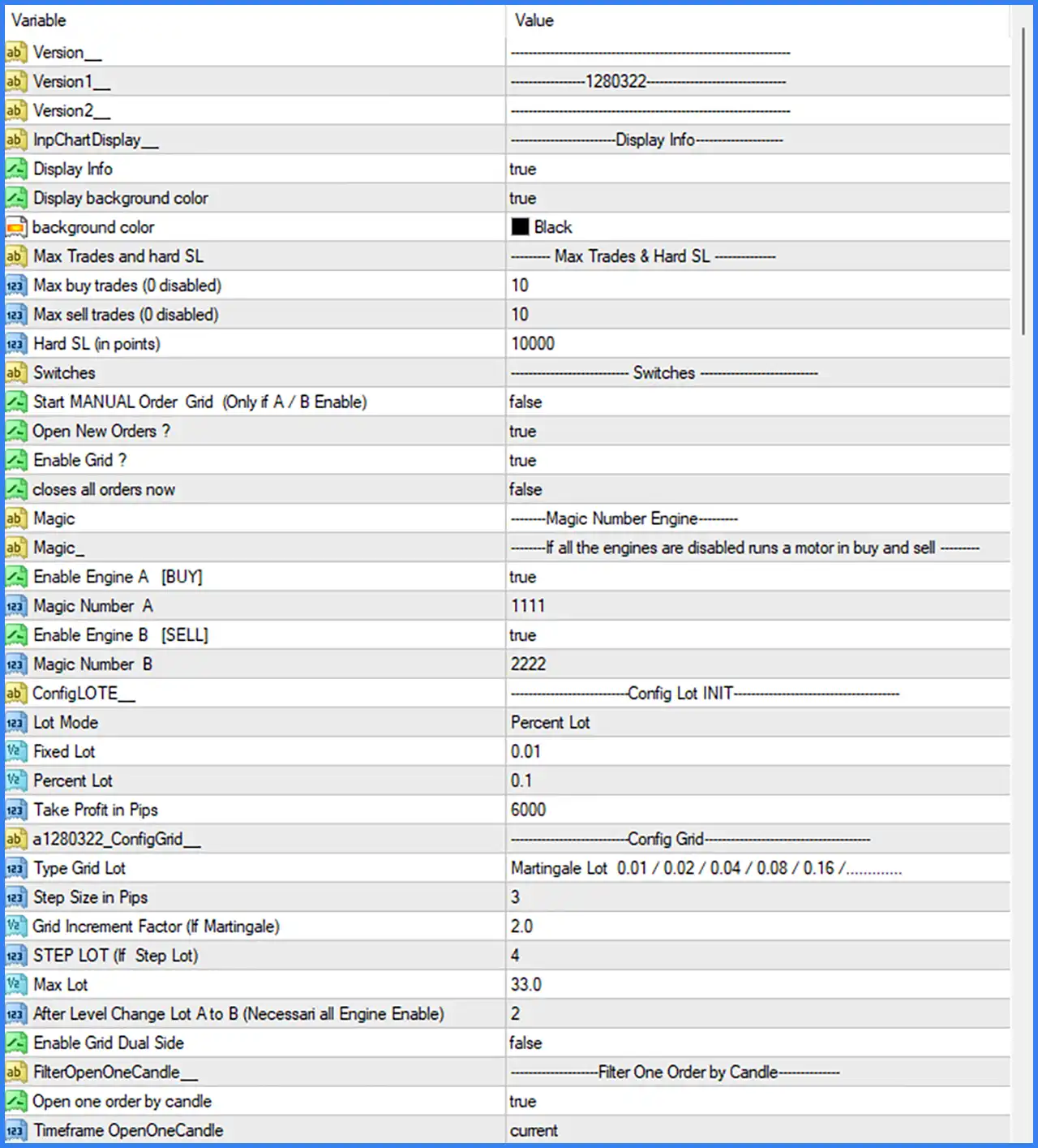
🔹 Max Trades and hard SL – Section heading for maximum BUY/SELL order limits and hard Stop Loss protection.
🔹 Max buy trades (0 disabled) = 10 – Limits the maximum number of BUY trades to 10; setting this parameter to 0 disables the limit.
🔹 Max sell trades (0 disabled) = 10 – Limits the maximum number of SELL trades to 10; setting this parameter to 0 disables the limit.
🔹 Hard SL (in points) = 10000 – Sets the hard Stop Loss protection distance to 10,000 points as configured by the EA.
Main Trading Switches
🔹 Switches – Section heading for enabling or disabling the EA's main trading functions.
🔹 Start MANUAL Order Grid (Only if A / B Enable) = false – Disables the option to start a grid from a manually placed order when Engine A or Engine B is enabled.
🔹 Open New Orders? = true – Allows the EA to open new trading orders when its entry conditions are satisfied.
🔹 Enable Grid? = true – Activates the grid trading functionality, allowing the EA to manage multiple positions through its configured grid strategy.
🔹 closes all orders now = false – Disables the immediate close-all-orders command, preventing this input from automatically closing every open position.
Magic Number Engine Settings
🔹 Magic – Section heading for configuring the EA's individual BUY and SELL trading engines.
🔹 Magic_ – Indicates the engine configuration where a BUY and SELL motor can run if all individual engines are disabled.
🔹 Enable Engine A [BUY] = true – Enables Engine A, allowing the EA to execute BUY trades according to its trading conditions.
🔹 Magic Number A = 1111 – Assigns Magic Number 1111 to Engine A BUY positions for independent trade identification and management.
🔹 Enable Engine B [SELL] = true – Enables Engine B, allowing the EA to execute SELL trades according to its trading conditions.
🔹 Magic Number B = 2222 – Assigns Magic Number 2222 to Engine B SELL positions for independent trade identification and management.
Initial Lot Configuration
🔹 ConfigLOTE__ – Section heading for the initial lot size and money management configuration.
🔹 Lot Mode = Percent Lot – Selects Percent Lot as the configured position-sizing method.
🔹 Fixed Lot = 0.01 – Sets the fixed lot size to 0.01 lots when fixed-lot sizing is used.
🔹 Percent Lot = 0.1 – Sets the percentage-based lot parameter to 0.1 for the EA's configured percentage lot calculation.
🔹 Take Profit in Pips = 6000 – Sets the Take Profit parameter to 6,000 pips according to the EA's configured pip calculation.
Grid Configuration Settings
🔹 a1280322_ConfigGrid__ – Section heading for the grid trading configuration associated with version identifier 1280322.
🔹 Type Grid Lot = Martingale Lot 0.01 / 0.02 / 0.04 / 0.08 / 0.16 / ... – Selects the Martingale lot progression, where the position size increases through the sequence 0.01, 0.02, 0.04, 0.08, 0.16 lots, and subsequent levels.
🔹 Step Size in Pips = 3 – Sets the distance between grid levels to 3 pips, defining the spacing used when placing additional grid positions.
🔹 Grid Increment Factor (If Martingale) = 2.0 – Sets the Martingale lot multiplication factor to 2.0, doubling the lot size at each progression level according to the selected grid method.
🔹 STEP LOT (If Step Lot) = 4 – Sets the lot progression step parameter to 4 when the alternative Step Lot method is used.
🔹 Max Lot = 33.0 – Establishes a maximum lot size of 33.0 lots for grid position sizing.
🔹 After Level Change Lot A to B (Necessary all Engine Enable) = 2 – Sets the grid level at 2 for changing the lot progression from Engine A to Engine B when all engines are enabled.
🔹 Enable Grid Dual Side = false – Disables simultaneous dual-side grid operation, preventing this optional BUY/SELL grid mode from being activated.
One Order Per Candle Settings
🔹 FilterOpenOneCandle__ – Section heading for the one-order-per-candle trading filter.
🔹 Open one order by candle = true – Enables the one-order-per-candle restriction, limiting the EA to one qualifying order per candle according to its internal trading logic.
🔹 Timeframe OpenOneCandle = current – Uses the current chart timeframe to determine the candle interval for the one-order-per-candle restriction.
Minimum Profit Close and Grid Protection
🔹 MinimalProfitClose__ – Section heading for minimum-profit closing and grid protection functionality.
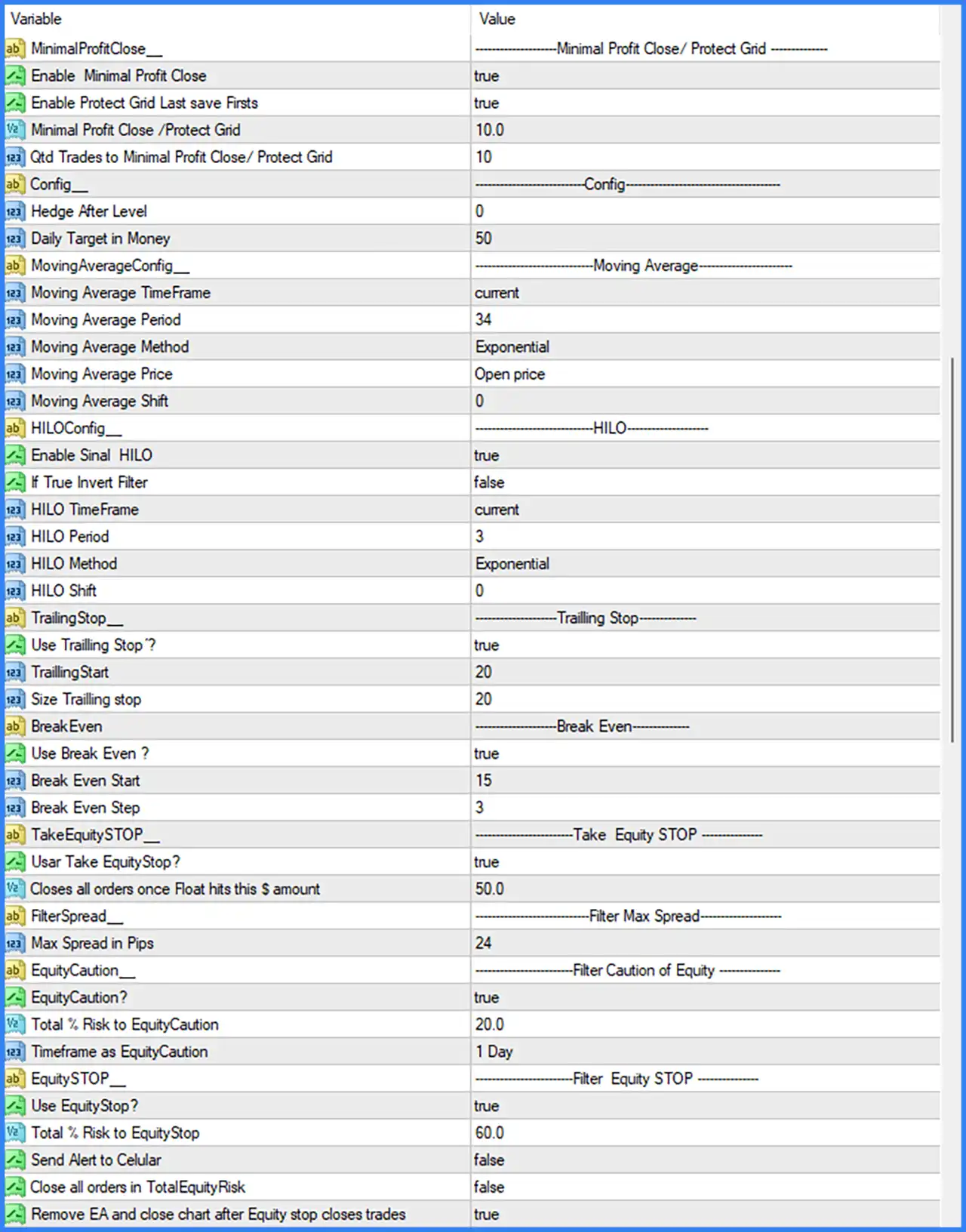
🔹 Enable Minimal Profit Close = true – Enables the minimum-profit closing function, allowing the EA to close qualifying grid positions when the configured profit condition is reached.
🔹 Enable Protect Grid Last save Firsts = true – Enables the grid protection option identified as Last Save Firsts, helping manage grid positions through the EA's configured protection logic.
🔹 Minimal Profit Close /Protect Grid = 10.0 – Sets the minimum profit threshold for the grid closing or protection function to 10.0 monetary units.
🔹 Qtd Trades to Minimal Profit Close/ Protect Grid = 10 – Sets the required trade quantity to 10 before the minimum-profit closing or grid protection condition is applied.
General Grid and Daily Profit Settings
🔹 Config__ – Section heading for additional grid and account-level trading configuration.
🔹 Hedge After Level = 0 – Sets the hedging activation level to 0; the exact behavior of this setting depends on the EA's internal hedge implementation.
🔹 Daily Target in Money = 50 – Sets the daily profit target to 50 monetary units, providing a predefined daily profit objective for the EA.
Moving Average Settings
🔹 MovingAverageConfig__ – Section heading for the Moving Average indicator configuration.
🔹 Moving Average TimeFrame = current – Uses the current chart timeframe for Moving Average calculations.
🔹 Moving Average Period = 34 – Sets the Moving Average calculation period to 34 candles.
🔹 Moving Average Method = Exponential – Selects the Exponential Moving Average (EMA) calculation method, giving greater weight to recent price data.
🔹 Moving Average Price = Open price – Uses the candle Open price as the applied price for Moving Average calculations.
🔹 Moving Average Shift = 0 – Sets the Moving Average horizontal shift to 0, keeping the indicator aligned with its standard calculated position.
HILO Indicator Settings
🔹 HILOConfig__ – Section heading for the HILO indicator configuration.
🔹 Enable Signal HILO = true – Activates the HILO signal component, allowing the EA to use HILO indicator signals within its trading logic.
🔹 If True Invert Filter = false – Disables the inverted filter option, keeping the normal HILO filter direction.
🔹 HILO TimeFrame = current – Uses the current chart timeframe for HILO indicator calculations.
🔹 HILO Period = 3 – Sets the HILO indicator calculation period to 3 candles.
🔹 HILO Method = Exponential – Selects the Exponential calculation method for the HILO indicator.
🔹 HILO Shift = 0 – Sets the HILO indicator shift to 0, maintaining its standard alignment with the chart.
Trailing Stop Settings
🔹 TrailingStop__ – Section heading for automatic trailing Stop Loss management.
🔹 Use Trailing Stop? = true – Enables the Trailing Stop function, allowing the EA to adjust Stop Loss levels as trades move into profit.
🔹 TrailingStart = 20 – Sets the trailing activation threshold to 20 points, determining when the Trailing Stop management begins.
🔹 Size Trailing stop = 20 – Sets the trailing stop distance to 20 points, defining the distance maintained between the market price and the adjusted Stop Loss.
Break Even Settings
🔹 BreakEven – Section heading for automatic Break Even protection.
🔹 Use Break Even? = true – Enables Break Even management, allowing the EA to adjust the Stop Loss toward the entry price when the configured activation conditions are met.
🔹 Break Even Start = 15 – Sets the Break Even activation threshold to 15 points of favorable movement.
🔹 Break Even Step = 3 – Sets the Break Even adjustment step to 3 points, controlling the incremental movement of the protection level.
Take Equity Stop Settings
🔹 TakeEquitySTOP__ – Section heading for account equity-based profit protection.
🔹 Usar Take EquityStop? = true – Enables the Take Equity Stop function, which manages the closing of positions according to the configured floating-profit target.
🔹 Closes all orders once Float hits this $ amount = 50.0 – Sets the floating profit closing threshold to 50.0 monetary units; when the qualifying floating profit reaches this amount, the EA closes all orders.
Maximum Spread Filter
🔹 FilterSpread__ – Section heading for maximum spread protection.
🔹 Max Spread in Pips = 24 – Sets the maximum permitted spread to 24 pips, defining the spread threshold used by the EA's trading filter.
Equity Caution Settings
🔹 EquityCaution__ – Section heading for account equity risk monitoring and caution protection.
🔹 EquityCaution? = true – Enables the Equity Caution feature, allowing the EA to monitor account risk according to the configured percentage and timeframe.
🔹 Total % Risk to EquityCaution = 20.0 – Sets the Equity Caution risk threshold to 20.0%, defining the configured percentage limit for equity monitoring.
🔹 Timeframe as EquityCaution = 1 Day – Uses the 1 Day timeframe as the reference period for Equity Caution calculations.
Equity Stop Settings
🔹 EquitySTOP__ – Section heading for the EA's equity-based trading protection.
🔹 Use EquityStop? = true – Enables the Equity Stop function, allowing the EA to apply its configured account equity risk protection.
🔹 Total % Risk to EquityStop = 60.0 – Sets the Equity Stop risk threshold to 60.0%, defining the configured percentage limit for this protection mechanism.
🔹 Send Alert to Celular = false – Disables mobile phone alerts when the relevant equity protection event occurs.
🔹 Close all orders in TotalEquityRisk = false – Disables the option to close all orders automatically when the Total Equity Risk condition is reached.
🔹 Remove EA and close chart after Equity stop closes trades = true – Enables automatic removal of the EA and chart closure after the Equity Stop function closes the trades.
Economic News Filter Settings
🔹 NEWS – Section heading for economic news filtering using Investing.com calendar information.
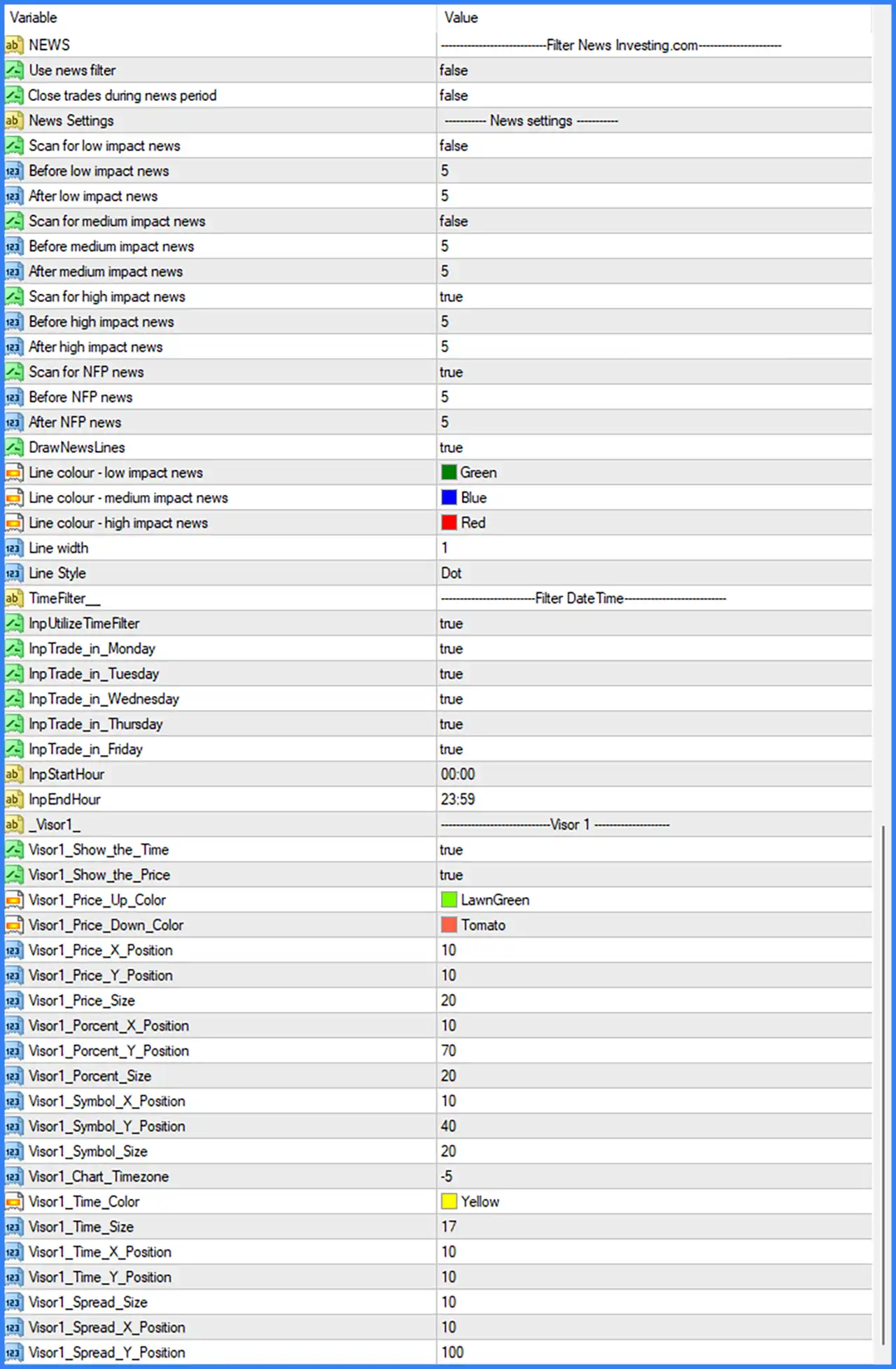
🔹 Use news filter = false – Disables the main economic news filter, meaning news-based trading restrictions are not globally activated in the supplied configuration.
🔹 Close trades during news period = false – Disables automatic trade closing during economic news periods.
🔹 News Settings – Section heading for configuring economic announcements according to their market impact.
Low Impact News
🔹 Scan for low impact news = false – Disables the monitoring of low-impact economic news events.
🔹 Before low impact news = 5 – Sets the news protection interval to 5 minutes before low-impact announcements when the corresponding filter is activated.
🔹 After low impact news = 5 – Sets the news protection interval to 5 minutes after low-impact announcements when the corresponding filter is activated.
Medium Impact News
🔹 Scan for medium impact news = false – Disables the monitoring of medium-impact economic news events.
🔹 Before medium impact news = 5 – Sets the news protection interval to 5 minutes before medium-impact announcements when the corresponding filter is activated.
🔹 After medium impact news = 5 – Sets the news protection interval to 5 minutes after medium-impact announcements when the corresponding filter is activated.
High Impact News
🔹 Scan for high impact news = true – Enables the monitoring of high-impact economic news events, allowing the EA to recognize important market announcements.
🔹 Before high impact news = 5 – Sets the high-impact news protection interval to 5 minutes before scheduled announcements.
🔹 After high impact news = 5 – Sets the high-impact news protection interval to 5 minutes after scheduled announcements.
Non-Farm Payroll News
🔹 Scan for NFP news = true – Enables dedicated monitoring of Non-Farm Payroll (NFP) announcements, which can cause significant volatility in financial markets.
🔹 Before NFP news = 5 – Sets the NFP news protection interval to 5 minutes before the scheduled release.
🔹 After NFP news = 5 – Sets the NFP news protection interval to 5 minutes after the scheduled release.
Economic News Lines and Chart Display
🔹 DrawNewsLines = true – Enables the drawing of economic news event lines directly on the trading chart.
🔹 Line colour - low impact news = Green – Sets the chart line color for low-impact economic news events to Green.
🔹 Line colour - medium impact news = Blue – Sets the chart line color for medium-impact economic news events to Blue.
🔹 Line colour - high impact news = Red – Sets the chart line color for high-impact economic news events to Red.
🔹 Line width = 1 – Sets the economic news line thickness to 1.
🔹 Line Style = Dot – Uses a dotted line style to display scheduled economic news events on the chart.
Trading Date and Time Filter
🔹 TimeFilter__ – Section heading for the EA's trading schedule and date-time restrictions.
🔹 InpUtilizeTimeFilter = true – Enables the time filter, allowing the EA to restrict trading according to the configured weekdays and trading hours.
🔹 InpTrade_in_Monday = true – Allows the EA to trade on Monday.
🔹 InpTrade_in_Tuesday = true – Allows the EA to trade on Tuesday.
🔹 InpTrade_in_Wednesday = true – Allows the EA to trade on Wednesday.
🔹 InpTrade_in_Thursday = true – Allows the EA to trade on Thursday.
🔹 InpTrade_in_Friday = true – Allows the EA to trade on Friday.
🔹 InpStartHour = 00:00 – Sets the beginning of the permitted trading period to 00:00.
🔹 InpEndHour = 23:59 – Sets the end of the permitted trading period to 23:59.
Visor 1 – Chart Information Display Settings
🔹 Visor1 – Section heading for Visor 1, which controls the visual presentation of price, percentage, symbol, time, and spread information on the chart.
🔹 Visor1_Show_the_Time = true – Enables the display of time information in the Visor 1 chart panel.
🔹 Visor1_Show_the_Price = true – Enables the display of current price information in the Visor 1 chart panel.
Price Display Settings
🔹 Visor1_Price_Up_Color = LawnGreen – Sets the upward price display color to LawnGreen.
🔹 Visor1_Price_Down_Color = Tomato – Sets the downward price display color to Tomato.
🔹 Visor1_Price_X_Position = 10 – Sets the horizontal X-axis position of the price display to 10.
🔹 Visor1_Price_Y_Position = 10 – Sets the vertical Y-axis position of the price display to 10.
🔹 Visor1_Price_Size = 20 – Sets the displayed price font size to 20.
Percentage Display Settings
🔹 Visor1_Porcent_X_Position = 10 – Sets the horizontal X-axis position of the percentage information to 10.
🔹 Visor1_Porcent_Y_Position = 70 – Sets the vertical Y-axis position of the percentage information to 70.
🔹 Visor1_Porcent_Size = 20 – Sets the percentage information font size to 20.
Symbol Display Settings
🔹 Visor1_Symbol_X_Position = 10 – Sets the horizontal X-axis position of the trading symbol display to 10.
🔹 Visor1_Symbol_Y_Position = 40 – Sets the vertical Y-axis position of the trading symbol display to 40.
🔹 Visor1_Symbol_Size = 20 – Sets the trading symbol display font size to 20.
Chart Timezone Settings
🔹 Visor1_Chart_Timezone = -5 – Sets the chart timezone adjustment to GMT-5 for the Visor 1 time display.
Time Display Settings
🔹 Visor1_Time_Color = Yellow – Sets the displayed time information color to Yellow.
🔹 Visor1_Time_Size = 17 – Sets the time display font size to 17.
🔹 Visor1_Time_X_Position = 10 – Sets the horizontal X-axis position of the time display to 10.
🔹 Visor1_Time_Y_Position = 10 – Sets the vertical Y-axis position of the time display to 10.
Spread Display Settings
🔹 Visor1_Spread_Size = 10 – Sets the spread information display size to 10.
🔹 Visor1_Spread_X_Position = 10 – Sets the horizontal X-axis position of the spread display to 10.
🔹 Visor1_Spread_Y_Position = 100 – Sets the vertical Y-axis position of the spread display to 100.
Conclusion
Instant Funding AI EA provides a comprehensive automated trading configuration combining BUY/SELL trading engines, grid and Martingale position management, indicator-based trading filters, and multiple account protection mechanisms.
The supplied settings activate both Engine A (BUY) and Engine B (SELL), enable grid trading, and configure a Martingale progression with a 2.0 multiplier and a maximum lot size of 33.0. The EA also uses a 34-period Exponential Moving Average and a 3-period HILO indicator on the current timeframe.
For trade management, Trailing Stop, Break Even, minimum-profit grid protection, Take Equity Stop, Equity Caution, and Equity Stop are enabled. The daily profit target is configured at 50 monetary units, while the floating-profit closing threshold is 50.0.
The EA also provides economic news monitoring, weekday scheduling, and customizable chart information displays. Although the main News Filter is disabled, high-impact news and NFP monitoring options are individually enabled.
Before using Instant Funding AI on a live account, traders should carefully evaluate its Martingale grid progression, maximum lot limit of 33.0, Equity Stop threshold of 60.0%, and Equity Caution threshold of 20.0%. Backtesting and demo testing are strongly recommended to understand the EA's behavior and potential drawdown.