

Introduction
CoreX G MT4 is an automated Forex trading Expert Advisor (EA) featuring the NN ADP 3 strategy configuration, customizable risk management, automated lot sizing, and advanced trade management functionality. The EA provides multiple Stop Loss (SL) and Take Profit (TP) configurations through four ADP strategy levels, alongside trailing stop management and optional recovery trading settings.
CoreX G MT4 also incorporates trading filters, including spread protection, spread stability monitoring, and high-impact news filtering. Additionally, traders can customize trading days, trading sessions, and technical indicator settings such as RSI and Stochastic.
Understanding the complete CoreX G MT4 settings allows traders to configure the EA according to their trading preferences, account balance, and risk tolerance.
CoreX G MT4 Settings Explained
1. Expert General Settings
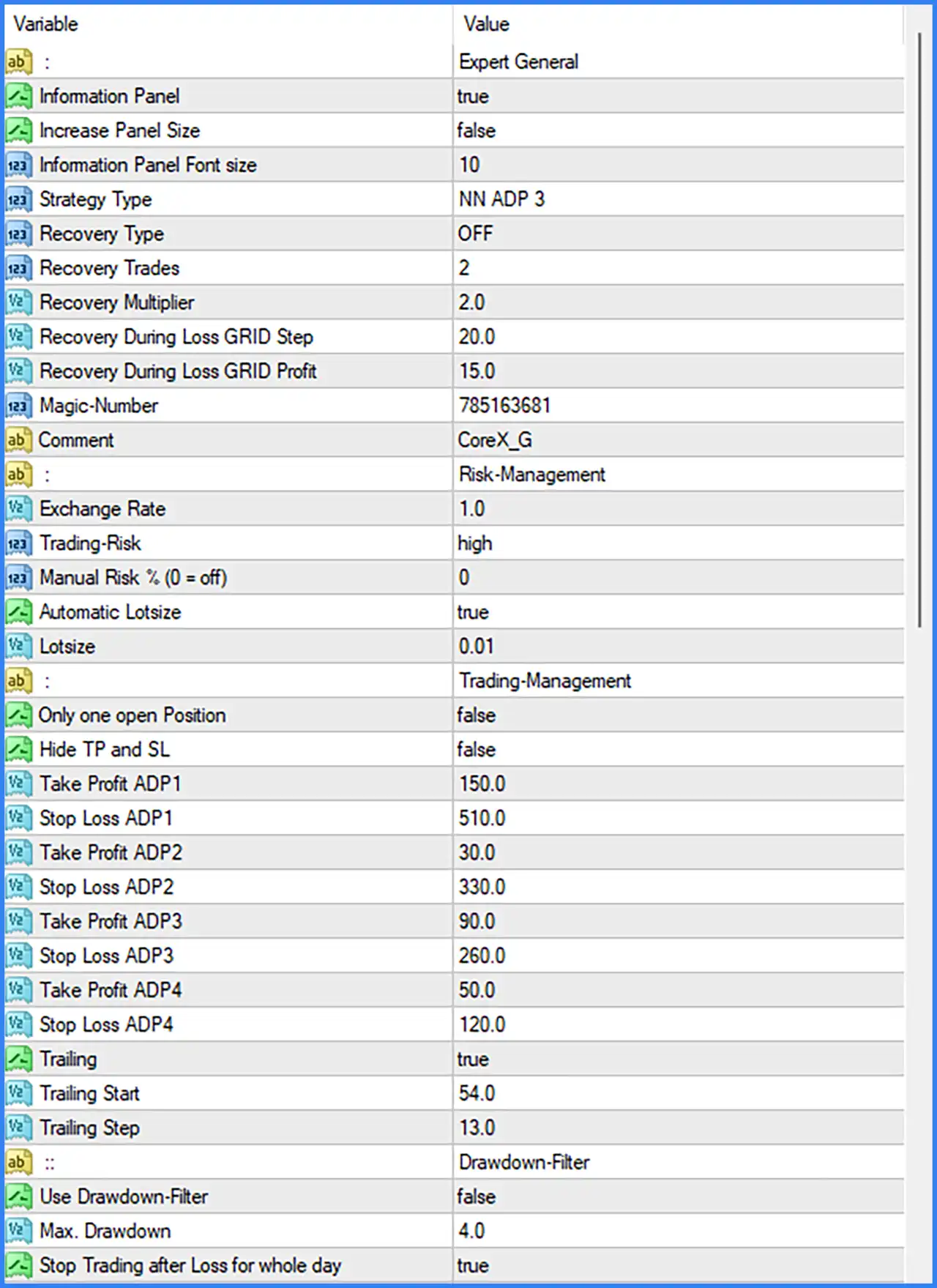
🔹 Information Panel = true – Enables the information panel on the trading chart, allowing traders to view the EA's displayed information.
🔹 Increase Panel Size = false – Disables the enlarged information panel layout and keeps the standard panel size.
🔹 Information Panel Font size = 10 – Sets the information panel font size to 10 for displaying trading information.
🔹 Strategy Type = NN ADP 3 – Selects NN ADP 3 as the EA's active strategy configuration.
🔹 Recovery Type = OFF – Disables the recovery trading mode in the current configuration.
🔹 Recovery Trades = 2 – Sets the recovery trade parameter to 2, defining the configured number of recovery trades.
🔹 Recovery Multiplier = 2.0 – Sets the recovery multiplier to 2.0, defining the volume multiplication factor for recovery trading when supported and enabled.
🔹 Recovery During Loss GRID Step = 20.0 – Sets the GRID step during losing conditions to 20.0, controlling the configured spacing between recovery grid levels.
🔹 Recovery During Loss GRID Profit = 15.0 – Sets the GRID profit parameter during losing conditions to 15.0, defining the configured profit target for the recovery grid.
🔹 Magic-Number = 785163681 – Assigns the unique Magic Number 785163681 to identify and distinguish trades opened by CoreX G MT4.
🔹 Comment = CoreX_G – Sets the trade comment to CoreX_G, helping identify the EA's orders in the trading terminal.
2. Risk Management Settings
🔹 Exchange Rate = 1.0 – Sets the exchange rate parameter to 1.0 for the EA's internal risk or account-currency calculations.
🔹 Trading-Risk = high – Selects the High trading-risk profile, indicating an aggressive risk configuration.
🔹 Manual Risk % (0 = off) = 0 – Sets manual percentage-based risk to 0, meaning the manual risk percentage option is disabled.
🔹 Automatic Lotsize = true – Enables automatic lot sizing, allowing the EA to manage trading volume through its automatic lot-sizing configuration.
🔹 Lotsize = 0.01 – Sets the lot size parameter to 0.01 lots, providing the configured volume reference for the EA.
3. Trading Management Settings
🔹 Only one open Position = false – Allows the EA to manage multiple open positions instead of restricting trading to one open position.
🔹 Hide TP and SL = false – Disables the option to hide Take Profit and Stop Loss levels, allowing these levels to remain visible where supported by the EA.
🔹 Take Profit ADP1 = 150.0 – Sets the Take Profit target for ADP1 to 150.0, defining the configured profit-taking level for the first ADP strategy.
🔹 Stop Loss ADP1 = 510.0 – Sets the Stop Loss level for ADP1 to 510.0, defining the configured loss protection for the first ADP strategy.
🔹 Take Profit ADP2 = 30.0 – Sets the Take Profit target for ADP2 to 30.0, establishing the profit-taking level for the second ADP strategy.
🔹 Stop Loss ADP2 = 330.0 – Sets the Stop Loss level for ADP2 to 330.0, defining the configured risk boundary for the second ADP strategy.
🔹 Take Profit ADP3 = 90.0 – Sets the Take Profit target for ADP3 to 90.0, determining the configured profit target for the third ADP strategy.
🔹 Stop Loss ADP3 = 260.0 – Sets the Stop Loss level for ADP3 to 260.0, establishing the loss protection parameter for the third ADP strategy.
🔹 Take Profit ADP4 = 50.0 – Sets the Take Profit target for ADP4 to 50.0, defining the configured profit-taking level for the fourth ADP strategy.
🔹 Stop Loss ADP4 = 120.0 – Sets the Stop Loss level for ADP4 to 120.0, specifying the configured loss protection for the fourth ADP strategy.
🔹 Trailing = true – Enables the trailing stop functionality, allowing the EA to adjust stop-loss levels according to its trailing management rules.
🔹 Trailing Start = 54.0 – Sets the trailing activation threshold to 54.0, defining the configured level at which trailing management starts.
🔹 Trailing Step = 13.0 – Sets the trailing adjustment step to 13.0, controlling the increment used when updating the trailing stop.
4. Drawdown Filter Settings
🔹 Use Drawdown-Filter = false – Disables the drawdown filter, meaning the configured maximum drawdown restriction is not activated through this option.
🔹 Max. Drawdown = 4.0 – Sets the maximum drawdown parameter to 4.0, representing the configured drawdown threshold when the filter is enabled.
🔹 Stop Trading after Loss for whole day = true – Enables the daily trading-stop condition after a loss, preventing further trading for the remainder of the day when the EA's specified condition is triggered.
5. Trading Filter Settings
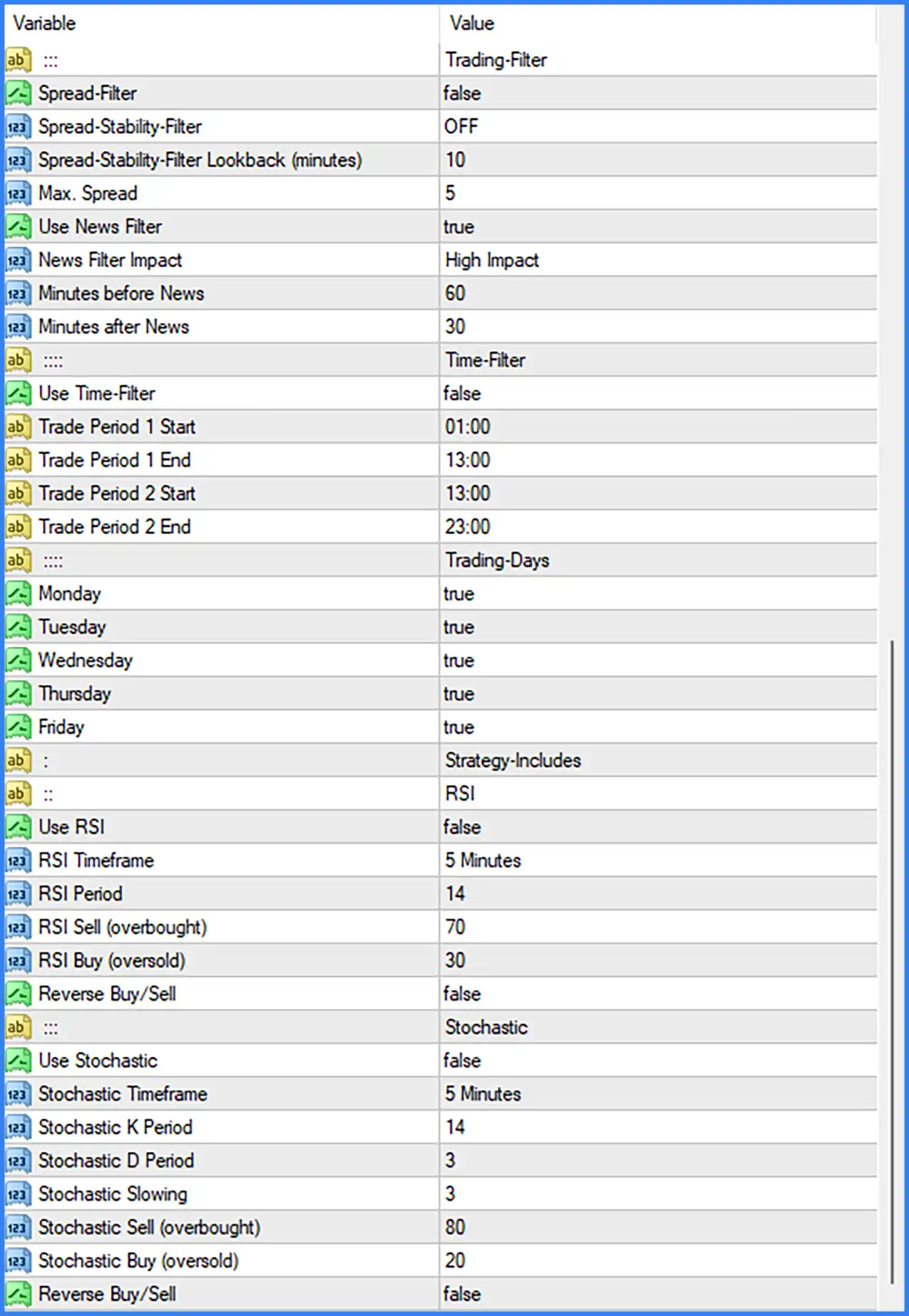
🔹 Spread-Filter = false – Disables the spread filter, meaning the EA does not activate this particular spread restriction.
🔹 Spread-Stability-Filter = OFF – Turns off spread stability monitoring, preventing this filter from being used to evaluate spread consistency.
🔹 Spread-Stability-Filter Lookback (minutes) = 10 – Sets the spread stability lookback period to 10 minutes, defining the historical observation window for spread monitoring when enabled.
🔹 Max. Spread = 5 – Sets the maximum spread threshold to 5, defining the configured spread limit for the trading filter.
🔹 Use News Filter = true – Enables the economic news filter to help manage trading activity around scheduled economic announcements.
🔹 News Filter Impact = High Impact – Selects High Impact news events for the news filtering configuration.
🔹 Minutes before News = 60 – Sets the pre-news trading restriction period to 60 minutes before a qualifying high-impact economic announcement.
🔹 Minutes after News = 30 – Sets the post-news trading restriction period to 30 minutes after a qualifying high-impact economic announcement.
6. Time Filter Settings
🔹 Use Time-Filter = false – Disables the time-based trading filter, meaning the EA is not restricted by the configured trading sessions through this option.
🔹 Trade Period 1 Start = 01:00 – Sets the beginning of the first trading session to 01:00.
🔹 Trade Period 1 End = 13:00 – Sets the ending time of the first trading session to 13:00.
🔹 Trade Period 2 Start = 13:00 – Sets the beginning of the second trading session to 13:00.
🔹 Trade Period 2 End = 23:00 – Sets the ending time of the second trading session to 23:00.
7. Trading Days Settings
🔹 Monday = true – Enables trading on Monday.
🔹 Tuesday = true – Enables trading on Tuesday.
🔹 Wednesday = true – Enables trading on Wednesday.
🔹 Thursday = true – Enables trading on Thursday.
🔹 Friday = true – Enables trading on Friday.
8. RSI Indicator Settings
🔹 Use RSI = false – Disables the RSI indicator filter in the current strategy configuration.
🔹 RSI Timeframe = 5 Minutes – Sets the RSI indicator timeframe to M5 (5-minute chart data).
🔹 RSI Period = 14 – Sets the RSI calculation period to 14, determining the number of price periods used to calculate the Relative Strength Index.
🔹 RSI Sell (overbought) = 70 – Sets the RSI overbought threshold to 70, representing the configured reference level for potential sell conditions.
🔹 RSI Buy (oversold) = 30 – Sets the RSI oversold threshold to 30, representing the configured reference level for potential buy conditions.
🔹 Reverse Buy/Sell = false – Disables reverse signal logic for RSI, keeping the indicator's configured buy and sell signal interpretation unchanged.
9. Stochastic Indicator Settings
🔹 Use Stochastic = false – Disables the Stochastic indicator filter in the current strategy configuration.
🔹 Stochastic Timeframe = 5 Minutes – Sets the Stochastic indicator timeframe to M5 (5-minute chart data).
🔹 Stochastic K Period = 14 – Sets the Stochastic %K calculation period to 14, determining the lookback period used for the main Stochastic line.
🔹 Stochastic D Period = 3 – Sets the Stochastic %D period to 3, controlling the smoothing calculation for the signal line.
🔹 Stochastic Slowing = 3 – Sets the Stochastic slowing value to 3, defining the additional smoothing applied to the %K calculation.
🔹 Stochastic Sell (overbought) = 80 – Sets the Stochastic overbought threshold to 80, representing the configured reference level for potential sell signals.
🔹 Stochastic Buy (oversold) = 20 – Sets the Stochastic oversold threshold to 20, representing the configured reference level for potential buy signals.
🔹 Reverse Buy/Sell = false – Disables reverse buy/sell signal logic for the Stochastic indicator, maintaining its standard signal interpretation.
Conclusion
CoreX G MT4 provides a comprehensive collection of trading configuration options, including NN ADP 3 strategy selection, automatic lot sizing, recovery parameters, multiple ADP Take Profit and Stop Loss levels, and trailing stop management.
The supplied configuration uses a High trading-risk profile with Automatic Lotsize enabled and a lot size reference of 0.01. It also enables high-impact news filtering, daily trading suspension after a loss, and trading permissions from Monday to Friday.
Although the EA includes RSI and Stochastic indicator settings, both indicators are disabled in the supplied configuration. Similarly, the spread filter, spread stability filter, time filter, and drawdown filter are currently inactive.
Before deploying CoreX G MT4 on a live account, traders should carefully review the High-risk profile, the four ADP Stop Loss and Take Profit configurations, and the recovery parameters. Demo testing and historical backtesting are recommended to evaluate the EA's behavior under different market conditions.