

Introduction
Pegasus Pro EA is an automated trading Expert Advisor (EA) designed for the MetaTrader 4 platform. It offers configurable trading parameters, flexible position sizing, spread and slippage controls, and automated trade management.

The EA includes adjustable Stop Loss (SL) and Take Profit (TP) settings, customizable trading hours, and an automatic Trailing Stop system to help manage open positions. It also features a News Filter designed to control trading activity around economic announcements.
Additionally, Pegasus Pro EA MT4 provides separate Magic Numbers for Buy, Sell, and news-filter-related trading operations, making it easier to identify and manage different groups of automated orders.
With its combination of execution controls, trailing protection, and news filtering, Pegasus Pro provides traders with several configuration options for customizing their automated trading strategy.
Pegasus Pro EA MT4 Settings Explained
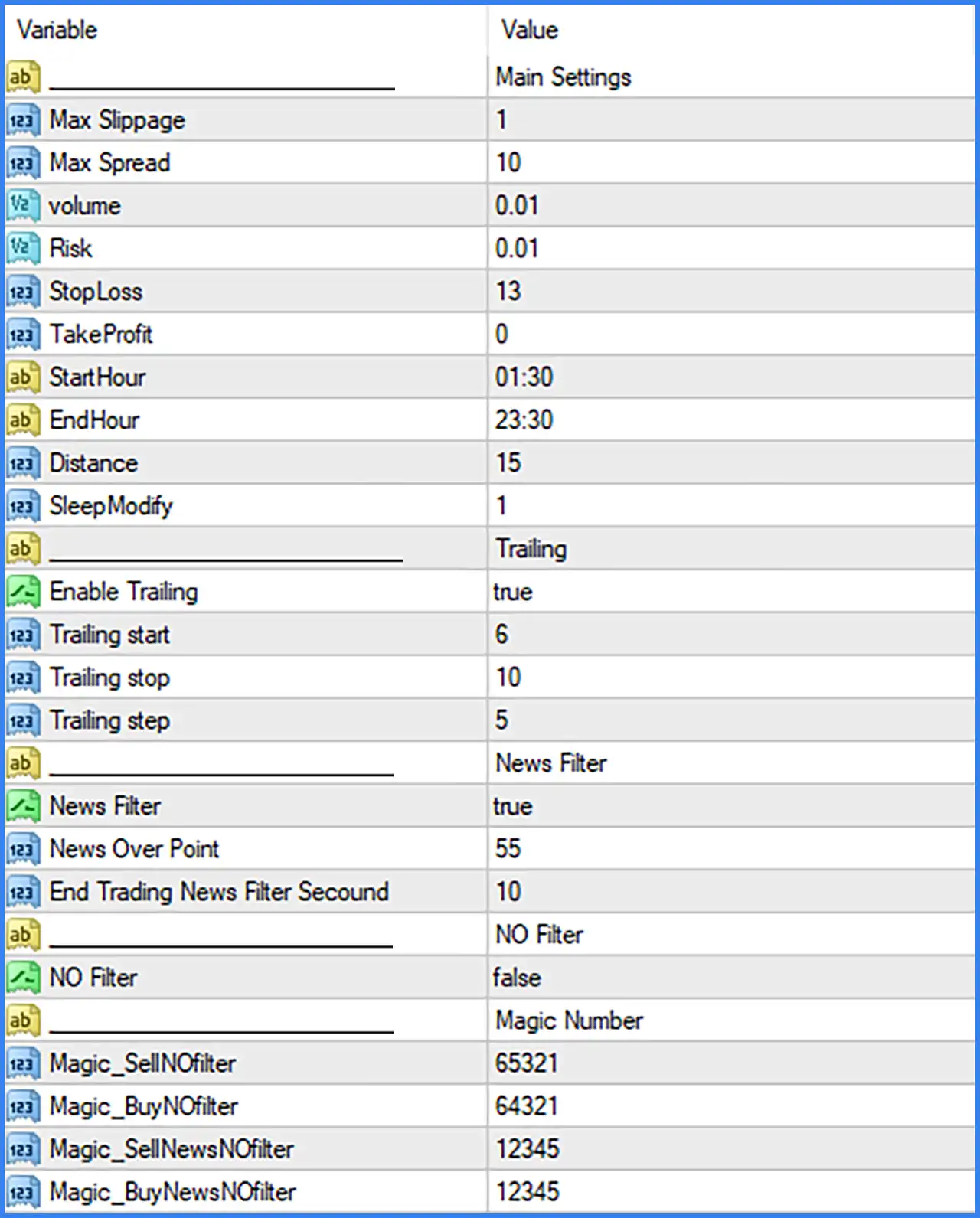
Main Trading Settings
🔹 Max Slippage = 1 – Sets the maximum permitted slippage to 1 point, controlling the acceptable difference between the requested execution price and the actual order execution price.
🔹 Max Spread = 10 – Sets the maximum permitted spread to 10 points. This parameter helps prevent the EA from opening trades when the market spread exceeds the configured threshold.
🔹 volume = 0.01 – Defines the trading volume as 0.01 lots, establishing the configured position size for the EA's trading operations.
🔹 Risk = 0.01 – Sets the risk parameter to 0.01, providing a numerical reference for the EA's internal risk management calculations.
🔹 StopLoss = 13 – Sets the Stop Loss parameter to 13, defining the configured protective distance for trading positions according to the EA's internal point or price calculation.
🔹 TakeProfit = 0 – Sets the Take Profit parameter to 0. This may indicate that a fixed Take Profit is disabled or not applied, depending on the EA's internal trading logic.
🔹 StartHour = 01:30 – Defines the starting time of the trading session as 01:30, allowing the EA to begin its configured trading operations from this time.
🔹 EndHour = 23:30 – Sets the ending time of the trading session to 23:30, defining when the EA's permitted trading period finishes.
🔹 Distance = 15 – Sets the Distance parameter to 15, providing a configurable price-distance reference used by the EA's internal order placement or trading management logic.
🔹 SleepModify = 1 – Sets the order modification waiting parameter to 1, defining the configured delay or interval associated with modifying existing trading orders.
Trailing Stop Settings
🔹 Enable Trailing = true – Activates the automatic Trailing Stop functionality, allowing the EA to adjust Stop Loss levels as market prices move favorably to help protect accumulated profits.
🔹 Trailing start = 6 – Sets the Trailing Stop activation threshold to 6, defining the configured profit or price movement required before trailing management begins.
🔹 Trailing stop = 10 – Sets the trailing stop distance to 10, determining the configured distance maintained between the market price and the adjusted Stop Loss level.
🔹 Trailing step = 5 – Sets the trailing adjustment step to 5, specifying the price movement increment required for the EA to update the trailing Stop Loss.
News Filter Settings
🔹 News Filter = true – Enables the News Filter functionality, allowing Pegasus Pro EA MT4 to apply its configured trading restrictions around economic news events.
🔹 News Over Point = 55 – Sets the News Over Point parameter to 55, providing a numerical threshold used by the EA's internal news-filtering logic.
🔹 End Trading News Filter Second = 10 – Sets the news-filter ending parameter to 10 seconds, defining the configured second-based timing reference for ending the news-related trading restriction.
NO Filter Settings
🔹 NO Filter = false – Disables the NO Filter option. The EA will not activate this additional filtering mode under the supplied configuration.
Magic Number Settings
🔹 Magic_SellNOFilter = 65321 – Assigns Magic Number 65321 to Sell orders associated with the NO Filter trading mode, allowing the EA to identify and manage these positions separately.
🔹 Magic_BuyNOFilter = 64321 – Assigns Magic Number 64321 to Buy orders associated with the NO Filter trading mode, helping distinguish these positions from other EA orders.
🔹 Magic_SellNewsNOFilter = 12345 – Assigns Magic Number 12345 to Sell orders associated with the News NO Filter trading configuration, providing a separate identifier for this order category.
🔹 Magic_BuyNewsNOFilter = 12345 – Assigns Magic Number 12345 to Buy orders associated with the News NO Filter trading configuration, allowing the EA to use the specified identifier for this category of trades.
Conclusion
Pegasus Pro EA MT4 provides a configurable automated trading system with execution controls, position sizing, trading-hour restrictions, Trailing Stop management, and economic news filtering.
The supplied configuration uses volume = 0.01, Risk = 0.01, Max Slippage = 1, and Max Spread = 10. Its trading schedule runs from 01:30 to 23:30, while the StopLoss parameter is set to 13 and TakeProfit is set to 0.
The EA also features an enabled Trailing Stop system with Trailing start = 6, Trailing stop = 10, and Trailing step = 5. Its News Filter is enabled, while the additional NO Filter option is disabled.
For order identification, Pegasus Pro EA MT4 uses separate Magic Numbers for Buy and Sell trades, including 65321, 64321, and 12345.
Before using Pegasus Pro EA MT4 on a live trading account, traders should carefully verify the Stop Loss and Trailing Stop units, the behavior of TakeProfit = 0, and the News Filter timing parameters. It is also important to confirm the broker's server time and ensure that the configured trading volume and risk settings are appropriate for the available account capital.