
Introduction
AuroraX EA is an automated trading Expert Advisor (EA) designed for the MetaTrader 5 platform, featuring advanced trading logic, dynamic lot management, ATR-based position sizing, grid trading, and comprehensive account protection.
The EA combines multiple trading management systems, including Dual Moving Average (DualMA) signal alignment, ATR-based distance calculations, dynamic lot multipliers, and position count adjustments. It also provides configurable Take Profit calculations based on monetary targets, commission costs, and swap expenses.

One of its key features is its integrated risk management system, which includes daily trading schedules, drawdown monitoring, emergency stop-out protection, and Prop Firm compliance options. Additionally, AuroraX EA MT5 incorporates an economic news filter that allows traders to select specific high-impact events and configure trading restrictions before and after scheduled announcements.
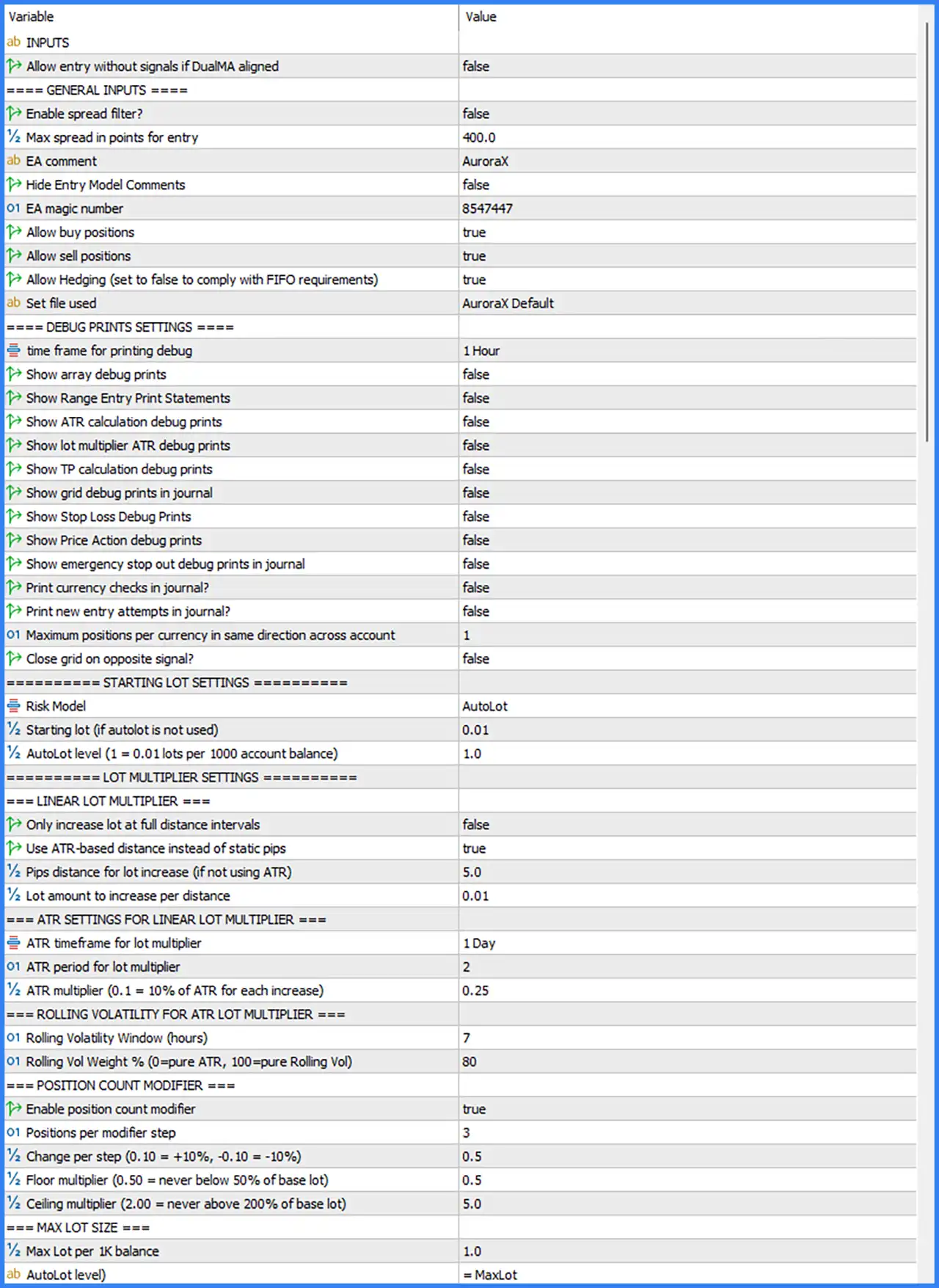
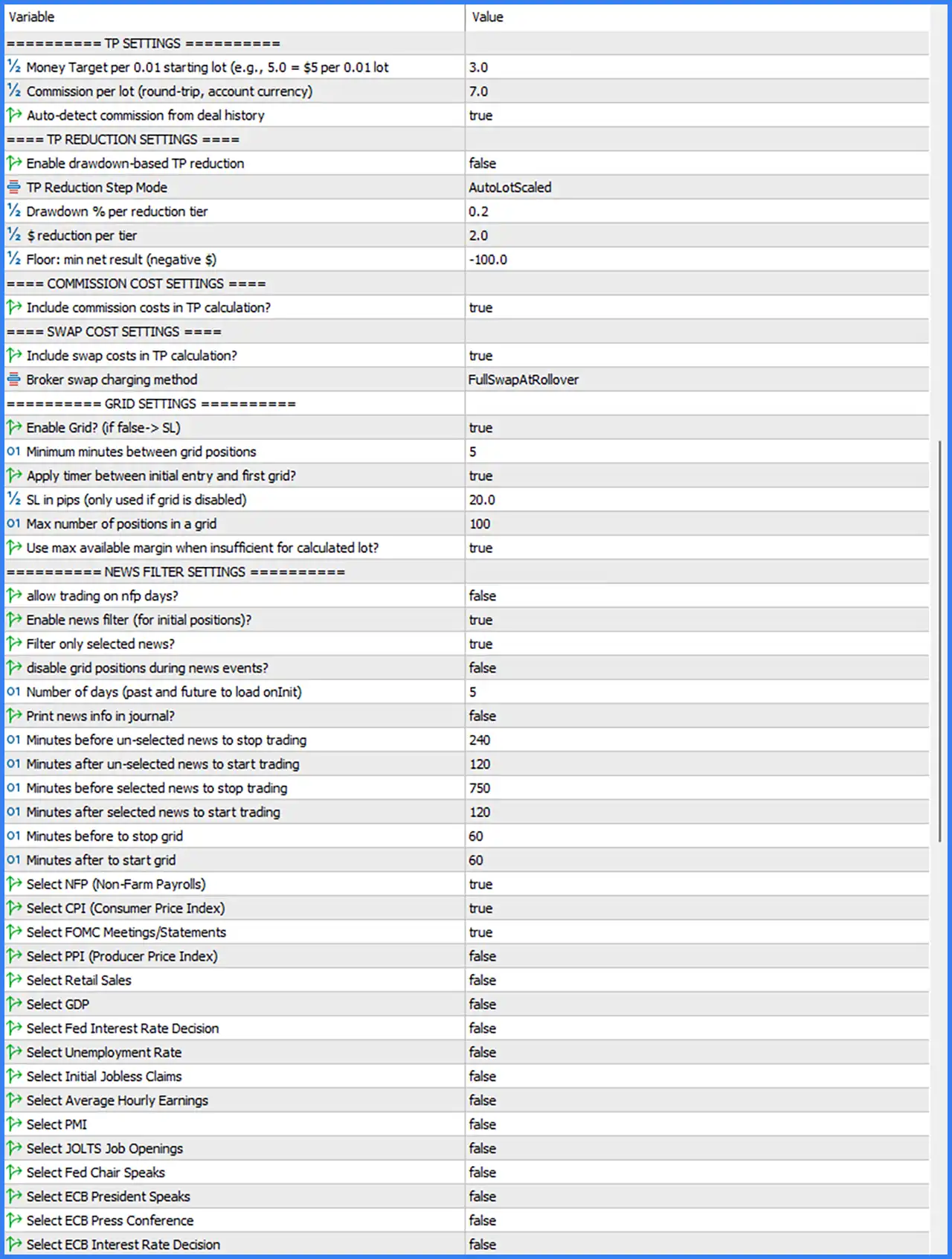
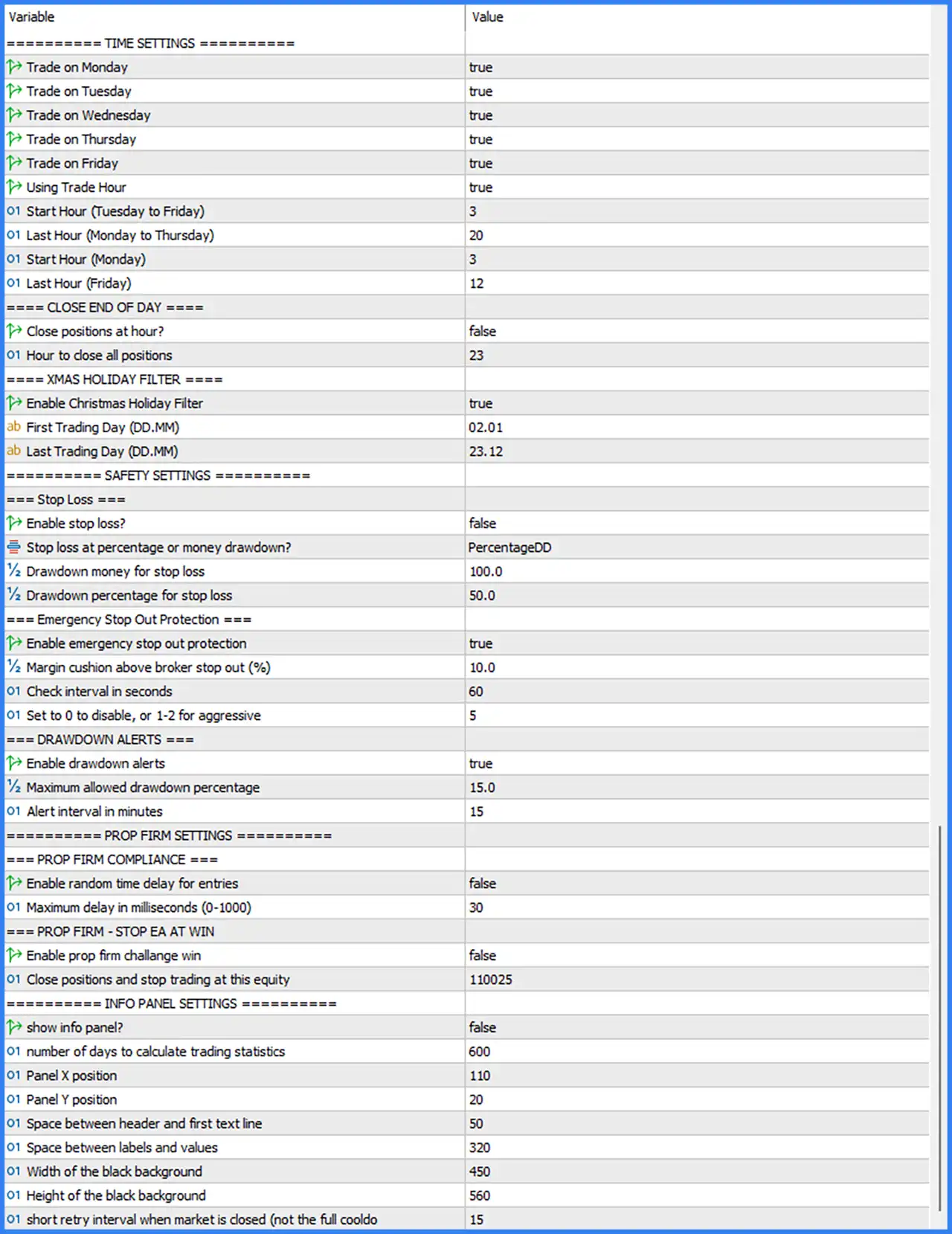
This guide explains all available input parameters from the supplied settings screenshots, preserving their original names and default values to help traders understand and configure AuroraX EA MT5.
General Trading and Entry Settings
🔹 Allow entry without signals if DualMA aligned: false – Disables entries without the normal trading signals, even when the Dual Moving Average alignment condition is satisfied. When enabled, the EA may permit entries based on DualMA alignment without requiring its usual entry signals.
General EA Settings
🔹 Enable spread filter?: false – Disables the spread filtering mechanism. When enabled, the EA can prevent new entries whenever the current market spread exceeds the configured maximum spread threshold.
🔹 Max spread in points for entry: 400.0 – Sets the maximum permitted spread to 400.0 points, defining the spread threshold used by the EA when evaluating new trading opportunities.
🔹 EA comment: AuroraX – Sets the custom order comment to AuroraX, allowing traders to identify positions generated by this Expert Advisor in their trading history.
🔹 Hide Entry Model Comments: false – Keeps entry model comments visible rather than hiding them, allowing traders to inspect additional entry-related information generated by the EA.
🔹 EA magic number: 8547447 – Assigns the unique Magic Number 8547447 to trades opened by AuroraX EA MT5, allowing the system to distinguish its positions from manual trades and other Expert Advisors.
🔹 Allow buy positions: true – Enables BUY trading, allowing the EA to open long positions when its trading conditions are satisfied.
🔹 Allow sell positions: true – Enables SELL trading, allowing the EA to open short positions when its trading conditions are satisfied.
🔹 Allow Hedging (set to false to comply with FIFO requirements): true – Enables hedging functionality, allowing the EA to maintain opposing BUY and SELL positions when its trading logic requires it. Disabling this option may help accommodate FIFO-related trading restrictions.
🔹 Set file used: AuroraX Default – Selects the AuroraX Default configuration file, defining the preset used by the EA for its trading parameters.
Debug and Diagnostic Settings
🔹 time frame for printing debug: 1 Hour – Selects the 1 Hour timeframe as the reference timeframe for diagnostic and debugging information generated by the EA.
🔹 Show array debug prints: false – Disables detailed array-related diagnostic messages in the trading journal.
🔹 Show Range Entry Print Statements: false – Disables journal messages related to range-based entry calculations and trading decisions.
🔹 Show ATR calculation debug prints: false – Disables diagnostic messages showing the Average True Range (ATR) calculations used by the EA.
🔹 Show lot multiplier ATR debug prints: false – Disables detailed journal information concerning ATR-based lot multiplier calculations.
🔹 Show TP calculation debug prints: false – Disables diagnostic messages related to Take Profit calculations and monetary target processing.
🔹 Show grid debug prints in journal: false – Disables grid-related diagnostic messages in the trading journal, reducing additional logging during automated grid management.
🔹 Show Stop Loss Debug Prints: false – Disables detailed diagnostic messages concerning Stop Loss calculations and protective exit management.
🔹 Show Price Action debug prints: false – Disables diagnostic messages associated with the EA's Price Action analysis and related trading conditions.
🔹 Show emergency stop out debug prints in journal: false – Disables additional journal messages generated by the emergency stop-out protection system.
🔹 Print currency checks in journal?: false – Disables journal messages showing currency validation checks performed by the EA before executing trades.
🔹 Print new entry attempts in journal?: false – Disables journal messages reporting new entry attempts, keeping the trading log less detailed.
🔹 Maximum positions per currency in same direction across account: 1 – Limits the number of positions opened in the same direction for each currency to 1 across the account, helping prevent excessive directional exposure.
🔹 Close grid on opposite signal?: false – Disables automatic grid closure when an opposite trading signal appears. Existing grid positions are therefore not automatically closed through this particular condition.
Starting Lot and Risk Model Settings
🔹 Risk Model: AutoLot – Selects automatic lot calculation, allowing AuroraX EA MT5 to determine position sizes according to the configured account balance reference and money management parameters.
🔹 Starting lot (if autolot is not used): 0.01 – Sets the starting trading volume to 0.01 lots when automatic lot sizing is disabled and the EA operates using a manually configured starting lot.
🔹 Autolot level (1 = 0.01 lots per 1000 account balance): 1.0 – Sets the automatic lot scaling level to 1.0, corresponding to 0.01 lots per 1,000 units of account balance according to the parameter description.
Linear Lot Multiplier Settings
🔹 Only increase lot at full distance intervals: false – Disables the restriction that lot increases occur only after complete distance intervals. This allows the EA's lot adjustment mechanism to follow its configured internal distance calculations.
🔹 Use ATR-based distance instead of static pips: true – Enables ATR-based distance calculations instead of using a fixed pip distance, allowing lot multiplier spacing to adapt to changing market volatility.
🔹 Pips distance for lot increase (if not using ATR): 5.0 – Sets the alternative static distance to 5.0 pips for lot increases when ATR-based distance calculation is disabled.
🔹 Lot amount to increase per distance: 0.01 – Sets the additional lot amount to 0.01 for each qualifying distance interval, controlling how trading volume increases as the market moves through the configured distance levels.
ATR Settings for Linear Lot Multiplier
🔹 ATR timeframe for lot multiplier: 1 Day – Selects the Daily timeframe for ATR calculations used by the linear lot multiplier system, providing a higher-timeframe volatility reference.
🔹 ATR period for lot multiplier: 2 – Sets the ATR calculation period to 2, determining the number of periods used when calculating volatility for lot adjustment.
🔹 ATR multiplier (0.1 = 10% of ATR for each increase): 0.25 – Sets the ATR multiplier to 0.25, corresponding to 25% of the calculated ATR distance for each lot increase according to the parameter's description.
Rolling Volatility Settings for ATR Lot Multiplier
🔹 Rolling Volatility Window (hours): 7 – Sets the rolling volatility measurement window to 7 hours, determining the historical period used by the EA when calculating its rolling volatility component.
🔹 Rolling Vol Weight % (0=pure ATR, 100=pure Rolling Vol): 80 – Sets the rolling volatility weighting to 80%, combining the rolling volatility calculation with ATR-based distance measurements. This configuration gives greater weight to rolling volatility than to pure ATR calculations.
Position Count Modifier Settings
🔹 Enable position count modifier: true – Enables dynamic position count adjustment, allowing the EA to modify its lot multiplier according to the number of existing positions.
🔹 Positions per modifier step: 3 – Sets the position count interval to 3, meaning the EA applies a new lot modifier after each configured group of 3 positions.
🔹 Change per step (0.10 = +10%, -0.10 = -10%): 0.5 – Sets the lot multiplier adjustment to 0.5 per modifier step, representing a 50% adjustment according to the parameter's stated scale.
🔹 Floor multiplier (0.50 = never below 50% of base lot): 0.5 – Sets the minimum lot multiplier to 0.5, preventing the adjusted lot multiplier from falling below 50% of its base value.
🔹 Ceiling multiplier (2.00 = never above 200% of base lot): 5.0 – Sets the maximum lot multiplier to 5.0, allowing the adjusted multiplier to reach up to 500% of its base value according to the configured ceiling.
Maximum Lot Size Settings
🔹 Max Lot per 1K balance: 1.0 – Sets the maximum lot allocation parameter to 1.0 per 1,000 units of account balance, providing an additional position-sizing restriction based on account equity or balance.
🔹 Autolot level: = MaxLot – Indicates that the AutoLot level is linked to the MaxLot parameter, allowing the EA to use the calculated maximum lot reference within its automatic position-sizing system.
Take Profit Settings
🔹 Money Target per 0.01 starting lot (e.g., 5.0 = $5 per 0.01 lot): 3.0 – Sets the monetary profit target to 3.0 for every 0.01 starting lot. According to the parameter description, this corresponds to a target of $3 per 0.01 lot when the account currency is USD.
🔹 Commission per lot (round-trip, account currency): 7.0 – Sets the estimated round-trip trading commission to 7.0 account currency units per lot, allowing the EA to account for transaction costs when calculating its Take Profit target.
🔹 Auto-detect commission from deal history: true – Enables automatic commission detection using historical executed deals, allowing the EA to retrieve commission information instead of relying exclusively on a manually entered estimate.
Take Profit Reduction Settings
🔹 Enable drawdown-based TP reduction: false – Disables automatic Take Profit reduction based on account drawdown. When enabled, the EA can progressively adjust profit targets according to the configured drawdown reduction levels.
🔹 TP Reduction Step Mode: AutoLotScaled – Selects the AutoLotScaled reduction mode, allowing Take Profit reduction steps to be adjusted according to the EA's automatic lot sizing calculations.
🔹 Drawdown % per reduction tier: 0.2 – Sets the drawdown threshold increment to 0.2% for each Take Profit reduction tier when the drawdown-based reduction mechanism is activated.
🔹 $ reduction per tier: 2.0 – Sets the monetary Take Profit reduction to 2.0 account currency units for each applicable reduction tier.
🔹 Floor: min net result (negative $): -100.0 – Sets the minimum permitted net result to -100.0 account currency units, establishing the configured lower boundary for the Take Profit reduction calculation.
Commission Cost Settings
🔹 Include commission costs in TP calculation?: true – Includes estimated or detected broker commission costs in Take Profit calculations, helping the EA account for trading expenses when determining net profit targets.
Swap Cost Settings
🔹 Include swap costs in TP calculation?: true – Includes swap charges or credits in Take Profit calculations, allowing the EA to consider overnight financing costs when determining the required net profit.
🔹 Broker swap charging method: FullSwapAtRollover – Selects the FullSwapAtRollover calculation method, instructing the EA to account for swap costs using the broker's full rollover charging method.
Grid Trading Settings
🔹 Enable Grid? (if false -> SL): true – Enables the grid trading mechanism. When disabled, the EA uses its Stop Loss-based management approach instead of the configured grid system.
🔹 Minimum minutes between grid positions: 5 – Sets the minimum waiting interval between additional grid positions to 5 minutes, helping prevent the EA from opening grid orders too frequently.
🔹 Apply timer between initial entry and first grid?: true – Enables the waiting timer between the initial trade entry and the first additional grid position, ensuring that the configured timing restriction is applied before grid expansion begins.
🔹 SL in pips (only used if grid is disabled): 20.0 – Sets the Stop Loss distance to 20.0 pips, which is used when grid trading is disabled and the EA switches to its Stop Loss-based management mode.
🔹 Max number of positions in a grid: 100 – Sets the maximum number of positions permitted within a single grid to 100, defining the upper position limit for the grid management system.
🔹 Use max available margin when insufficient for calculated lot?: true – Enables the use of the maximum available margin when the calculated lot size cannot be supported by the account's available margin, allowing the EA to adjust its order volume according to available margin conditions.
News Filter Settings
🔹 allow trading on nfp days?: false – Disables trading permission on NFP-related days through this particular setting, allowing the EA to apply its configured NFP trading restriction.
🔹 Enable news filter (for initial positions)?: true – Enables economic news filtering for initial positions, allowing the EA to restrict new trade entries around scheduled economic announcements.
🔹 Filter only selected news?: true – Restricts news filtering to the economic events specifically selected in the individual news event parameters, rather than applying the same restrictions to every available calendar event.
🔹 disable grid positions during news events?: false – Keeps grid position placement enabled during news events unless another trading restriction prevents it. The dedicated option to disable grid positions during news is currently inactive.
🔹 Number of days (past and future to load onInit): 5 – Sets the economic calendar loading period to 5 days, defining the number of past and future days of news information loaded when the EA initializes.
🔹 Print news info in journal?: false – Disables the printing of economic news information in the MetaTrader 5 Journal, keeping the trading log less detailed.
🔹 Minutes before un-selected news to stop trading: 240 – Configures the EA to stop trading 240 minutes before economic events that are not included in the selected news list, when applicable under its internal filtering rules.
🔹 Minutes after un-selected news to start trading: 120 – Sets the waiting period to 120 minutes after unselected economic news events before the EA resumes the relevant trading activity.
🔹 Minutes before selected news to stop trading: 750 – Configures the EA to stop opening new positions 750 minutes before selected economic announcements, providing a substantial pre-news trading restriction period.
🔹 Minutes after selected news to start trading: 120 – Sets the post-news waiting period to 120 minutes after selected economic announcements before normal trading activity resumes.
🔹 Minutes before to stop grid: 60 – Configures the grid trading system to stop opening additional grid positions 60 minutes before the relevant economic news event.
🔹 Minutes after to start grid: 60 – Sets the waiting period to 60 minutes after the relevant economic announcement before grid position placement can resume.
Selected Economic News Events
🔹 Select NFP (Non-Farm Payrolls): true – Includes Non-Farm Payrolls announcements in the selected economic news filter, allowing the EA to apply its configured trading restrictions around major US employment reports.
🔹 Select CPI (Consumer Price Index): true – Includes Consumer Price Index releases in the selected news filter, helping restrict trading around important inflation data.
🔹 Select FOMC Meetings/Statements: true – Includes Federal Open Market Committee meetings and statements in the news filter, allowing the EA to account for major US monetary policy announcements.
🔹 Select PPI (Producer Price Index): false – Excludes Producer Price Index releases from the selected news filter.
🔹 Select Retail Sales: false – Excludes Retail Sales announcements from the selected economic news events.
🔹 Select GDP: false – Excludes Gross Domestic Product releases from the selected news filter.
🔹 Select Fed Interest Rate Decision: false – Excludes Federal Reserve interest rate decision events from the individually selected news categories.
🔹 Select Unemployment Rate: false – Excludes Unemployment Rate announcements from the selected news filter.
🔹 Select Initial Jobless Claims: false – Excludes Initial Jobless Claims releases from the selected economic event categories.
🔹 Select Average Hourly Earnings: false – Excludes Average Hourly Earnings announcements from the selected news filter.
🔹 Select PMI: false – Excludes Purchasing Managers' Index releases from the selected economic news categories.
🔹 Select JOLTS Job Openings: false – Excludes Job Openings and Labor Turnover Survey announcements from the selected news filter.
🔹 Select Fed Chair Speaks: false – Excludes Federal Reserve Chair speeches from the individually selected economic events.
🔹 Select ECB President Speaks: false – Excludes European Central Bank President speeches from the selected news categories.
🔹 Select ECB Press Conference: false – Excludes European Central Bank press conferences from the selected news filter.
🔹 Select ECB Interest Rate Decision: false – Excludes European Central Bank interest rate decision announcements from the selected economic events.
Time Settings
🔹 Trade on Monday: true – Enables trading on Monday, allowing the EA to open positions when its other trading conditions are satisfied.
🔹 Trade on Tuesday: true – Enables trading on Tuesday, permitting the EA to execute its trading strategy during the configured Tuesday trading hours.
🔹 Trade on Wednesday: true – Enables trading on Wednesday, allowing automated trading activity throughout the permitted Wednesday session.
🔹 Trade on Thursday: true – Enables trading on Thursday, allowing the EA to execute new trades when its entry conditions are met.
🔹 Trade on Friday: true – Enables Friday trading, subject to the configured Friday start and last trading hour restrictions.
🔹 Using Trade Hour: true – Enables the trading-hour filter, allowing the EA to restrict new trading activity according to its configured weekday schedules.
🔹 Start Hour (Tuesday to Friday): 3 – Sets the starting trading hour to 03:00 from Tuesday through Friday, defining the beginning of the permitted trading window for these days.
🔹 Last Hour (Monday to Thursday): 20 – Sets the last permitted trading hour to 20:00 from Monday through Thursday, controlling when the EA stops initiating new trades during these sessions.
🔹 Start Hour (Monday): 3 – Sets Monday's trading start time to 03:00, defining when the EA can begin its weekly trading activity.
🔹 Last Hour (Friday): 12 – Sets Friday's last permitted trading hour to 12:00, allowing the EA to stop opening new trades earlier before the weekend.
End-of-Day Position Closing Settings
🔹 Close positions at hour?: false – Disables automatic closing of all positions at a specified hour. Open positions are therefore not automatically closed through this particular end-of-day option.
🔹 Hour to close all positions: 23 – Sets the configured position-closing hour to 23:00, defining when the EA would close all managed positions if the end-of-day closing function were enabled.
Christmas Holiday Filter Settings
🔹 Enable Christmas Holiday Filter: true – Enables the Christmas holiday trading filter, allowing the EA to restrict trading activity during the configured year-end holiday period.
🔹 First Trading Day (DD.MM): 02.01 – Sets January 2 as the first permitted trading day following the holiday restriction period.
🔹 Last Trading Day (DD.MM): 23.12 – Sets December 23 as the last permitted trading day before the Christmas holiday trading restriction begins.
Stop Loss and Drawdown Protection Settings
🔹 Enable stop loss?: false – Disables the dedicated Stop Loss protection function controlled by this section. Other protective mechanisms, such as emergency stop-out protection, may still operate independently.
🔹 Stop loss at percentage or money drawdown?: PercentageDD – Selects percentage-based drawdown as the Stop Loss calculation method rather than using a fixed monetary drawdown threshold.
🔹 Drawdown money for stop loss: 100.0 – Sets the alternative monetary drawdown threshold to 100.0 account currency units, used when the monetary drawdown mode is selected.
🔹 Drawdown percentage for stop loss: 50.0 – Sets the percentage-based drawdown threshold to 50.0%, defining the configured loss boundary for the percentage-based Stop Loss mechanism.
Emergency Stop-Out Protection Settings
🔹 Enable emergency stop out protection: true – Enables emergency stop-out protection, allowing the EA to monitor account margin conditions and apply protective actions when the configured emergency thresholds are reached.
🔹 Margin cushion above broker stop out (%): 10.0 – Sets the required margin cushion to 10.0% above the broker's stop-out threshold, providing an additional margin safety buffer.
🔹 Check interval in seconds: 60 – Sets the emergency protection monitoring interval to 60 seconds, determining how frequently the EA checks the relevant account margin conditions.
🔹 Set to 0 to disable, or 1-2 for aggressive: 5 – Preserves the configured value of 5 for this emergency protection parameter. The label indicates that 0 disables the function and values of 1–2 represent aggressive settings; therefore, the exact behavior of 5 should be verified with the EA developer.
Drawdown Alert Settings
🔹 Enable drawdown alerts: true – Enables drawdown notifications, allowing the EA to monitor account drawdown and generate alerts when the configured warning conditions are reached.
🔹 Maximum allowed drawdown percentage: 15.0 – Sets the maximum drawdown alert threshold to 15.0%, defining the percentage level at which the EA should trigger its configured drawdown warning.
🔹 Alert interval in minutes: 15 – Sets the minimum alert interval to 15 minutes, controlling how frequently drawdown notifications can be generated.
Prop Firm Compliance Settings
🔹 Enable random time delay for entries: false – Disables randomized entry delays, meaning the EA does not apply additional random execution timing through this option.
🔹 Maximum delay in milliseconds (0-1000): 30 – Sets the maximum possible randomized entry delay to 30 milliseconds when the random time delay feature is enabled.
Prop Firm – Stop EA at Win Settings
🔹 Enable prop firm challange win: false – Disables the automatic Prop Firm challenge completion function. When enabled, the EA can close its positions and stop trading after the configured equity target is reached.
🔹 Close positions and stop trading at this equity: 110025 – Sets the account equity target to 110025, defining the equity threshold at which the EA is configured to close its positions and stop trading when the Prop Firm challenge win feature is activated.
Information Panel Settings
🔹 show info panel?: false – Disables the on-chart information panel, meaning the EA does not display its statistics and monitoring interface through this option.
🔹 number of days to calculate trading statistics: 600 – Sets the historical calculation period to 600 days, defining the number of days used when calculating the EA's trading statistics.
🔹 Panel X position: 110 – Sets the horizontal dashboard position to 110, controlling the panel's placement along the chart's X-axis.
🔹 Panel Y position: 20 – Sets the vertical dashboard position to 20, controlling the panel's placement along the chart's Y-axis.
🔹 Space between header and first text line: 50 – Sets the spacing between the panel header and its first information line to 50 units, controlling the dashboard's vertical layout.
🔹 Space between labels and values: 320 – Sets the horizontal spacing between dashboard labels and their corresponding values to 320 units.
🔹 Width of the black background: 450 – Sets the dashboard's black background width to 450 units, defining the horizontal dimensions of the information panel.
🔹 Height of the black background: 560 – Sets the dashboard's black background height to 560 units, defining the vertical dimensions of the information panel.
🔹 short retry interval when market is closed (not the full cooldown): 15 – Sets the short retry interval to 15, controlling how frequently the EA can retry certain operations when the market is closed rather than waiting for the full cooldown period.