

Introduction
SellerSubuh EA is an automated Forex trading Expert Advisor (EA) featuring configurable money management, averaging functionality, lot progression, and dynamic trade management. It provides flexible trading parameters that allow users to customize position sizing, entry spacing, Take Profit targets, and Trailing stop mechanisms.

SellerSubuh EA MT4 also incorporates daily profit management and flexible trading time controls. Traders can configure global server-time sessions or individual trading schedules for each day of the week, providing greater flexibility when managing automated trading activities.
This guide explains all available SellerSubuh EA MT4 settings and their default values based on the supplied MT4 Inputs panel.
SellerSubuh EA MT4 Settings Explained
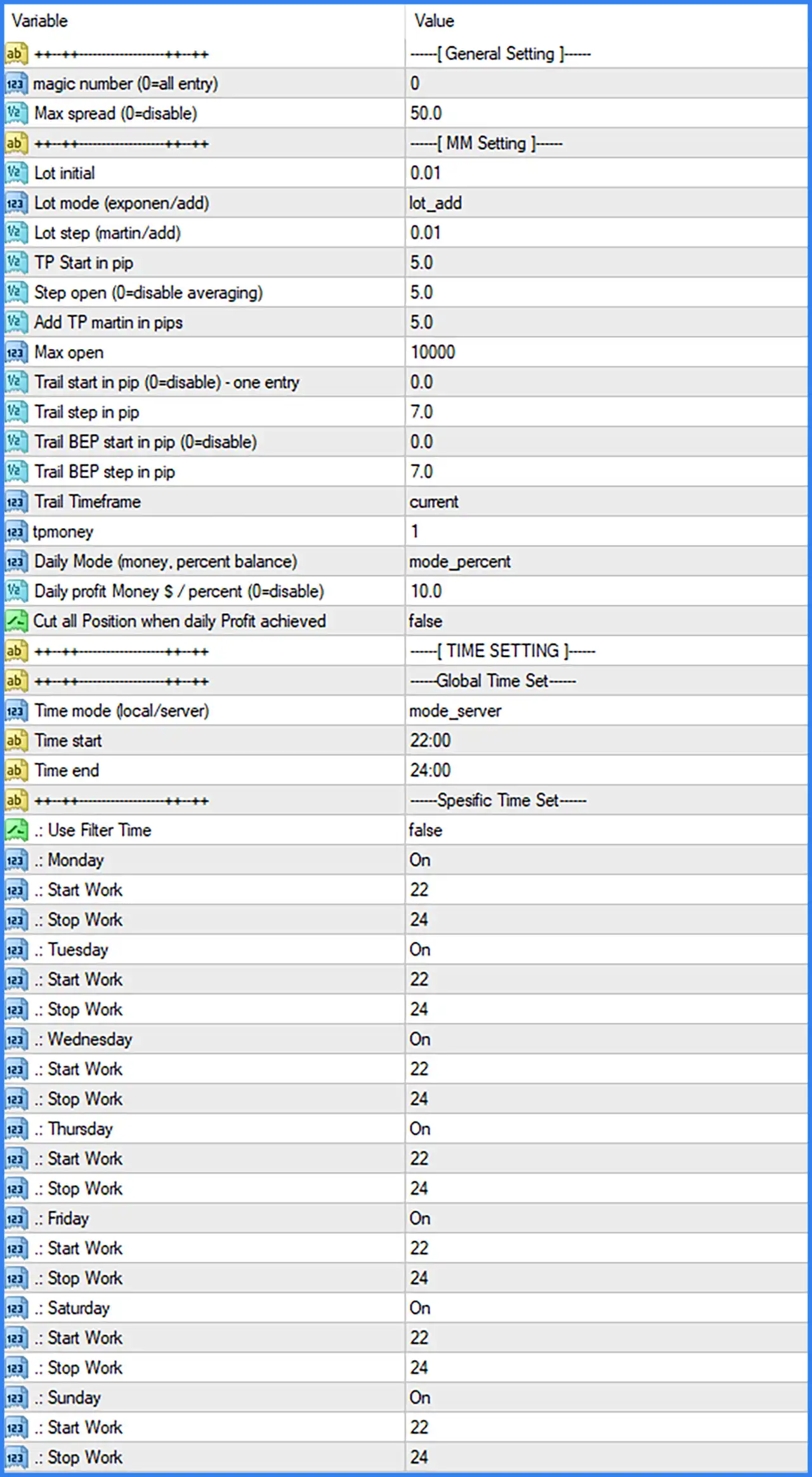
General Settings
🔹 magic number (0=all entry) = 0 – Sets the EA's Magic Number to 0, which the input description identifies as the setting for all entries. This controls how the EA identifies or manages trading orders.
🔹 Max spread (0=disable) = 50.0 – Sets the maximum permitted spread to 50.0 points. The EA can use this threshold to restrict new trades when market spreads exceed the configured limit. Setting it to 0 disables this restriction.
Money Management (MM) Settings
🔹 Lot initial = 0.01 – Sets the initial trading volume to 0.01 lots, defining the starting position size for the EA's trading operations.
🔹 Lot mode (exponen/add) = lot_add – Selects the additive lot progression mode, allowing the EA to increase trading volume through a configured lot increment rather than using an exponential progression.
🔹 Lot step (martin/add) = 0.01 – Sets the lot increment to 0.01, defining the additional volume used when the EA applies its configured additive or martingale-style lot progression.
🔹 TP Start in pip = 5.0 – Sets the initial Take Profit activation or calculation threshold to 5.0 pips according to the EA's internal trade management logic.
🔹 Step open (0=disable averaging) = 5.0 – Sets the distance between successive averaging entries to 5.0 pips. Setting this parameter to 0 disables the averaging function.
🔹 Add TP martin in pips = 5.0 – Configures an additional Take Profit adjustment of 5.0 pips for the EA's martingale or averaging trade management mechanism.
🔹 Max open = 10000 – Sets the maximum open-position parameter to 10,000, defining the configured upper limit for the EA's open trade management.
🔹 Trail start in pip (0=disable) - one entry = 0.0 – Sets the trailing activation threshold for a single entry to 0.0 pips. According to the parameter description, a value of 0 disables this trailing function.
🔹 Trail step in pip = 7.0 – Sets the trailing adjustment interval to 7.0 pips, determining how frequently the EA moves its trailing protection level.
🔹 Trail BEP start in pip (0=disable) = 0.0 – Sets the Break-Even Protection trailing activation threshold to 0.0 pips. A value of 0 disables this particular BEP trailing activation function.
🔹 Trail BEP step in pip = 7.0 – Sets the Break-Even Protection trailing adjustment interval to 7.0 pips when the corresponding function is activated.
🔹 Trail Timeframe = current – Uses the current chart timeframe for the EA's trailing management calculations.
🔹 tpmoney = 1 – Sets the TP Money parameter to 1, controlling a monetary Take Profit-related calculation or management option within the EA. The exact unit and operating logic are not specified in the Inputs panel.
Daily Profit Management
🔹 Daily Mode (money, percent balance) = mode_percent – Selects percentage-based daily profit management rather than a fixed monetary target.
🔹 Daily profit Money $ / percent (0=disable) = 10.0 – Sets the daily profit target to 10.0, interpreted as 10% under the selected mode_percent configuration. Setting this parameter to 0 disables the daily profit target.
🔹 Cut all Position when daily Profit achieved = false – Disables the automatic closing of all open positions when the configured daily profit target is reached.
Global Time Settings
🔹 Time mode (local/server) = mode_server – Selects server-time mode, meaning the EA uses the broker's server time rather than the computer's local time for its global trading schedule.
🔹 Time start = 22:00 – Sets the beginning of the global trading session to 22:00 server time.
🔹 Time end = 24:00 – Sets the end of the global trading session to 24:00 server time, representing midnight at the end of the configured trading day.
Specific Trading Time Settings
🔹 Use Filter Time = false – Disables the individual weekday trading time filter, meaning the configured daily schedules are not currently enforced through this option.
Monday Trading Schedule
🔹 Monday = On – Enables Monday in the individual weekday schedule.
🔹 Start Work (Monday) = 22 – Sets Monday's scheduled trading start hour to 22:00.
🔹 Stop Work (Monday) = 24 – Sets Monday's scheduled trading end hour to 24:00.
Tuesday Trading Schedule
🔹 Tuesday = On – Enables Tuesday in the individual weekday schedule.
🔹 Start Work (Tuesday) = 22 – Sets Tuesday's scheduled trading start hour to 22:00.
🔹 Stop Work (Tuesday) = 24 – Sets Tuesday's scheduled trading end hour to 24:00.
Wednesday Trading Schedule
🔹 Wednesday = On – Enables Wednesday in the individual weekday schedule.
🔹 Start Work (Wednesday) = 22 – Sets Wednesday's scheduled trading start hour to 22:00.
🔹 Stop Work (Wednesday) = 24 – Sets Wednesday's scheduled trading end hour to 24:00.
Thursday Trading Schedule
🔹 Thursday = On – Enables Thursday in the individual weekday schedule.
🔹 Start Work (Thursday) = 22 – Sets Thursday's scheduled trading start hour to 22:00.
🔹 Stop Work (Thursday) = 24 – Sets Thursday's scheduled trading end hour to 24:00.
Friday Trading Schedule
🔹 Friday = On – Enables Friday in the individual weekday schedule.
🔹 Start Work (Friday) = 22 – Sets Friday's scheduled trading start hour to 22:00.
🔹 Stop Work (Friday) = 24 – Sets Friday's scheduled trading end hour to 24:00.
Saturday Trading Schedule
🔹 Saturday = On – Enables Saturday in the individual weekday schedule.
🔹 Start Work (Saturday) = 22 – Sets Saturday's scheduled trading start hour to 22:00.
🔹 Stop Work (Saturday) = 24 – Sets Saturday's scheduled trading end hour to 24:00.
Sunday Trading Schedule
🔹 Sunday = On – Enables Sunday in the individual weekday schedule.
🔹 Start Work (Sunday) = 22 – Sets Sunday's scheduled trading start hour to 22:00.
🔹 Stop Work (Sunday) = 24 – Sets Sunday's scheduled trading end hour to 24:00.
Conclusion
SellerSubuh EA MT4 provides a configurable automated trading system with additive lot progression, averaging functionality, Take Profit management, trailing protection, and daily profit targeting.
The supplied configuration starts with 0.01 lots, uses the lot_add progression mode with a 0.01 lot increment, and sets the averaging distance to 5.0 pips. Its trailing step is configured at 7.0 pips, while both single-entry trailing activation and BEP trailing activation are disabled with values of 0.0.
The EA also uses a percentage-based daily profit mode with a target of 10.0, although automatic position closing after reaching that target is disabled. Its global trading schedule is configured from 22:00 to 24:00 server time.
Before using SellerSubuh EA MT4 on a live trading account, traders should carefully evaluate its averaging mechanism, additive lot progression, maximum open-position setting, and daily profit management. Backtesting and demo testing are recommended to understand its trading behavior, potential drawdown, and overall risk exposure.