

Introduction
EA Kick Off MT4 is an automated trading Expert Advisor (EA) designed to execute random market entries based on a specified KickOff time and trading volume conditions. The EA features configurable lot sizing, Martingale-style position management, maximum trading layers, adjustable pip distance, and automated Take Profit management.

One of its key characteristics is its time-based entry mechanism, which allows traders to configure the exact minute for initiating trading activities. It also includes optional volume verification, trailing stop functionality, slippage control, and customizable trading schedules.
EA Kick Off MT4 provides flexible trading parameters that allow users to adjust position sizing, trade frequency, risk exposure, and trading days. Understanding these settings is essential for configuring the EA according to individual trading preferences and account risk tolerance.
EA Kick Off MT4 Settings Explained
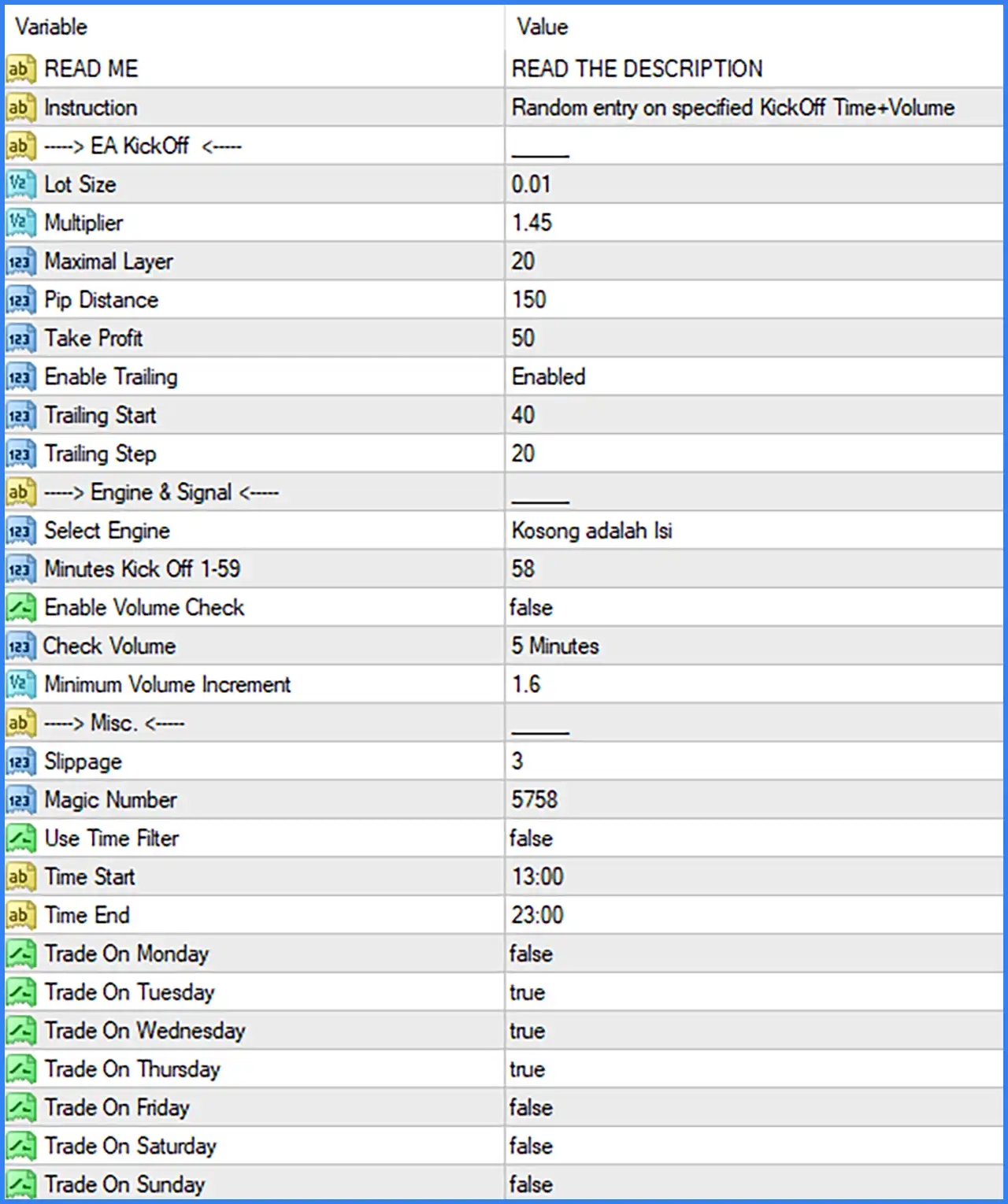
1. General Information and Instructions
🔹 READ ME = READ THE DESCRIPTION – Indicates that users should read the EA documentation carefully before configuring or operating the trading robot.
🔹 Instruction = Random entry on specified KickOff Time+Volume – Describes the EA's primary entry mechanism, which uses random trade entries at the specified KickOff time together with the configured volume conditions.
2. EA KickOff – Trading and Money Management Settings
🔹 Lot Size = 0.01 – Sets the initial trading volume to 0.01 lots for the EA's opening positions.
🔹 Multiplier = 1.45 – Sets the lot multiplication factor to 1.45, allowing subsequent trading positions to increase in volume according to the EA's position management logic.
🔹 Maximal Layer = 20 – Sets the maximum number of trading layers to 20, limiting the number of successive positions within the configured trading sequence.
🔹 Pip Distance = 150 – Sets the distance between trading levels to 150 pips, controlling the spacing used when the EA opens additional positions.
🔹 Take Profit = 50 – Sets the Take Profit target to 50 according to the EA's internal profit calculation and configured trading units.
🔹 Enable Trailing = Enabled – Activates the Trailing Stop feature, allowing the EA to adjust trade protection as the market moves favorably.
🔹 Trailing Start = 40 – Sets the Trailing Stop activation threshold to 40, determining when trailing protection begins.
🔹 Trailing Step = 20 – Sets the trailing adjustment step to 20, controlling the incremental movement of the Trailing Stop level.
3. Engine and Signal Settings
🔹 Select Engine = Kosong adalah Isi – Displays the original value "Kosong adalah Isi" in the engine selection field; its exact operational meaning should be confirmed through the EA developer's documentation.
🔹 Minutes Kick Off 1-59 = 58 – Sets the KickOff execution minute to 58, allowing the EA to initiate its configured entry process at the specified minute within the hour.
🔹 Enable Volume Check = false – Disables the volume verification function, meaning the EA does not activate this optional volume-based entry filter.
🔹 Check Volume = 5 Minutes – Sets the volume checking timeframe to 5 minutes when the volume verification feature is enabled.
🔹 Minimum Volume Increment = 1.6 – Sets the minimum volume increment threshold to 1.6 for the EA's volume-based entry verification.
4. Miscellaneous Settings
🔹 Slippage = 3 – Sets the permitted slippage value to 3, defining the execution deviation allowed when the EA sends trading orders.
🔹 Magic Number = 5758 – Assigns the Magic Number 5758 to identify and distinguish EA-generated trades from other trading positions on the account.
5. Trading Time Settings
🔹 Use Time Filter = false – Disables the trading time filter, allowing the EA to operate without applying the configured Start and End Time restrictions.
🔹 Time Start = 13:00 – Sets the beginning of the permitted trading session to 13:00 when the time filter is activated.
🔹 Time End = 23:00 – Sets the end of the permitted trading session to 23:00 when the time filter is activated.
6. Trading Days Settings
🔹 Trade On Monday = false – Disables automated trading on Monday.
🔹 Trade On Tuesday = true – Allows the EA to execute its trading strategy on Tuesday.
🔹 Trade On Wednesday = true – Allows the EA to execute its trading strategy on Wednesday.
🔹 Trade On Thursday = true – Allows the EA to execute its trading strategy on Thursday.
🔹 Trade On Friday = false – Disables automated trading on Friday.
🔹 Trade On Saturday = false – Disables automated trading on Saturday.
🔹 Trade On Sunday = false – Disables automated trading on Sunday.
Conclusion
EA Kick Off MT4 offers an automated trading configuration centered on random entries at a specified KickOff time, with optional volume verification and adjustable position management.
The supplied configuration uses an initial lot size of 0.01, a multiplier of 1.45, a maximum of 20 trading layers, and a pip distance of 150. The Take Profit is set to 50, while Trailing Stop is enabled with a starting threshold of 40 and a trailing step of 20.
The EA also provides customizable trading schedules, volume filters, slippage control, and Magic Number identification. Its current configuration allows trading on Tuesday, Wednesday, and Thursday, while Monday, Friday, Saturday, and Sunday are disabled.
Before running EA Kick Off MT4 on a live account, traders should carefully evaluate the potential exposure created by the 1.45 multiplier and maximum 20 trading layers. Demo testing and historical backtesting are recommended to assess its trading behavior, drawdown, and execution performance.