
🔢 Alpha ATM Bot MT5 Settings Guide – Complete Parameter Explanation
Alpha ATM Bot MT5 is an advanced automated trading Expert Advisor designed with intelligent averaging, dynamic lot scaling, hedging protection, daily risk management, DCAM (Dynamic MACD) filtering, news event protection, trailing stop management and comprehensive account control.
Its extensive settings allow traders to customize position sizing, hedge strategies, trading sessions, news filters, and profit management, making it suitable for both conservative and aggressive trading styles. Below is a complete explanation of every parameter shown in the settings panel.
🔢 Installation Panel Parameters
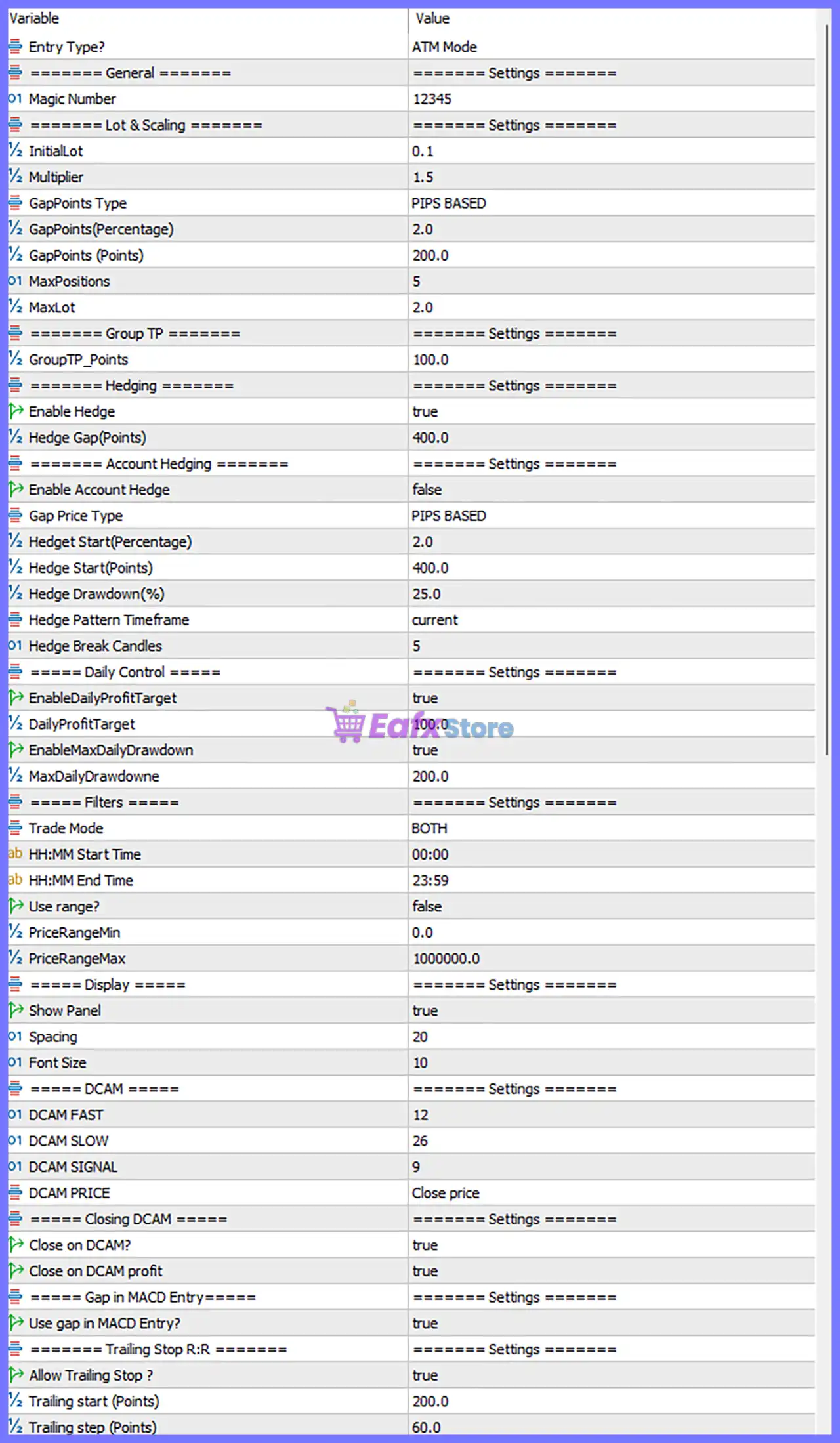
Below are the details of the parameters in the advisor’s trading system settings table:
🔶 Entry Settings
🔹 Entry Type = ATM Mode – Selects ATM Mode as the primary trade entry algorithm used by the EA.
🔶 General Settings
🔹 Magic Number = 12345 – Unique identifier assigned to all trades opened by Alpha ATM Bot MT5.
🔶 Lot & Scaling Settings
🔹 Initial Lot = 0.1 – Opens the first trade using 0.1 lots.
🔹 Multiplier = 1.5 – Increases the lot size by 1.5x for subsequent scaling positions.
🔹 GapPoints Type = PIPS BASED – Measures entry spacing using pip distance.
🔹 GapPoints (Percentage) = 2.0 – Percentage value used when percentage-based spacing is selected.
🔹 GapPoints (Points) = 200.0 – Uses 200.0 points between scaling entries.
🔹 MaxPositions = 5 – Allows a maximum of 5 open positions.
🔹 MaxLot = 2.0 – Limits the maximum trade size to 2.0 lots.
🔶 Group Take Profit Settings
🔹 GroupTP_Points = 100.0 – Closes the entire basket when the combined profit reaches 100.0 points.
🔶 Hedging Settings
🔹 Enable Hedge = true – Enables the built-in hedging system.
🔹 Hedge Gap (Points) = 400.0 – Opens a hedge when price moves 400.0 points against the position.
🔶 Account Hedging Settings
🔹 Enable Account Hedge = false – Disables account-level hedge protection.
🔹 Gap Price Type = PIPS BASED – Hedge activation uses pip distance.
🔹 Hedge Start (Percentage) = 2.0 – Percentage trigger when percentage mode is used.
🔹 Hedge Start (Points) = 400.0 – Starts account hedging after 400.0 points.
🔹 Hedge Drawdown (%) = 25.0 – Activates account hedge after 25.0% drawdown.
🔹 Hedge Pattern Timeframe = current – Uses the current chart timeframe for hedge pattern analysis.
🔹 Hedge Break Candles = 5 – Requires confirmation from 5 candles before hedge activation.
🔶 Daily Control Settings
🔹 Enable Daily Profit Target = true – Enables the daily profit target.
🔹 DailyProfitTarget = 100.0 – Stops trading after earning 100.0 daily profit.
🔹 Enable Max Daily Drawdown = true – Enables daily drawdown protection.
🔹 MaxDailyDrawdown = 200.0 – Stops trading after reaching 200.0 maximum daily drawdown.
🔶 Trading Filters
🔹 Trade Mode = BOTH – Allows both Buy and Sell trading.
🔹 HH:MM Start Time = 00:00 – Trading starts at 00:00.
🔹 HH:MM End Time = 23:59 – Trading remains active until 23:59.
🔹 Use Range = false – Price range filtering is disabled.
🔹 PriceRangeMin = 0.0 – Minimum price filter.
🔹 PriceRangeMax = 1000000.0 – Maximum price filter.
🔶 Display Settings
🔹 Show Panel = true – Displays the EA dashboard on the chart.
🔹 Spacing = 20 – Sets dashboard element spacing to 20.
🔹 Font Size = 10 – Uses font size 10 for the panel.
🔶 DCAM Settings
🔹 DCAM FAST = 12 – Fast MACD period.
🔹 DCAM SLOW = 26 – Slow MACD period.
🔹 DCAM SIGNAL = 9 – MACD signal period.
🔹 DCAM PRICE = Close price – Uses the closing price for MACD calculations.
🔶 Closing DCAM Settings
🔹 Close on DCAM? = true – Allows trades to close using DCAM signals.
🔹 Close on DCAM Profit = true – Closes profitable trades when DCAM exit conditions are met.
🔶 Gap in MACD Entry
🔹 Use Gap in MACD Entry? = true – Uses MACD gap confirmation before opening trades.
🔶 Trailing Stop R:R Settings
🔹 Allow Trailing Stop? = true – Enables automatic trailing stop management.
🔹 Trailing Start (Points) = 200.0 – Trailing begins after 200.0 points of profit.
🔹 Trailing Step (Points) = 60.0 – Stop Loss moves every 60.0 points.
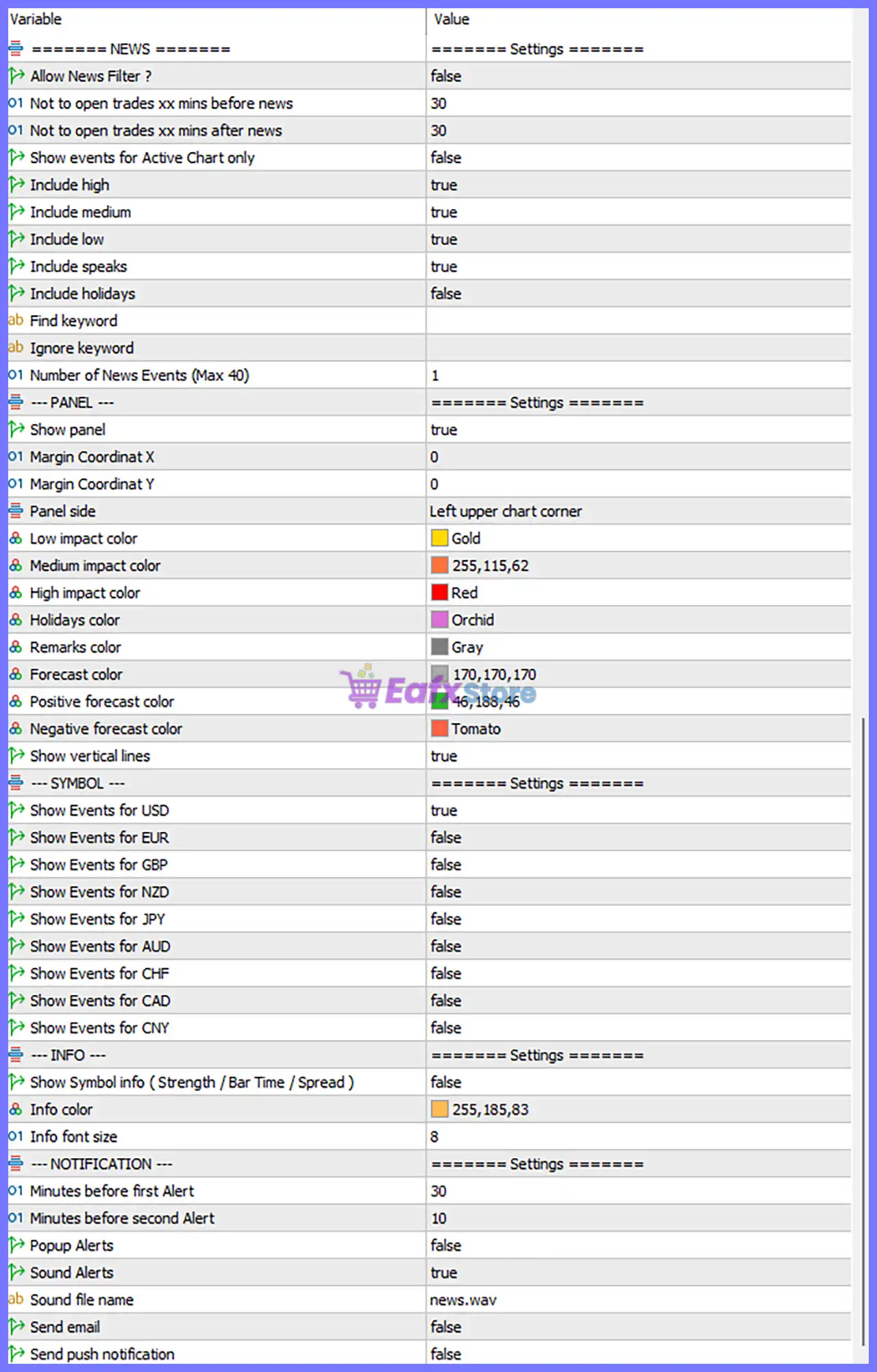
🔶 News Settings
🔹 Allow News Filter? = false – News filter is disabled.
🔹 Not to Open Trades xx mins Before News = 30 – If enabled, blocks entries 30 minutes before news.
🔹 Not to Open Trades xx mins After News = 30 – If enabled, resumes trading 30 minutes after news.
🔹 Show Events for Active Chart Only = false – Displays events for multiple configured currencies.
🔹 Include High = true – Includes high-impact news events.
🔹 Include Medium = true – Includes medium-impact news events.
🔹 Include Low = true – Includes low-impact news events.
🔹 Include Speaks = true – Includes speeches from central bank officials and policymakers.
🔹 Include Holidays = false – Holiday events are excluded.
🔹 Find Keyword = – No specific keyword filter is configured.
🔹 Ignore Keyword = – No keyword exclusion filter is configured.
🔹 Number of News Events (Max 40) = 1 – Displays 1 news event.
🔶 News Panel Settings
🔹 Show Panel = true – Displays the economic news panel.
🔹 Margin Coordinate X = 0 – Horizontal position set to 0.
🔹 Margin Coordinate Y = 0 – Vertical position set to 0.
🔹 Panel Side = Left upper chart corner – Places the panel in the upper-left corner.
🔹 Low Impact Color = Gold – Uses Gold for low-impact news.
🔹 Medium Impact Color = 255,115,62 – Uses RGB 255,115,62 for medium-impact news.
🔹 High Impact Color = Red – Uses Red for high-impact events.
🔹 Holidays Color = Orchid – Uses Orchid for holiday events.
🔹 Remarks Color = Gray – Uses Gray for remarks.
🔹 Forecast Color = 170,170,170 – Uses RGB 170,170,170 for forecast values.
🔹 Positive Forecast Color = 46,188,46 – Uses RGB 46,188,46 for positive forecasts.
🔹 Negative Forecast Color = Tomato – Uses Tomato for negative forecasts.
🔹 Show Vertical Lines = true – Draws vertical lines at scheduled news times.
🔶 Symbol Settings
🔹 Show Events for USD = true – Displays USD economic events.
🔹 Show Events for EUR = false – EUR events are hidden.
🔹 Show Events for GBP = false – GBP events are hidden.
🔹 Show Events for NZD = false – NZD events are hidden.
🔹 Show Events for JPY = false – JPY events are hidden.
🔹 Show Events for AUD = false – AUD events are hidden.
🔹 Show Events for CHF = false – CHF events are hidden.
🔹 Show Events for CAD = false – CAD events are hidden.
🔹 Show Events for CNY = false – CNY events are hidden.
🔶 Information Settings
🔹 Show Symbol Info (Strength / Bar Time / Spread) = false – Symbol information panel is disabled.
🔹 Info Color = 255,185,83 – Uses RGB 255,185,83 for information text.
🔹 Info Font Size = 8 – Displays information using font size 8.
🔶 Notification Settings
🔹 Minutes Before First Alert = 30 – Sends the first alert 30 minutes before a news event.
🔹 Minutes Before Second Alert = 10 – Sends the second alert 10 minutes before the event.
🔹 Popup Alerts = false – Popup notifications are disabled.
🔹 Sound Alerts = true – Sound notifications are enabled.
🔹 Sound File Name = news.wav – Uses news.wav as the notification sound.
🔹 Send Email = false – Email notifications are disabled.
🔹 Send Push Notification = false – Mobile push notifications are disabled.
🔢 Conclusion
Alpha ATM Bot MT5 offers a comprehensive trading framework that combines intelligent lot scaling, advanced hedging, dynamic basket management, DCAM-based trade filtering, trailing stop automation, economic news monitoring, and strict daily risk controls. Its extensive customization options allow traders to fine-tune every aspect of execution, risk management, and market filtering, making it suitable for a wide range of trading strategies and account types.
Understanding each setting enables traders to optimize performance while maintaining disciplined and consistent automated trading.
🔢 FAQs
❓ What is the purpose of the Multiplier setting in Alpha ATM Bot MT5?
The Multiplier = 1.5 increases the lot size of subsequent scaling trades, allowing the EA to recover positions according to its averaging strategy.
❓ How does the built-in Hedging system work?
When Enable Hedge = true, the EA can open hedge positions after the market moves 400.0 points against existing trades to help reduce directional exposure.
❓ What does Group Take Profit do?
The GroupTP_Points = 100.0 setting closes all open positions in the basket once the combined profit reaches 100.0 points.
❓ Can I restrict trading to specific hours?
Yes. You can customize the HH:MM Start Time and HH:MM End Time to define the EA's active trading session.
❓ Why should I use the Daily Profit Target and Max Daily Drawdown settings?
These controls help manage overall account risk by automatically stopping new trading activity after reaching the configured 100.0 daily profit target or 200.0 maximum daily drawdown, promoting disciplined money management.