

Kyora MT5 is an automated trading Expert Advisor (EA) for the MetaTrader 5 platform. Its configuration panel provides a comprehensive range of controls for trade execution, lot sizing, rollover management, progressive trailing, account protection, economic news filtering, Non-Farm Payroll (NFP) filtering, external trading pauses, backtesting calendars, and chart dashboard settings.
The supplied Inputs panel includes separate BUY and SELL money management parameters, configurable risk limits, and multiple options for controlling trading activity around important economic events. Understanding these settings helps traders configure Kyora MT5 according to their account size, broker execution conditions, and risk management requirements.
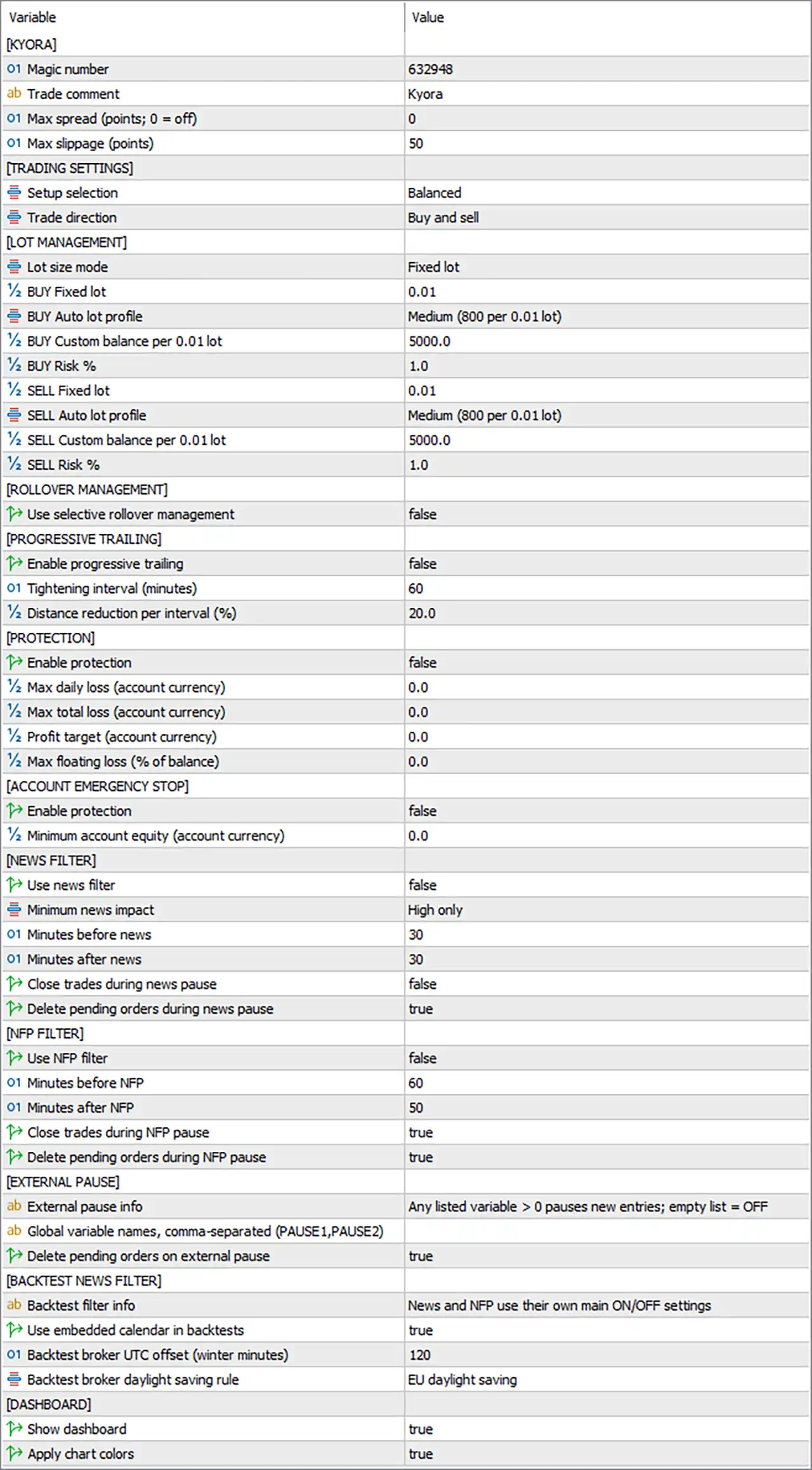
This guide explains all the parameters shown in the provided image, preserving their exact names and default values.
1. General Settings
🔹 [KYORA] = Section Header: Identifies the main configuration section for Kyora MT5. It organizes the general trading parameters and does not represent an independently adjustable trading value.
🔹 Magic number = 632948: Assigns the trade identifier 632948 to positions and orders managed by the EA. This helps Kyora MT5 distinguish its trades from manual positions and trades opened by other Expert Advisors using different magic numbers.
🔹 Trade comment = Kyora: Sets the comment attached to trades opened by the EA to “Kyora”. This label helps traders identify the robot’s orders in the trading terminal and account history.
🔹 Max spread (points; 0 = off) = 0: Disables the maximum-spread restriction because the value is 0. According to the parameter description, the EA will not reject new entries based on this particular spread limit while it remains disabled.
🔹 Max slippage (points) = 50: Sets the maximum permitted slippage parameter to 50 points. This setting may control the acceptable difference between requested and executed prices, subject to the EA’s order-execution logic and the broker’s trading conditions.
2. Trading Settings
🔹 [TRADING SETTINGS] = Section Header: Introduces the parameters controlling the EA’s strategy configuration and permitted trade directions.
🔹 Setup selection = Balanced: Selects the Balanced trading setup. This indicates that the EA is using its balanced preset rather than another available setup, although the exact differences between presets depend on the developer’s implementation.
🔹 Trade direction = Buy and sell: Allows the EA to consider both BUY and SELL trades. The robot may open positions in either direction when its trading conditions are satisfied.
3. Lot Management Settings
🔹 [LOT MANAGEMENT] = Section Header: Introduces the position-sizing settings, including fixed lots, automatic lot profiles, custom account-balance scaling, and separate BUY and SELL risk percentages.
🔹 Lot size mode = Fixed lot: Selects fixed-lot sizing as the active lot management mode. The EA is configured to use a fixed-volume approach rather than relying exclusively on an automatic or risk-based lot calculation.
🔹 BUY Fixed lot = 0.01: Sets the fixed volume for BUY trades to 0.01 lots. This value applies when the selected lot-sizing logic uses the BUY fixed-lot parameter.
🔹 BUY Auto lot profile = Medium (800 per 0.01 lot): Selects the Medium automatic lot profile, with a displayed scaling reference of 800 per 0.01 lot. The precise meaning of 800, including its currency or account-balance basis, should be confirmed from the EA’s documentation.
🔹 BUY Custom balance per 0.01 lot = 5000.0: Sets the custom balance reference to 5000.0 for each 0.01 lot of BUY volume. This parameter may determine automatic position sizing when the relevant custom-balance mode is selected.
🔹 BUY Risk % = 1.0: Sets the BUY risk parameter to 1.0%. If interpreted as the percentage of account capital allocated to risk for a BUY trade, it represents a 1% risk setting; the actual calculation depends on the EA’s internal position-sizing rules.
🔹 SELL Fixed lot = 0.01: Sets the fixed volume for SELL trades to 0.01 lots. This allows the EA to use the specified SELL volume when fixed-lot sizing is active.
🔹 SELL Auto lot profile = Medium (800 per 0.01 lot): Selects the Medium automatic lot profile for SELL trades, using the displayed scaling reference of 800 per 0.01 lot. The exact calculation and currency basis depend on the EA’s implementation.
🔹 SELL Custom balance per 0.01 lot = 5000.0: Sets the custom balance reference to 5000.0 per 0.01 lot for SELL trades. This may be used to calculate SELL volume when the corresponding custom-balance sizing method is active.
🔹 SELL Risk % = 1.0: Sets the SELL risk parameter to 1.0%. If this represents the account capital risked on a SELL trade, it indicates a 1% risk setting, subject to the EA’s calculation method and stop-loss behavior.
4. Rollover Management
🔹 [ROLLOVER MANAGEMENT] = Section Header: Introduces settings for managing trades around rollover periods, when broker financing, swaps, or trading conditions may change.
🔹 Use selective rollover management = false: Disables selective rollover management. The EA will not apply this particular rollover-management feature while the setting remains false, although other trade-management rules may still operate.
5. Progressive Trailing Settings
🔹 [PROGRESSIVE TRAILING] = Section Header: Introduces the settings for progressive trailing, which may adjust trailing behavior over time according to the EA’s programmed rules.
🔹 Enable progressive trailing = false: Disables progressive trailing. The EA will not use this specific progressive adjustment feature while it remains disabled, regardless of the configured interval and reduction percentage.
🔹 Tightening interval (minutes) = 60: Sets the progressive trailing adjustment interval to 60 minutes. If progressive trailing is enabled, this value may determine how frequently the trailing distance is tightened or recalculated.
🔹 Distance reduction per interval (%) = 20.0: Sets the trailing-distance reduction to 20.0% per interval. If the feature is enabled, the EA may reduce the applicable trailing distance by this percentage at each qualifying interval, according to its internal logic.
6. Account Protection Settings
🔹 [PROTECTION] = Section Header: Introduces the account protection parameters for daily loss, total loss, profit targets, and floating losses.
🔹 Enable protection = false: Disables this account protection module. The configured loss limits and profit target should not be assumed to stop trading while this feature remains disabled.
🔹 Max daily loss (account currency) = 0.0: Sets the maximum daily loss threshold to 0.0 in the account currency. Since protection is disabled, this value does not provide an active daily loss safeguard through this module; confirm how zero is interpreted if protection is enabled.
🔹 Max total loss (account currency) = 0.0: Sets the maximum total loss threshold to 0.0 in the account currency. The precise meaning of zero depends on the EA’s logic, and the limit should not be treated as an active account-wide loss cap while protection is disabled.
🔹 Profit target (account currency) = 0.0: Sets the account-currency profit target to 0.0. This may represent a disabled or unset profit target, depending on the implementation. The protection module is also disabled in the supplied configuration.
🔹 Max floating loss (% of balance) = 0.0: Sets the maximum floating-loss threshold to 0.0% of balance. With the protection module disabled, this setting should not be relied upon to close positions or stop trading when floating losses increase.
7. Account Emergency Stop
🔹 [ACCOUNT EMERGENCY STOP] = Section Header: Introduces a separate protection module designed to monitor account equity and potentially stop trading when the configured minimum equity condition is reached.
🔹 Enable protection = false: Disables the account emergency-stop feature. The EA should not be assumed to stop new entries or close positions based on the minimum equity threshold while this option remains false.
🔹 Minimum account equity (account currency) = 0.0: Sets the minimum account equity threshold to 0.0 in the account currency. The exact effect of this value depends on the emergency-stop implementation, and the feature is disabled in the supplied configuration.
8. Economic News Filter
🔹 [NEWS FILTER] = Section Header: Introduces the settings used to control trading around scheduled economic news events.
🔹 Use news filter = false: Disables the general economic news filter. The EA will not apply this particular news-based entry restriction while the option remains false, subject to any separate filters or external pause conditions.
🔹 Minimum news impact = High only: Selects high-impact news events as the minimum impact category for filtering. This setting defines the intended event severity when the news filter is enabled.
🔹 Minutes before news = 30: Sets the news pause window to begin 30 minutes before a qualifying event. This restriction applies only if the news filter is enabled and the EA receives valid calendar data.
🔹 Minutes after news = 30: Sets the post-news pause duration to 30 minutes after a qualifying event. If the news filter is enabled, this setting may delay new entries until the configured post-event period has elapsed.
🔹 Close trades during news pause = false: Disables the option to close existing trades during a news-related pause. If the news filter is enabled, the EA may pause new entries without using this setting to close open positions.
🔹 Delete pending orders during news pause = true: Enables deletion of pending orders during a news pause. If the news filter is active and its pause conditions are triggered, the EA may remove pending orders according to its programmed rules.
9. Non-Farm Payroll (NFP) Filter
🔹 [NFP FILTER] = Section Header: Introduces a dedicated filter for US Non-Farm Payroll (NFP) announcements, which can cause substantial volatility in financial markets.
🔹 Use NFP filter = false: Disables the dedicated NFP filter. The EA will not apply this specific NFP pause while the setting remains false, although the separate general news filter or external pause mechanism may still affect trading.
🔹 Minutes before NFP = 60: Sets the NFP pre-event pause period to 60 minutes. If the NFP filter is enabled, this parameter may prevent new entries during the hour leading up to the scheduled announcement.
🔹 Minutes after NFP = 50: Sets the NFP post-event pause period to 50 minutes. If the filter is enabled, this parameter may keep new entries paused for 50 minutes after the announcement.
🔹 Close trades during NFP pause = true: Enables the option to close existing trades during an NFP pause. This behavior applies when the NFP filter is enabled and its pause conditions are triggered, subject to the EA’s implementation.
🔹 Delete pending orders during NFP pause = true: Enables the deletion of pending orders during an NFP pause. When the dedicated filter is active, the EA may remove pending orders to reduce exposure to event-driven price movements.
10. External Pause Settings
🔹 [EXTERNAL PAUSE] = Section Header: Introduces a mechanism for controlling new entries using externally maintained terminal global variables.
🔹 External pause info = Any listed variable > 0 pauses new entries; empty list = OFF: Explains the external pause mechanism. If a listed global variable has a value greater than 0, the EA pauses new entries; an empty variable list disables this mechanism.
🔹 Global variable names, comma-separated (PAUSE1,PAUSE2) = (blank): Specifies the names of the terminal global variables used by the external pause system. The supplied field is blank, so no variable names are configured in the displayed settings.
🔹 Delete pending orders on external pause = true: Enables deletion of pending orders when an external pause condition is activated. If the configured external pause mechanism detects a listed variable greater than 0, the EA may delete pending orders as well as pause new entries.
11. Backtest News Filter Settings
🔹 [BACKTEST NEWS FILTER] = Section Header: Introduces settings for the economic calendar used during historical strategy testing.
🔹 Backtest filter info = News and NFP use their own main ON/OFF settings: Indicates that the general news and NFP filters retain their individual enable/disable controls during backtesting. Their behavior is therefore governed by Use news filter and Use NFP filter rather than this informational label alone.
🔹 Use embedded calendar in backtests = true: Enables the embedded economic calendar for backtesting. This allows the EA to apply its supported calendar-based filtering logic during historical tests, subject to the quality and coverage of the embedded data.
🔹 Backtest broker UTC offset (winter minutes) = 120: Sets the broker’s winter UTC offset to 120 minutes, equivalent to UTC+2. This setting helps align historical event times with broker server time during backtests.
🔹 Backtest broker daylight saving rule = EU daylight saving: Selects the EU daylight-saving rule for historical testing. This determines how the EA accounts for seasonal clock changes when translating calendar event times to broker server time.
12. Dashboard and Chart Display Settings
🔹 [DASHBOARD] = Section Header: Introduces the settings controlling the EA’s on-chart dashboard and chart color configuration.
🔹 Show dashboard = true: Enables the EA dashboard display on the chart. When supported by the interface, this may provide a convenient overview of the robot’s status and relevant trading information.
🔹 Apply chart colors = true: Enables the EA’s chart color settings. The robot may change chart appearance according to its programmed visual theme when this option is active.
Conclusion
The Kyora MT5 Inputs panel provides extensive controls for trade direction, lot sizing, risk management, rollover handling, progressive trailing, account protection, economic news filtering, NFP restrictions, external pauses, backtesting, and chart display.
The supplied configuration uses Magic number = 632948, Setup selection = Balanced, Trade direction = Buy and sell, Lot size mode = Fixed lot, BUY Fixed lot = 0.01, SELL Fixed lot = 0.01, BUY Risk % = 1.0, and SELL Risk % = 1.0.
Several important protections are disabled by default: selective rollover management, progressive trailing, account protection, the account emergency stop, the general news filter, and the NFP filter. Although the pending-order deletion options are enabled, they only apply when their corresponding pause conditions are active.
Before running Kyora MT5 on a live account, verify the lot-sizing logic, the meaning of the Medium profile’s 800-per-0.01-lot reference, broker UTC offsets, and the behavior of each protective feature. Consider enabling and testing appropriate loss limits and news filters if they match your trading plan. Backtesting and demo forward testing can help assess performance under different market conditions, but no configuration guarantees profits or eliminates trading risk.