

Introduction to CyBRG RX MT4
CyBRG RX MT4 is an automated trading Expert Advisor (EA) designed for MetaTrader 4, featuring configurable risk management, automatic lot sizing, Stop Loss (SL) and Take Profit (TP) controls, spread filtering, trading session management, and economic news protection.

The EA provides adjustable trading aggressiveness and risk settings, allowing traders to customize position sizing and execution conditions. It also includes spread stability monitoring, time-based trading filters, and high-impact news protection to help manage trading activity under different market conditions.
With its automatic lot sizing option, configurable trading days, and customizable execution filters, CyBRG RX MT4 offers several parameters for tailoring automated trading operations to individual trading preferences.
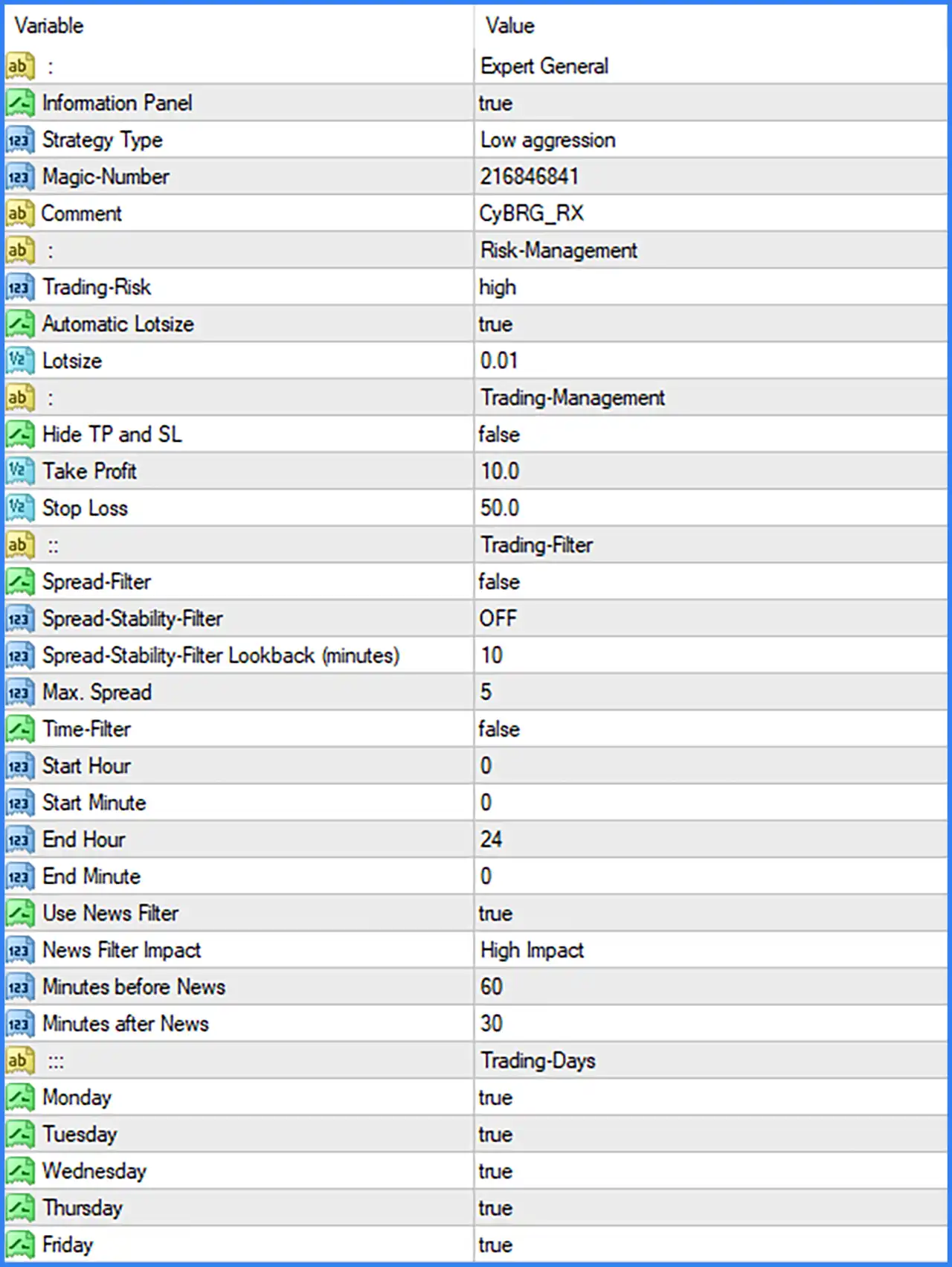
1. Expert General Settings
This section controls the EA's general operating mode, information panel, strategy aggressiveness, and trade identification.
🔹 Expert General = Expert General: Identifies the general configuration section containing the main operating parameters of CyBRG RX MT4.
🔹 Information Panel = true: Enables the information panel, allowing the EA to display its corresponding trading information and status on the MetaTrader 4 chart.
🔹 Strategy Type = Low aggression: Selects the Low aggression trading mode, defining the configured strategy aggressiveness level for the EA.
🔹 Magic-Number = 216846841: Assigns the Magic Number 216846841 to the EA's trading operations, allowing MetaTrader 4 to identify and distinguish positions opened by CyBRG RX MT4.
🔹 Comment = CyBRG_RX: Sets the order comment to CyBRG_RX, allowing traders to identify the EA's orders in the MT4 trading terminal.
2. Risk Management Settings
This section controls the selected trading risk profile and position sizing method.
🔹 Trading-Risk = high: Selects the high risk profile, defining the configured risk category used by the EA's trading management system.
🔹 Automatic Lotsize = true: Enables automatic lot size calculation, allowing the EA to determine trading volume through its internal position-sizing mechanism.
🔹 Lotsize = 0.01: Sets the lot size parameter to 0.01 lots, providing the configured volume value associated with the EA's position-sizing settings.
3. Trading Management Settings
This section controls the visibility of Take Profit and Stop Loss levels and defines the default trade exit targets.
🔹 Hide TP and SL = false: Disables the option to hide Take Profit and Stop Loss levels, allowing these price levels to remain visible according to the EA's chart display behavior.
🔹 Take Profit = 10.0: Sets the Take Profit value to 10.0, defining the configured profit target for individual trading positions.
🔹 Stop Loss = 50.0: Sets the Stop Loss value to 50.0, establishing the configured loss protection distance for individual trading positions.
4. Trading Filter Settings
This section contains spread filtering, spread stability monitoring, trading time restrictions, and economic news protection parameters.
4.1. Spread Filter
🔹 Spread-Filter = false: Disables the main spread filter, meaning the EA does not activate this particular spread-based trading restriction in the default configuration.
🔹 Spread-Stability-Filter = OFF: Sets the spread stability filter to OFF, keeping the spread stability monitoring restriction inactive by default.
🔹 Spread-Stability-Filter Lookback (minutes) = 10: Sets the spread stability lookback period to 10 minutes, defining the historical observation window for the spread stability filter when activated.
🔹 Max. Spread = 5: Sets the maximum spread threshold to 5, defining the configured spread limit used by the EA when spread filtering is applied.
4.2. Time Filter
🔹 Time-Filter = false: Disables the time-based trading filter, meaning the EA does not enforce the configured trading-hour restrictions through this option by default.
🔹 Start Hour = 0: Sets the trading start hour to 0, representing midnight in the configured trading schedule.
🔹 Start Minute = 0: Sets the trading start minute to 0, establishing the beginning of the trading session at 00 minutes.
🔹 End Hour = 24: Sets the trading end hour to 24, defining the configured ending hour of the trading schedule.
🔹 End Minute = 0: Sets the trading end minute to 0, establishing the ending minute of the configured trading session.
4.3. Economic News Filter
🔹 Use News Filter = true: Enables the economic news filter, allowing the EA to apply its configured trading restrictions around relevant economic announcements.
🔹 News Filter Impact = High Impact: Selects High Impact as the news filtering category, specifying that the EA is configured to focus on high-impact economic events.
🔹 Minutes before News = 60: Sets the pre-news filtering period to 60 minutes, defining how long before a qualifying economic announcement the EA should apply its news protection.
🔹 Minutes after News = 30: Sets the post-news filtering period to 30 minutes, defining how long after a qualifying announcement the EA should maintain its news-related trading restrictions.
5. Trading Days Settings
This section determines which weekdays are enabled for the EA's trading operations.
🔹 Monday = true: Enables trading on Monday, allowing CyBRG RX MT4 to execute eligible trading signals on the first trading day of the week.
🔹 Tuesday = true: Enables trading on Tuesday, keeping automated trading operations active on this weekday.
🔹 Wednesday = true: Enables trading on Wednesday, allowing the EA to process and execute valid trading opportunities.
🔹 Thursday = true: Enables trading on Thursday, permitting the EA to continue its configured trading activities.
🔹 Friday = true: Enables trading on Friday, allowing the EA to execute eligible trading signals before the weekend.