

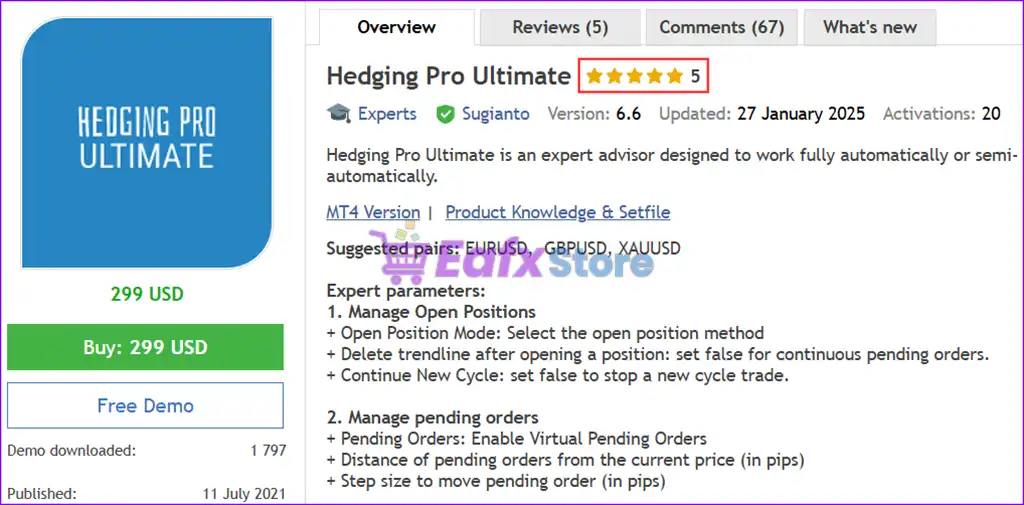
🔢 Hedging Pro Ultimate MT5 Settings Explained – Complete Parameter Guide
Hedging Pro Ultimate EA is a comprehensive MetaTrader 5 Expert Advisor designed for hedge and grid trading with advanced money management, martingale controls, pending order strategies, partial close management, trailing systems, news filtering and flexible session scheduling.
It provides traders with extensive customization options for controlling risk, optimizing entries, and automating trade management across various market conditions.

🔢 Hedging Pro Ultimate MT5 Parameters Explained
🔶 Open Position Settings
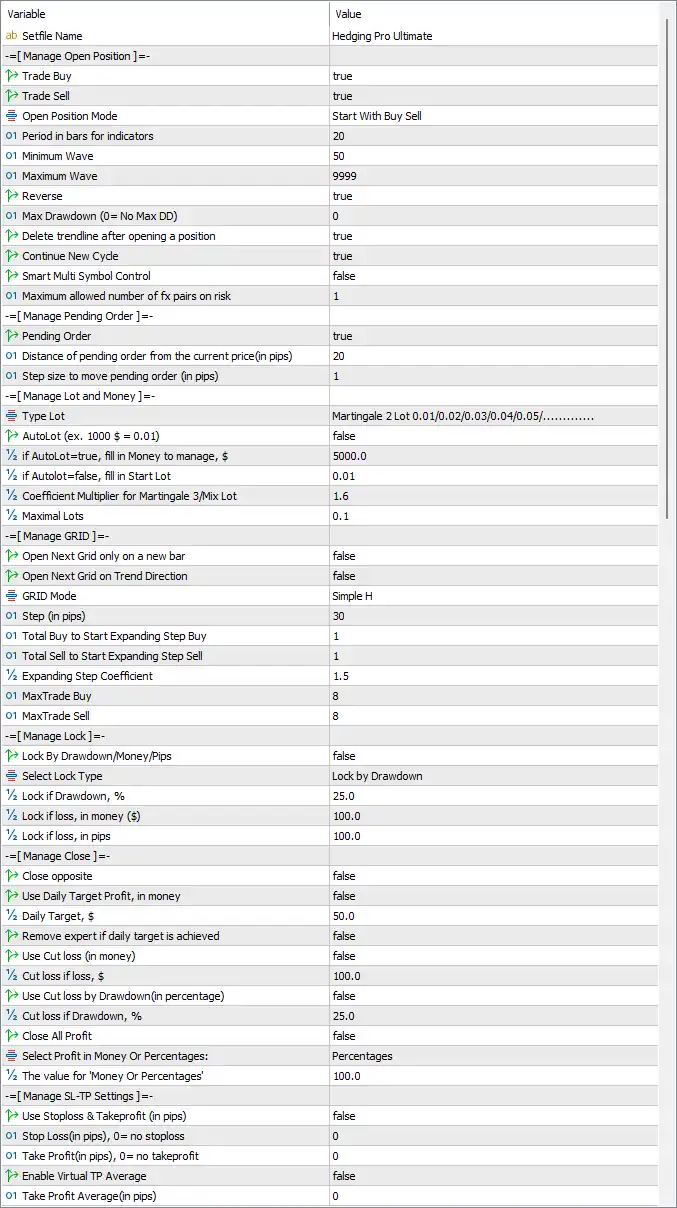
🔹 Trade Buy = true – Enables the EA to open Buy positions.
🔹 Trade Sell = true – Enables the EA to open Sell positions.
🔹 Open Position Mode = Start With Buy Sell – Starts trading by allowing both Buy and Sell positions.
🔹 Period in bars for indicators = 20 – Uses the last 20 bars for indicator calculations.
🔹 Minimum Wave = 50 – Defines the minimum market wave size required before opening trades.
🔹 Maximum Wave = 9999 – Sets the maximum wave size accepted for trading.
🔹 Reverse = true – Enables reverse trading logic.
🔹 Max Drawdown (0 = No Max DD) = 0 – Disables maximum drawdown limitation.
🔹 Delete trendline after opening a position = true – Removes trendlines automatically after a trade is opened.
🔹 Continue New Cycle = true – Starts a new trading cycle automatically after completing the previous one.
🔹 Smart Multi Symbol Control = false – Disables automatic multi-symbol management.
🔹 Maximum allowed number of FX pairs on risk = 1 – Limits simultaneous risk exposure to 1 currency pair.
🔶 Pending Order Settings
🔹 Pending Order = true – Enables pending order trading.
🔹 Distance of pending order from the current price (in pips) = 20 – Places pending orders 20 pips away from the current market price.
🔹 Step size to move pending order (in pips) = 1 – Adjusts pending orders in 1-pip increments.
🔶 Lot Size & Money Management
🔹 Type Lot = Martingale 2 Lot 0.01/0.02/0.03/0.04/0.05/... – Uses the predefined Martingale lot progression model.
🔹 AutoLot = false – Disables automatic lot size calculation.
🔹 If AutoLot=true, fill in Money to manage = $5000.0 – Uses $5000.0 as the balance reference if AutoLot is enabled.
🔹 If AutoLot=false, fill in Start Lot = 0.01 – Starts trading with 0.01 lots.
🔹 Coefficient Multiplier for Martingale 3/Mix Lot = 1.6 – Uses a 1.6 multiplier for Martingale lot progression.
🔹 Maximal Lots = 0.1 – Limits the maximum position size to 0.1 lots.
🔶 Grid Management
🔹 Open Next Grid only on a new bar = false – Allows new grid orders without waiting for a new candle.
🔹 Open Next Grid on Trend Direction = false – Does not require trend confirmation before opening new grid positions.
🔹 GRID Mode = Simple H – Uses the Simple H grid algorithm.
🔹 Step (in pips) = 30 – Places each new grid level 30 pips apart.
🔹 Total Buy to Start Expanding Step Buy = 1 – Begins expanding Buy grid spacing after 1 Buy trade.
🔹 Total Sell to Start Expanding Step Sell = 1 – Begins expanding Sell grid spacing after 1 Sell trade.
🔹 Expanding Step Coefficient = 1.5 – Multiplies grid spacing by 1.5 during expansion.
🔹 MaxTrade Buy = 8 – Allows up to 8 Buy trades.
🔹 MaxTrade Sell = 8 – Allows up to 8 Sell trades.
🔶 Lock Management
🔹 Lock By Drawdown/Money/Pips = false – Disables automatic trade locking.
🔹 Select Lock Type = Lock by Drawdown – Uses drawdown as the lock trigger when enabled.
🔹 Lock if Drawdown, % = 25.0 – Locks positions when drawdown reaches 25.0%.
🔹 Lock if loss, in money ($) = 100.0 – Locks trades after $100.0 floating loss.
🔹 Lock if loss, in pips = 100.0 – Locks trades after 100.0 pips of loss.
🔶 Close Management
🔹 Close opposite = false – Does not close opposite-direction trades automatically.
🔹 Use Daily Target Profit, in money = false – Disables daily profit target control.
🔹 Daily Target, $ = 50.0 – Daily profit target is $50.0 when enabled.
🔹 Remove expert if daily target is achieved = false – Keeps the EA running after reaching the daily target.
🔹 Use Cut loss (in money) = false – Disables money-based stop loss.
🔹 Cut loss if loss, $ = 100.0 – Cuts losses at $100.0 when enabled.
🔹 Use Cut loss by Drawdown (in percentage) = false – Disables percentage drawdown stop.
🔹 Cut loss if Drawdown, % = 25.0 – Uses 25.0% drawdown threshold when enabled.
🔹 Close All Profit = false – Does not automatically close all profitable positions.
🔹 Select Profit in Money Or Percentages = Percentages – Measures profit targets as percentages.
🔹 The value for "Percentages" = 100.0 – Uses 100.0% as the percentage target.
🔶 Stop Loss & Take Profit
🔹 Use Stoploss & Takeprofit (in pips) = false – Disables fixed Stop Loss and Take Profit.
🔹 Stop Loss (in pips), 0 = no stoploss = 0 – No Stop Loss is applied.
🔹 Take Profit (in pips), 0 = no takeprofit = 0 – No Take Profit is applied.
🔹 Enable Virtual TP Average = false – Disables virtual average Take Profit.
🔹 Take Profit Average (in pips) = 0 – Average Take Profit is disabled.
🔶 Trailing Stop
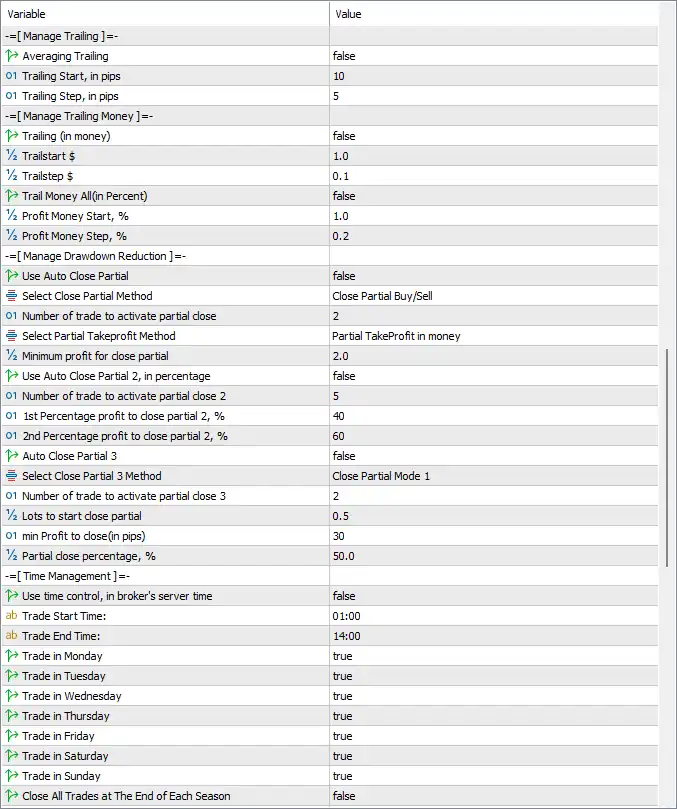
🔹 Averaging Trailing = false – Disables averaging-based trailing.
🔹 Trailing Start, in pips = 10 – Starts trailing after 10 pips of profit.
🔹 Trailing Step, in pips = 5 – Updates the trailing stop every 5 pips.
🔶 Money Trailing
🔹 Trailing (in money) = false – Disables money-based trailing.
🔹 Trailstart $ = 1.0 – Starts trailing after $1.0 profit.
🔹 Trailstep $ = 0.1 – Updates trailing every $0.1.
🔹 Trail Money All (in Percent) = false – Disables percentage-based money trailing.
🔹 Profit Money Start, % = 1.0 – Starts percentage trailing after 1.0% profit.
🔹 Profit Money Step, % = 0.2 – Updates trailing every 0.2%.
🔶 Drawdown Reduction
🔹 Use Auto Close Partial = false – Disables automatic partial closing.
🔹 Select Close Partial Method = Close Partial Buy/Sell – Uses Buy/Sell partial closing logic.
🔹 Number of trade to activate partial close = 2 – Partial closing activates after 2 trades.
🔹 Select Partial Takeprofit Method = Partial TakeProfit in money – Uses money-based partial Take Profit.
🔹 Minimum profit for close partial = 2.0 – Requires 2.0 profit before partial close.
🔹 Use Auto Close Partial 2, in percentage = false – Disables percentage-based partial close.
🔹 Number of trade to activate partial close 2 = 5 – Activates after 5 trades.
🔹 1st Percentage profit to close partial 2, % = 40 – First partial close occurs at 40%.
🔹 2nd Percentage profit to close partial 2, % = 60 – Second partial close occurs at 60%.
🔹 Auto Close Partial 3 = false – Disables the third partial closing method.
🔹 Select Close Partial 3 Method = Close Partial Mode 1 – Uses Close Partial Mode 1.
🔹 Number of trade to activate partial close 3 = 2 – Activates after 2 trades.
🔹 Lots to start close partial = 0.5 – Starts partial closing when total lots reach 0.5.
🔹 Min Profit to close (in pips) = 30 – Requires at least 30 pips before closing partially.
🔹 Partial close percentage, % = 50.0 – Closes 50.0% of the position.
🔶 Time Management
🔹 Use time control, in broker's server time = false – Disables broker-time scheduling.
🔹 Trade Start Time = 01:00 – Trading starts at 01:00.
🔹 Trade End Time = 14:00 – Trading ends at 14:00.
🔹 Trade in Monday = true – Enables Monday trading.
🔹 Trade in Tuesday = true – Enables Tuesday trading.
🔹 Trade in Wednesday = true – Enables Wednesday trading.
🔹 Trade in Thursday = true – Enables Thursday trading.
🔹 Trade in Friday = true – Enables Friday trading.
🔹 Trade in Saturday = true – Enables Saturday trading.
🔹 Trade in Sunday = true – Enables Sunday trading.
🔹 Close All Trades at The End of Each Season = false – Keeps trades open after each trading season.
🔶 Session Management
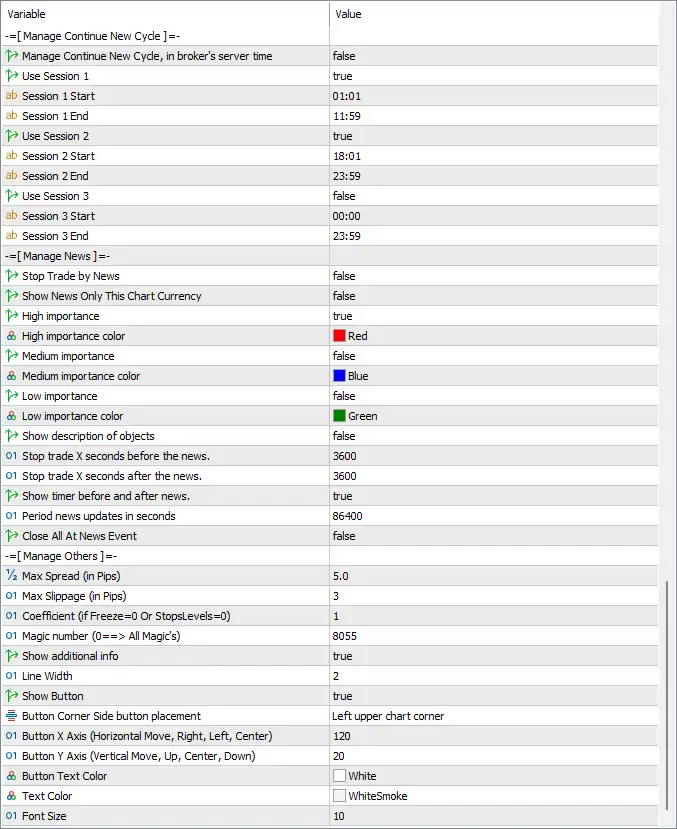
🔹 Manage Continue New Cycle, in broker's server time = false – Disables session-based new cycle management.
🔹 Use Session 1 = true – Enables Session 1.
🔹 Session 1 Start = 01:01 – Session 1 begins at 01:01.
🔹 Session 1 End = 11:59 – Session 1 ends at 11:59.
🔹 Use Session 2 = true – Enables Session 2.
🔹 Session 2 Start = 18:01 – Session 2 begins at 18:01.
🔹 Session 2 End = 23:59 – Session 2 ends at 23:59.
🔹 Use Session 3 = false – Disables Session 3.
🔹 Session 3 Start = 00:00 – Session 3 start time.
🔹 Session 3 End = 23:59 – Session 3 end time.
🔶 News Management
🔹 Stop Trade by News = false – News trading protection is disabled.
🔹 Show News Only This Chart Currency = false – Displays news for all currencies.
🔹 High importance = true – Shows High-impact news.
🔹 High importance color = Red – High-impact events are displayed in Red.
🔹 Medium importance = false – Medium-impact news is disabled.
🔹 Medium importance color = Blue – Medium-impact events use Blue.
🔹 Low importance = false – Low-impact news is disabled.
🔹 Low importance color = Green – Low-impact events use Green.
🔹 Show description of objects = false – Hides news descriptions.
🔹 Stop trade X seconds before the news = 3600 – Stops trading 3600 seconds (60 minutes) before news.
🔹 Stop trade X seconds after the news = 3600 – Resumes trading 3600 seconds (60 minutes) after news.
🔹 Show timer before and after news = true – Displays a countdown timer around news events.
🔹 Period news updates in seconds = 86400 – Updates economic news every 86400 seconds (24 hours).
🔹 Close All At News Event = false – Does not close open trades during news.
🔶 Other Settings
🔹 Max Spread (In Pips) = 5.0 – Maximum allowed spread is 5.0 pips.
🔹 Max Slippage (In Pips) = 3 – Maximum permitted slippage is 3 pips.
🔹 Coefficient (if Freeze=0 Or StopsLevels=0) = 1 – Uses coefficient 1 for broker compatibility.
🔹 Magic number (0==> All Magic's) = 8055 – Uses Magic Number 8055.
🔹 Show additional info = true – Displays extra information on the chart.
🔹 Line Width = 2 – Sets chart object line width to 2.
🔹 Show Button = true – Displays the EA control button.
🔹 Button Corner Side button placement = Left upper chart corner – Places the control button in the upper-left corner.
🔹 Button X Axis (Horizontal Move, Right, Left, Center) = 120 – Horizontal button offset is 120.
🔹 Button Y Axis (Vertical Move, Up, Center, Down) = 20 – Vertical button offset is 20.
🔹 Button Text Color = White – Button text is displayed in White.
🔹 Text Color = WhiteSmoke – General interface text uses WhiteSmoke.
🔹 Font Size = 10 – Interface font size is 10.
🔢 Conclusion
Hedging Pro Ultimate MT5 is a highly configurable Expert Advisor built for traders who use hedging, grid trading, and Martingale-based strategies. With advanced controls for sessions, pending orders, trailing stops, drawdown reduction, partial profit taking, money management, and news filtering, it offers exceptional flexibility for adapting automated trading to different market environments and individual risk preferences.
🔢 FAQs
❓ Does Hedging Pro Ultimate MT5 support both Buy and Sell trading?
Yes. By default, both Trade Buy and Trade Sell are enabled, allowing simultaneous long and short trading.
❓ Can Hedging Pro Ultimate MT5 use Martingale money management?
Yes. The EA includes a configurable Martingale lot progression with a 1.6 coefficient multiplier and customizable maximum lot size.
❓ Does the EA include grid trading features?
Yes. It offers a built-in grid system with adjustable grid spacing, expansion coefficients, and separate Buy/Sell trade limits.
❓ Can I restrict trading to specific sessions?
Yes. The EA supports up to three configurable trading sessions with independent start and end times.
❓ Does Hedging Pro Ultimate MT5 provide partial profit management?
Yes. It supports multiple partial close methods, money-based and percentage-based profit targets, and customizable partial closing rules for effective drawdown reduction.


