

Introduction
EliteFX EA is an automated trading Expert Advisor (EA) designed for the MetaTrader 4 platform. It combines trend-following and counter-trend trading strategies with configurable money management, averaging functionality, and automated trade management.

The EA features separate Buy and Sell trading controls for both Trend and Counter Trend strategies, allowing traders to configure different trading directions and operating periods. Its technical analysis system combines Stochastic and Moving Average indicators for trend identification, alongside a second Stochastic configuration for counter-trend signals.
EliteFX EA MT4 also provides adjustable lot sizing, grid range management, maximum trading levels, Stop Loss (SL), Take Profit (TP), and Trailing stop functionality. These settings allow traders to customize trade execution, position management, and profit protection according to their trading preferences.
EliteFX EA MT4 Settings Explained
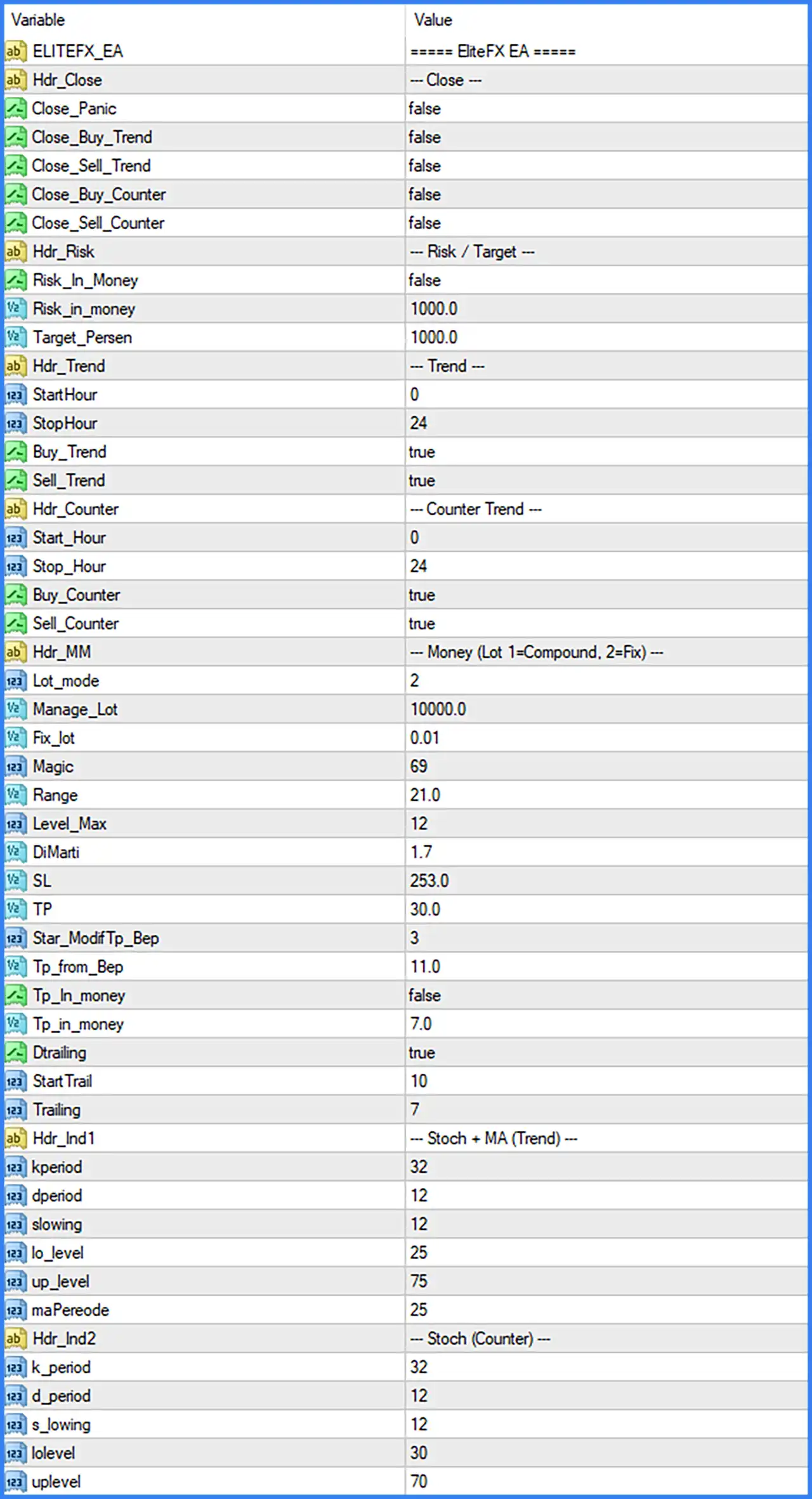
1. Close Settings
🔹 ELITEFX_EA = EliteFX EA – Main configuration header identifying the Expert Advisor and organizing its input parameters.
🔹 Hdr_Close = Close – Section header containing the available trade-closing and emergency closing controls.
🔹 Close_Panic = false – Disables the panic-closing function, meaning the EA will not activate this specific emergency option under the supplied configuration.
🔹 Close_Buy_Trend = false – Disables the automatic closing command for Buy positions opened by the trend-following strategy.
🔹 Close_Sell_Trend = false – Disables the automatic closing command for Sell positions opened by the trend-following strategy.
🔹 Close_Buy_Counter = false – Disables the automatic closing command for Buy positions opened by the counter-trend strategy.
🔹 Close_Sell_Counter = false – Disables the automatic closing command for Sell positions opened by the counter-trend strategy.
2. Risk and Target Settings
🔹 Hdr_Risk = Risk / Target – Section header containing the EA's risk calculation and target configuration parameters.
🔹 Risk_In_Money = false – Disables the money-based risk configuration mode, indicating that the EA is not using this particular option as its active risk calculation method.
🔹 Risk_in_money = 1000.0 – Sets the monetary risk reference to 1000.0 in the account currency, used when the corresponding money-based risk function is activated.
🔹 Target_Persen = 1000.0 – Sets the target percentage parameter to 1000.0, providing the configured reference for the EA's percentage-based target management.
3. Trend Settings
🔹 Hdr_Trend = Trend – Section header containing the trading schedule and Buy/Sell controls for the trend-following strategy.
🔹 StartHour = 0 – Sets the trend-following trading start hour to 0, allowing the EA to begin its configured trading window at midnight server time.
🔹 StopHour = 24 – Sets the trend-following trading end hour to 24, representing the full-day trading schedule.
🔹 Buy_Trend = true – Enables Buy trades generated by the trend-following strategy when the required trading conditions are satisfied.
🔹 Sell_Trend = true – Enables Sell trades generated by the trend-following strategy when the required trading conditions are satisfied.
4. Counter Trend Settings
🔹 Hdr_Counter = Counter Trend – Section header containing the trading schedule and direction controls for the counter-trend strategy.
🔹 Start_Hour = 0 – Sets the counter-trend trading start hour to 0, allowing the strategy to operate from midnight server time.
🔹 Stop_Hour = 24 – Sets the counter-trend trading end hour to 24, defining a full-day operating schedule.
🔹 Buy_Counter = true – Enables Buy positions generated by the counter-trend strategy when its entry conditions are met.
🔹 Sell_Counter = true – Enables Sell positions generated by the counter-trend strategy when its entry conditions are met.
5. Money Management Settings
🔹 Hdr_MM = Money (Lot 1=Compound, 2=Fix) – Section header identifying the money management configuration, where Lot Mode 1 represents Compound and Lot Mode 2 represents Fixed lot sizing.
🔹 Lot_mode = 2 – Selects Fixed Lot mode, meaning the EA uses a predefined lot size instead of the Compound lot configuration.
🔹 Manage_Lot = 10000.0 – Sets the account capital reference for lot management to 10000.0, used by the EA's money management calculation.
🔹 Fix_lot = 0.01 – Sets the fixed trading volume to 0.01 lots for each applicable position under the selected Fixed Lot mode.
🔹 Magic = 69 – Assigns Magic Number 69 to identify and distinguish trades managed by EliteFX EA MT4 from other trading systems or manual positions.
6. Grid and Position Management Settings
🔹 Range = 21.0 – Sets the grid range parameter to 21.0, defining the configured distance or range used by the EA's grid and position management logic.
🔹 Level_Max = 12 – Limits the configured maximum grid or trading level to 12, controlling how many levels the EA can use within its position management system.
🔹 DiMarti = 1.7 – Sets the DiMarti multiplier to 1.7, defining the configured multiplier for the EA's averaging or position-sizing mechanism.
7. Stop Loss and Take Profit Settings
🔹 SL = 253.0 – Sets the Stop Loss parameter to 253.0 points, defining the configured stop-loss distance for applicable trades.
🔹 TP = 30.0 – Sets the Take Profit parameter to 30.0 points, establishing the configured profit-taking distance for applicable positions.
🔹 Star_ModifTp_Bep = 3 – Sets the starting modification level to 3 for the EA's Take Profit and breakeven-related management function.
🔹 Tp_from_Bep = 11.0 – Sets the Take Profit distance from the breakeven reference to 11.0, defining the configured profit-target offset after breakeven management is applied.
🔹 Tp_In_money = false – Disables monetary-based Take Profit management, indicating that the EA is not using this particular money-based TP option.
🔹 Tp_in_money = 7.0 – Sets the monetary Take Profit reference to 7.0 in the account currency when the corresponding money-based TP function is enabled.
8. Trailing Stop Settings
🔹 Dtrailing = true – Enables the trailing management function, allowing the EA to adjust stop-loss levels as positions move into favorable profit territory.
🔹 StartTrail = 10 – Sets the trailing activation threshold to 10 points, defining when the EA begins applying its trailing management logic.
🔹 Trailing = 7 – Sets the trailing distance parameter to 7 points, defining the configured distance used to follow favorable price movements and protect accumulated profits.
9. Stochastic + Moving Average (Trend) Settings
🔹 Hdr_Ind1 = Stoch + MA (Trend) – Section header identifying the technical indicator configuration used by the EA's trend-following strategy.
🔹 kperiod = 32 – Sets the Stochastic %K period to 32, determining the number of price periods used for the main Stochastic calculation.
🔹 dperiod = 12 – Sets the Stochastic %D period to 12, defining the smoothing period used for the Stochastic signal line.
🔹 slowing = 12 – Sets the Stochastic slowing value to 12, controlling the additional smoothing applied to the %K calculation.
🔹 lo_level = 25 – Sets the lower Stochastic reference level to 25, providing an oversold threshold for the indicator-based trading conditions.
🔹 up_level = 75 – Sets the upper Stochastic reference level to 75, providing an overbought threshold for the indicator-based trading conditions.
🔹 maPereode = 25 – Sets the Moving Average period to 25, defining the number of price periods used for the trend-filter calculation.
10. Stochastic (Counter Trend) Settings
🔹 Hdr_Ind2 = Stoch (Counter) – Section header identifying the Stochastic indicator configuration used by the counter-trend trading strategy.
🔹 k_period = 32 – Sets the counter-trend Stochastic %K period to 32, determining the number of price periods used to calculate the main oscillator line.
🔹 d_period = 12 – Sets the counter-trend Stochastic %D period to 12, defining the smoothing period for the oscillator's signal line.
🔹 s_lowing = 12 – Sets the counter-trend Stochastic slowing value to 12, controlling the additional smoothing applied to the indicator calculation.
🔹 lolevel = 30 – Sets the lower Stochastic threshold to 30, providing the oversold reference level for counter-trend Buy signal identification.
🔹 uplevel = 70 – Sets the upper Stochastic threshold to 70, providing the overbought reference level for counter-trend Sell signal identification.
Conclusion
EliteFX EA MT4 offers a combination of trend-following and counter-trend trading strategies supported by Stochastic and Moving Average indicators. Its configurable trading directions allow both Buy and Sell operations across the two strategy categories.
The supplied configuration uses Fixed Lot mode with a lot size of 0.01, Magic Number 69, a maximum grid level of 12, and a DiMarti multiplier of 1.7. Its Stop Loss is configured at 253.0 points, while Take Profit is set to 30.0 points.
The EA also enables trailing management with StartTrail = 10 and Trailing = 7, providing an additional mechanism for managing profitable positions.
Before using EliteFX EA MT4 on a live account, traders should carefully evaluate its averaging multiplier, maximum grid levels, Stop Loss configuration, and the interaction between trend and counter-trend strategies. Backtesting and demo testing are recommended to assess its trading behavior under different market conditions.