

🔢 Synthetic Metal EA MT5 Settings Explained – Complete Parameter Guide
Synthetic Metal EA is an advanced MetaTrader 5 Expert Advisor designed for automated metal and synthetic instrument trading. It combines flexible money management, grid trading, multi-timeframe SuperTrend filtering, news protection, lock management, and time-based trading controls to help traders optimize performance while maintaining risk control.

🔢 Installation Panel Parameters
Below are the details of the parameters in the advisor’s trading system settings table:
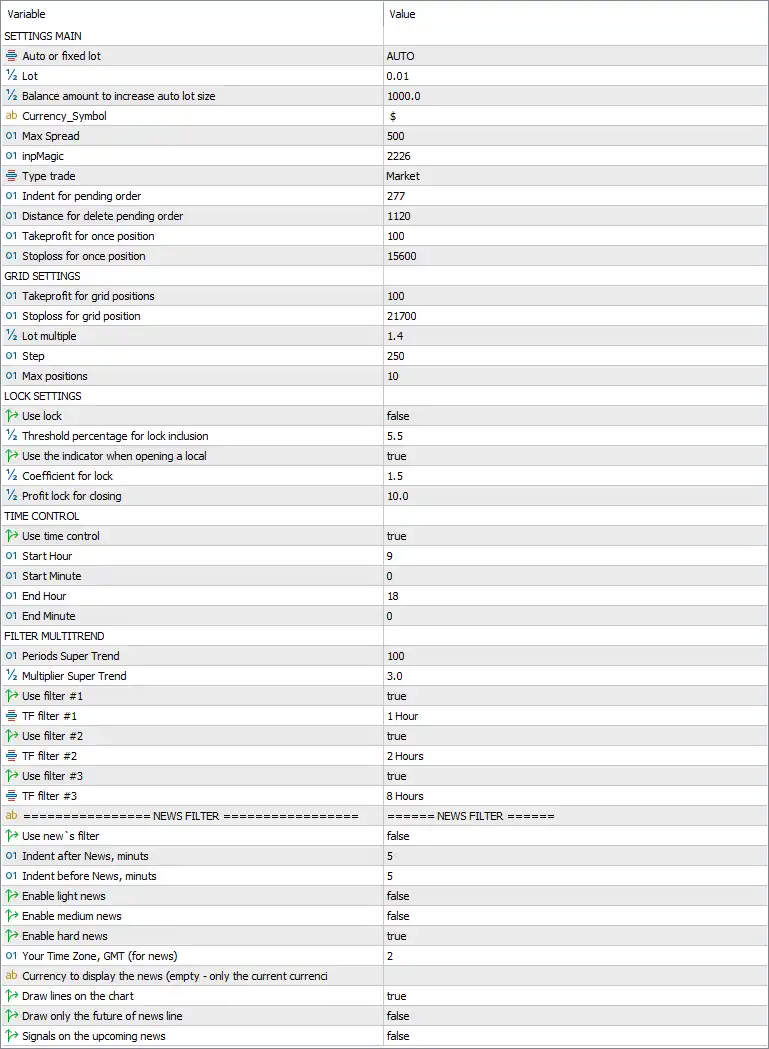
🔶 Main Settings
🔹 Auto or fixed lot = AUTO – Enables automatic lot sizing based on account balance instead of using a permanently fixed lot size.
🔹 Lot = 0.01 – Sets the base trading volume to 0.01 lots when fixed lot mode is used.
🔹 Balance amount to increase auto lot size = 1000.0 – Increases the automatically calculated lot size for every 1000.0 units of account balance.
🔹 Currency_Symbol = $ – Defines $ as the account currency symbol used by the EA.
🔹 Max Spread = 500 – Allows new trades only when the market spread is 500 points or below.
🔹 InpMagic = 2226 – Assigns the unique Magic Number 2226 for identifying and managing the EA's trades.
🔹 Type trade = Market – Executes trades using Market Orders.
🔹 Indent for pending order = 277 – Sets the pending order placement distance to 277 points from the reference price.
🔹 Distance for delete pending order = 1120 – Deletes pending orders when they exceed a distance of 1120 points.
🔹 Takeprofit for once position = 100 – Sets the Take Profit for individual trades to 100 points.
🔹 Stoploss for once position = 15600 – Sets the Stop Loss for individual positions to 15600 points.
🔶 Grid Settings
🔹 Takeprofit for grid positions = 100 – Closes grid positions at a collective Take Profit of 100 points.
🔹 Stoploss for grid position = 21700 – Sets the Stop Loss for grid positions to 21700 points.
🔹 Lot multiple = 1.4 – Multiplies each successive grid order size by 1.4.
🔹 Step = 250 – Opens the next grid position every 250 points.
🔹 Max positions = 10 – Limits the maximum number of simultaneously open grid positions to 10.
🔶 Lock Settings
🔹 Use lock = false – Disables the lock (hedging) protection system.
🔹 Threshold percentage for lock inclusion = 5.5 – Triggers the lock mechanism when drawdown reaches 5.5% if enabled.
🔹 Use the indicator when opening a local = true – Requires indicator confirmation before opening a lock position.
🔹 Coefficient for lock = 1.5 – Uses a lock coefficient multiplier of 1.5.
🔹 Profit lock for closing = 10.0 – Closes lock positions after reaching 10.0 profit units.
🔶 Time Control
🔹 Use time control = true – Restricts trading to a predefined trading schedule.
🔹 Start Hour = 9 – Begins trading at 09:00.
🔹 Start Minute = 0 – Starts trading at 09:00 exactly.
🔹 End Hour = 18 – Stops opening new trades at 18:00.
🔹 End Minute = 0 – Ends trading at 18:00 exactly.
🔶 Multi-Timeframe Trend Filter
🔹 Periods Super Trend = 100 – Uses a 100-period SuperTrend calculation.
🔹 Multiplier Super Trend = 3.0 – Applies a SuperTrend multiplier of 3.0.
🔹 Use filter #1 = true – Enables the first trend confirmation filter.
🔹 TF filter #1 = 1 Hour – Uses the H1 timeframe for Filter #1.
🔹 Use filter #2 = true – Enables the second trend confirmation filter.
🔹 TF filter #2 = 2 Hours – Uses the H2 timeframe for Filter #2.
🔹 Use filter #3 = true – Enables the third trend confirmation filter.
🔹 TF filter #3 = 8 Hours – Uses the H8 timeframe for Filter #3.
🔶 News Filter
🔹 Use news filter = false – Disables automatic news filtering.
🔹 Indent after News, minutes = 5 – Waits 5 minutes after a news event before resuming trading.
🔹 Indent before News, minutes = 5 – Stops trading 5 minutes before scheduled news.
🔹 Enable light news = false – Ignores low-impact economic news.
🔹 Enable medium news = false – Ignores medium-impact economic news.
🔹 Enable hard news = true – Filters trading around high-impact news events.
🔹 Your Time Zone, GMT (for news) = 2 – Uses GMT+2 when processing economic news.
🔹 Currency to display the news (empty - only the current currency) – Specifies which currency's news should be monitored; leaving it empty uses the current trading symbol automatically.
🔹 Draw lines on the chart = true – Displays news event lines directly on the trading chart.
🔹 Draw only the future of news line = false – Displays both historical and future news lines.
🔹 Signals on the upcoming news = false – Disables advance notifications for upcoming news events.
🔢 Conclusion
Synthetic Metal EA MT5 offers a comprehensive trading framework that combines automatic lot sizing, advanced grid management, SuperTrend multi-timeframe filtering, trading session control, optional lock protection and configurable news filtering.
With adjustable risk parameters and flexible trade management settings, traders can customize the EA to suit various market conditions while maintaining disciplined money management and execution control.
🔢 FAQs
❓ What order type does Synthetic Metal EA MT5 use?
The default configuration uses Market Orders, allowing trades to be executed immediately at the current market price.
❓ Does Synthetic Metal EA MT5 support automatic lot sizing?
Yes. The EA is configured with AUTO lot sizing, increasing position size based on every 1000.0 units of account balance.
❓ Can I restrict trading to specific hours?
Yes. The built-in Time Control allows trading only between 09:00 and 18:00.
❓ How does the SuperTrend filter work?
The EA uses a 100-period SuperTrend with a 3.0 multiplier across H1, H2, and H8 timeframes for multi-timeframe trend confirmation.
❓ Does Synthetic Metal EA MT5 include a news filter?
Yes. The EA supports an economic news filter with configurable pre-news and post-news delays, high-impact news protection, and chart-based news visualization.