


Tokyo EA MT5 is an automated trading Expert Advisor (EA) designed for the MetaTrader 5 platform. Its input settings provide controls for buy and sell trading, hedging, money management, order limits, Stop Loss (SL) and Take Profit (TP) configurations, dynamic order distances, drawdown reduction, and chart panel customization.
The supplied configuration includes options for opening new trading series, supporting manual orders, using virtual or real trade levels, and adjusting order spacing as a series develops. It also provides a configurable on-chart information panel with customizable colors, fonts, and button states.
Understanding these parameters helps traders configure Tokyo EA MT5 according to their trading preferences, account conditions, and risk management requirements. This guide explains every parameter shown in the provided Inputs panel, preserving the exact names and default values.
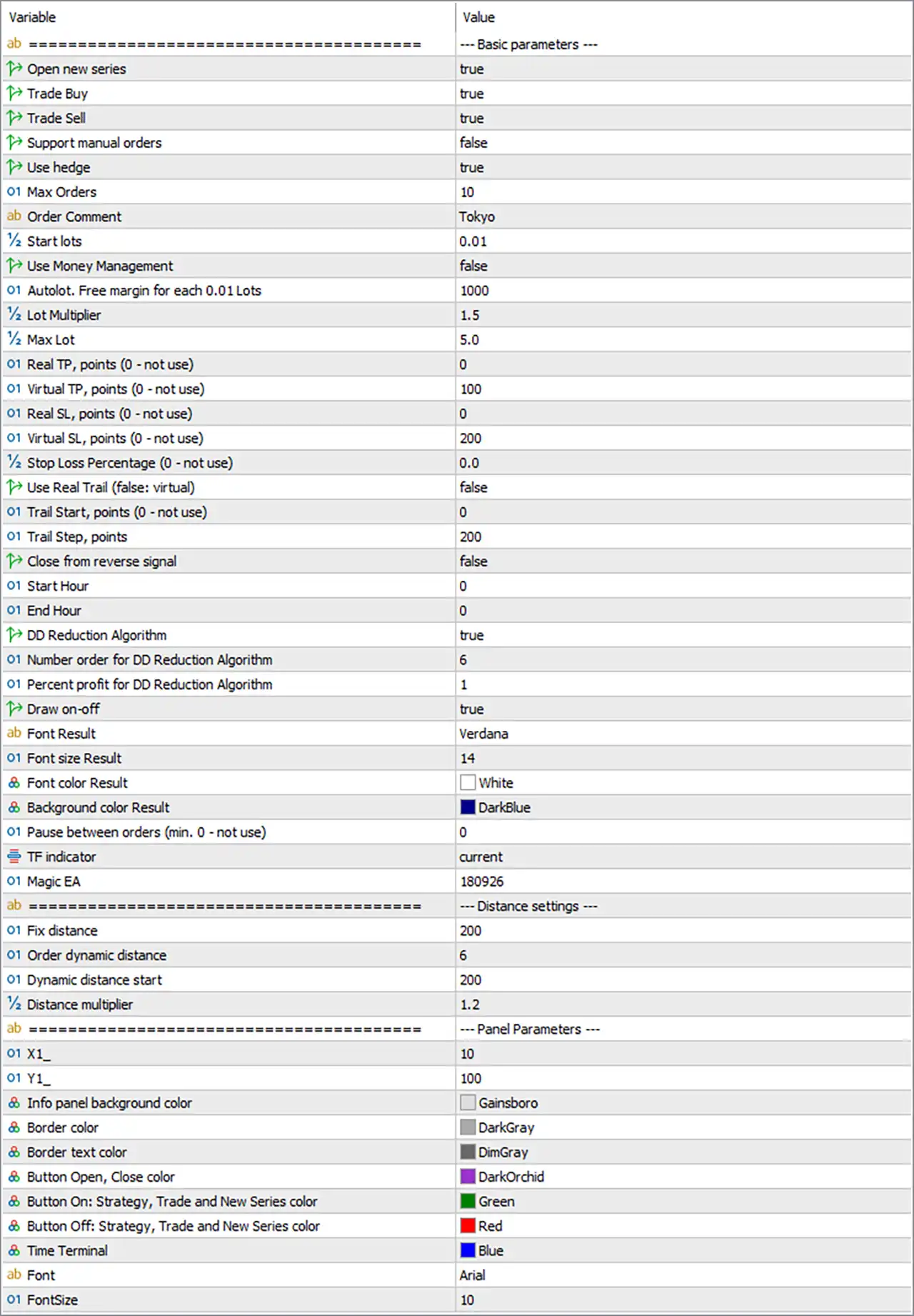
1. Basic Parameters
🔹 Basic parameters = Section Header: Identifies the main configuration section containing the EA’s primary trading controls, order management options, and general display settings.
🔹 Open new series = true: Enables the EA to open new trading series when its programmed entry conditions are satisfied. The precise definition of a series depends on the EA’s trading logic.
🔹 Trade Buy = true: Enables BUY trading. The EA is permitted to open buy positions when its entry conditions are met and other trading restrictions allow execution.
🔹 Trade Sell = true: Enables SELL trading. The EA is permitted to open sell positions when its programmed entry conditions are met.
🔹 Support manual orders = false: Disables the option for the EA to manage or recognize manually opened orders as part of its strategy. The exact behavior depends on how the EA identifies and processes manual trades.
🔹 Use hedge = true: Enables the EA’s hedging functionality. Depending on its implementation and account type, this may allow opposing buy and sell positions or other hedging-related trade management. Broker account rules determine whether simultaneous opposing positions are permitted.
🔹 Max Orders = 10: Sets the maximum configured order count to 10. This may limit the number of orders the EA can maintain within its trading logic, although the precise scope of the limit depends on how the EA counts positions and pending orders.
🔹 Order Comment = Tokyo: Sets the order comment to “Tokyo”. This label helps traders identify orders associated with Tokyo EA MT5 in the trading terminal and account history.
🔹 Start lots = 0.01: Sets the initial trading volume to 0.01 lots. This is the starting volume used when the EA opens a new series, subject to the selected money management mode and broker volume requirements.
🔹 Use Money Management = false: Disables the EA’s money management feature. The robot is therefore configured not to use this particular automatic money management function, although the exact interaction with the AutoLot and lot multiplier parameters depends on its internal logic.
🔹 Autolot. Free margin for each 0.01 Lots = 1000: Sets the automatic lot-sizing reference to 1000 units of free margin for each 0.01 lots. This parameter is relevant when the EA’s automatic lot calculation is used; the account currency and precise calculation method should be confirmed.
🔹 Lot Multiplier = 1.5: Sets the lot multiplier to 1.5. If the EA applies this multiplier to subsequent orders, each increased order volume may be calculated by multiplying the previous volume by 1.5, potentially increasing exposure as the series progresses.
🔹 Max Lot = 5.0: Sets the maximum configured lot size to 5.0 lots. This may cap individual order volume or the EA’s calculated lot size, depending on its implementation. Broker volume limits may impose additional restrictions.
🔹 Real TP, points (0 – not use) = 0: Disables the real take-profit setting because its value is 0. The EA will not use this particular real TP parameter, although virtual targets or other programmed exit conditions may still apply.
🔹 Virtual TP, points (0 – not use) = 100: Sets the virtual take-profit distance to 100 points. A virtual target is generally managed by the EA rather than submitted as a conventional broker-side take-profit order, but the exact implementation should be verified.
🔹 Real SL, points (0 – not use) = 0: Disables the real stop-loss setting because its value is 0. This means the EA is not configured to use this particular real SL parameter, so other risk controls and exit mechanisms become especially important.
🔹 Virtual SL, points (0 – not use) = 200: Sets the virtual stop-loss distance to 200 points. If implemented conventionally, the EA monitors the position and applies its virtual exit rule when the specified loss distance is reached. Unlike a broker-side stop loss, a virtual stop may depend on the EA remaining active and able to execute the closing order.
🔹 Stop Loss Percentage (0 – not use) = 0.0: Disables the percentage-based stop-loss parameter because the value is 0.0. The EA will not apply this particular percentage threshold unless the value is changed and the feature is supported by its programmed logic.
🔹 Use Real Trail (false: virtual) = false: Selects the virtual trailing mode rather than real broker-side trailing. If the EA implements the option conventionally, it manages trailing conditions internally instead of submitting a real trailing stop to the broker.
🔹 Trail Start, points (0 – not use) = 0: Disables the specified trailing-start threshold because the value is 0. The exact effect depends on the EA’s trailing logic, particularly because Use Real Trail = false selects virtual trailing behavior.
🔹 Trail Step, points = 200: Sets the trailing adjustment step to 200 points. This may determine the minimum price movement required before the EA updates its trailing level, subject to the strategy’s internal conditions.
🔹 Close from reverse signal = false: Disables closing positions based on a reverse signal. The EA will not use this particular reverse-signal exit mechanism while the setting remains false, although other exit conditions may still close trades.
🔹 Start Hour = 0: Sets the configured starting hour to 0, corresponding to 00:00 under a conventional 24-hour clock.
🔹 End Hour = 0: Sets the configured ending hour to 0, corresponding to 00:00 under a conventional 24-hour clock. Because both Start Hour and End Hour are 0, confirm how the EA interprets this combination; it may represent an unrestricted schedule, a specific time boundary, or another programmed behavior.
🔹 DD Reduction Algorithm = true: Enables the drawdown reduction algorithm. This feature may adjust trading behavior or order management in response to drawdown conditions, but its exact rules and risk-reduction mechanism depend on the EA’s implementation.
🔹 Number order for DD Reduction Algorithm = 6: Sets the order-related parameter for the drawdown reduction algorithm to 6. It may define the order count or stage at which the algorithm applies its reduction rules; verify the exact meaning in the EA documentation.
🔹 Percent profit for DD Reduction Algorithm = 1: Sets the profit-related threshold for the drawdown reduction algorithm to 1. The value may represent a percentage or another internal threshold, so its unit and application should be confirmed before trading.
🔹 Draw on-off = true: Enables the drawing of the EA’s supported visual objects on the chart. Depending on the implementation, these may include trading levels, series information, or other graphical indicators.
🔹 Font Result = Verdana: Sets the font used for the EA’s result display to Verdana. This controls the appearance of the relevant text elements in the interface.
🔹 Font size Result = 14: Sets the result-display font size to 14. This determines the relative text size of the EA’s result information.
🔹 Font color Result = White: Sets the result-display text color to White. The actual readability depends on the background color and the interface elements behind the text.
🔹 Background color Result = DarkBlue: Sets the result-display background color to DarkBlue, providing a dark background for the corresponding interface area.
🔹 Pause between orders (min. 0 – not use) = 0: Disables the configured pause between orders because the value is 0. The EA is not required to wait for a positive interval through this particular parameter, although other trading conditions may still delay order placement.
🔹 TF indicator = current: Sets the indicator timeframe to the current chart timeframe. Indicator calculations associated with this parameter may therefore use the timeframe of the chart to which the EA is attached.
🔹 Magic EA = 180926: Assigns the magic number 180926 to orders managed by Tokyo EA MT5. This identifier helps the EA distinguish its trades from manual orders and positions opened by other Expert Advisors.
2. Distance Settings
🔹 Distance settings = Section Header: Introduces the parameters controlling the spacing between orders and the progression of dynamic distances.
🔹 Fix distance = 200: Sets the fixed order-distance parameter to 200 points. This may determine the spacing between relevant order levels when fixed-distance logic is applied.
🔹 Order dynamic distance = 6: Sets the dynamic-distance parameter to 6. This may determine an order count, stage, or threshold at which dynamic spacing is applied; the exact meaning requires confirmation from the EA’s implementation.
🔹 Dynamic distance start = 200: Sets the starting value for dynamic order distance to 200 points. If the dynamic-distance feature is active, this may define the initial spacing used before subsequent adjustments.
🔹 Distance multiplier = 1.2: Sets the distance multiplier to 1.2. If applied progressively, this may increase the spacing between orders by a factor of 1.2 at each qualifying stage, depending on the EA’s distance calculation rules.
3. Panel Parameters
🔹 Panel Parameters = Section Header: Introduces the settings controlling the position, colors, buttons, and typography of the EA’s on-chart control panel.
🔹 X1_ = 10: Sets the panel’s horizontal positioning parameter to 10. This may represent a chart-relative offset in pixels or another coordinate unit, depending on the interface implementation.
🔹 Y1_ = 100: Sets the panel’s vertical positioning parameter to 100. This may determine the panel’s distance from a chart edge or its initial vertical placement.
🔹 Info panel background color = Gainsboro: Sets the information panel’s background color to Gainsboro, a light gray shade.
🔹 Border color = DarkGray: Sets the panel border color to DarkGray, providing a darker outline around the panel.
🔹 Border text color = DimGray: Sets the border-related text color to DimGray, a medium-dark gray shade.
🔹 Button Open, Close color = DarkOrchid: Sets the color of the Open and Close buttons to DarkOrchid, a purple shade that helps distinguish these controls within the panel.
🔹 Button On: Strategy, Trade and New Series color = Green: Sets the color for the enabled states of the Strategy, Trade, and New Series buttons to Green. This helps visually indicate when the relevant functions are switched on.
🔹 Button Off: Strategy, Trade and New Series color = Red: Sets the color for the disabled states of the Strategy, Trade, and New Series buttons to Red, making inactive controls easier to distinguish from enabled ones.
🔹 Time Terminal = Blue: Sets the display color for the terminal-time element to Blue. This controls the visual appearance of the time information within the panel.
🔹 Font = Arial: Sets the panel’s main font to Arial, a commonly used sans-serif typeface for interface text.
🔹 FontSize = 10: Sets the panel’s main font size to 10. This determines the size of text displayed in the panel’s standard interface elements.
Conclusion
The Tokyo EA MT5 settings provide extensive controls for trade direction, hedging, lot sizing, order limits, virtual and real exit levels, trailing behavior, drawdown reduction, dynamic order distances, and panel customization.
The supplied configuration enables both BUY and SELL trading, allows hedging, sets Start lots = 0.01, Max Orders = 10, Lot Multiplier = 1.5, and Max Lot = 5.0. It also enables the drawdown reduction algorithm and chart drawing, while the real take-profit, real stop-loss, percentage-based stop-loss, and real trailing options are not enabled through their respective default settings.
Pay particular attention to the risk implications of Use hedge = true, Lot Multiplier = 1.5, Max Orders = 10, and Max Lot = 5.0. If the EA increases position size across a series, exposure can grow quickly. Virtual stop-loss settings also require special attention because they may depend on the EA running continuously and successfully executing exit orders.
Before using Tokyo EA MT5 on a live account, verify the meaning of the dynamic-distance parameters, the drawdown reduction algorithm, the time settings, and the virtual exit logic. Backtest the strategy and forward-test it on a demo account to evaluate order accumulation, margin usage, and potential drawdown. No configuration guarantees profits or eliminates trading risk.